The Big Picture: Hundreds of Different Devices, One Simple View
I/O means input and output: anything that moves data in or out of the computer. Keyboards, mice, screens, disks, network cards, USB sticks, webcams, printers. There are thousands of makers and models, and they all work differently.
Chapter 4 showed the hardware side: buses, interrupts, DMA and registers. This section shows the OS side: how the OS makes all that variety look simple and safe for programs.
Here is the back of a PC. Every one of these sockets is a door through which the OS must handle data.
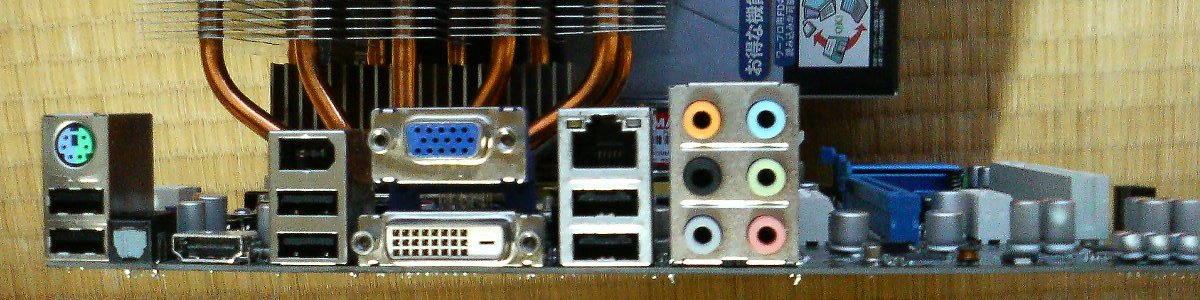
Figure 7.4 — The ports on the back of a PC: USB, network, video, audio. The OS runs a driver for each kind of device behind them. Photo: Hitachi-Train, public domain, via Wikimedia Commons.

The OS handles devices in layers:
┌───────────────────────────────┐
│  Program: "read this file"    │
├───────────────────────────────┤
│  File system  (5.5)           │  names, folders, files
├───────────────────────────────┤
│  Device abstraction  (5.1)    │  "a disk" is "a disk"
├───────────────────────────────┤
│  Driver  (5.2)                │  knows THIS exact device
├───────────────────────────────┤
│  Interrupts and DMA (5.3, 5.4)│  hardware signals and copying
├───────────────────────────────┤
│  The hardware device          │
└───────────────────────────────┘
5.1 Device Abstraction
What it is: The OS gives all devices of one kind the same simple interface, no matter who made them. A program that "writes to a disk" does not care whether it is a Samsung SSD, a Western Digital hard drive or a USB stick.
Classic idea: treat devices like files. In Linux, "everything is a file": a disk, a keyboard and a terminal all appear as entries you open, read and write. Windows is less extreme but has the same spirit: a program opens a handle (a ticket) to a device and calls simple functions such as read and write.
Device classes. The OS groups devices by how they behave:
| Class | Behaviour | Examples |
|---|---|---|
| Block devices | Data in fixed blocks, can jump to any block | SSD, hard drive, USB stick |
| Character (stream) devices | A stream of bytes, in order | Keyboard, serial port, mouse |
| Network devices | Packets coming and going | Ethernet, Wi-Fi |
| Display and graphics | Pictures and drawing commands | GPU, screen |
| Others | Special-purpose | Sound card, camera, sensors |
The benefit is huge:
- A programmer learns one way to read data, and it works everywhere.
- New devices work with old programs, because the interface is unchanged.
- The OS can add features for all devices of one class at once (for example, caching for all disks).
The OS also hides timing. Devices are slow compared to the CPU. The OS offers two styles:
| Style | What the program does | Example |
|---|---|---|
| Blocking (synchronous) | Asks, then sleeps until the data arrives | Simple file read |
| Non-blocking / asynchronous | Asks, carries on working, gets told later | A server handling thousands of connections |
5.2 Drivers (Device Communication)
What it is: A driver is a small program that knows how to talk to one specific kind of device. It translates the OS's simple, general commands into the exact register writes and data layouts that device needs.
The OS says "read block 500" in a standard way. The SSD driver turns that into the real commands for that controller (for NVMe SSDs, a command written into a queue, Chapter 4).
OS (general):  "read block 500 from disk 0"
                         │
              ┌──────────▼──────────┐
              │  Storage driver     │   knows NVMe commands
              └──────────┬──────────┘
                         ▼
Hardware:      controller starts reading the flash chips
Where drivers come from. Usually the device maker writes the driver. The OS defines the rules (a "driver model") and the maker follows them. Windows comes with many built-in drivers and can download more from Windows Update.
Important facts:
| Fact | Why it matters |
|---|---|
| Most drivers run in kernel mode (Section 7) | They have full power, so a buggy driver can crash the whole PC (the "blue screen") |
| Drivers are layered ("driver stack") | For a USB disk: USB controller driver, USB hub driver, USB storage driver, disk driver, file system driver |
| Some drivers run in user mode | Safer: a crash only kills that driver. Windows uses this for some devices such as printers and many sensors |
| Plug and Play (PnP) | The OS detects a new device, finds a matching driver and starts it, without a reboot |
How does the OS know which driver to use? Every device reports an ID (such as the vendor and device numbers found when the bus is scanned at boot, Chapter 4 Section 6). The OS matches the ID against its list of drivers, usually stored in .inf files on Windows.
On Windows: Open Device Manager (Win + X). A yellow triangle means the driver is missing or failing. Right-click a device → Properties → Driver shows the driver's version and date, and offers Roll Back Driver if an update caused trouble. PowerShell: Get-CimInstance Win32_PnPSignedDriver | Select-Object -First 10 DeviceName, DriverVersion.
5.3 Interrupt Handling
What it is: The OS is the one that receives and handles the hardware interrupts of Chapter 4. Remember the picture: the CPU finishes an instruction, looks up the interrupt number in the IDT (Interrupt Descriptor Table), and jumps to code. The OS filled in that table at boot. So every interrupt lands in OS code first.
The steps, with the OS's part highlighted:
1. A device raises an interrupt            (hardware)
2. The CPU switches to kernel mode          (hardware)
3. The CPU looks up the handler in the IDT  (hardware, table made by the OS)
4. The OS saves the interrupted thread's state, runs the
   driver's ISR (Interrupt Service Routine) (OS + driver)
5. The ISR does the urgent bit, and schedules the rest
   to run later                             (OS + driver)
6. The OS returns, and the old thread continues,
   or the scheduler picks another one       (OS)
Top half and bottom half. Interrupt code must be fast, because while it runs, other interrupts may be delayed. So the work is split:
| Part | What it does | Windows name |
|---|---|---|
| Top half | Very short: acknowledge the device, grab the key data | ISR |
| Bottom half | Longer follow-up work, done a moment later with interrupts allowed again | DPC (Deferred Procedure Call) |
Interrupts drive the whole system. Three examples:
- Timer interrupt: gives the OS control so it can schedule threads (Section 3.3).
- Disk or network interrupt: wakes the thread that was waiting for data (Section 3.2).
- Keyboard interrupt: delivers your key press to the right program.
Bad driver, high "System interrupts". If a device or its driver fires interrupts too often, or an ISR or DPC takes too long, the CPU shows high use under System interrupts in Task Manager and sound or the mouse can stutter. That points to a faulty driver or device.
5.4 DMA Coordination
What it is: DMA (Direct Memory Access, Chapter 4 Section 4) lets a device copy data straight into RAM without the CPU moving each byte. The OS coordinates it, because DMA is powerful and a little dangerous.
What the OS does for a DMA transfer, for example a disk read:
1. Program asks to read a file
2. OS (and driver) finds a free area of RAM for the data
3. Driver tells the device: "copy data to THIS memory address"
4. The device does the copy by DMA. The CPU is FREE meanwhile;
   the scheduler runs other threads.
5. When done, the device sends an interrupt
6. The OS wakes the waiting thread: the data is there
The OS has a few jobs here:
| Job | Why |
|---|---|
| Choose and pin memory | The target RAM must stay put (not be swapped out or moved) while the device writes to it |
| Give the device the right address | Devices see addresses differently from programs; the OS (or the IOMMU, Chapter 4) translates |
| Keep caches correct | Make sure the CPU does not read an old cached copy of what DMA just changed |
| Protect memory | Use the IOMMU so a device can only reach memory given to it. Windows shows this as Kernel DMA Protection |
The result: during a big file copy, the CPU is nearly idle. The DMA engine and the drive do the work, and the OS keeps your PC responsive.
5.5 File Systems (Storage Abstraction)
What it is: A file system is the OS's way of organising the raw blocks of a disk into named files and folders. A disk by itself is just a huge row of numbered blocks. The file system turns it into C:\Users\You\Documents\report.docx.
What a file system keeps track of:
| Item | Purpose |
|---|---|
| Files | A named collection of bytes |
| Directories (folders) | Lists that hold files and other folders: a tree |
| Metadata | Facts about a file: size, dates, owner, permissions |
| Free-space map | Which blocks are empty |
| Allocation info | Which blocks belong to which file |
 Disk blocks (raw):  [ 0 ][ 1 ][ 2 ][ 3 ][ 4 ][ 5 ][ 6 ]...

 File system view:        C:\
                          ├── Users\
                          │    └── You\
                          │         └── report.docx  → blocks 2, 3, 6
                          └── Windows\
Common file systems:
| Name | Where you see it |
|---|---|
| NTFS | The standard Windows system disk. Supports permissions, large files and a journal |
| FAT32 / exFAT | USB sticks and memory cards; works across many devices |
| ReFS | A newer Windows file system, used in some server and storage cases |
| ext4 | Common on Linux |
| APFS | Used by macOS |
Journaling. If power fails mid-write, the file system can be left half-updated. A journal is a small log where the system first writes what it plans to do. After a crash it reads the log and finishes or undoes the change, so the disk stays consistent. NTFS journals its metadata.
Layers and speed. A file read passes through the file cache first. If the data was used recently it is already in RAM (a cache hit) and no disk work is needed. This is the reason a program opens faster the second time.
Permissions. NTFS stores an access control list with each file: which users may read, write or run it. Section 6.5 covers this.
Partitions. A disk is first cut into partitions (separate regions). Each partition holds one file system, which Windows shows as a drive letter such as C: or D:.
On Windows: Open Disk Management (diskmgmt.msc) to see disks, partitions and their file system. In PowerShell: Get-Volume lists each volume with its file system type and free space. Run fsutil fsinfo volumeinfo C: in an administrator Command Prompt for more detail.
Summary
| Topic | Remember this |
|---|---|
| Device abstraction | The OS gives each class of device one simple interface, whatever the brand |
| Drivers | Small programs that translate OS commands into one device's real commands; mostly run in kernel mode |
| Interrupt handling | The OS owns the IDT; a quick ISR does the urgent part and a DPC finishes the rest |
| DMA coordination | The OS sets up memory, starts the device, then runs other work until the completion interrupt |
| File systems | Turn raw blocks into named files and folders; NTFS adds permissions and a journal |