The Big Picture: A Queue at a Bank
Imagine a bank with only a few tellers (the CPU cores) and a lot of customers (the programs). Each customer is always in one of a few situations:
- Just walked in and filling a form (new).
- Standing in line, ready to be served (ready).
- At the counter, being served (running).
- Waiting for something outside their control, such as a document from another office (blocked).
- Finished and leaving (terminated).
A process has the same kinds of situations. They are called process states. The state tells the scheduler (the part of Windows that hands out CPU time) what each process needs right now.
A small but important note. Strictly, Windows gives CPU time to threads, so the states really belong to threads. A process "is running" if at least one of its threads is. To keep things simple, this section talks about "the process", as most books do.
Here is the classic diagram of the states, with a spot for what happens when memory runs short:
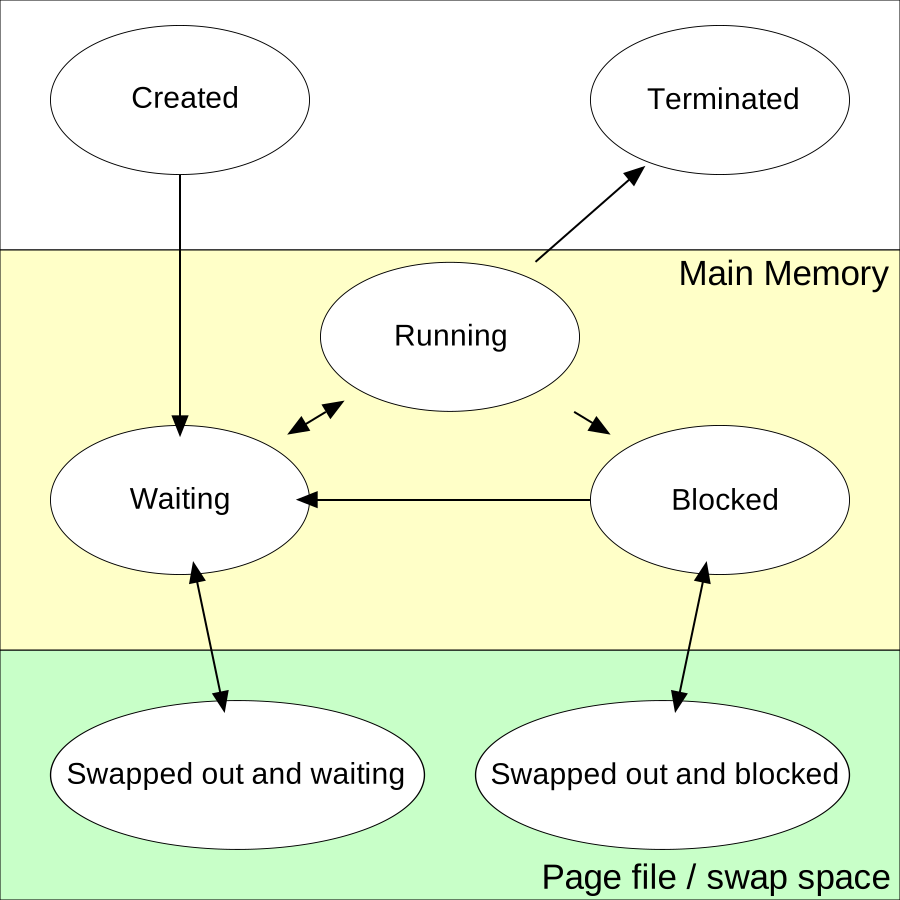
Figure 9.3 — Process states on three coloured bands. Top: Created and Terminated. Middle (yellow, Main Memory): Running, Waiting and Blocked. Bottom (green, page file or swap space): the two swapped-out states. Diagram: author not given on Wikimedia Commons, public domain, via Wikimedia Commons.

Read the diagram step by step. Careful with the names: in this diagram "Waiting" means "Ready" (ready to run, only waiting for the CPU). "Blocked" means waiting for an event such as the disk or network.
- Created: the process is born. An arrow goes down to Waiting (ready).
- Waiting (ready) to Running: the scheduler picks it and gives it a CPU core.
- Running to Waiting (ready): its time slice ran out, or a more important thread arrived. It goes back in line.
- Running to Blocked: it asked for something slow (read a file, wait for a key). It cannot continue until that arrives.
- Blocked to Waiting (ready): the thing it was waiting for arrived. It is ready again; it must queue for the CPU. (It does not jump straight to Running.)
- Running to Terminated: the process finishes or is killed.
- Bottom band: if RAM is short, Windows may move a waiting or blocked process's memory into the page file. Those states are swapped out and waiting and swapped out and blocked. The two-way arrows show it can come back into memory later.
        +---------+    admit     +----------+  dispatch  +---------+
 start->|   New   |------------> |  Ready   |----------> | Running |--> end
        +---------+              +----------+ <--------- +---------+
                                    ^   time slice over    |
                                    |                      | needs I/O
                                    |     +----------+     |
                                    +-----| Blocked  | <---+
                                  I/O done+----------+
7.1 New (Being Created)
What it is: The process is being built (Section 2). Windows is making its record, address space and first thread. It is not yet eligible for CPU time.
This state is very short, usually milliseconds. After this, the first thread is placed in the Ready state and the process starts to compete for the CPU. If creation fails (for example, the file is damaged), the process never gets past this stage.
On Windows this is the Initialized thread state: the thread exists but is not queued yet.
7.2 Ready (Waiting for CPU)
What it is: The process could run right now, and has everything it needs, but all CPU cores are busy. So it waits in line. (The diagram above calls this "Waiting".)
Windows keeps ready queues: lists of threads waiting for a core, grouped by priority (how important they are, covered in Chapter 10). The scheduler always picks the highest priority first.
How long a thread waits depends on how busy the PC is. With few programs running, it is nearly zero. With a hundred busy threads for 8 cores, the wait grows, and the PC feels slow.

Figure 9.4 — An open hard drive. Disk reads are slow compared with the CPU, so a process waiting for one is blocked, and memory moved out to the page file also lives on a disk like this (or an SSD). Photo: Mk2010, CC BY 4.0, via Wikimedia Commons.

7.3 Running (Executing)
What it is: A core is actually running the process's instructions right now. At any instant, the number of running threads is at most the number of logical processors (the CPU's threads, see Chapter 2). A PC with 8 logical processors can run at most 8 threads at once.
A running thread does not keep the core forever. It gets a time slice (also called a quantum): a short turn, about a few to tens of milliseconds. When time runs out, or a more urgent thread appears, Windows takes the core away (called preemption) and the thread goes back to Ready.
Moving the CPU from one thread to another is a context switch. Windows saves the registers of the old thread and loads those of the new one. It takes microseconds, but happens thousands of times a second. Chapter 10 explains it further.
In Task Manager, the CPU column shows how much of the total CPU time each process is using.
7.4 Waiting (Waiting for I/O)
What it is: The process cannot continue until something outside the CPU happens. It is blocked. (Windows documentation calls this the Waiting state; the diagram calls it Blocked.)
Typical reasons:
| Waiting for | Example |
|---|---|
| Disk | Opening a big file |
| Network | A web page to arrive |
| User | A key press or mouse click |
| A timer | Sleep(1000): wait one second |
| Another process or thread | A lock to be released, a message to arrive |
While blocked, the process uses no CPU time. It just sits there. That is why a PC with 200 open programs stays fast: most of them are blocked, waiting for you. When the awaited event happens (the disk finishes, a key is pressed), the device raises an interrupt (see Chapter 4), Windows wakes the thread and moves it to Ready.
An easy way to see this: open Task Manager, sort by CPU. Most processes show 0%. They are alive, but blocked or ready, not consuming time. Another case is a "Not responding" window. It means the program's window thread has not handled messages for a few seconds; it may be stuck waiting on something or busy elsewhere.
Swapped out. When RAM runs short, Windows can trim memory from blocked processes and write it to the page file (pagefile.sys) on disk. Windows mostly moves individual pages rather than whole processes, but the effect is what the bottom band of the diagram shows. The process still exists and is still blocked, just with its memory mostly on disk. When the awaited event arrives, the needed pages are read back (a page fault, Chapter 3), which makes things feel slow for a moment.
Suspended. Windows also has a "Suspended" idea for modern Store apps. When a UWP app goes to the background, Windows freezes it so it uses no CPU, but keeps it in memory. Task Manager shows the status Suspended. (You can also pause threads explicitly with a debugger.) This is a feature of the Windows app model, not a basic scheduler state.
7.5 Terminated (Dead)
What it is: The process has finished (Section 3). All its threads are over, and its memory and handles are being released. It will leave the system as soon as the last handle to its record is closed.
The exit code (Section 3.1) is recorded here. On the threads' side Windows calls this state Terminated, and then the thread record is freed.
You may see a process in this stage as a brief flicker in Task Manager, or not at all: it vanishes from the Details tab but may linger invisibly in the kernel if a handle is still open (the "zombie-like" case of Section 3.5).
Summary
| State | Plain meaning | Uses CPU? | Where in the diagram |
|---|---|---|---|
| New / Created | Being built | No | Top left |
| Ready (diagram: "Waiting") | Could run, waiting for a core | No | Middle, "Waiting" |
| Running | On a core now | Yes | Middle, "Running" |
| Waiting (diagram: "Blocked") | Waiting for I/O or an event | No | Middle, "Blocked" |
| Swapped out | Memory moved to the page file | No | Bottom band |
| Terminated | Finished; being cleaned up | No | Top right |
Moves between states: Ready to Running (the scheduler picks it), Running to Ready (time up), Running to Blocked (needs I/O), Blocked to Ready (the event happened).