The Big Picture: Everything in This Chapter, in One Story
You plug in a USB keyboard. Two seconds later, you type. It feels like magic, but it is exactly the chain you have learned in this chapter: buses, Plug and Play, hardware IDs, the Driver Store, DriverEntry, AddDevice, device stacks, symbolic links, interrupts and IRPs. This section walks the whole path, one numbered step at a time.
Look at the back of a real PC. The rectangular sockets of the USB type are the USB sockets. The round purple socket is an older keyboard port called PS/2. A PS/2 keyboard needs a different set of drivers (the old i8042prt.sys), and has its own fixed interrupt (IRQ 1, Chapter 4). USB keyboards go through the longer path below.
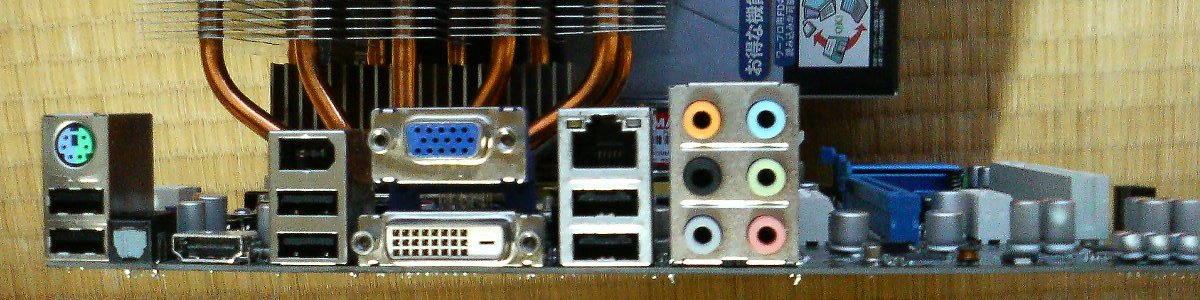
Figure 13.6 — The back panel of a PC. Find the USB sockets (where a modern keyboard plugs in) and the round purple PS/2 socket (the old keyboard port). Photo: Hitachi-Train, public domain, via Wikimedia Commons.

The Chain at a Glance
 ┌───────────────────────────────────────────────────────────────────────┐
 │ 1. Plug in    USB host controller notices the port changed            │
 ├───────────────────────────────────────────────────────────────────────┤
 │ 2. Report     USB hub driver tells the PnP Manager "new device"       │
 ├───────────────────────────────────────────────────────────────────────┤
 │ 3. Identify   Device descriptor read, hardware IDs built              │
 ├───────────────────────────────────────────────────────────────────────┤
 │ 4. Search     PnP Manager searches the Driver Store, ranks matches    │
 ├───────────────────────────────────────────────────────────────────────┤
 │ 5. Load       Driver loaded, DriverEntry runs                         │
 ├───────────────────────────────────────────────────────────────────────┤
 │ 6. Stack      AddDevice builds the stack: HID and keyboard drivers    │
 ├───────────────────────────────────────────────────────────────────────┤
 │ 7. Name       Device object named, interface link created             │
 ├───────────────────────────────────────────────────────────────────────┤
 │ 8. Type       Key presses become input reports, interrupts and IRPs   │
 └───────────────────────────────────────────────────────────────────────┘
16.1 Physical Connection Detected by USB Controller
What happens: Inside the PC, the USB host controller (an xHCI controller for USB 3, found in the CPU or chipset, Chapter 4) owns the USB sockets. Each port has a tiny circuit that notices electrical changes. When you push the plug in, the keyboard connects a small pull-up resistor on one signal wire. The port sees the voltage change and records "something is connected here" in a port status register.
Then the controller raises an interrupt (Chapter 4, Section 3; usually MSI), so its own driver (the USB host controller driver, USBXHCI.sys for xHCI) runs its ISR and DPC (Section 10).
| Part | Job |
|---|---|
| Port | Senses the new connection; supplies power (5 V, limited current) |
| Host controller | Runs the whole USB bus; owns all the ports on it |
| Host controller driver | Windows driver that talks to that controller (MMIO and DMA, Chapter 4) |
Important: USB is a host-driven bus. The keyboard cannot call out on its own. The host controller asks every device, and the device answers. Keep this in mind for step 8.
16.2 Bus Driver Reports New Device to PnP Manager
What happens: The change on the port reaches the USB hub driver (usbhub3.sys for USB 3 hubs; the controller's built-in "root hub" is a hub too). The hub driver:
- Resets the port (this also tells the device its speed).
- Gives the new device a unique USB address (a number from 1 to 127 on that bus).
- Creates a PDO (Physical Device Object, Section 4.4) for the new device.
- Tells the PnP Manager: "A new child device has appeared under me. Please set it up." (This is enumeration, Section 7.2, and the PnP Manager asks the hub driver to query the new device's IDs.)
   PCI bus driver
        └─ USB host controller  ──  (USBXHCI.sys)
              └─ Root hub   ──  (USB hub driver)
                    └─ NEW: PDO for the keyboard    <── created by the hub driver
You can see this live: open Device Manager → View → Devices by connection, and plug in a USB device. A new line appears in the tree under the USB root hub.
16.3 Hardware ID Read from Device Descriptor
What happens: The hub driver talks to the keyboard on a special channel called the default control endpoint (endpoint 0). It asks for the device descriptor: a small table the keyboard stores in itself.
| Descriptor field | Meaning | Example |
|---|---|---|
| idVendor (VID) | Maker's number | 046D |
| idProduct (PID) | Product number | C31C |
| bcdDevice | Revision of the product | 6400 |
| bDeviceClass | Class of the whole device (for a simple keyboard usually 0: "look at the interface") | 00 |
It also reads the configuration and interface descriptors. For a keyboard, the interface says: class 03 (HID, Human Interface Device), subclass 01 (boot interface), protocol 01 (keyboard).
From these numbers the hub driver builds the IDs (Section 7.3):
| Kind | Example text |
|---|---|
| Hardware IDs (specific) | USB\VID_046D&PID_C31C&REV_6400, then USB\VID_046D&PID_C31C |
| Compatible IDs (generic) | USB\Class_03&SubClass_01&Prot_01, USB\Class_03&SubClass_01, USB\Class_03 |
(Some keyboards have several interfaces, for example a keyboard plus media keys. Then Windows first loads the USB composite driver, usbccgp.sys, which splits the device into several child devices, each with its own IDs.)
See it yourself: In Device Manager, under Keyboards or Universal Serial Bus devices, open a USB device → Properties → Details → Hardware Ids, Compatible Ids and Device instance path.
16.4 Driver Store Searched for Matching Driver
What happens: The PnP Manager has the list of IDs. It now searches for the best driver (Section 7.4), first in the Driver Store (Section 5.3), then Windows Update if needed.
- It looks for INF files that list the keyboard's hardware ID. A maker's special driver would match here. A plain keyboard usually has none.
- Next it looks at the compatible IDs.
USB\Class_03is matched by Microsoft's built-in INF for USB HID devices (input.inf), which uses the HID class driver.
The result is two pieces, each a "device" in Device Manager. That's why you usually see two entries for one keyboard:
| Entry in Device Manager | Driver INF | Purpose |
|---|---|---|
| USB Input Device | input.inf | Handles the USB side: reading HID reports over USB |
| HID Keyboard Device | keyboard.inf | Turns HID reports into keyboard input for Windows |
  Candidate matching (simplified)
  Hardware ID  USB\VID_046D&PID_C31C   → no driver found in the Driver Store
  Compatible   USB\Class_03             → Microsoft HID driver FOUND  ✔ chosen
Since the matching package is built into Windows, the install is instant, and no download is needed. (Microsoft ships these class drivers in the Driver Store from the start.)
16.5 Driver Loaded, DriverEntry Runs
What happens: For each chosen driver, the PnP Manager makes sure it is loaded. If not yet in memory, the system:
- Reads its service key under
HKLM\SYSTEM\CurrentControlSet\Services(for examplehidusb,kbdhid,kbdclass). These are demand-start or system-start entries (Section 6.3). - Loads the
.sysfile fromC:\Windows\System32\driversand creates its driver object. - Calls its DriverEntry (Section 6.1), which fills in the dispatch table and the AddDevice routine.
On a normal PC the keyboard drivers (kbdclass.sys, hidclass.sys, kbdhid.sys and hidusb.sys) are often already loaded because other HID devices (a mouse, the laptop's own keyboard) use them. Then DriverEntry does not run again. Only the next step happens.
| Driver file | What it is |
|---|---|
hidusb.sys | The USB HID minidriver: reads and writes HID data over USB. (Some documents call the whole USB-HID part simply "usbhid".) |
hidclass.sys | The HID class driver: the common part of all HID devices (keyboard, mouse, game pad). Makes minidriver and clients fit together |
kbdhid.sys | Keyboard HID client: understands the keyboard's reports and converts them to a standard "keyboard input" format |
kbdclass.sys | The keyboard class driver: the top driver that gathers input from every keyboard on the PC (USB, PS/2, Bluetooth) and passes it up to Windows |
16.6 Device Stack Created (HID Class Driver + Function Driver)
What happens: For each new device, the PnP Manager calls the driver's AddDevice (Section 6.4). Each driver creates its device object and attaches it to the stack. The result for our keyboard (an example; details vary by PC):
              Windows input system
                      ▲
                      │  keyboard input
  ┌────────────────────────────────────────────┐
  │ kbdclass.sys   (upper filter on the stack) │  gathers all keyboards
  ├────────────────────────────────────────────┤
  │ kbdhid.sys     (function driver, FDO)      │  "HID Keyboard Device"
  ├────────────────────────────────────────────┤
  │ hidclass.sys + hidusb.sys                  │  "USB Input Device", HID layer
  ├────────────────────────────────────────────┤
  │ USB hub driver   (bus driver, PDO)         │  physical USB device
  └────────────────────────────────────────────┘
                      │
              USB host controller  (USBXHCI.sys)
                      │
                  The keyboard
(In reality this picture joins two stacks: the USB Input Device stack (hidusb and hidclass), whose HID layer creates a child device, and the HID Keyboard Device stack above it (kbdhid, with kbdclass on top). That is why Device Manager lists two entries.
In Windows, kbdclass is registered as an upper filter in the keyboard class settings, which is why the layers look like this. The exact split of stacks can differ between Windows versions, but the idea is stable: bus at the bottom, HID in the middle, keyboard class on top.)
Then the PnP Manager sends START_DEVICE to each driver, bottom to top (Section 6.5). The drivers configure the endpoint on the keyboard that will carry key reports (see 16.8) and begin to listen. The PnP Manager also writes the details into the registry under HKLM\SYSTEM\CurrentControlSet\Enum\USB\VID_.... Device Manager shows no warning sign: the keyboard is "working".
16.7 Device Object Created, Symbolic Link Established
What happens: The drivers give their device objects names and links so that others can find them (Section 12):
| Name | Kind | Meaning |
|---|---|---|
\Device\KeyboardClass0 | Device object name | The first keyboard class device. kbdclass creates one per keyboard, KeyboardClass1 and so on |
\Device\000000xx (a numbered name) | Device object | The PDO and HID layers often have unnamed or numbered names |
| Device interface link | A symbolic link such as \\?\HID#VID_046D&PID_C31C#... | A public name programs can look up and pass to CreateFile (Section 12.3) |
When Windows' input system starts, it opens the keyboard class device(s) (an IRP_MJ_CREATE, Section 9) and gets a handle. This part of Windows (the kernel-side input system, win32k) keeps IRPs pending at the top of the stack: "send me the next key presses." Those waiting IRPs are how the keyboard's data will reach the screen.
Check it (read-only): In WinObj (Sysinternals), look in \Device for KeyboardClass0, and \Driver for kbdclass, kbdhid and hidusb.
16.8 Keyboard Input Begins: Reports, Interrupts and IRPs
What happens: The keyboard is now ready. Here is what happens when you press the A key.
On the keyboard: The keyboard's small chip scans its keys, notices A is down, and stores an input report. For a standard keyboard this is 8 bytes long:
| Byte | Meaning |
|---|---|
| 0 | Modifier keys (Ctrl, Shift, Alt, Windows), one bit each |
| 1 | Reserved |
| 2 to 7 | Up to six key codes currently held down. Key A has the USB code 0x04 |
Over the wire. USB devices never interrupt the CPU themselves. Instead the host controller polls the keyboard's interrupt endpoint (despite its name, it is a polled channel) on a schedule, often every 8 ms or so. If the keyboard has a new report, it sends it. If nothing changed, it answers "no data".
Inside the PC:
 1. Keyboard stores report [00 00 04 00 00 00 00 00]   ("A is down")
        │
        ▼
 2. Host controller polls the keyboard, receives the report,
    writes it into RAM by DMA                         (Chapter 4, Section 4)
        │
        ▼
 3. Host controller raises an INTERRUPT (MSI)          (Section 10)
        │
        ▼
 4. USBXHCI ISR runs, queues a DPC; DPC completes the USB transfer
        │
        ▼
 5. The IRP waiting in hidusb/hidclass is COMPLETED, data goes UP the stack
        │
        ▼
 6. kbdhid translates "usage 0x04" into key "A" (scan code + make/break)
        │
        ▼
 7. kbdclass queues the key event and completes the waiting IRP
        │
        ▼
 8. Windows input system receives it ──► keyboard layout turns it into "a" or "A",
        │                                  finds the window that has focus
        ▼
 9. A message (WM_KEYDOWN, WM_CHAR) lands in that program's queue
        │
        ▼
 10. Notepad draws the letter on the screen
When you let go of the key, the next report is [00 00 00 ...] (nothing held). The drivers compare reports and generate a key-up event. The new IRP is sent down for the following keystroke, and the cycle repeats.
Why this design is clever:
| Idea | Where you saw it |
|---|---|
| Layers each do one job | Device stacks (Section 4.5) |
| Generic Microsoft code handles all keyboards | Class drivers (Section 2.2) |
| IRPs wait until there is data | Pending IRPs (Section 9.3) |
| Interrupt then DPC | ISR/DPC (Section 10) |
| Data moved by the controller, not the CPU | DMA (Section 11) |
| Name and link for finding the device | Symbolic links (Section 12) |
| No restart needed | Plug and Play (Section 7) |
Windows tip (safe): Run pnputil /enum-devices /connected /class Keyboard and driverquery | findstr /i "kbd hid" to see the keyboard devices and drivers on your PC. The lab in the next page has you do this.
Summary
| Step | What happens | Who |
|---|---|---|
| 1 | Port change detected, interrupt raised | USB host controller and its driver |
| 2 | New child device reported, PDO created | USB hub driver to PnP Manager |
| 3 | Device descriptor read; hardware and compatible IDs built | Hub driver |
| 4 | Driver Store searched; best match chosen | PnP Manager |
| 5 | Drivers loaded; DriverEntry runs (if not already loaded) | I/O Manager, drivers |
| 6 | AddDevice builds the stack; START_DEVICE | Drivers, PnP Manager |
| 7 | Device object name and interface link created | Drivers |
| 8 | Host controller polls; report via DMA and interrupt; ISR, DPC, IRP completion; input system | Controller, drivers, Windows |