The Big Picture: The Dashboard Warning Lights
A car dashboard does not explain every fault in words. It shows a small light, and a number in the manual tells you what that light means. Device Manager works the same way. A small icon on the device tells you "something is wrong," and the error code (a number) says what.
Every device node has a status. It is one of three kinds:
| Status | Meaning | Icon in Device Manager |
|---|---|---|
| Working | Driver loaded, device running | Normal icon, no overlay |
| Disabled | Turned off on purpose | Small down arrow on the icon |
| Problem | Windows could not start the device properly | Yellow triangle with an exclamation mark |
Each problem has a numbered Code from a table Microsoft publishes. You will find the code in the device's Properties → General tab, in the box called Device status.
┌─ General tab ──────────────────────────────────────────┐
│ Device type:     Network adapters                      │
│ Manufacturer:    <maker>                               │
│ Location:        PCI Express Root Port                 │
│                                                        │
│ Device status                                          │
│ ┌────────────────────────────────────────────────────┐ │
│ │ Windows has stopped this device because it has     │ │
│ │ reported problems. (Code 43)                       │ │
│ └────────────────────────────────────────────────────┘ │
└────────────────────────────────────────────────────────┘
This section first covers the four codes you will meet most (1, 10, 28, 43), then the icon meanings, then a longer table.
7.1 Code 1: Device Is Not Configured Correctly
What it means: Windows found the device, but the driver set-up for it is incomplete or wrong. The message reads: "This device is not configured correctly. (Code 1)." In practice, it often means the driver is missing or its settings were not written properly.
Common causes:
| Cause | Plain words |
|---|---|
| The driver was not installed, or half-installed | The set-up stopped midway |
| The driver's settings in the registry are damaged | Something overwrote them |
| The device needs a driver that is not on the PC | Windows has nothing to use |
What to try, in order:
- In Device Manager, right-click the device and choose Update driver → Search automatically for drivers.
- Download the maker's driver and use Browse my computer for drivers.
- Restart the PC, then try again.
- As a last step, uninstall the device (with the driver box ticked) and then Scan for hardware changes.
(Many guides say Code 1 means "driver not installed". The closer meaning is "not configured correctly," and a missing driver is one of the usual causes. Code 28 is the exact one for "no driver at all.")
7.2 Code 10: This Device Cannot Start
What it means: Windows loaded a driver, but the device would not start. The message reads: "This device cannot start. (Code 10)." Sometimes it is followed by an extra line with a more exact reason from the driver.
This is a very general code. The driver ran into a problem and gave up.
| Common cause | What it looks like |
|---|---|
| The driver is out of date or wrong for this model | Often seen with USB devices after an update |
| The device is faulty | A cable, port, or the hardware itself is bad |
| Not enough power | A USB device that needs more than the port gives |
| A driver bug | The driver cannot handle the device's reply |
What to try:
- Unplug the device and plug it into another port (try a port on the back of a desktop).
- Try another cable.
- Update or roll back the driver (Section 5).
- Check the maker's site for a fix.
- Look in the Events tab or in Event Viewer for more detail (Section 9.4).
7.3 Code 28: The Drivers for This Device Are Not Installed
What it means: Windows has no driver for this device. The message reads: "The drivers for this device are not installed. (Code 28)." This is the classic code for a brand-new device with no driver yet. The node often appears as Unknown device, or under Other devices.
Other devices
  └─ ⚠ Unknown device       <- yellow triangle, Code 28
Why: The Driver Store has nothing matching the device's hardware IDs, and Windows Update did not offer one (Sections 3 and 4).
What to try:
- Read the device's Hardware Ids (Details tab, Section 3). Search the web for the vendor and device codes to find out what it is.
- Download the driver from the maker of the device or the PC. (Laptop makers have a driver page for each model.)
- Right-click → Update driver → Browse my computer and point to the folder.
- Or run the maker's setup program.
7.4 Code 43: Windows Has Stopped This Device
What it means: The message reads: "Windows has stopped this device because it has reported problems. (Code 43)." The driver itself told Windows that the device has a problem, so Windows stopped it. It is common with USB devices and with graphics cards.
Causes (any of these can produce it):
| Cause | Notes |
|---|---|
| Faulty or loose hardware | A bad USB cable, a bad port, a card not fully seated |
| Driver problems | Wrong, damaged or too-new/too-old driver |
| Power problems | USB hub without enough power; a graphics card without its extra power cable |
| Overheating | A graphics chip that gets too hot may stop |
| A counterfeit or damaged device | Some fake chips misreport themselves |
What to try:
- For USB: plug the device straight into the PC (no hub), try a different port and cable.
- For graphics: check that the extra power cables are connected, and that the card is seated in its slot.
- Restart the PC. Fully shut down and power on again, if you can.
- Update the driver, or roll it back to the last one that worked.
- Test the device on another PC. If it fails there too, the device is faulty.
7.5 Yellow Triangle vs Red X vs Down Arrow
What it is: The overlay on the icon tells you the kind of problem.
| Icon | Meaning (Windows 10 and 11) |
|---|---|
| Yellow triangle with "!" | The device has a problem. Open Properties to read the code |
| Down arrow | The device is disabled (Code 22) |
| Red X | Used on older Windows versions (such as Windows XP and Vista) to show a disabled device. On Windows 10 and 11 the down arrow replaced it |
| Grey/faded icon | The device is not present (a ghost, Section 6) |
| Nothing extra | The device works |
So today the only two icons you need to know are the yellow triangle (problem, read the code) and the down arrow (turned off, enable it). If a tutorial tells you to look for a red X, it was written for an older Windows.
Icons can be wrong. A node with no overlay can still have a driver that behaves badly, for example one that causes slowness. And a yellow triangle for a device you never use (such as an unused sensor) may be harmless.
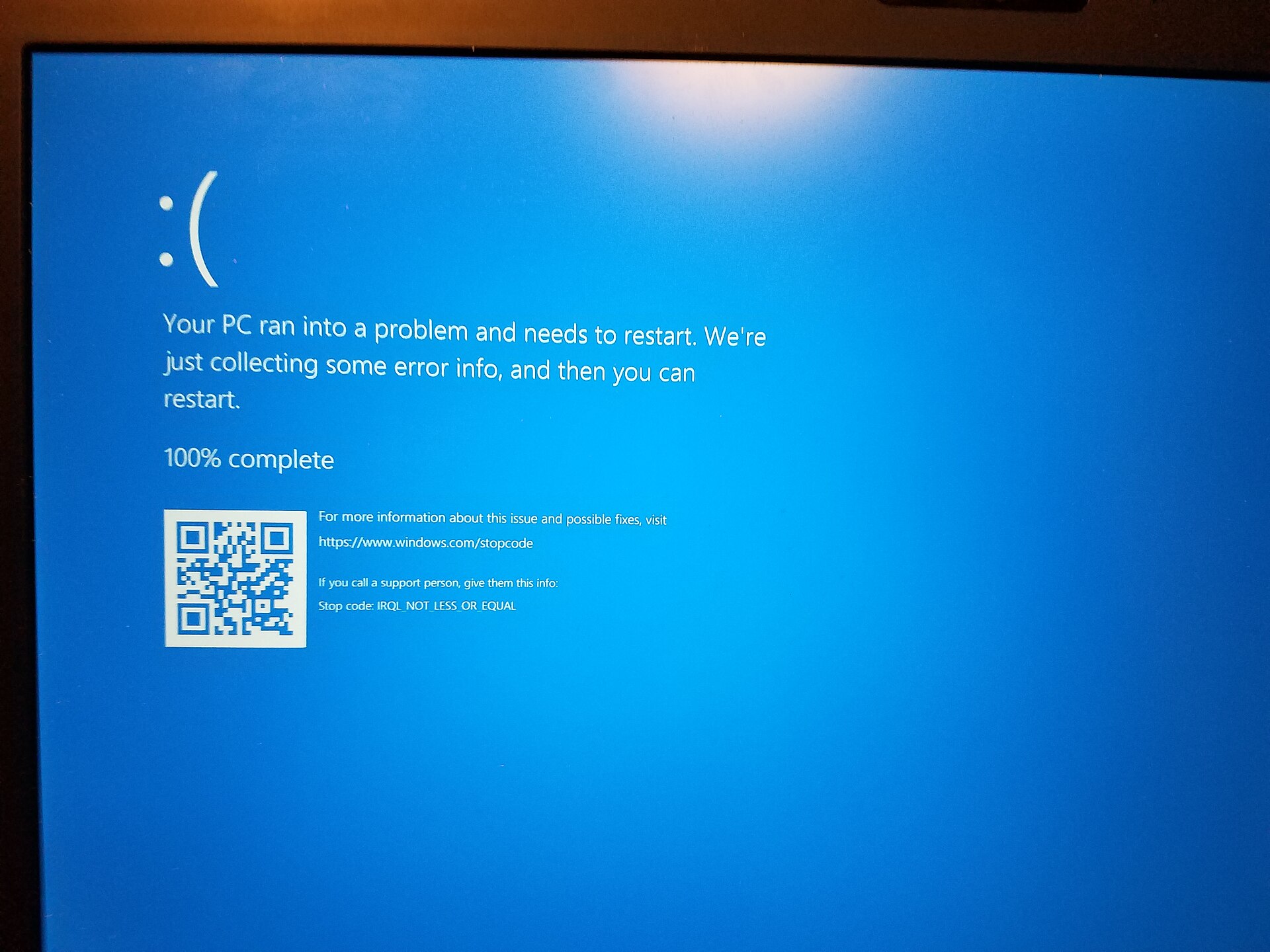
Figure 14.3 — A Windows 10 blue screen with the Stop code IRQL_NOT_LESS_OR_EQUAL. Some device errors only produce a yellow triangle, but a badly behaved driver can also crash the whole PC like this. Photo: Oops4321, CC BY-SA 4.0, via Wikimedia Commons.

7.6 More Error Codes at a Glance
These are codes you may see. Meanings are short on purpose. Always read the full text in the Device status box on your PC.
| Code | Short meaning | First thing to try |
|---|---|---|
| 1 | Device is not configured correctly | Update or reinstall the driver |
| 3 | The driver may be corrupted, or the system is low on memory | Restart; close programs; reinstall the driver |
| 10 | The device cannot start | Another port or cable; update or roll back |
| 12 | The device cannot find enough free resources to use | Remove another device or check BIOS/UEFI settings |
| 14 | The device cannot work properly until you restart the PC | Restart |
| 18 | Reinstall the drivers for this device | Uninstall with driver, rescan |
| 19 | Windows cannot start this device because its settings (registry) are incomplete or damaged | Uninstall and reinstall the device |
| 21 | Windows is removing this device | Wait a moment, then restart if it stays |
| 22 | This device is disabled | Right-click, Enable device |
| 24 | The device is not present, not working properly, or does not have all its drivers installed | Check the connection; reinstall the driver |
| 28 | The drivers are not installed | Install the maker's driver |
| 31 | The device is not working properly because Windows cannot load the drivers it needs | Reinstall the driver |
| 32 | A driver (service) for this device has been disabled | Restore the driver or service; update the driver |
| 37 | Windows cannot initialize the device driver | Reinstall or update the driver |
| 39 | Windows cannot load the driver; it may be corrupt or missing | Reinstall the driver |
| 41 | Windows loaded the driver but cannot find the device | Check the hardware; reinstall the driver |
| 43 | Windows stopped the device because it reported problems | See 7.4 |
| 45 | The device is currently not connected | Reconnect it (this is often seen on ghost devices) |
| 52 | Windows cannot verify the digital signature for the driver | Get a properly signed driver from the maker |
About Code 52. On 64-bit Windows, drivers that run in the kernel must be signed (Section 4.1). A driver that is unsigned, changed after signing, or signed by an untrusted party can trigger Code 52. Do not switch signature checks off just to make an unknown driver work. Get a signed driver from the maker.
Codes are only a pointer. One code can have many causes, and the same fault can show different codes on different PCs. Use the code as a search term along with the device name.
7.7 Reading Errors Beyond Device Manager
| Place | What it gives you |
|---|---|
| Properties → General | The status text and code |
| Properties → Events | A short history of installs and starts for this device |
Event Viewer (eventvwr.msc) → Windows Logs → System | Full messages and times when drivers failed to load |
pnputil /enum-devices /problem | Lists only devices that currently have a problem |
Get-PnpDevice -PresentOnly | Where-Object Status -ne 'OK' | PowerShell list of devices that are not "OK" |
Run those two command-line examples as a normal user. They only read.
Summary
| Term | Plain meaning |
|---|---|
| Status | Working, disabled or problem |
| Error code | A number that explains the problem |
| Yellow triangle | The device has a problem; read the code |
| Down arrow | The device is disabled |
| Red X | Old Windows versions' sign for a disabled device |
| Code 1 | Not configured correctly (often a driver set-up problem) |
| Code 10 | The device cannot start |
| Code 22 | The device is disabled |
| Code 28 | No driver installed |
| Code 43 | Windows stopped the device because it reported a problem |
| Code 45 | The device is not currently connected |
| Code 52 | Windows cannot verify the driver's digital signature |