The Big Picture: One Place for Settings
A computer has hundreds of things you may want to change: how fast the mouse moves, which Wi-Fi to use, what time it is, how long before the screen sleeps, which programs are installed. If every program and every driver gave you its own settings window, you would have to hunt all over the PC.
The Control Panel solves this. It is one central place where Windows (and other programs) put their settings pages. Think of it as the control room of a building: the lights, the heating, the lifts and the alarms are all different machines, but their switches sit in one room.
Two words to know first:
- Applet: one page inside the Control Panel, for example "Mouse" or "Power Options". The word means "small application". Each applet is a tiny program that shows one settings window.
- Settings app: the newer, touch-friendly settings program in Windows 10 and 11. It is slowly replacing the Control Panel. You will meet it at the end of this section, and in the next chapter on Settings.
1.1 What the Control Panel Looks Like
What it is: The Control Panel is a window that shows your settings as groups of links or icons. The program that starts it is control.exe, which lives in the C:\Windows\System32 folder.
Here is the default Category view of a Windows 10 Control Panel.
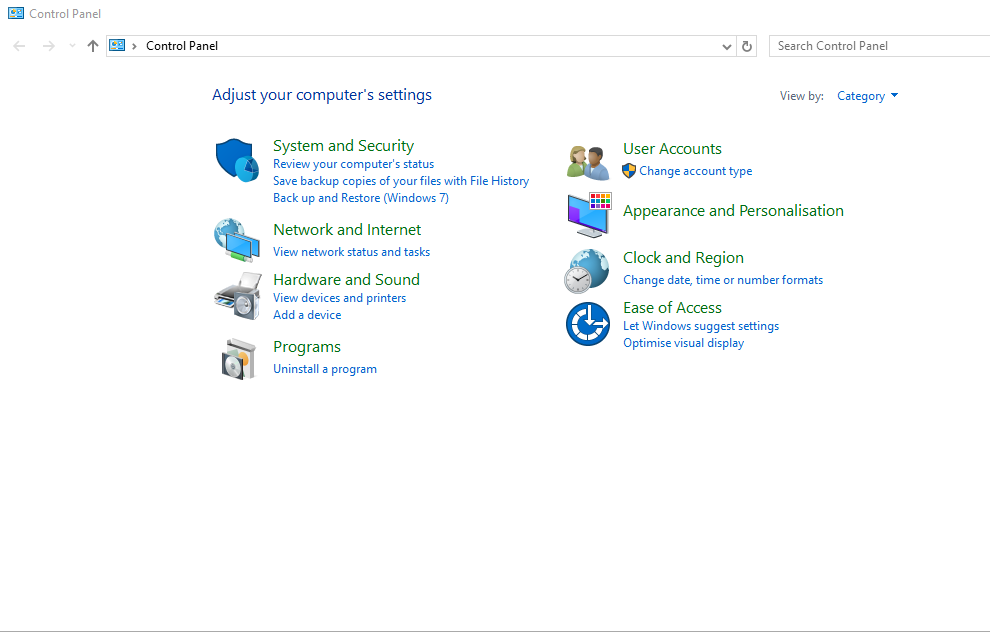
Figure 15.1 — The Control Panel in Category view. Each bold heading is a category, and the blue links under it are shortcuts to applets. The picture is cropped from the original to remove a few stray red marks. Screenshot: Adnanyounis123, CC BY-SA 4.0, cropped, via Wikimedia Commons.

Look at Figure 15.1 from the title down. The title says "Adjust your computer's settings", and the View by box says Category.
| Category in the picture | Example links you can see | What lives here |
|---|---|---|
| System and Security | Review your computer's status; Save backup copies of your files with File History; Back up and Restore (Windows 7) | Backup, firewall, updates, power, system info |
| Network and Internet | View network status and tasks | Wi-Fi, Ethernet, sharing, proxy |
| Hardware and Sound | View devices and printers; Add a device | Printers, mouse, keyboard, sound, power |
| Programs | Uninstall a program | Install and remove software |
| User Accounts | Change account type | Local and Microsoft accounts, passwords |
| Appearance and Personalisation | (heading only) | Taskbar, themes, fonts |
| Clock and Region | Change date, time or number formats | Time zone, date format, language formats |
| Ease of Access | Let Windows suggest settings; Optimise visual display | Magnifier, high contrast, narrator |
Three ways to view the same applets. The View by box can show:
- Category: the grouped view above (the default).
- Large icons: every applet as one big icon, in a single flat list.
- Small icons: the same flat list, but smaller.
The flat list is often faster once you know the name of the applet you want, and it shows applets the Category view hides in deeper pages.
Windows tip: Press Win + R, type control, press Enter. That opens the Control Panel on any version of Windows.
1.2 The Historical Role: From Windows 1.0 to Today
What it is: The Control Panel is one of the oldest parts of Windows. Some of its ideas are more than 35 years old.
| Era | What changed |
|---|---|
| Windows 1.0 (1985) | A first Control Panel already existed. It held a few basic settings such as colours, the mouse, the date and time, and the printer port. |
| Windows 3.x (early 1990s) | The Control Panel became a window full of icons. This is also the era where add-on applets in .cpl files became a normal way for makers to add their own icons. |
| Windows 95 | The Control Panel became a folder inside the new Windows shell (the Explorer), with many more applets: Add/Remove Programs, Network, System. |
| Windows XP (2001) | Added the Category view so beginners were not faced with 40 icons at once. |
| Windows Vista and 7 | Added a search box in the top-right and the "Control Panel Home" page. Most of the pages you still see today were drawn in this era. |
| Windows 8 (2012) | Added a new touch-friendly PC settings screen, the first step towards the Settings app. |
| Windows 10 and 11 | The Settings app took over most everyday jobs. The Control Panel still exists and still works, but many links now open Settings instead. |
Do not worry about remembering the dates. Remember the story: the Control Panel grew with Windows for decades, and thousands of programs came to depend on it. That is exactly why it is still here.
1.3 Why a Central Configuration Hub?
What it is: The idea of one hub gives you four big benefits.
- You always know where to look. Settings for hardware, network and users are in the same window, not in a dozen programs.
- Everything looks and behaves the same. Every applet has the same kind of window, the same OK / Cancel / Apply buttons, and the same help links. Learn one and you can use them all.
- Windows can protect itself. The hub is the official, safe door for changing settings. It asks for administrator permission (the shield icon and the UAC prompt) when a change affects every user of the PC.
- Programs do not have to write their own settings window for system things. A mouse maker can plug a new tab into the Mouse applet instead of building a whole program.
WITHOUT a hub                           WITH a hub (Control Panel)

 Mouse maker  → own settings window       ┌───────────────────────────┐
 Printer maker→ own settings window       │      Control Panel        │
 Sound maker  → own settings window       │ Mouse | Printers | Sound  │
 Network maker→ own settings window       │ Network | Power | Users   │
 ...20 different windows to find          └───────────────────────────┘
                                           one window, one look
1.4 Backward Compatibility: Why Old Applets Still Work
What it is: Backward compatibility means new versions of Windows still run things made for old versions. This is the biggest reason the Control Panel was never simply deleted.
Over the years, many companies added their own applets. Examples you may have seen:
- The Java control panel (made by the Java maker)
- Graphics card panels (for example the NVIDIA Control Panel)
- Sound card and mouse maker panels
- Special tools from a company's own IT department
Many of these were built as small files with the extension .cpl (you will learn what is inside them in Section 2). If Microsoft removed the Control Panel, all of them would stop working, and so would many company-written tools and training guides. So Windows keeps the old door open.
A rule of thumb: If you see a Control Panel link that opens a window that looks like it is from Windows 7 or even Windows XP, it is probably one of these old, still-working applets.
1.5 The Move to the Settings App
What it is: In Windows 10 and 11, the Settings app (press Win + I) is the new hub. It is designed for touch screens and small displays, and it is searchable. Microsoft has been moving settings from the Control Panel into Settings, one page at a time.
What this means for you in practice:
| What you will notice | Why |
|---|---|
| Some Control Panel links open Settings instead of an old window | The old page was replaced; the link now redirects |
| Some pages exist only in Control Panel | They have not been moved yet (for example the legacy Mouse tabs and some network adapter dialogs) |
| Some pages exist only in Settings | They were built new (for example Bluetooth and Windows Update controls) |
| Some settings appear in both | During the long move, both can change the same underlying value |
The Control Panel is therefore a legacy but living system. It remains important because:
- Many IT tutorials, scripts and company tools still use it.
- Some advanced options (such as the older network adapter dialogs and Power Options details) are still easiest to reach through it.
- Understanding it teaches how Windows stores and applies settings, which is the same story the newer Settings app also follows.
The next chapter on Settings explains how the new app works. Here we stay with the classic one.
Windows tip: In Settings, many pages have a link at the bottom or side called "Related settings" or "Additional settings". Clicking it often jumps right back into an old Control Panel applet.
1.6 A First Look: Starting an Applet Directly
What it is: You do not have to click through the Category view. Each applet can be started by name. Press Win + R and try (these are safe, they only open windows):
| Type this | What opens |
|---|---|
control | The Control Panel home |
main.cpl | Mouse properties |
ncpa.cpl | Network Connections |
appwiz.cpl | Programs and Features |
timedate.cpl | Date and Time |
powercfg.cpl | Power Options |
You will see in Section 2 why typing just a file name works.
Summary
| Term | Plain meaning |
|---|---|
| Control Panel | The classic central place for Windows settings (started by control.exe) |
| Applet | One page of the Control Panel (for example Mouse) |
| Category view | Applets grouped under headings like System and Security |
| Central hub | One place for all settings, so you always know where to look |
| Backward compatibility | Old things (like third-party applets) still work on new Windows |
| Settings app | The newer hub that is slowly replacing the Control Panel |
| Redirect | A Control Panel link that opens a Settings page instead |