The Big Picture: Two Front Doors to the Same House
Settings and the Control Panel look like two different programs. In truth, they are two front doors to the same house. Behind both doors is the same Windows: the same registry, the same services, the same drivers. The doors are different, and what each door can open is different.
Here is the old door, the classic Control Panel in Category view. You met it in Chapter 15.
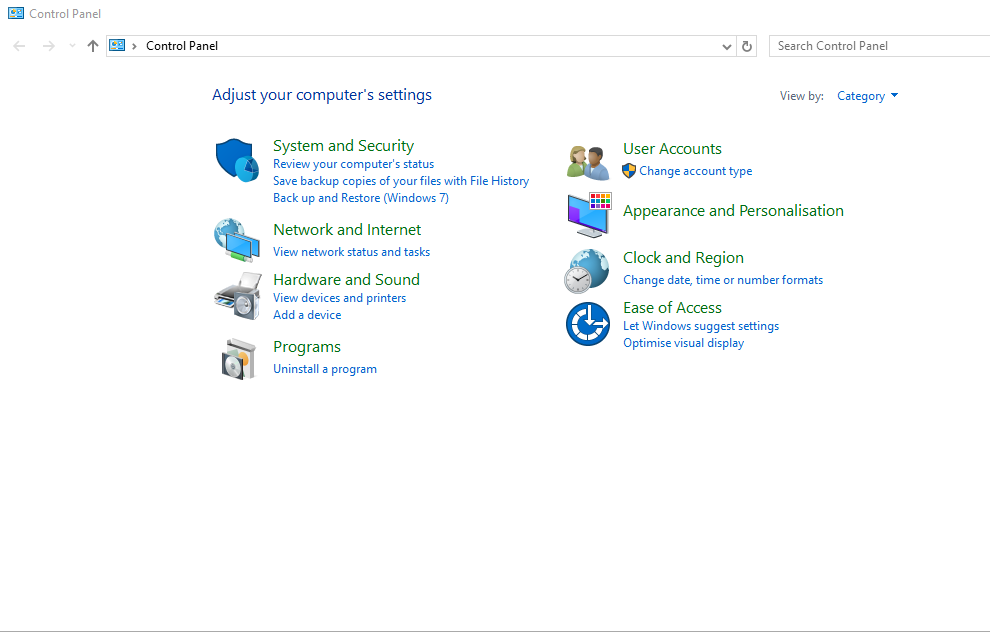
Figure 16.1 — The old way: the Control Panel home page. Eight text groups (System and Security, Network and Internet, Hardware and Sound, Programs, User Accounts, Appearance and Personalisation, Clock and Region, Ease of Access), each with small links under it. Screenshot: Adnanyounis123, CC BY-SA 4.0, cropped, via Wikimedia Commons.

The new door, the Settings app, has no screenshot in this book, so here is a sketch of the same idea:
 CONTROL PANEL (old door)              SETTINGS (new door)
 ┌────────────────────────────┐     ┌────────────────────────────┐
 │ Adjust your computer's     │     │ Settings  [Find a setting] │
 │ settings. By Category      │     │ System      big rows,      │
 │ [System and Security]      │     │ Network     toggles, and   │
 │ [User Accounts] [Programs] │     │ Accounts    a left menu    │
 │   small text links         │     │ Apps ...                   │
 └────────────────────────────┘     └────────────────────────────┘
   text links, many windows             one window, many pages
The three topics in this section explain where the settings are stored, how pages are addressed, and why you sometimes get sent back to the old door.
3.1 Different Storage Backends (Registry vs Settings Database/Policy)
What it is: A backend is the place where a setting is really kept. A page is only the screen. If you flip a toggle, the new value must be saved somewhere so it survives a restart.
The old Control Panel way. Most classic applets save directly into the registry or call a Win32 function that does. A .cpl file is code that both draws the dialog and writes the values. For example:
- The mouse applet (
main.cpl) writes mouse speed and button choices for the current user. - The system applet writes the computer name and some performance options.
The Settings way. The Settings pages do not all save in the same place. A page can use one of several backends, through its handler (Section 1.2):
| Backend | What it means | Example (may look different on your version) |
|---|---|---|
| Registry | Plain values in the registry hives | Light/dark mode, some taskbar options |
| A Windows service or driver | The page asks a service, which saves its own data | Windows Update, network adapters |
| An app's own store | Modern apps keep settings in their own protected data folder | Settings of Store apps |
| The cloud | Saved with your Microsoft account and synced to other PCs | Some personalisation and sync settings |
| Policy | A rule from Group Policy or MDM that overrides the user | "Managed by your organization" |
Not a "Settings database". Some books say Settings has its own special database. In practice, Microsoft does not document a single Settings database. Most values still end up in the registry or in a service. This course therefore says "several backends" and not one single store.
Policy: the rule that wins. Organisations use Group Policy (rules from a company server) or MDM/Intune (rules sent over the internet through CSPs, small Windows pieces that apply one kind of setting). A policy is stored in its own area of the registry, and it wins over the user's choice.
  Where a setting can come from (strongest first)

   ┌──────────────────────────────┐
   │ 1. Policy (company rule)     │  ← wins. Page shows "managed"
   ├──────────────────────────────┤
   │ 2. Your choice in Settings   │
   ├──────────────────────────────┤
   │ 3. Windows default           │
   └──────────────────────────────┘
Because both Settings and Control Panel finally read the same policy, a locked setting is locked in both doors.
Looking at the registry safely. You can open the registry editor (regedit) to look only. Do not change anything.
| Setting you can see | Where to look (view only) |
|---|---|
| Light or dark mode for apps | HKEY_CURRENT_USER\Software\Microsoft\Windows\CurrentVersion\Themes\Personalize (value AppsUseLightTheme) |
| Company rules for Windows Update | HKEY_LOCAL_MACHINE\SOFTWARE\Policies\Microsoft\Windows\WindowsUpdate (this key exists only if a rule was set) |
Windows tip: A policy key that does not exist usually means "no company rule". Seeing it does not mean something is broken.
3.2 Deep Links (ms-settings: URI Scheme)
What it is: A URI is an address, like a web link. https: opens a web page. mailto: opens your email program. ms-settings: opens a Settings page. This is called a URI scheme (the first word before the colon). It is also called a deep link, because it takes you straight to a page deep inside an app.
Why does it matter?
- IT staff can send a user a link that opens the right page.
- Apps use it to send you to the correct setting ("Camera is blocked, open Settings").
- Scripts and shortcuts can open pages in one step.
- The Control Panel's own links to Settings use this method.
Ways to use one:
| Method | Steps |
|---|---|
| Run box | Press Win + R, type ms-settings:about, press Enter |
| Command Prompt | start ms-settings:about |
| PowerShell | Start-Process "ms-settings:about" |
| Shortcut | Make a shortcut whose target is the address |
Addresses you can be sure of:
| Address | Opens |
|---|---|
ms-settings:about | About |
ms-settings:display | Display |
ms-settings:network | Network and internet |
ms-settings:windowsupdate | Windows Update |
ms-settings:privacy | Privacy |
Many more exist (for example for Bluetooth, apps and sound). They can change between Windows versions, so test them on your PC before you rely on them.
What happens inside when you press Enter:
  you type  ms-settings:about
        │
        ▼
 ┌─────────────────────────────────┐
 │ Windows looks up what program   │  ← the scheme is registered in
 │ owns the "ms-settings" scheme   │    the registry (like http: is)
 └──────────────┬──────────────────┘
                ▼
 ┌─────────────────────────────────┐
 │ Settings app starts             │  ← SystemSettings.exe
 │ (or comes to the front)         │
 └──────────────┬──────────────────┘
                ▼
 ┌─────────────────────────────────┐
 │ It reads the part after the     │
 │ colon ("about") and shows that  │
 │ page                            │
 └─────────────────────────────────┘
You can look (view only) at how Windows knows the scheme: in regedit, open HKEY_CLASSES_ROOT\ms-settings. It lists how to open this kind of link. Do not edit it.
Windows tip: Compare with the old door. A classic Control Panel page is opened with a command such as
controlorcontrol ncpa.cpl(for network adapters). The idea is the same, the address style is different.
3.3 Why Some Settings Still Redirect to Control Panel
What it is: Sometimes you click a setting in the new app and a classic window opens. This is not a bug. Microsoft has been moving settings one page at a time, and the move is not finished.
Why it happens:
| Reason | Plain explanation |
|---|---|
| Too many settings | The Control Panel has hundreds of pages from many decades. Rebuilding each one takes years. |
| Old software depends on them | Drivers and programs from other companies add their own Control Panel pages (for example, a sound or graphics driver). Windows cannot rewrite pages it does not own. |
| Power-user tools | Advanced dialogs (adapter properties, system properties, user account details) are used by IT staff in scripts. Removing them would break scripts. |
| Low priority | Rarely used pages are moved last. |
| Different code | The classic dialog may use features that are hard to copy to the modern framework. |
Examples (may look different on your version):
- In Network settings, More network adapter options opens the classic Network Connections window (
ncpa.cpl). - In System settings, some Related settings or Advanced system settings links open the classic System Properties dialog.
- The classic Device Manager (
devmgmt.msc) is still the full tool, although Settings has a simpler devices page. - Sound and power pages often still have a link to a classic dialog with more choices.
How to tell which door you are in: look at the window.
| What you see | Which door |
|---|---|
| One large window with a left menu and big toggles | Settings |
| A small window with tabs and OK / Cancel / Apply buttons | Classic (Win32) dialog |
| A window titled "Control Panel" with an address bar of folders | Control Panel |
What stays only in one door (may look different on your version):
| Only in Settings | Only (or mostly) in Control Panel |
|---|---|
| Windows Update | Many old driver-added pages |
| Bluetooth and device pairing | Advanced adapter properties (ncpa.cpl) |
| Windows Hello sign-in options | Some legacy tools such as Credential Manager |
| Modern Store app management | Programs and Features (appwiz.cpl) still works too |
| Phone Link, Gaming, Focus | Some older printer and mail dialogs |
Some of these are moving, so always confirm on your own PC.
More differences at a glance:
| Feature | Control Panel | Settings |
|---|---|---|
| Built from | Win32 .cpl DLLs and shell items | Modern app pages with handlers |
| Updated by | Mostly with big Windows updates | Can improve through Windows servicing updates (the normal monthly update system) |
| Search | Basic keyword search | Searches an index of settings, shows the page and the exact setting |
| Look | Fixed, dated | Scales with the screen, supports touch and dark mode |
| Scripts | Many scripts use control and .cpl | Use ms-settings: links |
| Where new features go | Rarely | Almost always |
Windows tip: If you cannot find a setting, try searching in Settings first, then open the Control Panel with
Win + Randcontrol. One of the two will have it.
Summary
| Topic | Remember this |
|---|---|
| Storage backends | Settings and Control Panel use the same registry, services and drivers; Settings pages may also use service or cloud stores |
| Policy | Group Policy and MDM (CSP) rules beat user choices, in both doors |
| ms-settings: | A URI scheme that opens a Settings page directly (Win + R or start) |
| Redirects to Control Panel | The move is not finished; old tools, drivers and scripts still need the classic pages |
| Only in one door | Settings: Windows Update, Bluetooth pairing. Control Panel: some legacy pages like ncpa.cpl |
| Tell them apart | Big window with a left menu is Settings; tabs plus OK/Cancel is a classic dialog |