The Big Picture: Why Do We Need a File System?
In Chapter 18 you met the disk: a hard drive or an SSD. Here is the surprising truth about it. A disk knows nothing about files, folders, names or photos. It is just a long row of numbered boxes, and each box holds a fixed amount of data.
Here are two real disks. Neither one has any idea what a "file" is.
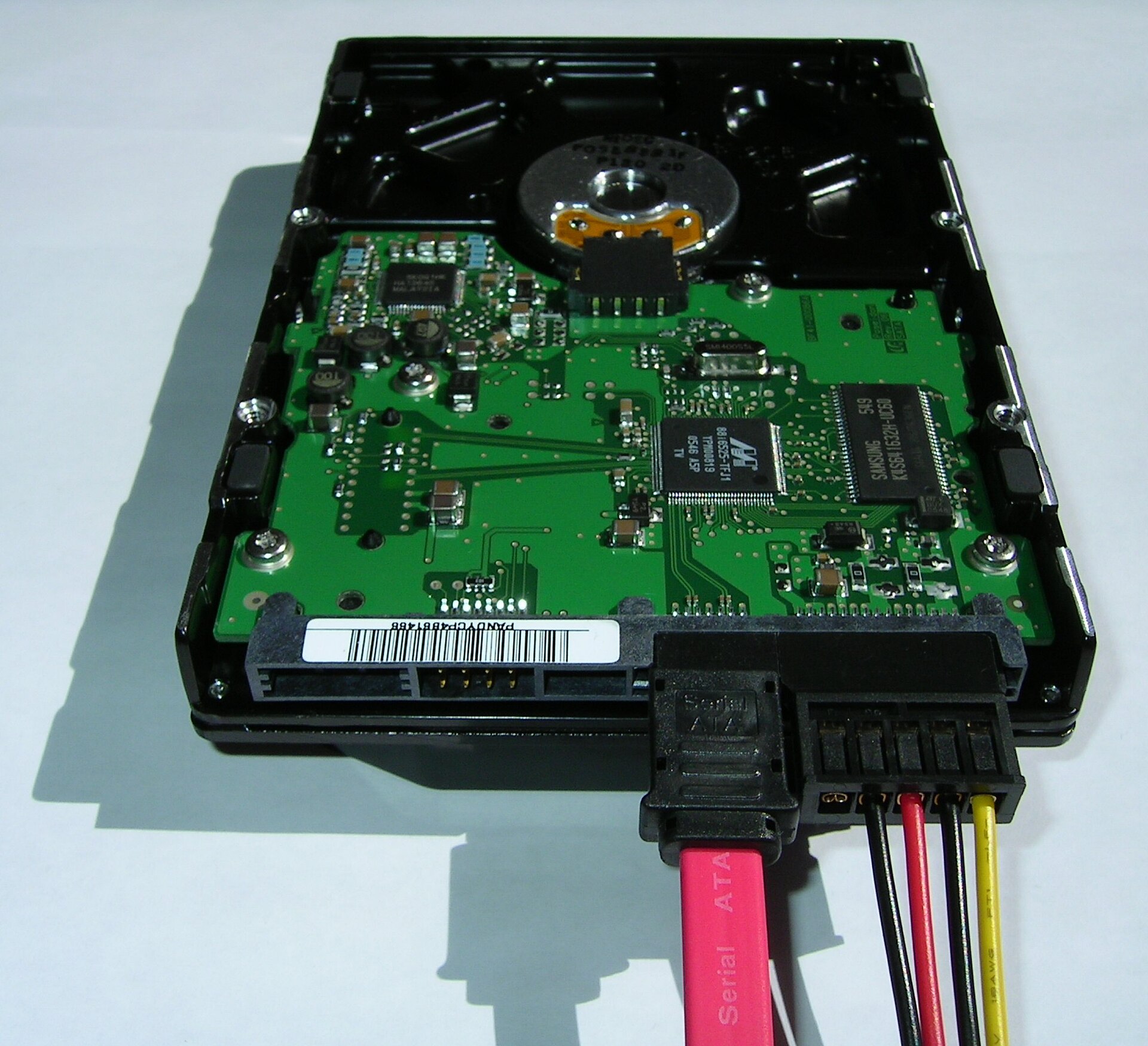
Figure 19.1 — The underside of a hard drive. The green board is the controller; the SATA cables carry data and power. Everything on this drive is just numbered blocks until software gives it structure. Photo: Thomas Rosenau, User:Pumbaa80, CC BY-SA 2.5, via Wikimedia Commons.

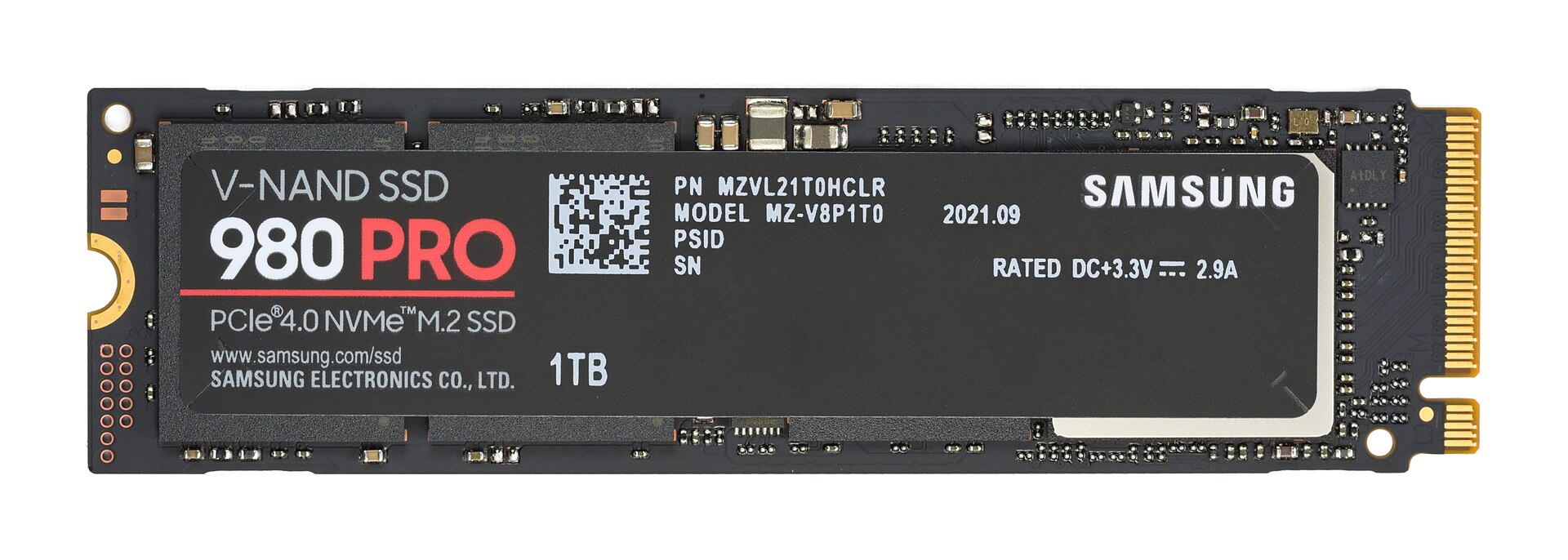
Figure 19.2 — An NVMe SSD, the small flat stick that plugs into the motherboard. Different hardware, same story: it only stores numbered blocks. Photo: D-Kuru, CC BY-SA 4.0, via Wikimedia Commons.

So who turns a pile of numbered blocks into Holiday.jpg inside Pictures? That is the job of the file system.
What it is: A file system is the set of rules and data structures that organizes raw storage into named files and folders. It is software (a driver inside Windows) plus a small amount of bookkeeping data written onto the disk itself.
Think of a huge warehouse with a million numbered shelves. Without a system, you would have to remember "my tax papers are on shelves 4,071 to 4,075". The file system is the warehouse manager with a catalogue. You say "tax papers"; the manager looks it up and fetches the right shelves.
1.1 Mapping Human-Readable Files and Folders to Physical Storage Blocks
What it is: The file system's main job is a translation. You think in names and folders. The disk thinks in block numbers. The file system translates one into the other, every time you open or save anything.
WHAT YOU SEE                          WHAT THE DISK HAS

C:\Users\Sam\Pictures\Cat.jpg   ───►  "blocks 9,120 to 9,135"
  (a name in a folder)                (numbered boxes in a long row)

        ▲                                      ▲
        └────────── FILE SYSTEM translates ────┘
Let's define the building blocks, from the smallest up.
Sector. The smallest piece the disk itself can read or write. It is usually 512 bytes or 4,096 bytes (4 KB). (A byte is one character's worth of data.) The disk's own controller deals in sectors. Chapter 18 explained how the hardware does this.
Cluster (also called an allocation unit). A group of sectors that the file system treats as one unit. The file system never hands out single sectors; it hands out whole clusters. On a typical Windows disk using NTFS, a cluster is 4 KB by default.
Why clusters? Keeping a list "file A uses sector 1, sector 2, sector 3 ..." for every tiny sector would make the catalogue enormous. Bigger blocks mean a shorter list. The price is a little wasted space (see 1.3).
File. A named collection of bytes, plus information about it (size, dates, owner). A file's bytes live in one or more clusters.
Folder (directory). A special file that holds a list of names and where to find each one. Section 3 explains this.
Volume. One formatted area of storage with its own file system. Your C: drive is a volume. One physical disk can hold several volumes.
1.2 How the Folder Tree Is Organized
What it is: Folders can hold files and other folders, so everything forms a tree. The top is called the root. On Windows each volume has its own tree, shown as a drive letter such as C:\.
C:\                         ← root of the C: volume
├── Windows\                ← folder
│   └── System32\
│       └── notepad.exe     ← file
├── Users\
│   └── Sam\
│       ├── Documents\
│       │   └── Essay.docx
│       └── Pictures\
│           └── Cat.jpg
└── Program Files\
The text C:\Users\Sam\Pictures\Cat.jpg is a path: a set of directions that starts at the root and follows folder names down to the file. The \ is just the separator between steps.
1.3 A Cluster Example (and Slack Space)
What it is: A file rarely fills its last cluster exactly. The unused rest of that last cluster is called slack space. It cannot be given to any other file.
Say clusters are 4 KB (4,096 bytes) and your file is 10,000 bytes:
File needs 10,000 bytes. Clusters are 4,096 bytes.

 ┌────────────┬────────────┬────────────┐
 │ Cluster 1  │ Cluster 2  │ Cluster 3  │
 │ 4,096 used │ 4,096 used │ 1,808 used │
 │            │            │ + 2,288    │
 │            │            │   SLACK    │
 └────────────┴────────────┴────────────┘
   4,096    +    4,096    +    1,808   =  10,000 bytes

 Size on disk = 3 clusters = 12,288 bytes
 Wasted (slack) = 12,288 - 10,000 = 2,288 bytes
Windows shows both numbers when you right-click a file and choose Properties: Size (the real bytes, 10,000) and Size on disk (the clusters taken, 12,288). Millions of tiny files can add up to a lot of slack. This is the trade-off in choosing a cluster size: big clusters are fast for big files but waste more space on small ones.
1.4 The Layers: Where the File System Sits
What it is: The file system is one layer in a stack. Above it are programs; below it are drivers and hardware.
┌──────────────────────────────────────────┐
│ Your program (Notepad, Explorer)         │  "Save Cat.jpg"
├──────────────────────────────────────────┤
│ Windows file API (CreateFile, WriteFile) │
├──────────────────────────────────────────┤
│ FILE SYSTEM driver (NTFS)                │  names to clusters
├──────────────────────────────────────────┤
│ Volume and disk drivers                  │  clusters to sectors
├──────────────────────────────────────────┤
│ Disk hardware (SSD or hard drive)        │  Chapter 18
└──────────────────────────────────────────┘
Section 8 follows one file all the way down this stack.
1.5 What a File System Keeps Track Of
A file system must answer these questions at all times:
| Question | What it keeps |
|---|---|
| What is this file called? | The name, stored in a folder's list |
| Where are its bytes? | The list of clusters the file uses |
| How big is it? | The size |
| Which clusters are free? | A map of free and used space |
| Who may use it? | Permissions and the owner |
| When did it change? | Timestamps |
| What if power fails mid-write? | A journal (a log) so it can recover (Section 4.4) |
1.6 Partitions, Formatting and Drive Letters
What it is: Before a new disk can hold files, two steps happen.
- Partitioning: the disk is cut into one or more partitions (separate regions, like walling off rooms in the warehouse). Chapter 18 covered MBR and GPT, the two ways the room list is stored.
- Formatting: a file system is written into a partition. This lays down the empty bookkeeping structures: an empty root folder, a free-space map and so on. Now the partition is a volume that can hold files.
Quick format vs full format. A quick format only writes the new bookkeeping and leaves the old data bytes in place (that is why deleted data can sometimes be recovered). A full format in modern Windows also checks the whole disk for bad areas, which takes much longer. Neither is a reliable way to wipe secrets from a drive you give away.
Windows tip: Press Win + X and choose Disk Management to see each disk, its partitions and the file system shown for each (NTFS, FAT32, exFAT).
Summary
| Term | Plain meaning |
|---|---|
| File system | The rules and bookkeeping that turn raw storage into files and folders |
| Sector | Smallest block the disk hardware reads or writes (512 bytes or 4 KB) |
| Cluster | A group of sectors; the unit the file system hands out (4 KB by default on NTFS) |
| Slack space | Unused rest of a file's last cluster |
| Volume | One formatted area with its own file system (like C:) |
| Path | Directions from the root through folders to a file |
| Formatting | Writing an empty file system into a partition |