The Big Picture: A Phone Book Where Everything Is a File
In Section 3 you saw that every file has a "catalogue card" (metadata). NTFS keeps all the cards in one big table called the Master File Table, or MFT. Even the file system's own bookkeeping (free-space map, log, security data) is stored as hidden files with names that begin with a dollar sign, like $MFT and $LogFile. NTFS stores itself using its own rules.
Here is the whole idea in one picture.
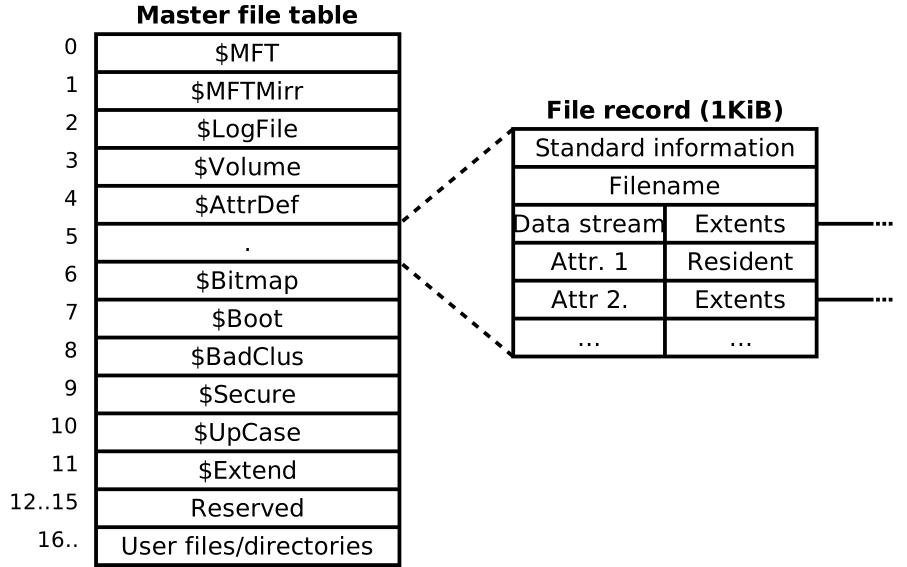
Figure 19.3 — The Master File Table as a numbered stack on the left. Row 5 (the root directory) is expanded on the right into one 1 KiB file record made of attributes. Diagram: MrDrBob, CC BY-SA 3.0, via Wikimedia Commons.

Walk through Figure 19.3 row by row. Left side, the stack titled "Master file table":
| Row | Name | What it is |
|---|---|---|
| 0 | $MFT | The table describing itself (it is a file too) |
| 1 | $MFTMirr | A backup copy of the first few rows |
| 2 | $LogFile | The journal (Section 4.4) |
| 3 | $Volume | Volume name, version and flags |
| 4 | $AttrDef | The list of attribute types NTFS knows |
| 5 | . | The root directory (the top folder of the volume) |
| 6 | $Bitmap | The free/used map of clusters |
| 7 | $Boot | The boot sector and boot code |
| 8 | $BadClus | A list of clusters found to be bad |
| 9 | $Secure | Shared security descriptors (who may do what) |
| 10 | $UpCase | Table for upper/lower-case matching of names |
| 11 | $Extend | A folder holding extras such as the change journal |
| 12 to 15 | Reserved | Kept for future use |
| 16 and up | User files and directories | Your files and folders begin here |
Right side of the figure: dotted lines widen from row 5 into a file record (1 KiB). KiB means 1,024 bytes. Inside that record you see Standard information, Filename, and a Data stream. The last ones show some data marked Resident (stored right there inside the record) and other data marked Extents, with lines going out to the right. An extent means "a run of clusters elsewhere on the disk". We explain both below.
4.1 Master File Table (MFT)
What it is: The MFT is a table with one record for every file and folder on the volume. Each record is a fixed 1 KB (1,024 bytes). The record stores the file's metadata and either its data or the location of its data.
What is inside one record: attributes. NTFS treats everything about a file as a list of attributes (named pieces of information). The main ones:
| Attribute | What it holds |
|---|---|
$STANDARD_INFORMATION | Timestamps, flags such as Read-only and Hidden |
$FILE_NAME | The file's name and its parent folder (a file with two names, see hard links in Section 6, has two of these) |
$DATA | The file's content, or where to find it |
| Security information | Points to the file's permissions, kept in $Secure (Section 5) |
$INDEX_ROOT and friends | Present in folders: the sorted list of names inside (Section 3.2) |
Resident vs non-resident data. This is a neat trick:
| Kind | Meaning | When |
|---|---|---|
| Resident | The data is stored inside the MFT record itself | Tiny files, up to a few hundred bytes |
| Non-resident | The record holds only a list of extents (where the clusters are); the data lives out in the cluster area | Everything bigger |
SMALL FILE (resident)                 BIG FILE (non-resident)

┌────────────────────────┐           ┌────────────────────────┐
│ MFT record (1 KB)      │           │ MFT record (1 KB)      │
│  Standard information  │           │  Standard information  │
│  File name             │           │  File name             │
│  DATA: "hello" (5 B)   │           │  DATA: extents list    │
└────────────────────────┘           │   start 9,120 length 8 │
  Everything in one place            │   start 20,500 length 4│
  (no clusters used)                 └─────────┬──────────────┘
                                               │ points to
                                     ┌─────────▼──────────────┐
                                     │ Clusters out on disk   │
                                     └────────────────────────┘
So a tiny text file may use no clusters at all. File Explorer often shows its "Size on disk" as 0 bytes. This saves space and makes tiny files fast to read, because the one record read gives you everything.
The special metadata files. The first MFT rows are reserved for NTFS's own files. You cannot see them in Explorer, even with hidden files shown.
| File | Job in one line |
|---|---|
$MFT | The table itself |
$MFTMirr | Copy of the first records, for recovery |
$LogFile | The transaction journal |
$Volume | Volume label and flags |
$AttrDef | Definitions of attribute types |
. (root) | The top directory |
$Bitmap | Which clusters are free |
$Boot | Boot code and key volume numbers |
$BadClus | Bad clusters |
$Secure | Shared permission records |
$UpCase | Case-matching table for file names |
$Extend | Extra metadata (for example the change journal $UsnJrnl) |
Why the MFT is cleverly protected. NTFS reserves extra space around the MFT so it can grow without being chopped into pieces. Losing the MFT would mean losing the catalogue, which is why $MFTMirr exists.
Windows tip (needs an admin Command Prompt):
fsutil fsinfo ntfsinfo C:
Among other facts, this prints Bytes Per Cluster and Bytes Per FileRecord Segment (usually 4096 and 1024). Output varies by PC.
4.2 File IDs / File Reference Numbers
What it is: Every file on NTFS has a File Reference Number (also called a File ID): a 64-bit number that works as the file's permanent "ID card". It combines two pieces:
┌────────────────────────────┬──────────────────┐
│ MFT record number          │ Sequence number  │
│ (48 bits: which row)       │ (16 bits: reuse  │
│                            │  counter)        │
└────────────────────────────┴──────────────────┘
        64-bit file reference
- The record number says which row of the MFT holds this file.
- The sequence number goes up each time that row is reused for a new file. So if a file is deleted and a new one takes its row, the old ID is no longer valid. An old reference cannot accidentally open the wrong file.
Where it is used: Directories store a file reference beside each name (the "record 51,204" of Section 3.2). Programs can also open or track a file by ID, so that a renamed or moved file can still be found. Search indexers and backup tools use this.
4.3 File Allocation (Clusters)
What it is: When a file needs space, NTFS finds free clusters and records them as extents.
An extent is a run of adjacent clusters, written as "start at cluster X, length N". One extent describes many clusters in a single short entry.
Cluster map of part of the volume (each box is one cluster):

 cluster:  100  101  102  103  104  105  106  107  108  109
          ┌────┬────┬────┬────┬────┬────┬────┬────┬────┬────┐
          │ A  │ A  │ A  │ B  │ B  │free│free│ A  │ A  │free│
          └────┴────┴────┴────┴────┴────┴────┴────┴────┴────┘

 File A: two extents  → (start 100, length 3) and (start 107, length 2)
 File B: one extent   → (start 103, length 2)
File A is fragmented: its pieces are not side by side. On a hard drive the head must jump between pieces, which is slower. On an SSD it matters far less (Chapter 18).
Finding free clusters: the $Bitmap. NTFS keeps a file called $Bitmap with one bit per cluster (a bit is a 1 or a 0). A 0 means "free"; a 1 means "used". To save a file, NTFS scans this map for free runs, picks them, and flips their bits to 1. Because one bit stands for a whole cluster, the map is tiny and quick to scan.
Windows tip: Windows runs scheduled Optimize Drives (the defragment tool). On an SSD it sends "trim" hints instead of moving data around.
4.4 Journaling ($LogFile — Crash Consistency)
What it is: Saving a file needs several separate changes: update the bitmap, update the MFT record, update the folder's list. The power could fail between those steps and leave a mess: a file that exists in the folder but has no data, or clusters marked used that nobody owns.
The fix: write the plan first. Before changing anything, NTFS writes a short note into the journal ($LogFile) describing what it is about to do. A real-life comparison: a builder who writes "I am moving the wall from A to B" in a notebook before starting. If the builder is interrupted halfway, the notebook tells them how to finish or undo the job.
 Save a file:

 1. Write intent to $LogFile    "I will add file X"
 2. Change the metadata         (MFT record, bitmap, folder list)
 3. Mark the transaction done in $LogFile

 Power fails at step 2?  On next start NTFS reads $LogFile and
 either finishes the change (redo) or rolls it back (undo).
What journaling protects: the file system's structure (the bookkeeping). After a crash the structure comes back consistent (it makes sense). It does not promise that your last few seconds of file contents are saved. An unsaved document is still lost.
The change journal ($UsnJrnl). Do not confuse it with $LogFile. The USN change journal (inside $Extend) is a separate log that records what changed (file created, renamed, deleted) so that programs like search indexers and backup tools do not have to rescan everything. An admin can look at its settings with fsutil usn queryjournal C:. The output depends on your system.
Windows tip: If Windows ever finds trouble after a bad shutdown, it may offer to check the drive. The chkdsk tool reads these structures; in Section 9's lab you will only run it in report-only mode.
Summary
| Term | Plain meaning |
|---|---|
| MFT | One 1 KB record per file or folder, holding its metadata |
| Attribute | One piece of information in a record (name, dates, data, security) |
| Resident data | Tiny file content stored inside the MFT record itself |
| Non-resident data | Record holds a list of extents; the data is in clusters elsewhere |
$MFT, $LogFile, $Bitmap, $Secure ... | Hidden NTFS metadata files |
| File reference number | 64-bit ID: record number plus a reuse counter |
| Extent | A run of adjacent clusters: "start here, this long" |
$Bitmap | One bit per cluster showing free or used |
$LogFile | Journal of planned changes so the structure survives a crash |
$UsnJrnl | Separate change journal recording what changed |