The Big Picture: The Postal Sorting Offices of the Internet
A switch (Section 1.6) only connects devices inside one network. To reach a website on the other side of the world, your packet must cross many networks. The boxes that join networks, and decide where each packet goes next, are routers.
Think of a letter sent abroad. Your local post office does not know the way to the recipient's house. It only knows "this goes to the regional sorting centre". That centre knows the next one, and so on, until the last one knows the street. Nobody knows the whole route. Each office knows only the next step. Routers work the same way.
8.1 How Routers Forward Packets
What it is: A router is a device with two or more network connections (each in a different network). When a packet arrives on one, the router reads the destination IP address, decides which connection is the best way onwards, and sends it out there. This is called forwarding.
Here is a real home router, opened up:
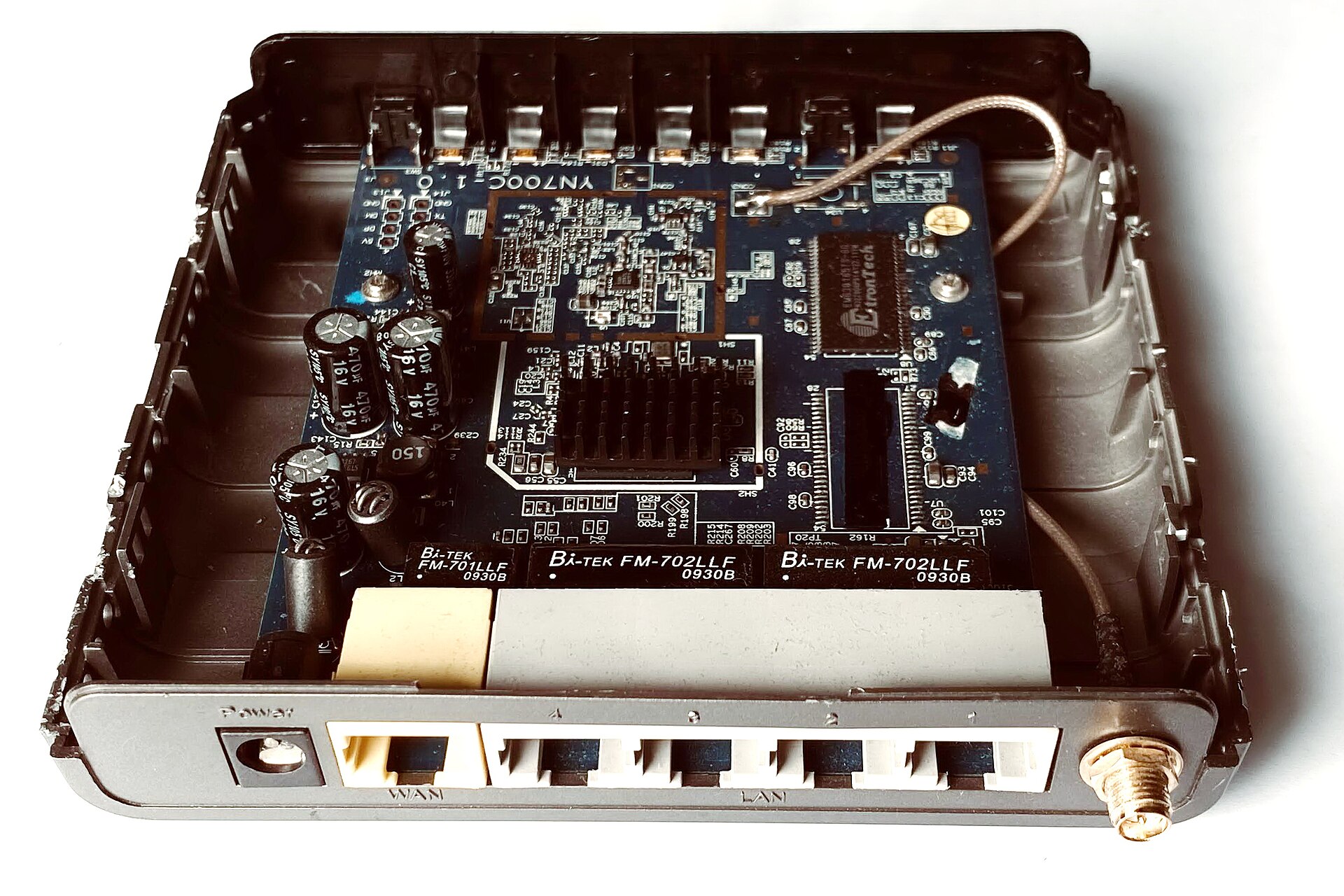
Figure 27.7 — A small Wi-Fi router (LevelOne WBR-6002) with its lid removed. On the rear panel you can see a power socket, one yellow-cream WAN port (the connection to the Internet), four grey LAN ports numbered 1 to 4 (for your own devices) and a gold antenna connector. Inside is a blue circuit board. The black finned block is a heat sink sitting on top of the main chip, which does the routing. Nearby are a memory chip, a grey antenna cable, some large capacitors and small black blocks labelled Bi-Tek FM-702LLF: network transformers that sit right next to the ports, just like the magnetics on the NIC in Figure 27.1. Photo: Mk2010, CC BY-SA 4.0, via Wikimedia Commons.
.jpg)
A home "router" is really five devices in one box:
| Job in the box | What it does | Where this course explains it |
|---|---|---|
| Router | Joins your home network to the Internet; forwards packets between them | This section |
| Switch (the LAN ports) | Connects your wired devices | Section 1.6 |
| Wi-Fi access point | Joins wireless devices to the same network | Section 1.4 |
| DHCP server | Gives your devices their addresses | Section 5 |
| NAT and firewall | Shares one public address and blocks unwanted incoming traffic | Sections 9 and 10 |
The WAN port (Wide Area Network) faces the Internet provider. The LAN ports (Local Area Network) face your home.
A home network map:
                      INTERNET
                         │
              ┌──────────┴──────────┐
              │   ISP modem / ONT   │   (turns the ISP's line into Ethernet)
              └──────────┬──────────┘
                         │ WAN port: public IP address
              ┌──────────┴──────────┐
              │    HOME ROUTER      │   router + switch + Wi-Fi + DHCP + NAT + firewall
              │    192.168.1.1      │   LAN side: 192.168.1.1 (the default gateway)
              └───┬─────┬───────┬───┘
       LAN port 1 │     │ Wi-Fi │ LAN port 2
         ┌────────┴─┐ ┌─┴─────┐ ┌┴─────────┐
         │ Desktop  │ │ Phone │ │ Printer  │
         │ .1.25    │ │ .1.40 │ │ .1.50    │
         └──────────┘ └───────┘ └──────────┘
What happens to one packet: Three things happen at each router:
- Receive the frame and check it. Remove the Ethernet header and read the IP header.
- Look up the destination IP in the routing table (8.2) to find the next hop (the next router) and the outgoing connection.
- Subtract 1 from the TTL, then wrap the packet in a new Ethernet frame for the next hop, and send it.
TTL (Time To Live). The IP header has a counter called TTL, set by the sender (Windows often starts at 128). Every router subtracts 1. If it reaches 0, the router throws the packet away and sends a small error message (ICMP "Time Exceeded") back to the sender. This stops packets from looping forever if the routes are wrong. It also makes tracert possible (below).
The IP packet stays; the frame changes at every hop. This surprises many learners. The IP addresses stay the same all the way from you to the server. The MAC addresses are rewritten at every hop:
   PC ──────────► Router 1 ──────────► Router 2 ──────────► Server
     frame 1           frame 2               frame 3

 IP packet:   source = PC           destination = Server       (never changes)
 Frame 1:     source MAC = PC       destination MAC = Router 1's LAN side
 Frame 2:     source MAC = Router 1 destination MAC = Router 2
 Frame 3:     source MAC = Router 2 destination MAC = Server
(That is why a MAC address only works on the local link, as said in Section 1.2. Each router uses ARP, Section 3, to find the next MAC.)
Switch versus router, once more:
| Switch | Router | |
|---|---|---|
| Looks at | MAC address in the frame | IP address in the packet |
| Connects | Devices in one network | Different networks |
| Keeps a | MAC address table (learned) | Routing table (configured or learned) |
| Changes the frame? | No | Yes: new MAC addresses, TTL minus 1 |
| Broadcasts pass through? | Yes (all ports) | No: routers stop broadcasts |
8.2 Routing Tables
What it is: A routing table is a list of rules. Each rule says: "for destinations in this range, send the packet this way." Every router has one, and so does your PC: your PC also has to decide whether to send directly or via the gateway.
What a rule contains:
Column in route print | Meaning |
|---|---|
| Network Destination | The start of the range, such as 192.168.1.0 |
| Netmask | The size of the range (like the subnet mask, Section 2.3) |
| Gateway | The next hop to use. On-link means "it is on my own network, send directly" |
| Interface | Which of my own addresses (which NIC) to send from |
| Metric | A cost; if two rules match equally, the lower number wins |
See your own routing table (read-only):
route print
A typical, shortened, IPv4 table (yours will look different):
IPv4 Route Table
Network Destination        Netmask          Gateway       Interface  Metric
          0.0.0.0          0.0.0.0      192.168.1.1    192.168.1.25      25
        127.0.0.0        255.0.0.0         On-link         127.0.0.1     331
      192.168.1.0    255.255.255.0         On-link      192.168.1.25     281
     192.168.1.25  255.255.255.255         On-link      192.168.1.25     281
    192.168.1.255  255.255.255.255         On-link      192.168.1.25     281
How to read it:
| Row | Meaning |
|---|---|
0.0.0.0 / 0.0.0.0 via 192.168.1.1 | The default route: "for anything else, give it to the router at 192.168.1.1" |
127.0.0.0 / 255.0.0.0 on-link | Loopback: traffic to this PC itself |
192.168.1.0 / 255.255.255.0 on-link | My own network: send directly (use ARP) |
192.168.1.25 / 255.255.255.255 on-link | My own address (a /32 rule matches exactly one address) |
192.168.1.255 / 255.255.255.255 on-link | The broadcast address of my network |
Longest-prefix match. More than one rule can match a packet. The router picks the most specific one, the rule with the longest prefix (the biggest number after the slash). This is called longest-prefix match.
 Destination 192.168.1.40  matches:
    0.0.0.0/0            (prefix length 0)   ← matches everything
    192.168.1.0/24       (prefix length 24)  ← more specific: WINS
 Result: sent directly on the local network, not to the router.

 Destination 8.8.8.8 matches only:
    0.0.0.0/0            ← the only match, so use the default route
 Result: sent to the gateway 192.168.1.1.
Where do the rules come from?
| Source | Meaning |
|---|---|
| Directly connected | Added automatically for each network the device is attached to |
| Static | Added by a person (or by DHCP, which gives the default gateway) |
| Dynamic | Learned from neighbouring routers using routing protocols (such as OSPF inside a company, BGP between providers) |
Big Internet routers hold hundreds of thousands of rules and learn them from each other automatically. A home router needs only two: "my own network is here" and "everything else goes to the ISP".
Trace the hops yourself (read-only):
tracert example.com
tracert sends packets with TTL = 1, then 2, then 3 and so on. Each router, as the TTL runs out, sends back an error, and so reveals itself.
Tracing route to example.com [93.184.216.34] over a maximum of 30 hops:

  1     1 ms     1 ms     1 ms  192.168.1.1
  2     8 ms     7 ms     8 ms  10.20.0.1
  3    10 ms     9 ms    11 ms  isp-core-router.example.net [203.0.113.5]
  4     *        *        *     Request timed out.
  5    24 ms    23 ms    25 ms  93.184.216.34

Trace complete.
| Part | Meaning |
|---|---|
| Hop number | The 1st, 2nd, 3rd router on the path |
| Three times | Three tries; shows the round-trip delay in milliseconds |
| Address or name | The router that answered |
* * * Request timed out | That hop did not reply (many routers are set to stay silent). Not necessarily a problem if later hops answer |
Hop 1 is almost always your own router, your default gateway.
8.3 The Default Gateway
What it is: The default gateway is the router your PC uses for every destination that is not on its own network. It is the "default route" (0.0.0.0/0) of the PC's routing table. The word "gateway" means "the door to other networks".
How your PC decides, for each packet:
 Destination IP → apply my subnet mask → is it in MY network?
        │
        ├── yes ──► ARP for the destination's MAC, send the frame directly
        │
        └── no  ──► ARP for the GATEWAY's MAC, send the frame to the gateway
                    (the IP packet still carries the real destination)
Where it comes from: Usually from DHCP (Section 5) or typed by hand. It is shown in ipconfig as Default Gateway.
Why it must be on your own network. The PC must be able to send a frame to the gateway directly, using its MAC address. So the gateway address has to be inside your own subnet (for example 192.168.1.1 for a 192.168.1.0/24 network).
What goes wrong without a good gateway:
| Situation | Result |
|---|---|
| No gateway set | You can talk to devices on your own network only; no Internet |
| Wrong gateway address | Packets for the Internet are sent to someone who cannot forward them |
| Gateway fine but ISP link down | Local network works; ping to the router works; Internet fails |
A simple troubleshooting ladder. Test from the inside out:
| Step | Command | If it fails |
|---|---|---|
| 1. My own stack | ping 127.0.0.1 | The network software is broken |
| 2. My address | ipconfig | 169.254.x.x means no DHCP |
| 3. The gateway | ping 192.168.1.1 (use your gateway) | Cable, Wi-Fi or router problem |
| 4. Beyond the router | ping 8.8.8.8 | ISP or router problem |
| 5. Names | ping example.com | If step 4 works but this fails, DNS is the problem |
| 6. Where it stops | tracert example.com | See which hop is the last to answer |
(ping sends a small test message called an ICMP echo request and waits for the reply. Some devices and firewalls block it on purpose, so a failed ping is a clue, not proof.)
Summary
| Topic | Remember this |
|---|---|
| Router | Connects different networks; forwards packets by IP using a routing table |
| Home router | Router + switch + Wi-Fi access point + DHCP server + NAT + firewall in one box |
| At each hop | New MAC addresses are written, TTL goes down by 1; IP addresses stay the same |
| TTL | Stops loops; reaching 0 produces an error message; tracert uses this |
| Routing table | Rules of destination, mask, next hop, interface and metric; route print shows it |
| Longest-prefix match | The most specific matching rule wins |
| Default route | 0.0.0.0/0: everything not matched goes to the default gateway |
| Default gateway | Your PC's door to other networks, must be inside your own subnet |