The Big Picture: One Double-Click, Many Parts
You move your hand, slide the mouse to a Notepad icon on the desktop, and double-click. About a second later a Notepad window appears. It feels like one action. In fact hardware, drivers, the kernel, Explorer, the process manager, the program and the graphics system all took part, one after another.
This section joins everything from Chapters 7 to 32 into one story. Read it slowly. Each step names the chapter where it is explained in depth.
┌────────────────────────────────────────────────────────────────────┐
│  YOU: slide the mouse to an icon and double-click                  │
└──────────────────────────────────┬─────────────────────────────────┘
                                   ▼
┌────────────────────────────────────────────────────────────────────┐
│  7.1 Mouse hardware: sensor sees movement, button switch closes    │
│      sends a small USB report                                      │
└──────────────────────────────────┬─────────────────────────────────┘
                                   ▼
┌────────────────────────────────────────────────────────────────────┐
│  7.1 Drivers: USB stack and mouse (HID) driver read the report     │
└──────────────────────────────────┬─────────────────────────────────┘
                                   ▼
┌────────────────────────────────────────────────────────────────────┐
│  7.2 Windows input system: raw input thread turns it into events   │
└──────────────────────────────────┬─────────────────────────────────┘
                                   ▼
┌────────────────────────────────────────────────────────────────────┐
│  7.3 Cursor moves; hit test finds the window under the pointer:    │
│      the desktop window, owned by explorer.exe                     │
└──────────────────────────────────┬─────────────────────────────────┘
                                   ▼
┌────────────────────────────────────────────────────────────────────┐
│  7.4 WM_LBUTTONDBLCLK message goes into Explorer's queue;          │
│      Explorer's shell view reacts to the icon                      │
└──────────────────────────────────┬─────────────────────────────────┘
                                   ▼
┌────────────────────────────────────────────────────────────────────┐
│  7.5 Shell "execute": look up the file type / shortcut target,     │
│      then CreateProcess (Chapter 9) starts the program             │
└──────────────────────────────────┬─────────────────────────────────┘
                                   ▼
┌────────────────────────────────────────────────────────────────────┐
│  7.6 New process creates its window; DWM composes; GPU; monitor    │
└────────────────────────────────────────────────────────────────────┘
7.1 Mouse Hardware Movement, then the Driver
What happens: Inside an optical mouse, an LED or laser lights the surface under the mouse. A tiny camera-like sensor takes thousands of pictures per second and compares them to measure how far the surface slid. Details are in Chapter 31 — Keyboard and Mouse Internals.
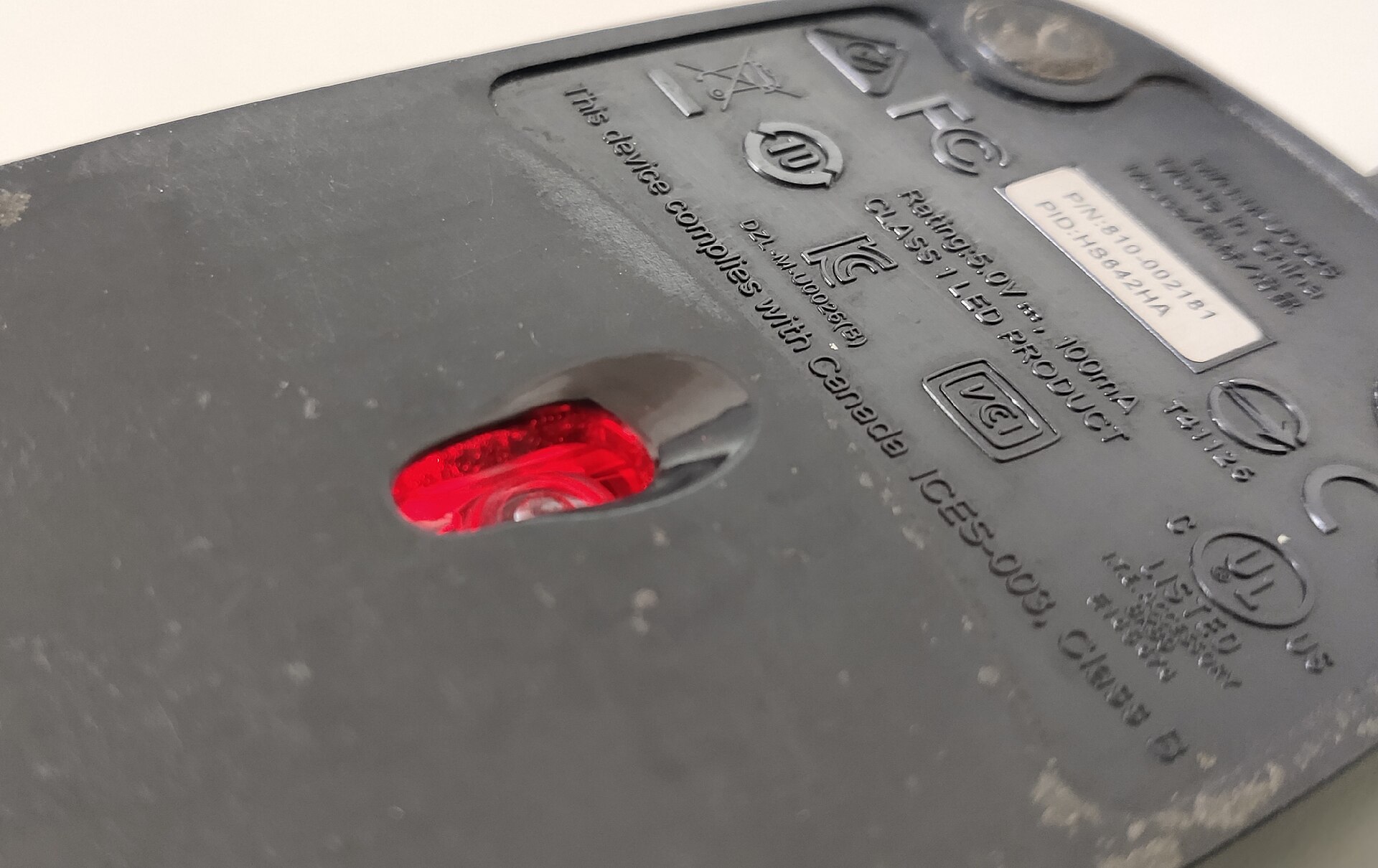
Figure 30.1 — The underside of a mouse. Look for the glowing red window: that is where the sensor looks at the surface to measure movement. Photo: Harikrishnanskt, CC BY-SA 4.0, via Wikimedia Commons.

The mouse's small chip collects the result into a short report: "moved 4 units left, 1 up, button states". It sends reports many times each second, for example 125 to 1000 per second depending on the mouse. A wireless mouse sends the same report through a radio receiver or Bluetooth.
The driver chain (Chapter 13). The report arrives at the PC's USB controller (Chapter 4), which raises an interrupt and moves the data into memory with DMA. Then a stack of drivers handles it:
| Driver layer | Job |
|---|---|
| USB host controller driver | Receives the data from the wire |
| USB and HID (Human Interface Device) drivers | Understand that this is a mouse and decode the report format |
| Mouse class driver | Hands clean "movement and button" data to the Windows input system |
Notice that all of this happens in microseconds to a few milliseconds, without Explorer or any program knowing yet.
7.2 Raw Input Processed by the Windows Input System
What happens: The class driver passes the data to the kernel's input system (the win32k family, Section 4.1). The raw input thread (Section 6.1) picks it up and adds it to a queue of events in the order they happened.
The input system applies pointer rules. Windows can apply acceleration ("Enhance pointer precision": fast hand movement makes the pointer travel further) and your speed setting. It also checks the screen limits, so the pointer stays on a monitor.
 raw report: dx = +4, dy = -1
        │
        ▼  speed setting, acceleration
 new pointer position = old position + adjusted movement
        │
        ▼  clamped to the screen area
 pointer is now at (812, 455)
7.3 Cursor Position Updated, then Hit Testing Against the Z-Order
What happens: The system stores the new cursor position. The pointer picture you see on the screen is moved to match, and this is done quickly and separately from any program, so that it follows your hand smoothly even if programs are slow. (On a PC, the final image is still presented by the graphics system, see 7.6.)
Next comes hit testing (Section 6.1): the system walks through the windows from front to back and asks which one covers the point (812, 455).
 Point (812, 455)

 Front  ┌────────────────────┐
   │    │ Calculator window  │  (812,455) outside   ──► no
   │    └────────────────────┘
   │    ┌────────────────────┐
   │    │ Chrome window      │  (812,455) outside   ──► no
   │    └────────────────────┘
   ▼    ┌────────────────────┐
  Back  │ DESKTOP window     │  (812,455) inside    ──► YES
        │ (explorer.exe)     │       over the Notepad icon
        └────────────────────┘
As the pointer moved the system also sent WM_MOUSEMOVE messages to whichever window was under it at each step. If you passed over a taskbar button, those went to the taskbar. When over the desktop, they go to Explorer's desktop window, which highlights the icon under the pointer.
In this example no program window covers the icon, so the desktop window gets the click. The desktop window is created and owned by the Explorer process (Section 2.1).
7.4 The Click Message Reaches Explorer's Window Procedure
What happens: You press the left button twice quickly. The system notices that the two presses were close in time (the double-click time, about half a second by default) and in place, so it sends a double-click message.
| Event | Message put in Explorer's queue |
|---|---|
| Button down (first click) | WM_LBUTTONDOWN |
| Button up | WM_LBUTTONUP |
| Second press, quickly | WM_LBUTTONDBLCLK |
| Second release | WM_LBUTTONUP |
Now it is Explorer's turn. A thread inside explorer.exe that owns the desktop window is running its message loop (Section 3.3). GetMessage returns, DispatchMessage calls the window procedure.
The desktop's icon area is managed by a shell view (a built-in Explorer component that draws and manages icons, the same kind used inside folder windows). The shell view works out that the pointer is over the Notepad icon and treats the double-click as "open this item".
A note on Windows version differences: The exact internal class names and how the desktop is built differ by version, but the idea is the same: the desktop's shell view gets mouse messages and decides what the icon means.
7.5 Explorer Triggers Process Creation for the Icon's Target
What happens: "Open this item" becomes a call to the shell's execute function. In programming terms this is ShellExecute or a similar call (Chapter 23). The shell must find out what to do with the item:
Item double-clicked: "Notepad.lnk"  (a shortcut file on the desktop)
        │
        ▼
Is it a shortcut (.lnk)?  YES ──► read the target path inside it:
        │                          C:\Windows\System32\notepad.exe
        ▼
Is the target a program (.exe)?  YES ──► run it directly
        │
        └─ If it were a document (like report.txt):
              look up the FILE ASSOCIATION for ".txt" in the registry
              (Chapter 17) ──► finds the program that opens .txt files
              ──► run that program with the file name as input
Then Windows checks safety, in a quick list:
| Check | Why |
|---|---|
| Permissions (Chapter 25) | You must be allowed to run the file |
| Security prompts (Chapter 26) | SmartScreen or "Open File - Security Warning" may appear for downloaded files |
| Elevation | If the program needs administrator rights, the UAC prompt appears first |
If all is well, the shell calls CreateProcess (Chapter 9, and Chapter 8 for the kernel side). The kernel then creates the new process: it builds a private address space, maps the program's .exe and the DLLs it needs (Chapter 22) and starts its first thread (Chapter 10). The new process is a child of Explorer in Task Manager's eyes, though it is independent once running.
explorer.exe ── CreateProcess ──► kernel creates notepad.exe process
                                      │
                                      ├─ loads notepad.exe + DLLs
                                      └─ starts the first thread
                                         running Notepad's code
7.6 The New Window Appears: DWM Composes It onto the Desktop
What happens: Notepad's first thread runs its start-up code. It registers its window class, creates its window (Section 3.2), and gets an HWND. The window manager adds the window to the z-order at the front, tells the shell (which adds a taskbar button, Section 2.2), and sends the first WM_PAINT message: "draw yourself".
Notepad draws its frame, menu and empty text area into its own off-screen buffer (Section 4.2). Then DWM (dwm.exe) does its job:
 Notepad's buffer ──┐
 Desktop (Explorer)─┼──► DWM puts them in z-order ──► GPU blends ──► frame
 Taskbar buffer ────┘    adds shadow and opening animation
The GPU (Chapter 32) produces the finished frame in video memory, and the display connection (HDMI or DisplayPort, Chapter 4 and Chapter 32) sends it to the monitor at its next refresh. You see Notepad appear, usually with a small fade or grow animation made by DWM.
The complete chain on one page:
 STEP                 WHO DOES IT                      WHERE IT IS COVERED
 ───────────────────  ───────────────────────────────  ───────────────────
 1 Hand moves mouse   Optical sensor + button switch   Chapter 31
 2 Report to PC       USB / Bluetooth, interrupt, DMA  Chapter 4, 13
 3 Decode report      USB, HID and mouse drivers       Chapter 13
 4 Input events       Kernel input system (win32k)     Chapter 30 (Sec 6)
 5 Pointer position   Input system applies rules       Chapter 30 (Sec 6)
 6 Hit test           Window manager, z-order          Chapter 30 (Sec 3, 6)
 7 Click message      Explorer's message queue         Chapter 30 (Sec 3)
 8 Shell view         Explorer finds icon: "open it"   Chapter 30 (Sec 1, 2)
 9 Resolve target     Shortcut / file association      Chapter 17, 23
 10 Start program     CreateProcess, kernel            Chapter 9, 10, 8
 11 Create window     New process, user32, win32k      Chapter 30 (Sec 3)
 12 Draw to buffer    New program + GDI / Direct3D     Chapter 30 (Sec 4)
 13 Compose frame     dwm.exe + GPU                    Chapter 30, 32
 14 Show it           Display cable and monitor        Chapter 32
Timeline. The first steps take a few milliseconds. The slow part is steps 10 to 12: loading the program from the SSD (Chapter 18, 19), and the program's own start-up. This is why the second launch of the same program is often faster: the files are already in the file cache in RAM (Chapter 3 and Chapter 20).
Where things can go wrong:
| Symptom | Which step is probably involved |
|---|---|
| Pointer does not move at all | Steps 1 to 5: hardware, driver, USB port |
| Pointer moves but clicks do nothing on the desktop | Steps 6 to 8: Explorer is hung. Restart Explorer (Section 1.1) |
| Click works, nothing starts, no error | Steps 9 and 10: broken file association, blocked by security software |
| "Windows cannot find..." | Step 9: the shortcut's target is missing |
| Program starts but window never shows | Step 11 or 12: the program is stuck during start-up |
| Window shows with flicker or lag | Step 13 or 14: graphics driver problem |
Summary
| Term | Plain meaning |
|---|---|
| HID report | Small data packet from the mouse: movement and buttons |
| Raw input thread | Kernel thread that turns device data into events |
| Hit test | Finding the front-most window at the pointer position |
| WM_LBUTTONDBLCLK | The double-click message sent to the window under the pointer |
| Shell view | Explorer component that draws and manages icons |
| Shell execute | Resolves a shortcut or file type and starts the program |
| File association | Registry entry that says which program opens a file type |
| CreateProcess | The API that starts a new process |
| DWM + GPU | Compose every window's buffer into the final frame |