The Big Picture: A Mouse Does Not Know Where It Is
A keyboard reports "which key". A mouse reports something stranger: "I moved 5 units right and 2 units up." It never reports "I am at the middle of the desk". A mouse has no idea of an absolute position. It only reports change.
Windows keeps the cursor's position itself. Each report moves that stored position a little, like a ship's navigator adding each small leg of the trip to a map.
Mouse says:    (+5, -2)   (+3, 0)   (0, +4)   ...    ← only changes
Windows keeps:  position  (100,100) → (105,98) → (108,98) → (108,102)
This is also why you can lift a mouse, move it back, and put it down again: the cursor stays where it was.
4.1 Optical / Laser Sensor Movement Detection
What it is: Inside a modern mouse, on the underside, is a tiny camera. A light (an LED, or an infrared laser in a laser mouse) shines at a low angle onto the surface so tiny bumps and textures make shadows. The camera takes thousands of small pictures per second.
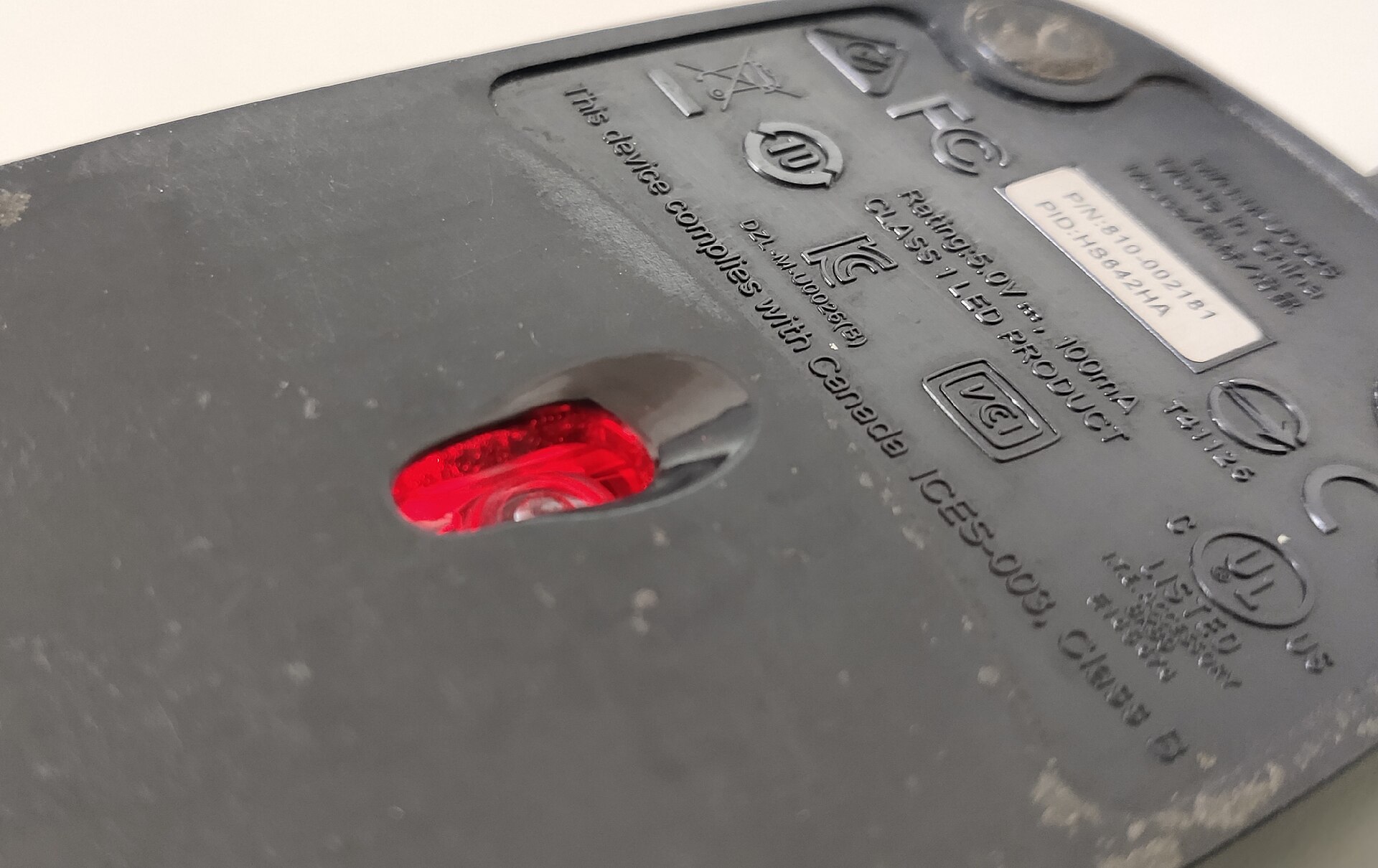
Figure 31.3 — The underside of an optical mouse. The glowing red window is where the light shines out and the sensor looks at the desk. The small embossed marks are regulatory labels (for example a light-product class mark). Photo: Harikrishnanskt, CC BY-SA 4.0, via Wikimedia Commons.

How the sensor finds movement:
- The image sensor (a CMOS chip, the same kind of chip used in phone cameras, but with very few pixels, often only a few dozen across) takes a picture of a tiny patch of the surface.
- A small processing chip next to it takes the next picture a fraction of a millisecond later.
- It compares the two pictures: "the pattern of dots shifted 2 pixels left and 1 pixel up."
- That shift, converted to counts, becomes dx (sideways change) and dy (up-down change).
 Picture 1          Picture 2          Result
 . . . . .          . . . . .
 . ■ . . .    ──►   . . ■ . .          pattern moved 1 step right
 . . . . .          . . . . .          so   dx = +1,  dy = 0
Why does a plain white glass desk fail? There is nothing to see: every picture looks the same, so the sensor cannot tell if it moved. Glass, mirrors and very glossy surfaces are hard for many sensors. A mouse pad or a wooden desk has texture, so it works. Some laser sensors cope better with glass; it depends on the model.
DPI / CPI: The mouse's sensitivity is given as DPI (dots per inch), or more correctly CPI (counts per inch). It says how many counts the mouse reports for one inch of physical movement.
| Setting | Meaning |
|---|---|
| 800 CPI | Moving the mouse 1 inch gives about 800 counts |
| 1600 CPI | The same inch gives about 1600 counts, so the cursor travels further |
Many mice have a button to switch between a few CPI levels. A higher CPI means "fast cursor with a small hand movement", but too high can feel jumpy. Typical office values are in the hundreds to about 1600; gaming mice go much higher.
4.2 Movement Deltas Reported via HID
What it is: The mouse is a HID device (Section 2.1), so it also describes its reports through a report descriptor and is polled by the host.
A typical simple mouse report holds buttons, dx, dy, and often wheel:
Byte:     0         1       2       3
       ┌─────────┬───────┬───────┬───────┐
       │ Buttons │  dx   │  dy   │ wheel │
       └─────────┴───────┴───────┴───────┘
- Buttons: one bit each (left, right, middle, and extra side buttons). A bit that is 1 means "held".
- dx, dy: signed numbers (they can be positive or negative: right or left, down or up). Many modern mice use bigger 16-bit numbers for finer detail; their descriptor says so.
- wheel: how many notches the wheel turned since the last report. The scroll wheel works with a small encoder: a wheel with notches or slots, read by sensors, which count steps forward and back.
The basic "boot protocol" mouse report is about 3 bytes (buttons, X, Y). Most real mice use a longer report (for example 4 bytes with the wheel or more). Exact formats differ.
Polling rate for a mouse: the number of reports per second. 125 Hz (every 8 ms) is a common basic value. Gaming mice often offer 500 or 1000 Hz (1 ms) and some more. A higher rate means the cursor updates more smoothly and with less delay, at the cost of a little more CPU work.
If the mouse did not move in the last interval, it reports "dx = 0, dy = 0" or just stays quiet. If you move quickly, several counts are added together in one report.
The mouse driver stack is the mirror of the keyboard one in Section 3: hidusb.sys and hidclass.sys (shared), then mouhid.sys (turns a HID report into mouse events) and mouclass.sys (the mouse class driver, which collects events from every mouse and touchpad). PS/2 mice use i8042prt.sys instead (IRQ 12). Driver names can differ by device.
4.3 Cursor Position Update and Acceleration Curves
What it is: The raw input thread (Section 3.4) takes each mouse event and works out where the cursor goes next:
- Take the counts (dx, dy) from the event.
- Apply the speed setting. Windows has a pointer speed slider (Settings → Bluetooth & devices → Mouse). It multiplies the counts by a factor, so a higher setting moves the cursor more per count.
- Apply acceleration (if on). The Windows setting called Enhance pointer precision is Microsoft's acceleration. When it is on, a fast hand movement is multiplied more than a slow one: slow movements are fine and precise, fast movements cover the screen in one flick. It is a curve: speed in, scale factor out.
- Add the result to the stored cursor position.
- Clamp the position so it stays inside the screen area (the virtual desktop, which is all your monitors joined together).
- Draw the cursor. The hardware or the compositor (Chapter 30) shows the arrow at the new place. Windows moves the cursor itself without asking applications.
 (dx, dy) ──► × pointer speed ──► × acceleration curve (if on) ──► add to position
                                                                          │
                                                       keep inside screen ▼
                                                                    draw cursor
| Setting | What it changes | Effect |
|---|---|---|
| Mouse CPI (on the mouse) | Counts per inch, in hardware | Cursor distance per hand movement |
| Pointer speed (Windows) | A multiplier in software | Cursor distance per count |
| Enhance pointer precision | Speed-dependent multiplier | Same hand movement gives a different distance when it is quick or slow |
Gamers often turn acceleration off. With acceleration the same physical movement does not always give the same on-screen distance, which makes aiming harder to learn. Many games read the raw movement instead (the Raw Input API from Section 3.4) and ignore the Windows curve.
Touchpads on laptops are different. A precision touchpad reports the absolute finger positions (and many fingers), and Windows turns them into cursor movement and gestures. The rest of the path afterwards is the same.
4.4 Click Event Hit-Testing Against Window Z-Order
What it is: A click arrives in the report as a button bit changing from 0 to 1. Unlike the keyboard, which goes to the focused window, a mouse click goes to the window under the pointer. The system must find which window that is. Finding it is called hit-testing.
Z-order. Windows on the screen overlap like sheets of paper on a desk. Their stacking order from front to back is the Z-order (the third direction, "Z", is depth). The window on top covers the ones below.
Hit-testing steps:
Cursor at (400, 300). Windows, front to back:

   ┌── Window A (top) ───────┐
   │          ● (400,300)    │ ← start at the TOP of the stack:
   └─────────────────────────┘    is the point inside A? YES → A gets it.
        ┌── Window B ──────┐
        │  (hidden part)   │   (If it were outside A, Windows would try B,
        └──────────────────┘    then the next one down.)
- Windows starts at the front of the Z-order.
- It asks "is the point inside this window's area?" If not, it tries the next window back.
- Once it finds the window, it asks it which part was hit: the client area (the content), the title bar, a border, the minimise / close button (this uses a message called WM_NCHITTEST, "non-client hit test").
- Based on the answer, it sends the right messages:
| Part hit | What Windows does |
|---|---|
| Title bar | Lets you drag the window |
| Border | Lets you resize |
| Close button (the X) | Closes the window |
| Client area | Sends mouse messages: WM_LBUTTONDOWN, WM_LBUTTONUP, WM_MOUSEMOVE, WM_MOUSEWHEEL |
For a normal click, the window also becomes the active one and gets keyboard focus (Section 3.6). Program windows contain child windows (buttons, text boxes). Hit-testing goes down the family tree to the smallest window at that point, so a click lands on the button itself rather than its big parent.
Wheel messages: one notch is normally reported as 120 units (a constant named WHEEL_DELTA), so smooth scrolling mice can send smaller steps.
Mouse capture. When you press the left button on a scroll bar and drag, the mouse is captured: all mouse messages go to that window until you let go, even if the pointer leaves it. That is why a drag keeps working when you move off the scroll bar.
Summary
| Term | Plain meaning |
|---|---|
| Optical sensor | A tiny camera that compares pictures of the surface |
| dx, dy | Change in position since the last report; never an absolute position |
| CPI / DPI | Counts per inch of movement; the mouse's sensitivity |
| Polling rate | Reports per second; 125 Hz basic, 1000 Hz common for gaming |
| Mouse HID report | Buttons, dx, dy, wheel |
| Encoder | The sensor that counts wheel notches |
| Pointer speed | Windows multiplier for counts |
| Enhance pointer precision | Windows acceleration curve: fast movement goes further |
| Z-order | Front-to-back stacking order of windows |
| Hit-testing | Finding which window (and which part) is under the pointer |
| WM_NCHITTEST | Message asking which part of a window was hit |