The Big Picture: A Tour of the Parts
Let's start with what physically exists. Imagine opening the side of a desktop PC. You would see a big green board, a few chips, some sticks, a box, and a lot of cables. This section names each one and says what it does.
2.1 The Power Supply Unit (PSU)
What it is: A box that converts wall electricity (AC) into computer electricity (DC).
- AC (alternating current) is the type of electricity in your wall socket. It swings back and forth.
- DC (direct current) is steady, one-way electricity. Chips need this kind.
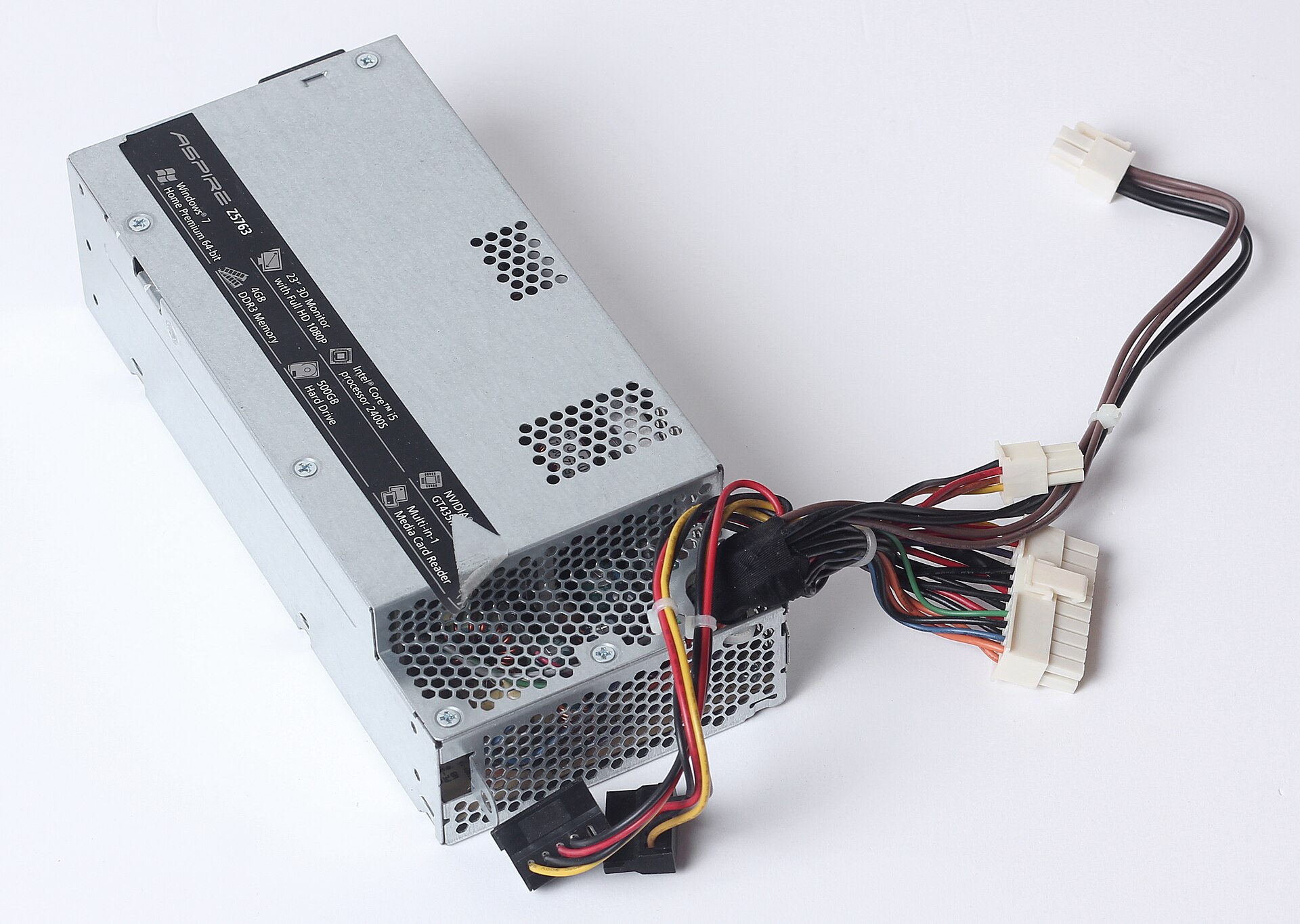
Figure 1.1 — Look at the silver box: that is the power supply. The bundle of coloured cables coming out of it ends in white plugs. The widest plug feeds the motherboard, the small 4-pin ones feed extra power, and the others power drives. Photo: Dmitry Makeev, CC BY-SA 4.0, via Wikimedia Commons.

Why it matters:
- Without it, nothing turns on.
- It filters noise from wall power (like a strainer for rough electricity).
- It provides multiple voltage levels (12V, 5V, 3.3V). Voltage is the "push" of the electricity.
- Different components need different voltages.
What you should know:
- Desktop PSUs are typically 500W–1000W (watts measure power).
- Laptop PSUs: much smaller, often built into the device.
- When the PSU fails: the computer won't turn on (black screen).
2.2 The Motherboard
What it is: The main circuit board that everything plugs into.
Think of it as: The nervous system of the computer. Every component connects here.
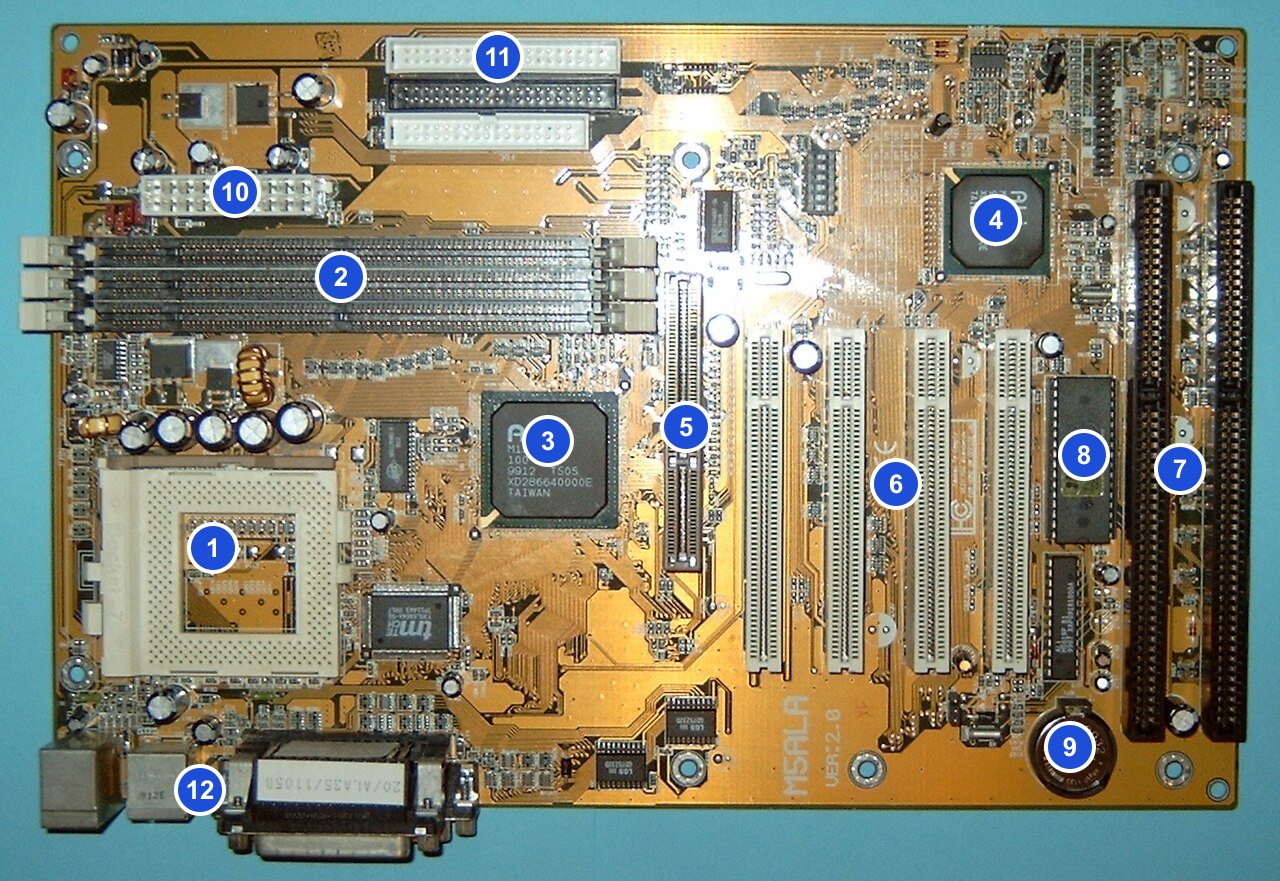
Figure 1.2 — An older motherboard with 12 numbered markers: 1 CPU socket, 2 memory slots, 3 northbridge chip, 4 southbridge chip, 5 AGP graphics slot, 6 PCI slots, 7 ISA slots, 8 BIOS chip, 9 battery, 10 power connector, 11 disk connectors, 12 ports. Newer boards look different but have the same kinds of parts. Photo: Arnulf zu Linden, CC BY-SA 3.0, numbers added, via Wikimedia Commons.

Key connections on the motherboard:
┌─────────────────────────────────────────────┐
│           MOTHERBOARD                       │
├─────────────────────────────────────────────┤
│  [CPU Socket] ← CPU plugs here             │
│  [RAM Slots] ← RAM plugs here              │
│  [PCIe Slots] ← GPUs, NICs plug here       │
│  [M.2/SATA Slots] ← Storage devices        │
│  [Chipset] ← Bridge between CPU & I/O      │
│  [Power Connectors] ← From PSU             │
│  [USB Headers] ← Front USB ports           │
│  [Audio Jacks] ← Speaker/Microphone        │
│  [Network Jack] ← Ethernet/Wi-Fi           │
│  [BIOS Chip] ← Firmware/boot code          │
│  [CMOS Battery] ← Maintains settings       │
│  [Various buses] ← Internal highways       │
└─────────────────────────────────────────────┘
A few new words from this list:
| Term | Plain meaning |
|---|---|
| Socket | The square holder the CPU sits in |
| PCIe slot | A long slot for add-in cards such as a graphics card |
| M.2 / SATA | Two kinds of connectors for storage drives |
| Chipset | A helper chip that manages the slower parts |
| Header | A row of small pins on the board for ports on the case |
| Bus | A shared road for data (Section 3 explains this) |
Important concept: The motherboard is not just "a board with slots." It's an intelligent circuit with:
- Power distribution — making sure each component gets the right voltage
- Signal routing — connecting components together with thin copper lines
- Clocking — a crystal oscillator (a tiny part that ticks very fast and steadily) that keeps everything in step, like a drummer for a band
- Monitoring — temperature sensors, power sensors
2.3 The Central Processing Unit (CPU)
What it is: The "brain" of the computer. It executes instructions.
An instruction is one tiny step, like "add these two numbers."
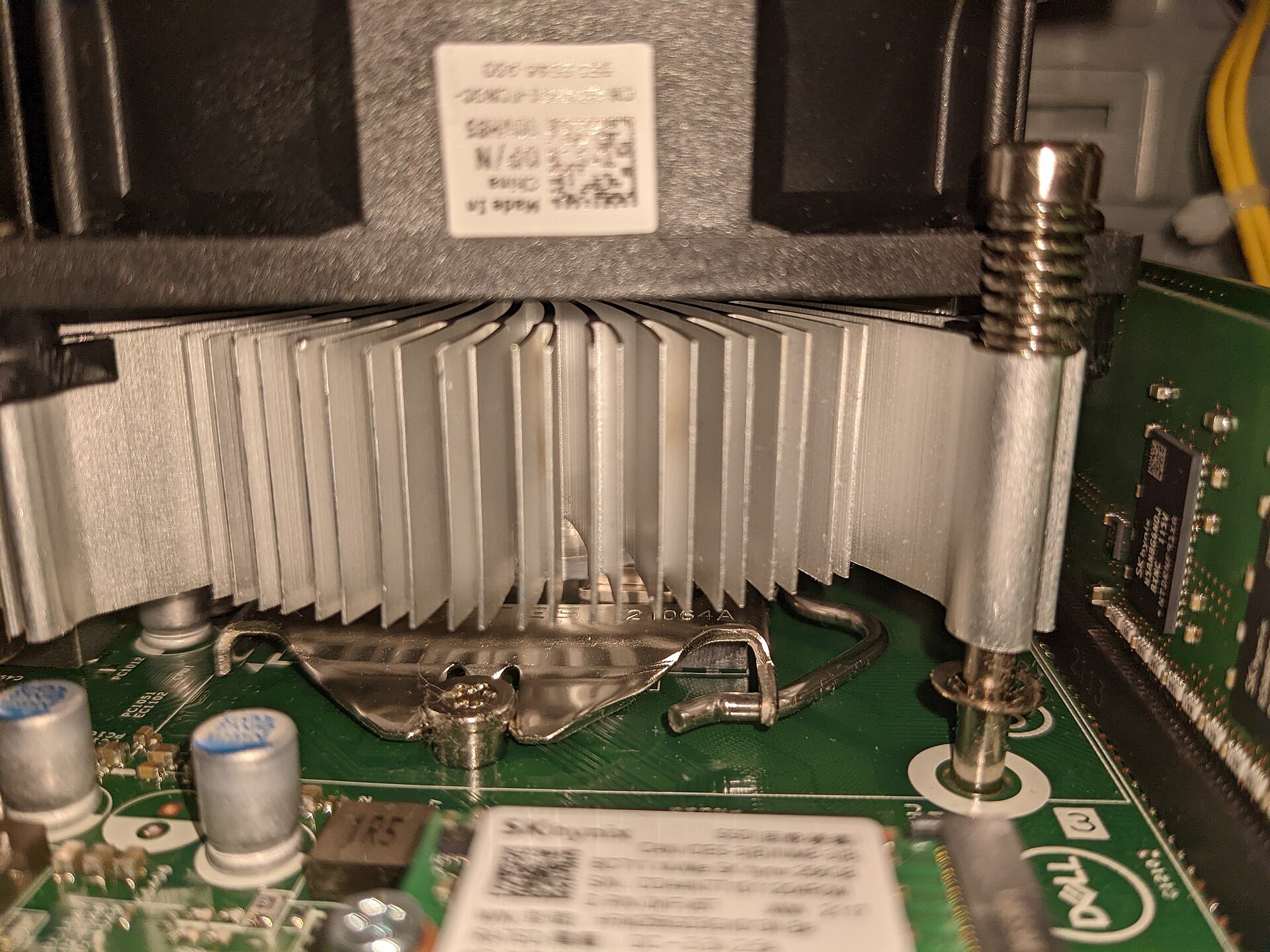
Figure 1.3 — Look at the silvery aluminium fins with the fan on top: this is the CPU cooler, sitting right over the CPU. The CPU itself is hidden underneath. A metal clip holds the cooler in place. Around it you can see the green motherboard and small round capacitors, and in front is a small M.2 SSD. Photo: Evan0512, CC BY-SA 4.0, via Wikimedia Commons.

The CPU gets hot, so it needs this cooler. The fins spread the heat out and the fan blows it away.
What you should know for now:
- Every operation your computer does comes from the CPU executing instructions.
- Modern CPUs have multiple cores (2–64+ depending on the CPU). A core is a small processor of its own.
- Each core can execute instructions independently.
- Each core has multiple threads (we'll cover this in Chapter 10). A thread is one line of work a core follows.
- The CPU runs at a frequency, measured in GHz (billions of operations per second). It is like how fast a heart beats.
Example speeds:
| CPU type | Speed |
|---|---|
| Old CPU (2010) | 2.5 GHz |
| Modern laptop CPU (2024) | 3.5–5.5 GHz |
| Modern gaming CPU (2024) | 4.5–5.8 GHz |
Important: The CPU doesn't have direct access to your hard drive or network. It must ask other components to do that.
2.4 Random Access Memory (RAM)
What it is: The computer's short-term memory. It forgets everything when you power off.
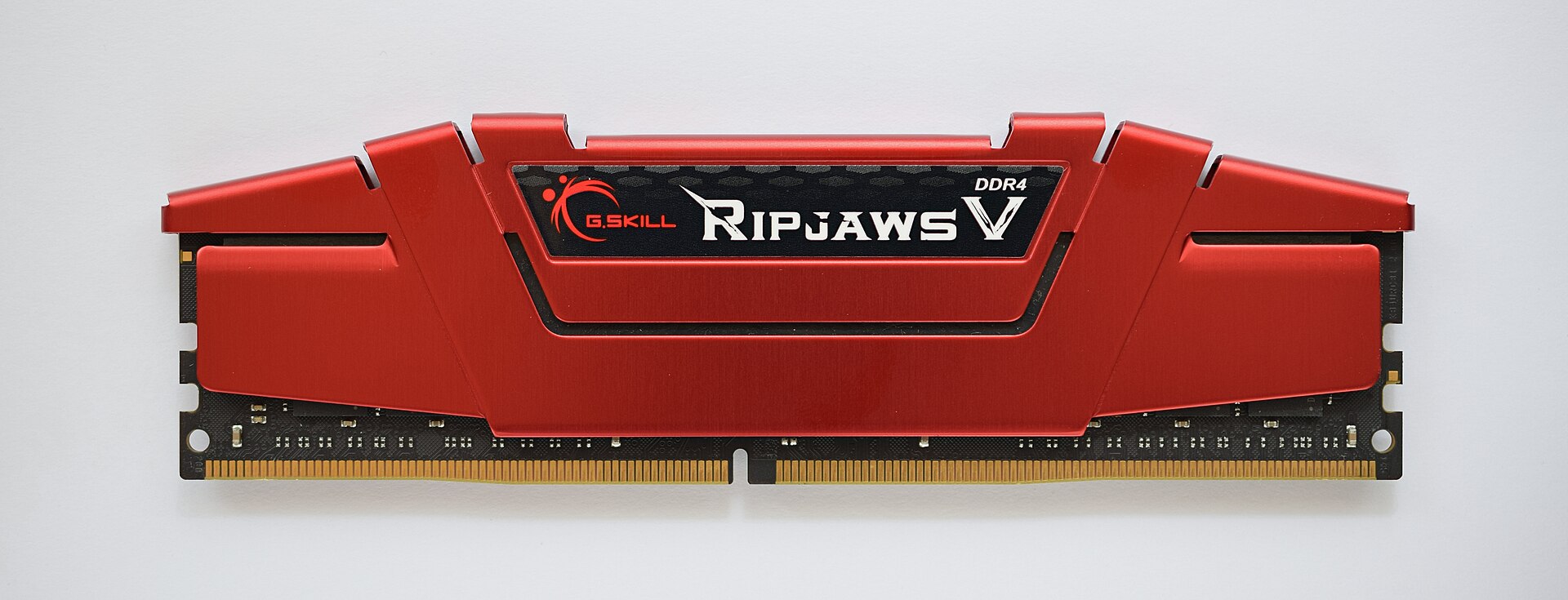
Figure 1.4 — This is one RAM stick (DDR4 type). The red metal part on top is a heat spreader that helps it stay cool. The row of gold contacts at the bottom is what plugs into the motherboard slot, and the small notch in that row makes sure you can only insert it the right way round. Photo: ElooKoN, CC BY-SA 4.0, via Wikimedia Commons.
.jpg)
Think of it as: Your desk. A desk is small but fast to use. Storage is the filing cabinet: big, but slower to fetch from.
Why it exists:
- Storage (hard drive) is slow.
- RAM is fast.
- The CPU needs fast data access.
- So Windows keeps the data you're actively using in RAM.
What you should know:
| Computer type | Typical RAM |
|---|---|
| Typical laptop | 8–16 GB |
| Typical gaming PC | 32 GB |
| Typical server | 128–1024 GB |
- RAM speeds: Measured in MHz or GHz.
Key concept: RAM is temporary. When your computer shuts down, everything in RAM disappears. This is why unsaved work is lost in a power cut.
2.5 Storage Devices
Storage is where your files live permanently, even with the power off. There are two main types.
Hard Disk Drive (HDD)
What it is: Spinning magnetic platters that store data permanently.
A platter is a round, flat disc. Data is stored as tiny magnetic marks on it, a bit like a record player that reads magnetism instead of grooves.
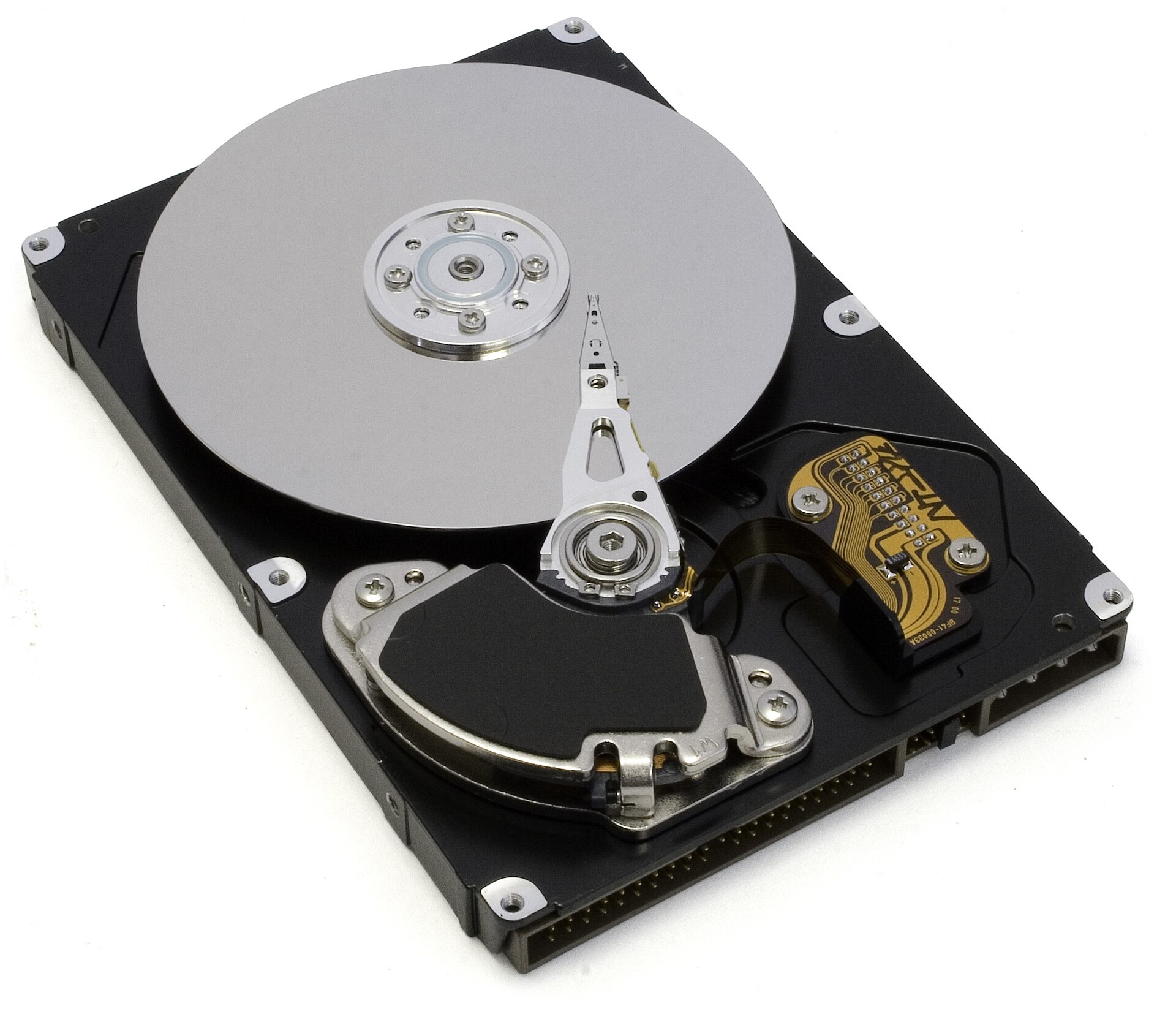
Figure 1.5 — A hard drive with the lid removed. Look at the round silver disc: that is the platter. The long arm reaching over it carries the read/write head, which hovers just above the surface. The black area holds the motor and magnets, the gold strip is part of the circuit board, and the pins along the edge are the old IDE connector. Photo: Zzubnik, public domain, via Wikimedia Commons.

┌──────────────────────┐
│   HARD DISK DRIVE    │
├──────────────────────┤
│ [Spinning Platter]   │  ← Coated with magnetic material
│ [Read/Write Head]    │  ← Moves to read/write data
│ [Motor]              │  ← Spins the platter
│ [Controller]         │  ← Manages the device
│ [Firmware]           │  ← Built-in software
└──────────────────────┘
Characteristics:
- Very slow (5,400–7,200 RPM). RPM means "turns per minute."
- Large storage (1–14 TB)
- Cheap per gigabyte
- Mechanical failure risk (it has moving parts)
- Loud when working
Solid State Drive (SSD)
What it is: Electronic storage with no moving parts. It uses NAND flash memory (a type of memory chip that keeps data without power).
Characteristics:
- Very fast (much faster than HDD)
- Can be large (250 GB–8 TB)
- More expensive per gigabyte than HDD
- More reliable (no moving parts)
- Silent
Connection types:
| Type | What it is | Speed |
|---|---|---|
| SATA | Older connection, slower | ~550 MB/s |
| NVMe | Newer connection, faster | ~3,500–7,000 MB/s |
(MB/s means megabytes per second: how much data moves each second.)
Quick Comparison
| HDD | SSD | |
|---|---|---|
| How it works | Spinning disc | Memory chips |
| Speed | Slow | Fast |
| Price per GB | Low | Higher |
| Noise | Loud | Silent |
2.6 The GPU (Graphics Processing Unit)
What it is: A specialized processor for rendering graphics. "Rendering" means drawing the picture you see.
Important: Most modern CPUs have integrated graphics (a GPU built into the CPU). You only need a separate GPU for:
- Gaming
- 3D design
- Machine learning
- Video editing
What it does:
- Takes 3D coordinates, textures, and lighting
- Transforms them into pixels (the tiny dots of a screen)
- Sends those pixels to the monitor
You should know: The GPU is not essential for basic computing, but it's essential for anything visual.
2.7 The Network Interface Controller (NIC)
What it is: Hardware that connects to the internet.
Types:
| Type | Good | Not so good |
|---|---|---|
| Ethernet | Wired, fast, reliable | Needs a cable |
| Wi-Fi | Wireless, convenient | Sometimes slower |
What it does:
- Converts your data into network packets (small labeled parcels of data)
- Sends packets to the router/network
- Receives packets from the network
Key concept: The NIC runs its own firmware and has its own processor. It is a small computer inside your computer.
2.8 USB Controllers
What they are: Special processors that manage USB devices.
Types of USB:
| Version | Speed |
|---|---|
| USB 2.0 | Slower (480 Mbps) |
| USB 3.0 | Faster (5 Gbps) |
| USB 3.1 | Even faster (10 Gbps) |
| USB-C | Modern connector, can support higher speeds |
(Mbps and Gbps mean megabits and gigabits per second. USB-C is the shape of the plug, not a speed.)
What they do:
- Detect when a USB device is plugged in
- Communicate with the device
- Transfer data to/from the device
2.9 The Audio Controller
What it is: Hardware that processes sound.
Components:
| Part | Job |
|---|---|
| DAC (Digital-to-Analog Converter) | Converts digital data (1s and 0s) to analog signals (speaker vibrations) |
| ADC (Analog-to-Digital Converter) | Converts microphone vibrations to digital data |
| Audio Processor | Manages volume, effects, mixing |
2.10 Specialized Chips You Should Know About
Chipset
What it is: A secondary processor that acts as a "hub." Think of a railway junction where many tracks meet.
Why it exists:
- The CPU can only talk to a few things directly.
- The chipset connects to:
- Storage controllers
- USB controllers
- Network adapter
- Audio controller
- Slower components
        CPU
         ↓
    [Chipset] ← Bridge/hub
      ↙  ↓  ↘
   USB NIC Audio Storage
Power Management Integrated Circuit (PMIC)
What it is: A chip that controls power distribution.
What it does:
- Regulates voltages (keeps them steady)
- Distributes power to different components
- Monitors power usage
- Handles sleep/wake
2.11 Firmware (BIOS/UEFI Chip)
What it is: A special chip containing read-only memory with boot code. "Boot" means starting the computer up.
Characteristics:
- Non-volatile (doesn't lose data when powered off)
- Contains the initial code that runs when you press the power button
- Manages hardware before Windows loads
We'll cover this in detail in Chapter 5.
2.12 CMOS Battery
What it is: A small coin-cell battery on the motherboard (look for the round, shiny disc).
What it does:
- Maintains BIOS settings and the system clock when the computer is off
- When this battery dies: BIOS resets to defaults, your system clock resets
Summary
| Part | Plain meaning |
|---|---|
| PSU | Turns wall power (AC) into computer power (DC) |
| Motherboard | The main board everything plugs into |
| CPU | The brain; runs instructions |
| RAM | Fast, short-term memory; forgets when off |
| HDD / SSD | Permanent storage; spinning disc / memory chips |
| GPU | Draws the picture |
| NIC | Connects to the network |
| USB controller | Manages USB devices |
| Audio controller | Turns digital sound into real sound and back |
| Chipset | Hub for slower parts |
| PMIC | Controls power distribution |
| BIOS/UEFI chip | Holds the start-up code |
| CMOS battery | Keeps settings and the clock when off |