The Big Picture: Roads Between Parts
Components don't just "magically" talk to each other. They communicate via buses. A bus is a shared pathway for data and signals.
Think of a city. Some roads are wide motorways (fast, short, busy). Some are small side streets (slow, but fine for light traffic). A computer has both kinds, and each part uses the road that suits it.
Bus = A highway for data and signals between components
Speeds are given in GB/s (gigabytes per second), MB/s (megabytes per second), Mbps and Gbps (megabits / gigabits per second). Bigger number, faster road.
3.1 The System Bus / Memory Bus
What it is: The fastest bus, connecting the CPU directly to RAM and chipset.
CPU ←→ [System Bus] ←→ RAM
        (very fast)
Characteristics:
- Fastest bus (hundreds of GB/s)
- Short distances (the parts sit very close together)
- Directly connected to CPU
What travels on it: Data from RAM, address signals (which memory spot to use), control signals (read or write?).
3.2 PCIe (PCI Express)
What it is: A modern bus for connecting expansion cards. An expansion card is a board you add to give the PC a new ability.
Common uses:
- GPU (graphics card)
- NIC (network card)
- Sound card
- Storage controller
Speeds:
| Version | Speed per lane |
|---|---|
| PCIe 3.0 | ~4 GB/s |
| PCIe 4.0 | ~8 GB/s |
| PCIe 5.0 | ~16 GB/s |
Multiple "lanes": A lane is one two-way path, like one lane of a motorway. A PCIe slot can have 1, 4, 8, or 16 lanes depending on the slot. More lanes = more traffic at once.
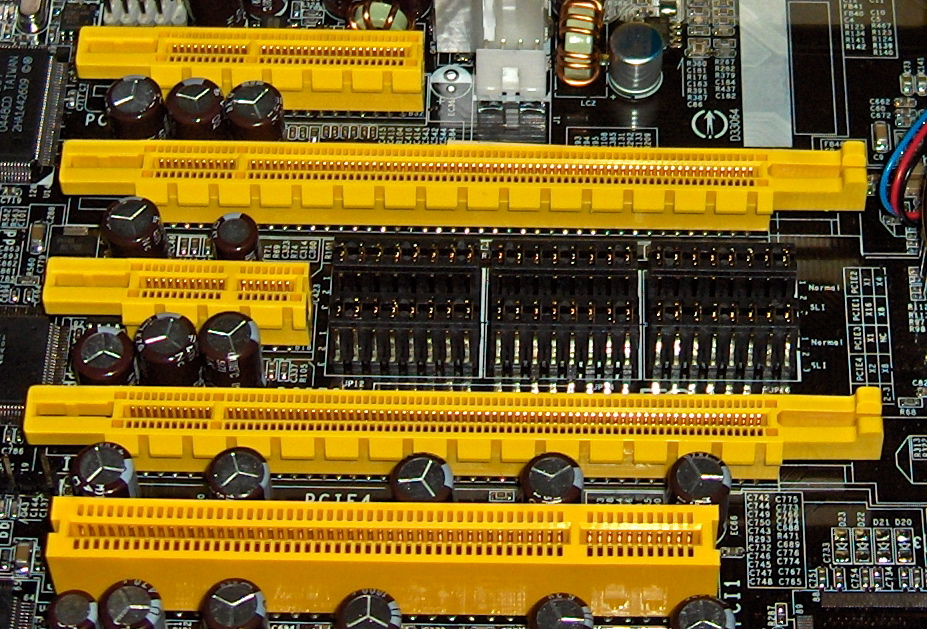
Figure 1.6 — Look at the row of slots. They are different lengths: the longer the slot, the more lanes it has. From the labels you can find x1, x4 and x16 PCIe slots, plus one old white PCI slot for comparison. Photo: snickerdo, CC BY-SA 3.0, via Wikimedia Commons.
.jpg)
┌──────────────────────────────────────┐
│  PCIe Slot (16 lanes)                │
├──────────────────────────────────────┤
│  [GPU]                               │
│  ↓                                   │
│  16 lanes = 64 GB/s (PCIe 5.0)      │
└──────────────────────────────────────┘
3.3 SATA
What it is: An older bus for storage devices.
Used for:
- Hard drives
- SSDs (older ones)
- Some CD/DVD drives
Speed: ~600 MB/s max
Characteristic: Simple and reliable, but slower than newer options.
3.4 NVMe
What it is: A newer, faster bus for storage devices. It runs over PCIe lanes.
Used for: Modern SSDs
Speed: Up to 14 GB/s (varies by PCIe generation)
Characteristic: Much faster than SATA.
| SATA | NVMe | |
|---|---|---|
| Age | Older | Newer |
| Top speed | ~600 MB/s | Up to 14 GB/s |
| Used for | HDDs, older SSDs | Modern SSDs |
3.5 USB Bus
What it is: A bus for external devices, the ones you plug in from outside.
Controlled by: USB Controllers (special chips on the motherboard)
Types of USB:
| Version | Speed |
|---|---|
| USB 2.0 | 480 Mbps |
| USB 3.0 | 5 Gbps |
| USB 3.1 | 10 Gbps |
| USB 3.2 | 20 Gbps |
Connected devices: Keyboards, mice, external drives, printers, etc.
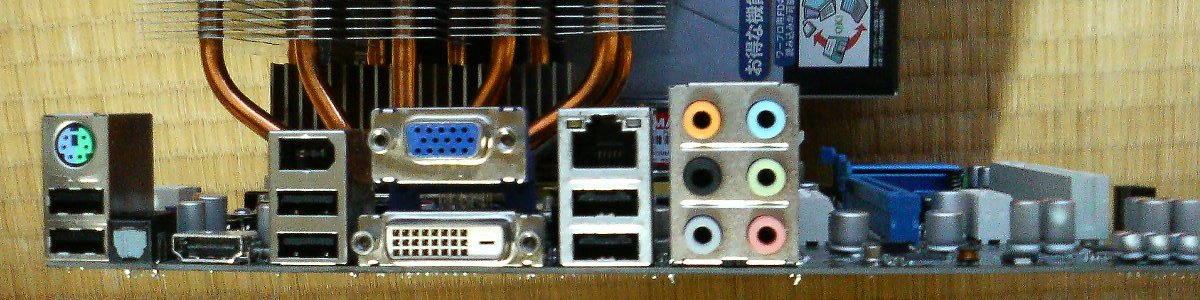
Figure 1.7 — This is the back of a PC, where the buses meet the outside world. Look for the rectangular USB ports, the wide Ethernet (network) socket, the video sockets (VGA, DVI, HDMI), and the row of round audio jacks. Photo: Hitachi-Train, public domain, via Wikimedia Commons.

3.6 Thunderbolt
What it is: A high-speed bus combining PCIe and DisplayPort (a video connection).
Speed: 40–80 Gbps depending on version
Uses: External storage, monitors, docking stations
3.7 I2C and SPI
What they are: Slower buses for low-speed components. They are the quiet side streets.
Used for:
- Temperature sensors
- Power management chips
- Memory on smart devices
Summary
| Bus | Plain meaning | Speed |
|---|---|---|
| System / memory bus | CPU to RAM, the fastest road | Hundreds of GB/s |
| PCIe | Slots for add-in cards, made of lanes | ~4 / 8 / 16 GB/s per lane (3.0 / 4.0 / 5.0) |
| SATA | Older storage road | ~600 MB/s |
| NVMe | Fast storage road for modern SSDs | Up to 14 GB/s |
| USB | Plug-in devices | 480 Mbps to 20 Gbps |
| Thunderbolt | PCIe plus DisplayPort in one cable | 40–80 Gbps |
| I2C / SPI | Slow roads for small sensors and chips | Low |