The Big Picture: Who Wakes Up the PC?
In Chapter 4 you learned that when you press the power button, the RAM is empty and the SSD is asleep. Something must run first, find Windows and start it. That "something" is firmware (a program stored permanently on a chip on the motherboard). For about 35 years, that firmware was called the BIOS. This chapter is about the BIOS, its modern replacement UEFI, and everything they do before Windows even begins to load.
1.1 Definition
What it is: BIOS stands for Basic Input/Output System. It is a small program in a chip on the motherboard. It has three jobs:
- Check that the hardware works (the POST, Power-On Self-Test, see Section 3).
- Set up the chipset, RAM and devices so they are ready to use.
- Find and start the operating system (the bootloader — the small program whose only job is to load the OS).
The name tells you the idea. "Basic Input/Output" means it knows the basic ways to talk to hardware: read a key, draw text on the screen, read a disk sector. An early operating system could ask the BIOS for these things instead of knowing every chip itself.
Analogy: The BIOS is the stage manager of a theatre. Before the play (Windows) can start, the stage manager checks the lights, opens the curtains and calls the actors. Once the play begins, the stage manager steps away.
Here is a real BIOS chip, from an old motherboard. The sticker names its maker (AWARD):
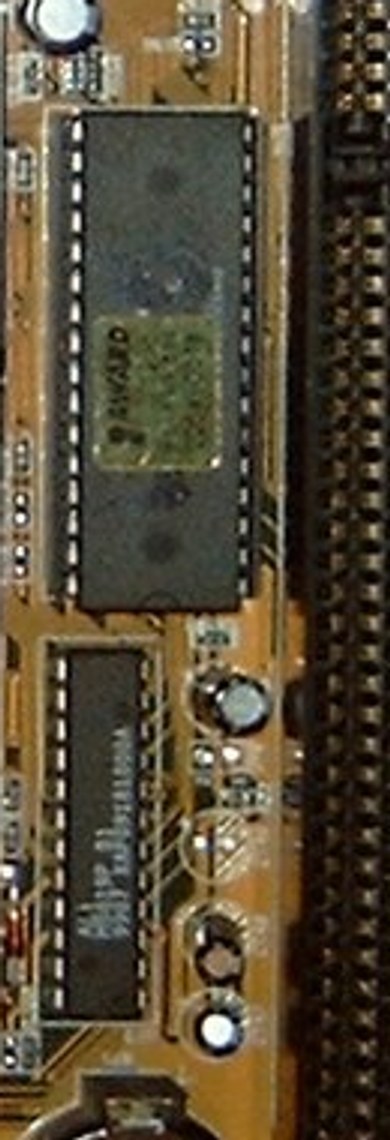
Figure 5.1 — A socketed BIOS chip with a sticker showing its maker, AWARD. This is the kind of chip that held a classic BIOS. Photo: Arnulf zu Linden, CC BY-SA 3.0, cropped from a motherboard photo, via Wikimedia Commons.

BIOS also has a second face: the setup utility. If you press a key at power-on (often Del or F2), you see a menu where you change settings. People often say "the BIOS" for this screen. Here is a classic one:
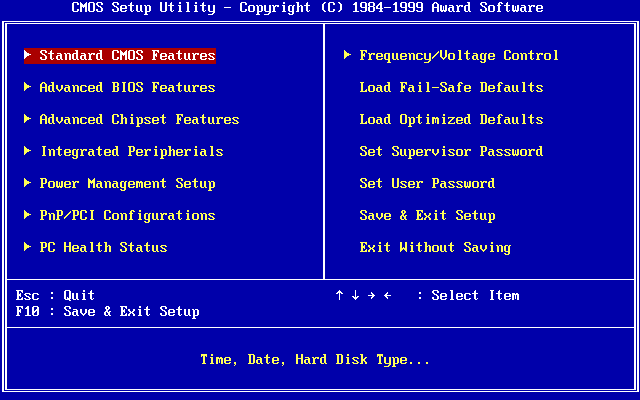
Figure 5.2 — A classic Award "CMOS Setup Utility". The left column lists items such as Standard CMOS Features, Advanced BIOS Features and Integrated Peripherals. The right column has Load Fail-Safe Defaults, Set Supervisor Password and Save & Exit Setup. The bottom line shows the keys: Esc to quit, F10 to save and exit. Screenshot: Award Software International Inc., recreated by User:Kephir, public domain, via Wikimedia Commons.

| Part of "the BIOS" | What it is |
|---|---|
| The firmware code | The program that runs at power-on and starts the OS |
| The setup screen | The menu where you change settings |
| The chip | The ROM or flash chip that stores both |
1.2 Historical Context
What it is: The BIOS grew up with the PC itself.
| Time | What happened |
|---|---|
| 1981 | The IBM PC launches with a BIOS in ROM. It is the original design. |
| Mid 1980s | Other companies (for example Compaq) build "clones". Clean-room copies of the IBM BIOS made clones possible. |
| Late 1980s – 1990s | Firmware makers sell BIOS code to motherboard makers: AMI, Award and Phoenix (Award and Phoenix later joined). |
| 1990s – 2000s | BIOS gets more features: plug-and-play, power saving (APM, then ACPI), booting from USB and CD. |
| 2000s | Disks get too big and PCs too complex for the old design. UEFI is created as its replacement. |
| 2010s | UEFI becomes the standard on new PCs. Windows 8 and later push it. |
(A clone is a PC from another company that runs the same software as the IBM PC.)
Why the BIOS lasted so long: Software was written to rely on it. Changing it risked breaking everything, so it stayed almost the same for decades. That is called backward compatibility (new things keep working with old software). It is a strength, but it also became the problem you will see next.
1.3 16-bit Limitations
What it is: The BIOS was designed for the Intel 8086/8088 CPU, a 16-bit processor (it handles numbers 16 binary digits wide at a time). Even a modern 64-bit CPU starts up pretending to be one of these old chips, in a mode called real mode (Section 2.2). BIOS code runs in that mode. This creates hard limits:
| Limitation | Plain meaning |
|---|---|
| 1 MB of memory | In real mode the CPU can only reach 1 MB of addresses (2²⁰ bytes). Part of that is reserved for the BIOS and video. |
| 16-bit code | The code is slow and awkward compared to modern 32/64-bit code. |
| MBR disk limit | The classic disk layout (the MBR, Master Boot Record) stores sizes in 32 bits. With 512-byte sectors, the biggest disk it can describe is about 2 TB. |
| 4 primary partitions | The MBR has room for only 4 main partition entries. |
| 512-byte boot code | The first sector of the disk is only 512 bytes. The boot program must fit in about 440 bytes of it. Tiny! |
| No network, no mouse | Early setup screens were keyboard-only text menus. |
| No security | The BIOS runs whatever code is in the first sector, even malware (a "bootkit"). |
| Slow start | Devices are started one after another, with old methods. |
The MBR in simple words: The first 512-byte block of the disk. It holds a little boot code, a table of up to 4 partitions, and a two-byte signature (55 AA) that says "this disk is bootable". The BIOS loads this block into memory at address 0x7C00 and jumps to it. You will see the whole boot process in the next chapters.
Disk sector 0 (512 bytes) — the MBR
┌──────────────────────┬────────────────────┬───────────┐
│ Boot code (440 bytes)│ Partition table    │ Signature │
│ + a few ID bytes     │ (4 x 16 bytes)     │ 55 AA     │
└──────────────────────┴────────────────────┴───────────┘
1.4 Still Used Today
What it is: Many people say "BIOS" today even when their PC has UEFI. There are two reasons.
- Habit. "Enter the BIOS" is what everyone says. Makers still use the word in menus ("BIOS Setup", "BIOS version").
- Real legacy BIOS still exists. Some places still use the old kind:
- Old PCs that were built before UEFI became common.
- Some virtual machines (VirtualBox and others let you choose BIOS or UEFI).
- Industrial and embedded machines that run old software.
- CSM (Compatibility Support Module): a part of many UEFI firmwares that pretends to be an old BIOS, so old operating systems and old disks still work.
Around 2020, Intel said it would stop supporting the legacy BIOS mode on its new platforms, and newer PCs more and more ship UEFI-only. Windows 11 needs UEFI.
Check your own PC (Windows):
- Press
Win + R, typemsinfo32, press Enter. - Find the line BIOS Mode. It says UEFI or Legacy.
On a modern PC it says UEFI, even though the menu still calls itself "BIOS".
| What people say | What it often really means |
|---|---|
| "Enter the BIOS" | Open the firmware setup screen (usually UEFI) |
| "Update the BIOS" | Update the firmware (usually UEFI firmware) |
| "BIOS mode: Legacy" | The PC is using the old BIOS way, or CSM |
| "Legacy boot" | Start from an MBR disk using BIOS rules |
Summary
| Term | Plain meaning |
|---|---|
| Firmware | A program stored on a chip, not on the disk |
| BIOS | Basic Input/Output System: the classic firmware that checks, sets up and boots the PC |
| Setup utility | The menu to change BIOS settings |
| Bootloader | A small program that loads the operating system |
| Real mode | The old 16-bit CPU mode the BIOS runs in |
| MBR | The first 512-byte sector of a disk, with boot code and a 4-entry partition table |
| Clone | A PC from another company compatible with the IBM PC |
| CSM | A UEFI add-on that acts like an old BIOS |
| Legacy boot | Starting the PC the old BIOS/MBR way |