The Big Picture: UEFI as a Mini Operating System
Under the hood, UEFI behaves like a tiny operating system. It stores its code in organised volumes, runs applications, offers protocols (standard ways to use devices), reads files from a special partition, and keeps a boot menu. This section looks at each of those five ideas.
5.1 UEFI Firmware Volumes
What it is: The firmware chip is not one blob. It is divided into firmware volumes (FVs). A firmware volume is like a mini file system inside the flash chip. It holds files, and each file holds code or data.
Analogy: The flash chip is a filing cabinet. Each firmware volume is a drawer. Each file is a folder with one module or one block of data in it.
SPI flash chip (for example 16 MB)
├── Descriptor / ME region   (chipset and vendor data, on some Intel PCs)
├── BIOS region
│    ├── Firmware Volume 1: early boot code (SEC, PEI modules)
│    ├── Firmware Volume 2: drivers and applications (DXE modules)
│    └── NVRAM area: stored UEFI variables (boot entries, settings)
└── Other regions (for example vendor data)
What a file in a volume can be:
| File type | What it holds |
|---|---|
| PEI module | Early code that starts RAM |
| DXE driver | A driver for a device or a service |
| UEFI application | A program (for example the setup screen) |
| Raw data | Images (the logo), fonts, settings defaults |
Why it matters:
- This is the modular design from Section 4.4 stored on the chip.
- A firmware update replaces the contents of the volumes.
- Security: firmware volumes can be signed and checked, so tampering can be found.
File names are GUIDs. Every module has a 128-bit GUID (Globally Unique IDentifier), written like 12345678-ABCD-4EF0-9876-0123456789AB (an example). A GUID is a number so big that two people picking one at random will practically never pick the same.
5.2 UEFI Applications
What it is: A UEFI application is a program that runs inside UEFI, before and without an operating system. It is a file ending in .efi, in the PE format (the same file format as Windows .exe files).
Types of .efi programs:
| Kind | Examples |
|---|---|
| OS boot loaders | bootmgfw.efi (Windows Boot Manager), GRUB, systemd-boot |
| The UEFI Shell | A text command line (like a tiny Command Prompt) inside the firmware |
| Diagnostics | Memory test programs, manufacturer test tools |
| Firmware update tools | Maker tools that flash the chip |
| Setup screen | The setup menu itself is often a UEFI application |
UEFI drivers are different from applications. A UEFI driver stays in memory and gives a service (for example "read NTFS files"). An application runs, finishes and exits. A boot loader is special: it runs and never returns (because it starts the OS).
Bootloader hand-off. The boot loader asks UEFI to load the kernel, then calls ExitBootServices(). This tells the firmware: "I'm the OS now. Stop your drivers and services." After that, only a few runtime services (reading the clock, reading and writing UEFI variables) stay available.
Firmware running (Boot Services on)
        │
        ▼ loads and starts bootmgfw.efi
Boot loader runs
        │ loads Windows kernel and drivers
        ▼ calls ExitBootServices()
Windows takes over (only Runtime Services remain)
| Boot Services | Runtime Services | |
|---|---|---|
| Available | Only before the OS starts | Also after the OS starts |
| What for | Memory, drivers, loading files, events | Clock, variables, firmware update capsules, reset |
| Ended by | ExitBootServices() | They remain |
5.3 UEFI Protocols
What it is: A protocol is UEFI's way of describing a service. A protocol is a set of function pointers (a "menu of actions") with a GUID as its name. A driver "installs" a protocol on a handle (a handle is just a token that stands for a device or an image). Any program can then ask "who offers protocol X?" and use it.
Analogy: A phone book. Each service (printing, reading files, drawing) has a name (a GUID). A driver registers its service in the book. A program looks up the name and calls the number.
Examples of protocols:
| Protocol | What it lets you do |
|---|---|
| Simple Text Output | Print text on the screen |
| Simple Text Input | Read key presses |
| Graphics Output Protocol (GOP) | Draw pixels on the screen (replaces VGA / INT 10h) |
| Block I/O | Read and write raw disk sectors |
| Simple File System | Read files from a FAT partition |
| Disk I/O / Partition info | Look at partitions |
| USB, PCI I/O | Talk to devices |
| Network protocols (TCP/IP, HTTP, PXE) | Use the network |
| Load Image | Load another .efi program |
How a disk becomes a file system. A stack of drivers builds on each other:
Disk hardware (NVMe, SATA)
   │ driver installs ► Block I/O protocol  (raw sectors)
   ▼
Partition driver
   │ installs ► Block I/O per partition
   ▼
FAT driver
   │ installs ► Simple File System protocol  (folders and files)
   ▼
Boot loader reads  \EFI\Microsoft\Boot\bootmgfw.efi
Why protocols are better than interrupts. BIOS used numbered INT calls on one fixed table. Protocols are named, discoverable and replaceable. A new driver can offer a better version of the same service.
Graphics at boot. The GOP gives the OS a simple framebuffer (a block of memory whose bytes are the pixels). Windows uses it to show the logo before its own graphics driver loads.
5.4 EFI System Partition (ESP)
What it is: The EFI System Partition (ESP) is a small partition on the disk that holds the boot loaders and boot files. UEFI cannot boot from just any partition. It reads files from the ESP, which is formatted as FAT32 (the simple, widely supported file system that UEFI firmware understands built-in).
| Item | Detail |
|---|---|
| File system | FAT32 |
| Typical size | Often about 100 to 500 MB (about) |
| Partition type | A special GPT type ("EFI System") |
| Visible to the user? | Hidden in Windows, no drive letter |
| Contents | Folders for each OS's loader, drivers, tools |
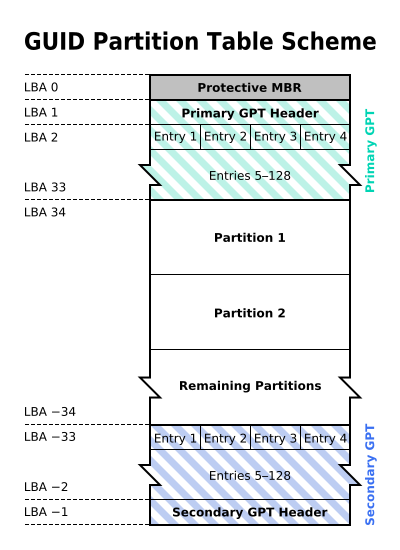
Figure 5.6 — Look again at the GPT disk. The partitions (Partition 1, Partition 2 and more) start at LBA 34. On a typical UEFI PC, one of these early partitions is the ESP. The firmware finds it by reading the partition entries in the table. Diagram: Kbolino, CC BY-SA 2.5, via Wikimedia Commons.

A typical Windows disk (UEFI/GPT):
| Partition | Purpose |
|---|---|
| EFI System Partition (FAT32) | Boot loader and boot files |
| Microsoft Reserved (MSR) | A small reserved area used by Windows |
| C: (Primary) (NTFS) | Windows itself and your files |
| Recovery (NTFS) | Windows recovery tools |
What is inside the ESP:
EFI System Partition (FAT32)
└── EFI
    ├── BOOT
    │   └── BOOTX64.EFI          ← fallback loader (removable disks use this)
    ├── Microsoft
    │   └── Boot
    │       ├── bootmgfw.efi      ← Windows Boot Manager
    │       └── BCD               ← Boot Configuration Data (the boot menu list)
    └── (other OSes, e.g. ubuntu, with their own folders)
Look at it (Windows, as Administrator):
mountvol S: /s
dir S:\EFI
mountvol S: /d
mountvol S: /s gives the ESP a temporary drive letter S:. mountvol S: /d removes it again. Look, do not delete. Deleting files here can make the PC unbootable.
You can also see it with diskpart then list disk (a * in the Gpt column means GPT) or in PowerShell with Get-Partition (the type shows "System").
5.5 UEFI Boot Manager
What it is: The UEFI Boot Manager is the part of the firmware that decides what to start. It reads a list of boot entries stored in NVRAM (non-volatile memory in the flash chip, Section 7).
The main variables:
| Variable | Meaning |
|---|---|
BootOrder | The list of entries in the order to try (for example 0001, 0000, 0003) |
Boot0001, Boot0002 ... | One entry each: a name and the path of an .efi file |
BootNext | Boot this entry once next time, then forget it |
BootCurrent | The entry that started the current boot |
An entry looks like this: a name ("Windows Boot Manager") plus a path (which disk, which partition, which file: \EFI\Microsoft\Boot\bootmgfw.efi).
How it chooses:
- Try the first entry in
BootOrder. - If it works, run it. If the file is missing, try the next.
- If all fail, try the fallback path on each disk, such as
\EFI\BOOT\BOOTX64.EFI. - If nothing works, show a message or open the setup screen.
BootOrder: 0001, 0000, 0002
   │
   ▼
Try Boot0001 "Windows Boot Manager" ─► run \EFI\Microsoft\Boot\bootmgfw.efi ─► Windows
   │ (if fails)
   ▼
Try Boot0000 "USB Flash" ─► ... ─► (if all fail) fallback BOOTX64.EFI ─► error message
Look at the entries (Windows, Administrator Command Prompt):
bcdedit /enum firmware
This prints the firmware boot entries, including the Windows Boot Manager and the display order. (Do not use /set unless you know what you are doing.)
Why the entry list is better than BIOS: The old BIOS simply tried disks in a fixed order and ran the first sector. UEFI knows named programs. You can have several OSes, each with its own loader and entry, and pick from a boot menu (often F12 or F8 at start-up).
Windows reboot to firmware: shutdown /r /fw restarts the PC straight into the firmware setup screen.
Summary
| Term | Plain meaning |
|---|---|
| Firmware volume (FV) | A mini file system inside the firmware chip |
| GUID | A 128-bit unique name |
| UEFI application | A .efi program run by UEFI (a boot loader, a shell) |
| Boot Services | UEFI services that exist only before the OS starts |
ExitBootServices() | The call that hands the machine to the OS |
| Runtime Services | The few services that stay (clock, variables) |
| Protocol | A named set of actions that a driver offers |
| Handle | A token that stands for a device or image |
| GOP | Graphics Output Protocol: draw on screen at boot |
| ESP | EFI System Partition: small FAT32 partition with boot files |
bootmgfw.efi | The Windows Boot Manager program |
BootOrder / Boot#### | The stored boot menu in NVRAM |
| Fallback loader | \EFI\BOOT\BOOTX64.EFI, used when no entry works |