The Big Picture: One Family, Built in Layers
In Chapter 7 you learned what an operating system (OS) does: it shares the hardware between programs, keeps them apart, and gives them simple tools so they do not have to talk to chips directly. This chapter opens up Windows and shows how it is built.
The key idea is layers. Think of a restaurant. The customer (an app) never walks into the kitchen. The customer tells a waiter what they want. The waiter passes the order to the kitchen. The kitchen uses the stoves and fridges (the hardware). Each layer talks only to the layer next to it.
┌──────────────────────────────────────────────────┐
│  Your programs   (Chrome, Word, games)           │  USER MODE
├──────────────────────────────────────────────────┤  (ring 3)
│  Windows libraries and system programs           │
╞══════════════════════════════════════════════════╡  <- the wall
│  Windows kernel and Executive  (ntoskrnl.exe)    │  KERNEL MODE
├──────────────────────────────────────────────────┤  (ring 0)
│  Drivers  +  HAL (Hardware Abstraction Layer)    │
├──────────────────────────────────────────────────┤
│  Hardware: CPU, RAM, SSD, GPU, network card      │  PHYSICAL
└──────────────────────────────────────────────────┘
Remember rings from Chapter 2: the CPU has a "safe" level for normal programs (ring 3) and a "powerful" level for the core of the OS (ring 0). Windows uses exactly those two. The thick wall in the picture is that boundary. The rest of this chapter is a tour of each layer.
1.1 Windows as an Operating System
What it is: Windows is a general-purpose, multitasking, multi-user operating system made by Microsoft. "Multitasking" means it runs many programs at the same time. "Multi-user" means it can keep several people's files and settings apart.
What it hides from you. Below Windows sits real hardware, which is messy: every board has different chips, ports and addresses. Here are two real photos of that layer.
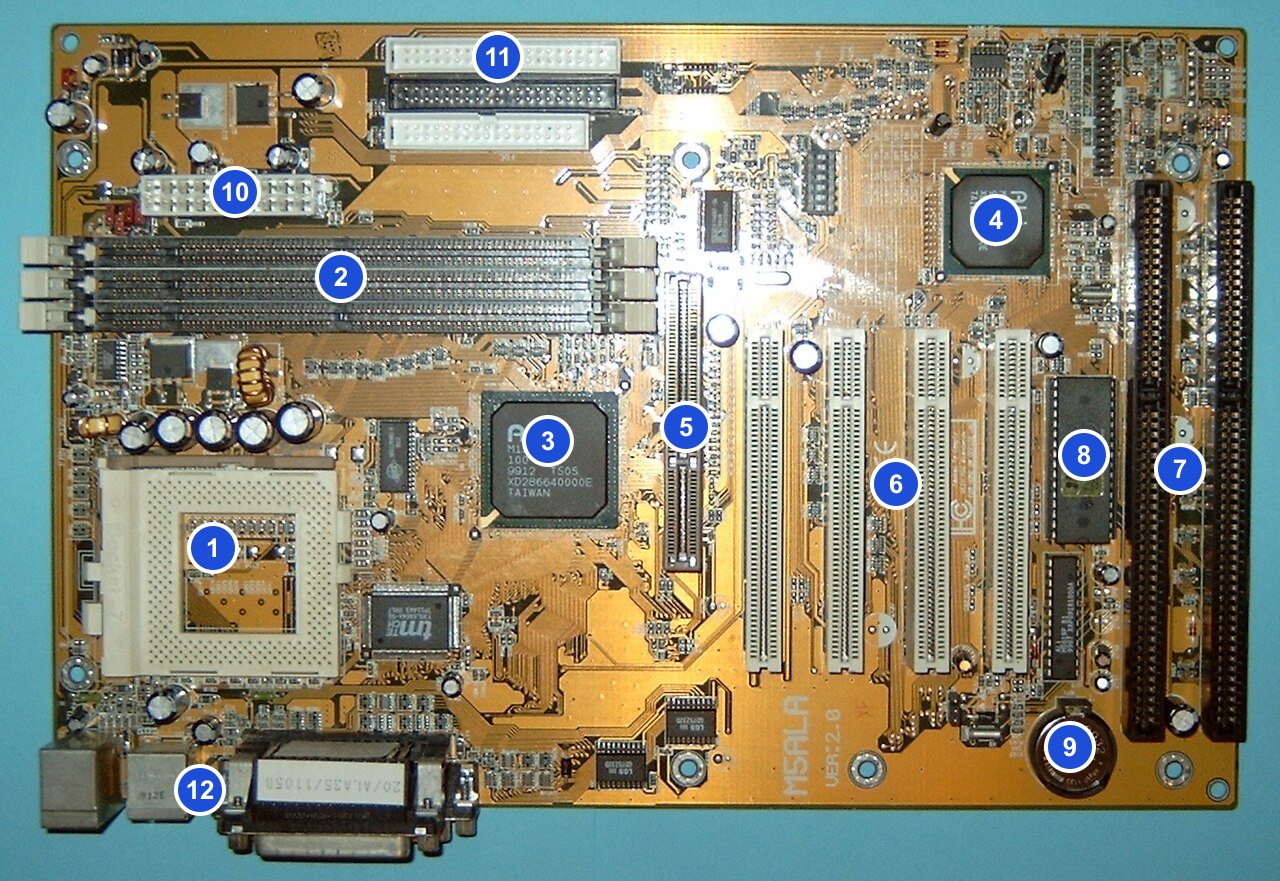
Figure 8.1 — The raw hardware that Windows sits on. Every board has different chips in different places. Windows must work on all of them. Photo: Arnulf zu Linden, CC BY-SA 3.0, numbers added, via Wikimedia Commons.

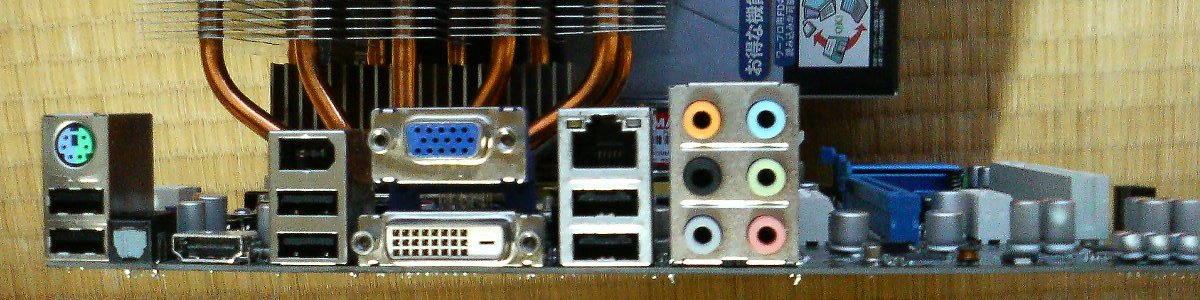
Figure 8.2 — The back of a PC: USB, audio, network and video sockets. A program that "plays a sound" does not know which of these chips makes the noise. Windows knows, and hides it. Photo: Hitachi-Train, public domain, via Wikimedia Commons.

The five jobs Windows does for every program:
| Job | In plain words |
|---|---|
| Run programs | Load them, give each a turn on the CPU (Chapter 7 scheduling) |
| Manage memory | Give each program its own private address space (virtual memory) |
| Talk to devices | Disks, screen, keyboard and network, through drivers |
| Protect | Stop one program or user from damaging another |
| Offer services | Files, windows, sound, networking, all through simple function calls |
The Windows design goals, simply put. Windows was designed to be portable (run on different CPU types), reliable (a bad app should not crash the whole PC), secure, compatible (old programs keep working) and extensible (new drivers and features can be added). Many odd things in Windows make sense once you remember "compatibility" is a goal: Microsoft keeps old behaviours for decades.
1.2 NT-Based Architecture
What it is: Every modern Windows (10 and 11 included) is built on the NT architecture. "NT" originally stood for New Technology. It is the design under the hood, not the pretty desktop on top.
Where it came from. In the late 1980s Microsoft hired Dave Cutler, a famous OS designer, who had led work on operating systems at Digital Equipment Corporation (DEC). His team built a brand-new, clean system from scratch. It was first released as Windows NT 3.1 in 1993.
What was new compared to old Windows:
| Old Windows (3.x, 95, 98, Me) | NT-based Windows |
|---|---|
| Ran on top of MS-DOS | A complete OS of its own, no DOS underneath |
| Programs could overwrite each other's memory | Every program gets private virtual memory |
| Mostly 16-bit or mixed code | 32-bit, later 64-bit from the start |
| Weak or no user accounts | Security built in from day one (users, permissions) |
| One crashing app often froze everything | Protected mode: an app crash stays with the app |
Two families, one merge. For years Microsoft had two lines: the DOS-based line (Windows 95, 98, Me) for home users, and the NT line (NT, 2000) for businesses. With Windows XP (2001) the home users moved to NT too. The DOS line ended. Today all Windows is NT.
Key NT building blocks (each one gets its own section later):
| Building block | Short meaning | Section |
|---|---|---|
| HAL | Hides hardware differences | 2 |
| Kernel + Executive | The core of the OS | 2, 3 |
| Drivers | Teach Windows to use a device | 2 |
| Subsystem DLLs | Libraries that apps call | 4 |
| System processes | Programs Windows runs to run itself | 5 |
| Object Manager | Names and tracks every resource | 6 |
| Registry | Settings database | 7 |
Windows tip: Press
Win + R, typewinver, press Enter. The dialog shows your version and build number. Notice that even Windows 11 reports an internal version in the "10.0" family: the NT version number barely changed because the architecture is the same.
1.3 History: NT, 2000, XP, Vista, 7, 8, 10, 11
What it is: A short tour of the NT line. You do not need to remember dates. You need to see how the same core grew over time.
| Release | Year | Internal version | What mattered (for architecture) |
|---|---|---|---|
| Windows NT 3.1 | 1993 | 3.1 | The first NT. Clean design, 32-bit, own security model |
| NT 3.51 / NT 4.0 | 1995 / 1996 | 3.51 / 4.0 | NT 4.0 gave NT the Windows 95 look; graphics moved into the kernel for speed |
| Windows 2000 | 2000 | 5.0 | Plug and Play, Active Directory, strong business version |
| Windows XP | 2001 | 5.1 | Home and business merge on NT; first 64-bit editions came around this time |
| Windows Vista | 2007 | 6.0 | Session 0 isolation, User Account Control (UAC), new driver model, ASLR (random memory layout for safety) |
| Windows 7 | 2009 | 6.1 | Polished Vista; fast and popular |
| Windows 8 / 8.1 | 2012 / 2013 | 6.2 / 6.3 | Tablet-style apps (the first "modern" app model), faster boot |
| Windows 10 | 2015 | 10.0 | One platform for PC, phone and more; updates arrive as a service |
| Windows 11 | 2021 | 10.0 (build 22000 and up) | New look; needs newer hardware (TPM 2.0, Secure Boot); 64-bit only |
What did not change. Look at the "Internal version" column. From Vista to Windows 7 to 8 to 10 and 11 the numbers move only a little. The big layers (HAL, kernel, Executive, drivers, subsystem) stayed. Microsoft improves the NT core instead of throwing it away. That is why a program written years ago often still runs.
Server editions. The same core also powers Windows Server. Server and desktop share most code and differ in settings, features and licence.
1.4 Version Differences
What it is: The ways one Windows version can differ from another, even when the core is the same.
1. Edition (the product tier). Same version, different features.
| Edition | Typical user | Examples of extra features |
|---|---|---|
| Home | Families | Basic features |
| Pro | Power users, small business | Join a company domain, BitLocker drive encryption, Remote Desktop host |
| Enterprise / Education | Big organisations | Extra security and management tools |
| Server | Computers that serve others | Server roles (file, web, directory) |
2. Architecture (32-bit vs 64-bit). A 32-bit Windows can address only about 4 GB of memory. A 64-bit Windows can address far more. It also runs old 32-bit programs through a compatibility layer called WOW64 (Windows-on-Windows 64). Windows 11 comes only in 64-bit. Some versions also exist for ARM CPUs, not just Intel and AMD.
3. Build number and feature updates. Windows 10 and 11 receive big updates (for example "22H2", "23H2") that change the build number while the name stays the same. Smaller updates arrive monthly.
4. Hardware and security requirements. Windows 11 needs features such as TPM 2.0 (a small security chip) and Secure Boot (Chapter 5). Windows 10 is more relaxed.
Find out what you have:
Get-CimInstance Win32_OperatingSystem | Select-Object Caption, Version, BuildNumber, OSArchitectureOr press Win + R, type msinfo32, and read OS Name, Version and System Type.
Summary
| Topic | Remember this |
|---|---|
| Windows as an OS | Shares the hardware, protects programs, offers services, hides the hardware mess |
| Layers | Apps → libraries → kernel and Executive → drivers and HAL → hardware |
| Rings | User mode is ring 3, kernel mode is ring 0 |
| NT | Clean, 32/64-bit, secure design started in 1993; all modern Windows is NT |
| History | NT 3.1 → 2000 → XP → Vista → 7 → 8 → 10 → 11: same core, steady growth |
| Differences | Edition, 32 vs 64-bit, build number, hardware needs |