The Big Picture: The Dashboard of a Busy Kitchen
Think of your PC as a busy restaurant kitchen. Many cooks (processes) work at the same time. Each one uses some of the shared tools: the stove (CPU), the counter space (memory), the pantry door (disk), the delivery window (network) and the special oven (GPU, the graphics chip). The manager walks in and asks: "Who is using what?"
The Processes tab is that manager's clipboard. It lists every program that is running, and next to each one it shows how much of each shared tool it is using right now. It is the first tab Task Manager opens on.
Remember from Chapter 9: a process is a running program with its own private memory. A process contains threads (Chapter 10), and the threads do the actual work. The Processes tab shows one row per process, not per thread.
┌──────────────────────────────┬────────┬──────────┬────────────┬────────────┬────────┐
│ Name                         │ CPU    │ Memory   │ Disk       │ Network    │ GPU    │
├──────────────────────────────┼────────┼──────────┼────────────┼────────────┼────────┤
│ Apps (2)                     │        │          │            │            │        │
│   Google Chrome (12)         │ 6.2%   │ 1420 MB  │ 0.1 MB/s   │ 0.4 Mbps   │ 2.0%   │
│   Notepad                    │ 0%     │ 11 MB    │ 0 MB/s     │ 0 Mbps     │ 0%     │
│ Background processes (60)    │        │          │            │            │        │
│   Antimalware Service Exec.  │ 0.5%   │ 210 MB   │ 0.1 MB/s   │ 0 Mbps     │ 0%     │
│ Windows processes (40)       │        │          │            │            │        │
│   System                     │ 0.1%   │ 0 MB     │ 0 MB/s     │ 0 Mbps     │ 0%     │
└──────────────────────────────┴────────┴──────────┴────────────┴────────────┴────────┘
  A simplified mock-up. Real numbers, names and columns will differ on your PC.
(Mock-up only: the real window is wider and has colour. The darker the colour of a cell, the higher the number.)
1.1 App vs Background Process Grouping
What it is: Task Manager sorts processes into groups, so you can find the ones you care about.
| Group | What is inside | Example |
|---|---|---|
| Apps | Programs with a window you can see and close | Chrome, Notepad, File Explorer |
| Background processes | Programs with no window, often started by an app or by you at sign-in | Cloud-sync tools, updaters, chat helpers |
| Windows processes | Parts of Windows itself | Desktop Window Manager, Client Server Runtime, System |
On some versions the last group appears as "Windows processes"; on older ones, system parts may be mixed into "Background processes". It may look different on your version.
Expanding a group row. Many programs use several processes at once. Chrome is a good example: one process per tab, plus helpers. Task Manager bundles them under one row, with a small arrow > and a number like Google Chrome (12). Click the arrow, and you see the 12 processes. The numbers on the bundle row are the sum of its children.
Why separate processes? If one tab crashes, the others survive. This is the "private memory" idea from Chapter 9 at work.
Status. If a program is not running right now, the Status column can show a tiny Suspended note. This is used by modern Store apps (UWP apps): when you minimise them, Windows freezes them to save power. They still sit in memory but use no CPU.
Efficiency mode (Windows 11). On Windows 11, a process can show a small leaf icon. That means Efficiency mode is on: Windows runs it at low priority and asks the CPU to use less power for it. You can switch this on yourself: right-click a process and choose Efficiency mode. It is great for a heavy background job you do not want to slow your main work. (Not every process lets you switch it on; Windows protects its own core parts.)
Common actions (right-click a row):
| Action | What it does |
|---|---|
| End task | Asks Windows to close the program (a forced close for stuck programs) |
| Expand / Collapse | Opens or closes a bundled group |
| Go to details | Jumps to the same process in the Details tab (Section 6) |
| Open file location | Opens the folder where the .exe file lives |
| Create memory dump file | Saves a snapshot of the process's memory to disk (for debugging, more in Section 6) |
| Search online | Searches the web for the process name |
| Properties | Shows file details of the program |
Windows tip: If a program is frozen,
Ctrl + Shift + Esc, select it, press End task. Windows will show "Not responding" in the Status column when it notices the program is stuck.
1.2 CPU, Memory, Disk, Network, GPU Columns Explained
What it is: Each column is a meter for one shared resource. The top row of the header shows the total for the whole PC, for example 22% above CPU. Each row below shows that process's own share.
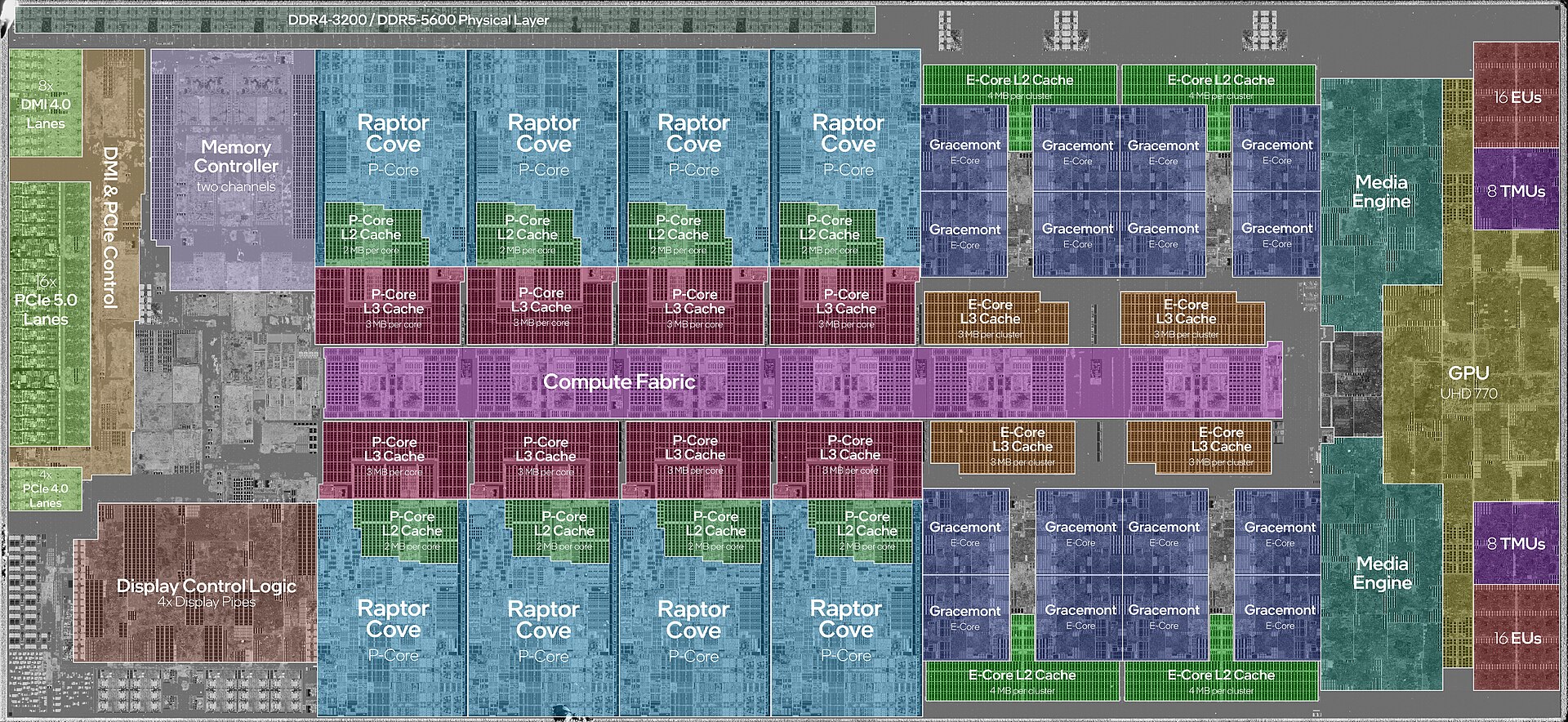
Figure 11.1 — The silicon of a modern Intel Core i9: the cores and cache you met in Chapter 2. The CPU column counts how busy these cores are. Photo: JmsDoug and Fritzchens Fritz, CC0, via Wikimedia Commons.

CPU. Shows how much of the processor's time the process used in the last moment (about one second). It is a percentage. We explain exactly what 100% means in Section 1.3.
Memory. Shows how much RAM the process is using, in megabytes (MB) or gigabytes (GB). Task Manager shows the process's private working set: the part of its memory that lives in RAM right now and that is not shared with other processes. (Shared things, like Windows code libraries that many programs use, are not counted here.) Because of that, adding up the Memory column does not exactly equal the "In use" number in the Performance tab.
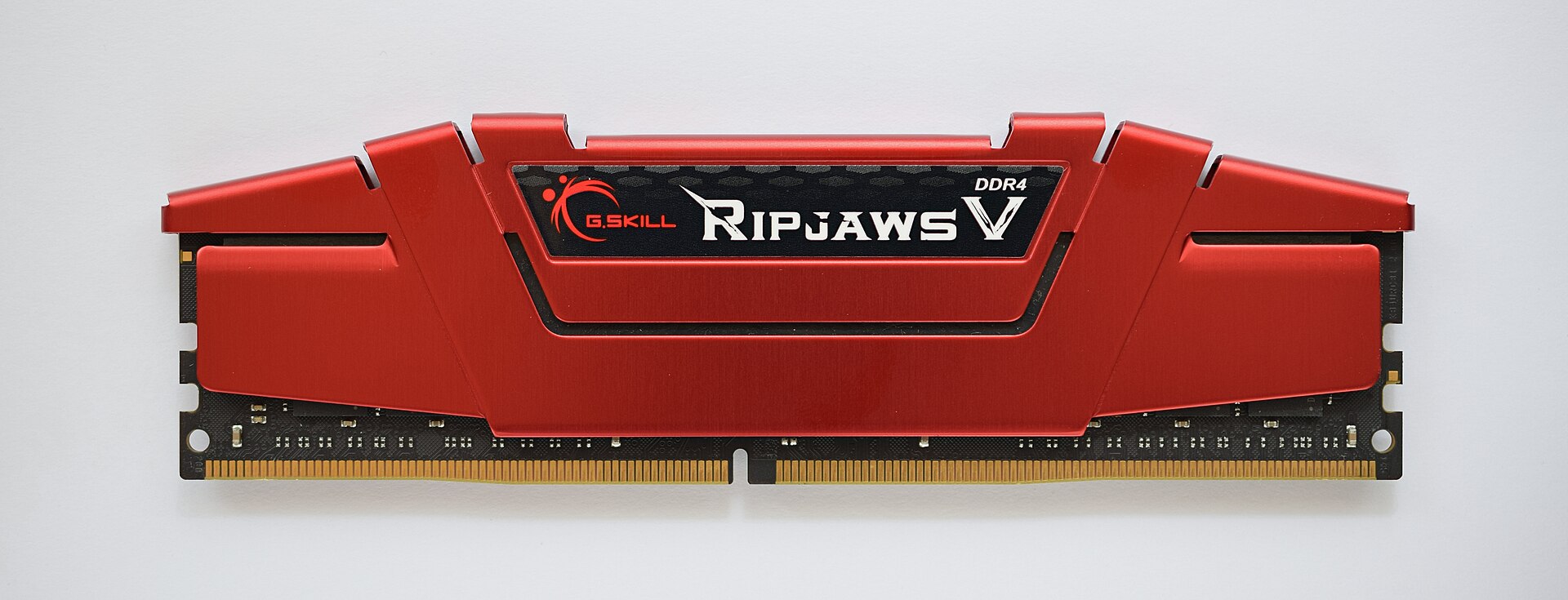
Figure 11.2 — A DDR4 memory stick, the hardware behind the Memory column (Chapter 3). Photo: ElooKoN, CC BY-SA 4.0, via Wikimedia Commons.
.jpg)
Disk. Shows how fast the process is reading and writing files, in MB/s. The header shows how busy the disk is as a percentage (how much of the time it was occupied). This counts file operations requested by the process, so some reads may be served from the cache in RAM and never touch the physical disk.
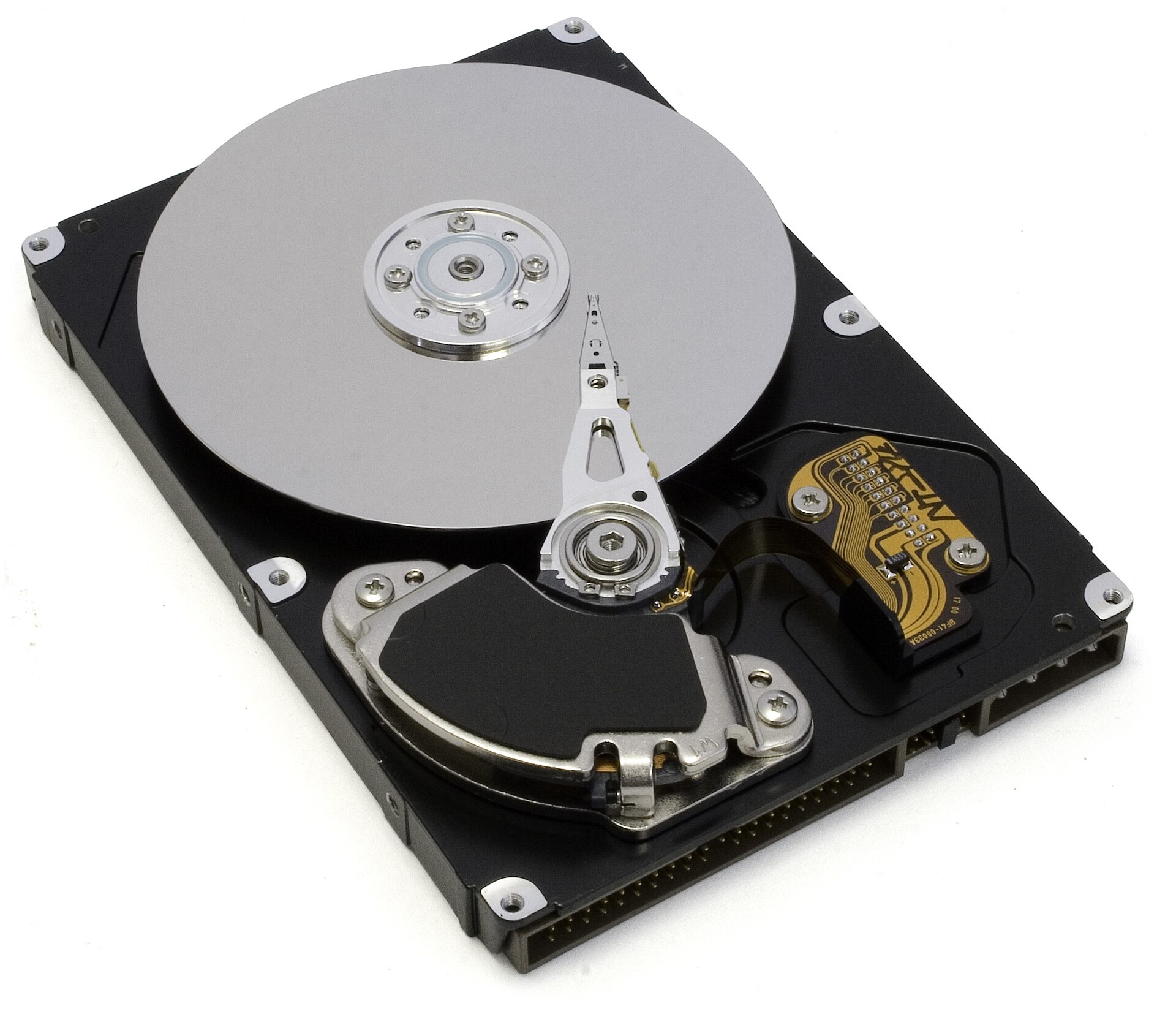
Figure 11.3 — An opened hard drive. The Disk column measures the traffic to storage like this (an SSD works the same way for Task Manager, only without moving parts). Photo: Zzubnik, public domain, via Wikimedia Commons.

Network. Shows how much data the process is sending and receiving, in Mbps (megabits per second). The header shows the use of the busiest network connection as a percentage.
GPU. Shows how much of the graphics chip the process is using. The header shows the busiest GPU engine (a GPU has separate engines for 3D drawing, video decoding and so on, see Section 2.5). Two small extra columns, GPU engine and GPU 0 - 3D-style labels, tell you which engine the process is using.
Optional columns. Right-click any column header to turn more on:
| Column | What it means |
|---|---|
| Type | App, Background process, or Windows process |
| Status | Running, Suspended, or Efficiency mode |
| Publisher | The company that signed the program |
| PID | Process ID, a unique number (Section 6.1) |
| Process name | The real .exe file name |
| Command line | The exact text used to start the program (Section 6.4) |
| Power usage | An estimate of how much energy the process uses: Very low, Low, Moderate, High, Very high |
| Power usage trend | The same estimate averaged over the last couple of minutes |
| GPU engine | Which engine of which GPU is being used |
Power usage columns are best-guess labels from Windows, not exact watts. They are handy to find what drains a laptop battery.
Seeing numbers instead of percentages. Right-click the Memory header (or any resource column) and choose Resource values, then Percents or Values. This switches between "1420 MB" and "8%" for memory.
1.3 What Each Percentage Actually Measures Internally
What it is: The numbers look simple. Underneath, Windows keeps counters and Task Manager does a small bit of arithmetic every second.
CPU %: share of total processor time. Windows keeps track of how much CPU time each thread has used. Task Manager adds up the threads of a process and compares it with the time that passed.
            CPU time the process used during the interval
CPU %  =  ─────────────────────────────────────────────────
           interval length  ×  number of logical processors
Chapter 2 taught you about logical processors: a CPU with 8 cores and hyper-threading shows up as 16 logical processors. Suppose a program keeps one thread busy on one logical processor for the whole second, on that 16-logical-processor PC:
| Case | Calculation | Shown as |
|---|---|---|
| One thread busy for 1 second | 1 s ÷ (1 s × 16) | about 6% |
| Eight threads busy for 1 second | 8 s ÷ (1 s × 16) | 50% |
| Sixteen threads busy for 1 second | 16 s ÷ 16 s | 100% |
This is why a single-threaded program (one thread, Chapter 10) can never push the CPU figure past 1 ÷ 16 of the total, even if it is "stuck at full speed". If you see one program at about 6% and the whole PC feels slow, it could still be that one thread is the bottleneck, because it is using 100% of one logical processor. The Performance tab (Section 2.1) can show each logical processor separately so you can spot that.
Version note: In recent Windows 11 updates the Processes tab was changed to calculate CPU % in a slightly different way from the Details tab, so the two can show a little different numbers for the same process. This is expected and may look different on your version.
Memory: working set. Windows hands out virtual memory to each process (Chapter 3). Only part of it is actually sitting in RAM at a given moment. That part is called the working set. The part that is private (not shared with others) is the private working set, and this is what the Memory column shows. Memory that has been moved to the page file (a spill-over file on disk) is not counted.
Disk: busy time and throughput. The header percentage is how much of the time the disk had at least one request in progress, not how much of its top speed is used. A disk at "100%" may still be moving only a small amount of data if the work was lots of tiny scattered requests.
Network: throughput. Counts the bytes the process sent and received. It shows a rate (Mbps), and the header percent is relative to the speed of the connection.
GPU: engines. The GPU does different jobs on different engines. A process's GPU figure is the busiest engine it uses. The header is also the busiest engine, so it does not simply add up all engines.
Why numbers "don't add up":

 Total CPU % at the top   = busy time of ALL logical processors
 Sum of rows              = threads of the processes listed
                            (plus "System interrupts" and idle time live elsewhere)
 Memory column            = private working set only (shared parts left out)
 Disk %                   = how often the disk was busy, not how full its speed is
Rule of thumb for reading the tab:
- Click a column header to sort (click again to reverse). Sort by CPU to find what is hogging the processor.
- Look at the header total first: is the whole PC busy, or only one resource?
- Then find the row that explains it.
Summary
| Topic | Remember this |
|---|---|
| Processes tab | One row per process (bundled by program), with a live meter per resource |
| Groups | Apps (windows), Background processes, Windows processes |
| Efficiency mode | Windows 11: low priority and low power for a chosen process (leaf icon) |
| CPU % | Process CPU time ÷ (time passed × logical processors) |
| Memory | Private working set: private RAM in use now, shared parts left out |
| Disk | Busy time (header) and MB/s of file traffic (rows) |
| Network | Mbps sent and received |
| GPU | The busiest GPU engine the process uses |
| Power usage | Labels from Very low to Very high, an estimate only |