The Big Picture: From Single Rows to the Whole Machine
The Processes tab answers "who is using the PC?". The Performance tab answers "how is the PC doing overall?". It is like the dashboard of a car: speed, fuel and engine temperature, all as live graphs.
On the left (Windows 10) or in the side menu (Windows 11) you see small thumbnails: CPU, Memory, Disk, Ethernet or Wi-Fi, GPU. Click one to open a big graph. Every graph shows the last 60 seconds, with the newest moment on the right edge.
2.1 CPU Graph (Utilization, Speed, Processes, Threads, Handles)
What it is: The CPU page shows how busy the processor is, and facts about the processor itself.
Here is a real one. It belongs to an Intel Core i9-9900K PC with German-language Windows, so the labels are in German. The English meanings are in the table below the picture.
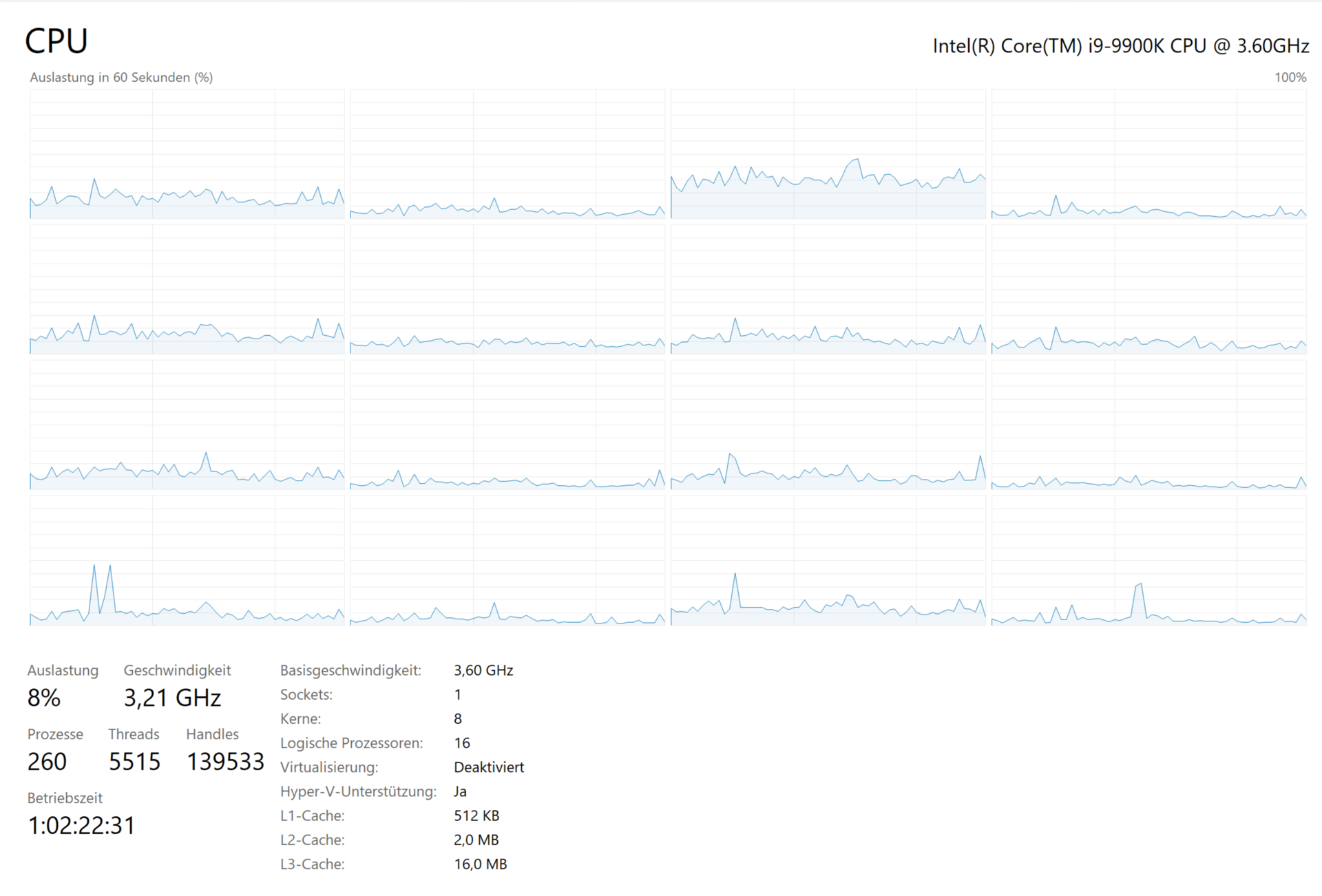
Figure 11.4 — The Performance tab, CPU page, on a PC with an Intel Core i9-9900K. The 16 small graphs are the 16 logical processors. Screenshot: PantheraLeo13595 (Microsoft Corporation software), public domain, via Wikimedia Commons.

| German label | English meaning | Value in the picture |
|---|---|---|
| Auslastung | Utilization | 8% |
| Geschwindigkeit | Speed (current clock) | 3,21 GHz |
| Prozesse | Processes | 260 |
| Threads | Threads | 5515 |
| Handles | Handles | 139533 |
| Betriebszeit | Up time (days:hours:minutes:seconds) | 1:02:22:31 |
| Basisgeschwindigkeit | Base speed | 3,60 GHz |
| Sockets | Sockets (CPU chips on the board) | 1 |
| Kerne | Cores | 8 |
| Logische Prozessoren | Logical processors | 16 |
| Virtualisierung | Virtualization | Deaktiviert (Disabled) |
| Hyper-V-Unterstützung | Hyper-V support | Ja (Yes) |
| L1-Cache / L2-Cache / L3-Cache | Cache sizes | 512 KB / 2,0 MB / 16,0 MB |
(German numbers use a comma where English uses a dot: "3,21 GHz" means 3.21 GHz.)
Read the picture like an expert:
- 8 cores, 16 logical processors. Each core runs two threads at once. This is hyper-threading (SMT), exactly as in Chapter 2. That is why you see 16 small graphs, one per logical processor. Windows treats each as its own CPU.
- Speed 3.21 GHz, base speed 3.60 GHz. Base speed is the "official" clock. Speed is the current clock, which moves up and down all the time to save power (Chapter 4's P-states) or go faster in turbo. At 8% load, the CPU was relaxing a little under base speed.
- Virtualization: Disabled. The CPU can run virtual machines, but the setting is off in firmware. Hyper-V support: Yes means the CPU has the features Windows needs for it.
| Item | What it measures |
|---|---|
| Utilization | The share of total logical-processor time that was busy (same maths as Section 1.3) |
| Speed | The current clock speed in GHz, which changes constantly |
| Processes | How many processes exist right now (Chapter 9) |
| Threads | How many threads exist in total across all processes (Chapter 10). It is far bigger than processes because a process holds many threads |
| Handles | A handle is a small ticket a process holds to use something Windows owns: a file, a registry key, a window, an event. This is the total number open. It grows with use |
| Up time | How long since Windows last fully started. (Windows 10/11 "Fast startup" can make a shutdown+start not reset it. A true Restart does.) |
| Cache sizes | L1, L2, L3: the fast memory built into the CPU (Chapter 2). On some PCs L1 shows the total across all cores. Here 512 KB total over 8 cores |
Useful right-click options on the graph:
- Change graph to → Overall utilization shows one big graph (the average).
- Change graph to → Logical processors shows one graph per logical processor (as in the figure).
- Show kernel times adds a darker area for time spent in the operating system itself (kernel mode), and the lighter area is your programs (user mode).
- Summary view (double-click the graph area) shrinks the window to a small floating graph.
Why this matters: If one logical processor is at 100% and 15 are asleep, a single thread is the limit (Chapter 10). If all 16 are busy, the whole CPU is the limit.
2.2 Memory Graph (In Use, Available, Committed, Cached, Paged/Non-Paged Pool)
What it is: The Memory page shows how your RAM (Chapter 3) is being used. The top graph is memory usage, and a second graph shows memory composition.
Memory composition bar (not to scale)

 ┌────────────────┬───────────────┬────────────┬──────────────┐
 │ In use         │ Modified      │ Standby    │ Free         │
 │ (programs)     │ (to be saved) │ (cache)    │ (empty)      │
 └────────────────┴───────────────┴────────────┴──────────────┘
   "Available" = Standby + Free (can be handed out quickly)
   "Cached"    = Modified + Standby
| Field | What it means |
|---|---|
| In use (Compressed) | RAM currently used by programs, drivers and Windows. The number in brackets is how much of it is compressed: Windows squeezes rarely-used pages to fit more in RAM |
| Available | RAM that could be given to a program right now (free memory plus standby memory) |
| Committed | Two numbers like 9.8/22.5 GB. The first is the virtual memory promised to programs. The second is the limit: RAM plus the page file size. If the first reaches the second, programs will get "out of memory" errors |
| Cached | Memory holding copies of files that were read or written, ready for the next time (plus modified pages waiting to be saved). Windows uses spare RAM as a cache. This is a good thing |
| Paged pool | Memory used by the kernel and drivers that can be moved out to the page file when RAM is short |
| Non-paged pool | Kernel and driver memory that must stay in RAM always, because it is needed at moments when Windows cannot wait for the disk |
| Speed | The RAM clock, for example 3200 MT/s or MHz |
| Slots used | For example 2 of 4: how many memory slots on the board hold a stick |
| Form factor | DIMM (desktop stick) or SODIMM (laptop stick) |
| Hardware reserved | RAM set aside for hardware (such as integrated graphics) that Windows cannot give to programs |
Beginner trap: "My RAM is 80% used, is that bad?" Not by itself. Windows likes to fill spare RAM with cache because empty RAM is wasted RAM. What matters is whether Available stays healthy and whether Committed is far from its limit. The real warning sign is when the PC becomes slow and the disk is busy: Windows is moving pages to and from the page file ("paging").
Pools in one line: If non-paged pool keeps growing without stopping, a driver may be leaking memory. This is a common reason for "my PC slows down the longer it runs".
2.3 Disk Graph (Active Time, Read/Write Speed, Response Time)
What it is: One Disk page per physical drive, named Disk 0 (C:) and so on, with the model and type (SSD or HDD) in the top corner.
| Field | What it means |
|---|---|
| Active time | The percentage of the time the disk was busy with at least one request. It is not a speed meter: a slow hard drive can reach 100% while moving little data |
| Average response time | How long (in ms, milliseconds) a request waits until it is finished. An SSD is typically under a few ms; a busy hard drive can show tens or hundreds |
| Read speed / Write speed | The data flow right now, in MB/s |
| Capacity | The total size of the drive |
| Formatted | The size after formatting (a bit less) |
| System disk | Yes if Windows is installed on it |
| Page file | Yes if the page file (swap file, Section 2.2) lives on it |
| Type | SSD or HDD (or others) |
Two graphs are shown: Disk transfer rate (read as a line, write as a dotted line) and Active time (the top graph).
Why the response time matters more than the percentage: A hard drive has a spinning platter and a moving arm (Figure 11.3). Every request to a different place needs the arm to move. If many programs ask at once, requests queue up and the response time climbs, and the PC feels frozen, even if the speed figure looks low. An SSD has no moving parts, so it handles many small requests far better.
Windows tip: If a hard-drive PC is slow at start-up and Disk shows 100% active with a response time over 100 ms, many programs are fighting for the disk. Cut the startup list (Section 4).
2.4 Network Graph (Throughput, Adapter Info)
What it is: One page per network adapter, named Wi-Fi or Ethernet. The graph shows throughput (the amount of data per second) sent and received, with the scale at the top-left that adjusts automatically.
| Field | What it means |
|---|---|
| Send / Receive | Current upload and download rates, in Kbps/Mbps (kilobits or megabits per second) |
| Adapter name | The name of the network adapter (the card that connects you) |
| SSID | Wi-Fi network name (Wi-Fi only) |
| Connection type | For example 802.11ac for Wi-Fi, or Ethernet |
| IPv4 / IPv6 address | Your PC's address on the network |
| Signal strength | A set of bars (Wi-Fi only) |
Bits vs bytes (a common mix-up): Network speeds are quoted in bits, file sizes in bytes. One byte is 8 bits, so a connection moving 80 Mbps transfers about 10 MB/s. If Task Manager shows 80 Mbps and your download window shows 10 MB/s, both are right.
Important: This graph shows the traffic of the whole adapter. To find which program is sending, go to the Processes tab and sort by Network (Section 1).
2.5 GPU Graph (Engines, Dedicated/Shared Memory)
What it is: If your PC has a graphics chip, you get a GPU page for each one: GPU 0, GPU 1 and so on. Laptops often have two: a small one inside the CPU and a stronger one from NVIDIA or AMD.
A GPU is built with several engines, which are separate blocks that do separate jobs at the same time. The page shows four graphs by default. The names depend on the driver, but you will often see:
| Engine | What it does |
|---|---|
| 3D | Draws games, windows and the desktop |
| Copy | Moves data between RAM and graphics memory |
| Video Decode | Plays video (the hardware that unpacks YouTube, films) |
| Video Encode | Records or streams video |
You can click the small arrow on a graph title to change the engine it shows (for example "Compute" for tools that use the GPU for calculation).
GPU memory fields:
| Field | What it means |
|---|---|
| Dedicated GPU memory | Memory soldered to the graphics card itself (its own VRAM). Fast |
| Shared GPU memory | Part of the normal system RAM the GPU may borrow when it needs more. Slower. A chip inside the CPU uses only this kind |
| GPU memory | The two added together, used / available |
| Driver version / date | The graphics driver in use |
| DirectX version | The Windows graphics system version |
| Physical location | Which bus slot the card is in |
Why the Processes tab sometimes shows high GPU while the GPU page looks calm: the Processes GPU column shows the busiest engine. The GPU page defaults to one particular engine, such as 3D. Switch the graph to another engine, like Video Decode, and you will see where the work really happens.
Summary
| Topic | Remember this |
|---|---|
| CPU page | Utilization, current Speed vs Base speed, counts of processes/threads/handles, cache sizes |
| Logical processors | 8 cores with hyper-threading show as 16 graphs (Figure 11.4) |
| Memory page | In use, Available, Committed (promised vs limit), Cached, Paged and Non-paged pool |
| Disk page | Active time is busy time, not speed; response time shows queue delays |
| Network page | Whole-adapter throughput in bits per second; bytes ≈ bits ÷ 8 |
| GPU page | Separate engines (3D, Copy, Video Decode/Encode) and dedicated vs shared memory |