The Big Picture: Land, Plots and Houses
People mix up four words all the time: disk, partition, volume and drive. They are different things. Think of buying land:
- The physical disk is the whole piece of land.
- A partition is a fenced-off plot on that land.
- A volume is a plot with a house built on it (a file system), ready to live in.
- The drive letter (like
C:) is the house number on the door.
┌──────────────────────────────────────────────────────┐
│ PHYSICAL DISK (the SSD or hard drive you can hold)   │
│ ┌──────────────┐ ┌─────────────────┐ ┌─────────────┐ │
│ │ Partition 1  │ │ Partition 2     │ │ Partition 3 │ │
│ │ (a plot)     │ │ (a plot)        │ │ (a plot)    │ │
│ │ NTFS = volume│ │ NTFS = volume   │ │ no file sys │ │
│ │ letter C:    │ │ letter D:       │ │ no letter   │ │
│ └──────────────┘ └─────────────────┘ └─────────────┘ │
└──────────────────────────────────────────────────────┘
This section defines each word, then shows them in the Windows tool called Disk Management.
2.1 Physical Disks vs Logical Disks
What it is: A physical disk is the real device: a hard drive, an SATA SSD, an NVMe SSD, or a USB stick. Windows numbers them Disk 0, Disk 1, Disk 2 and so on, in the order it finds them. (The number can change if you plug in more drives. Do not rely on it as a permanent name.)
A logical disk is a piece the system presents as if it were a disk: for example a partition, a volume, or a virtual disk made by software. The word "logical" means "made by software, not a separate piece of metal."
| Kind | Real or made by software? | Example |
|---|---|---|
| Physical disk | Real hardware | Samsung SSD in your PC |
| Logical disk or volume | Software view | C: and D: on that same SSD |
| Virtual disk | Software only | A Storage Spaces disk (Section 5), a VHDX file mounted as a disk |
Key fact: One physical disk can hold many logical volumes. And with Storage Spaces, one logical volume can spread across many physical disks.
Disk states you will see:
| State | Meaning |
|---|---|
| Online | The disk is ready. Windows can read and write it |
| Offline | The disk is switched off from Windows' point of view. It is still plugged in. Used for disks with a clashing identity or ones an admin wants to hide |
| Not initialized | A brand-new or wiped disk with no partition table yet. Windows asks you to initialize it first |
Initializing a disk means writing an empty partition table on it and choosing the scheme (MBR or GPT, Section 3). It does not create files or volumes. It only prepares the "map" part of the disk.
2.2 Partitions
What it is: A partition is a fixed range of sectors on a disk. (A sector is the smallest block a disk reads or writes; most disks use 512 bytes or 4,096 bytes.) The partition table at the start of the disk lists where each partition begins and how big it is.
Why divide a disk at all?
- Separate system from data. If Windows needs to be reinstalled, your files on another partition can stay.
- Hold special-purpose areas. The boot files and the recovery tools live in their own small partitions.
- Use different file systems on the same disk.
- Dual-boot another operating system.
Facts about partitions:
- A partition has no file system by itself. It is just an empty plot until it is formatted.
- Partitions cannot overlap, and they are laid out one after another along the disk.
- Resizing is possible, but only into free space next to it. That is why a recovery partition placed right after
C:can block growingC:.
Windows tip: In Disk Management, right-click a volume to see Extend Volume or Shrink Volume. Extend is greyed out unless there is unallocated space immediately after the partition.
2.3 Volumes
What it is: A volume is a storage area with one file system (NTFS, exFAT and so on) that Windows can mount and show as a drive. Most of the time a volume is simply a formatted partition, so people use the two words interchangeably. They are not identical:
| Term | Level | What it needs |
|---|---|---|
| Partition | Disk level | An entry in the partition table |
| Volume | File-system level | A file system on a partition (or on a virtual disk) |
| Drive letter | Name level | An optional label like C: (Section 4) |
A volume can exist without a drive letter (many system volumes have none). A volume can also be built from several pieces on several disks, which is what Storage Spaces and the old dynamic disks do.
Volume roles on a typical PC:
| Role | What it means |
|---|---|
| System volume | Holds the boot files that start Windows. On a modern PC this is the small EFI partition |
| Boot volume | Holds the Windows folder itself. This is usually C:. (Yes, the names sound backwards: "system" holds the boot files, "boot" holds Windows.) |
| Data volume | Everything else |
2.4 Basic Disks vs Dynamic Disks
What it is: Windows has two disk "types", chosen when a disk is initialized.
| Type | Description | Today |
|---|---|---|
| Basic disk | Uses the normal partition table. Every partition is just a plot | The default and the one to use |
| Dynamic disk | Stores volumes in a special database at the end of the disk. Allowed spanned, striped and mirrored volumes across disks | Legacy. Microsoft recommends Storage Spaces (Section 5) instead, and Windows Home editions cannot make multi-disk dynamic volumes |
If you see "Basic" next to your disk in Disk Management, that is normal and good. You are very unlikely to need dynamic disks. Converting a dynamic disk back to basic generally means deleting its volumes, so do not experiment on a disk with data.
2.5 Seeing It All in Disk Management
What it is: Disk Management is the built-in graphical tool for this. Open it with Win + R, then type diskmgmt.msc and press Enter (or right-click Start and choose Disk Management). The window has two halves: a list of volumes on top and graphical bars per disk below.
Here is a real Windows 10/11 screenshot. It was taken on a German-language PC, so read the translation table first.
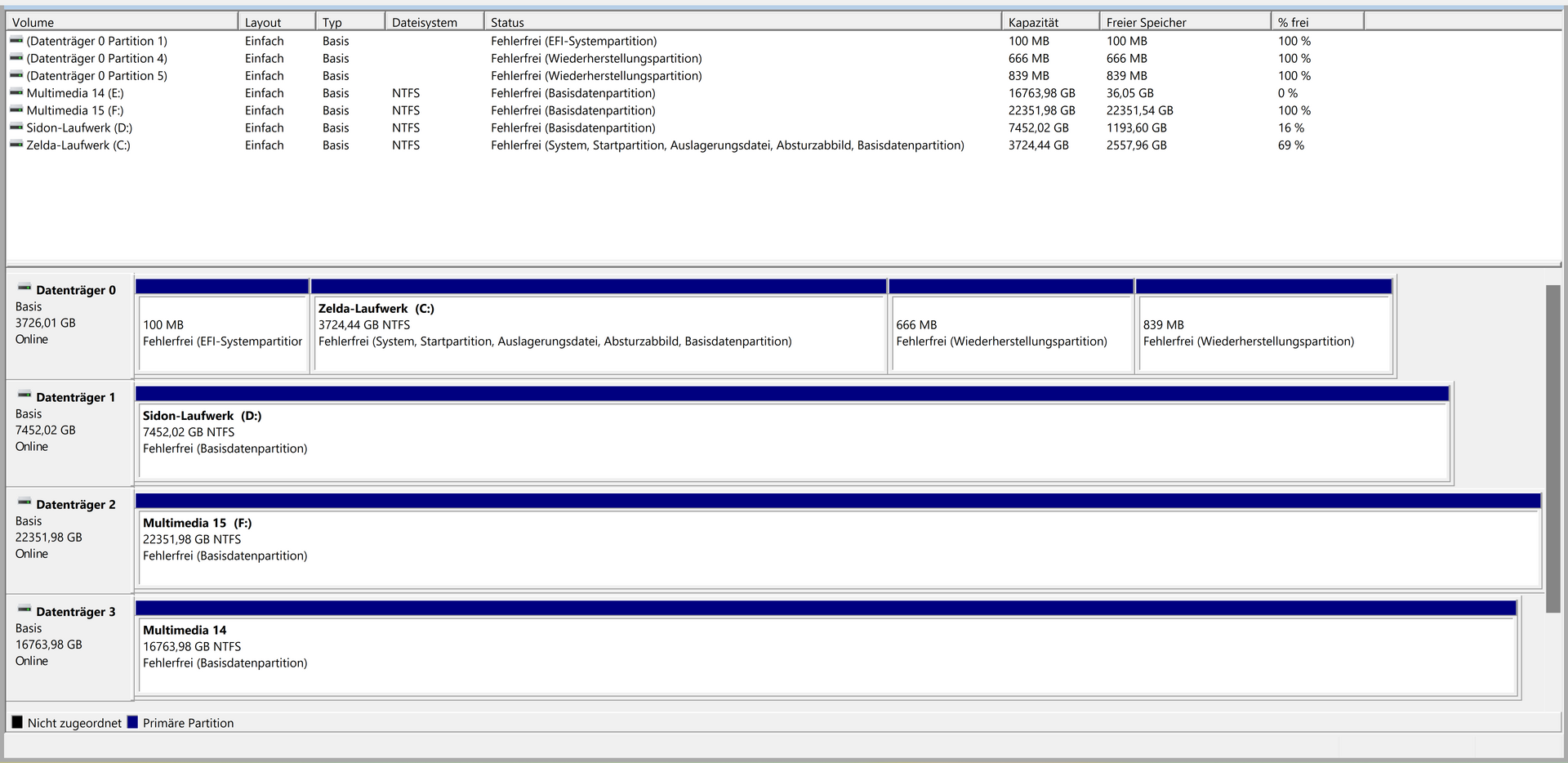
Figure 20.1 — Disk Management on a German Windows PC. Look at the lower half: Disk 0 starts with a tiny EFI partition, then the big C: partition, then two recovery partitions. Screenshot: Microsoft Corporation (software), screenshot by PantheraLeo1359531, public domain, via Wikimedia Commons.

| German on screen | English meaning |
|---|---|
| Datenträger 0 | Disk 0 |
| Volume, Layout, Typ | Volume, Layout, Type |
| Einfach | Simple (layout) |
| Basis | Basic (disk type) |
| Dateisystem | File system |
| Fehlerfrei | Healthy |
| Kapazität / Freier Speicher / % frei | Capacity / Free space / % free |
| EFI-Systempartition | EFI system partition |
| Wiederherstellungspartition | Recovery partition |
| Nicht zugeordnet (black bar) | Unallocated |
| Primäre Partition (blue bar) | Primary partition |
| System, Startpartition, Auslagerungsdatei, Absturzabbild, Basisdatenpartition | System, Boot, Page File, Crash Dump, Basic Data Partition |
What to notice:
- Disk 0 is about 3.7 TB, "Basic" and "Online".
- Its four partitions, left to right: a 100 MB EFI system partition, the big C: (NTFS), then 666 MB and 839 MB recovery partitions. This is the typical Windows layout (more in Section 3).
- The
C:status line lists its jobs: system, boot, page file (the file used as overflow memory), crash dump, and basic data partition. - Disks 1, 2 and 3 each hold one big NTFS volume with its own drive letter.
- The EFI and recovery volumes appear in the list without a drive letter. That is by design: Windows hides them so you do not break them.
Warning: Disk Management can delete and format things. In this course you will only look. Never right-click and choose Delete Volume or Format on a disk that you do not fully understand.
2.6 Tools That Show the Same Facts
| Tool | What it is | Safe read-only use |
|---|---|---|
Disk Management (diskmgmt.msc) | Graphical tool | Just look at it |
Get-Disk | PowerShell: lists physical disks | Get-Disk |
Get-Partition | PowerShell: lists partitions | Get-Partition |
Get-Volume | PowerShell: lists volumes with letters and free space | Get-Volume |
Get-PhysicalDisk | PowerShell: real hardware details (type, health) | Get-PhysicalDisk |
diskpart | Older text tool | Only list disk, list partition, list volume |
Warning about
diskpart: It is powerful and has no undo. Commands such asclean,format,createanddeletecan destroy all data on a disk in seconds. In this course we use only thelistcommands. Typeexitto leave it.
Summary
| Term | Plain meaning |
|---|---|
| Physical disk | The real drive (Disk 0, Disk 1...) |
| Logical / virtual disk | A software-made view of storage |
| Online / Offline | Ready for use / switched off from Windows |
| Initialize | Write an empty partition table (MBR or GPT) |
| Partition | A fenced range of sectors on a disk |
| Volume | A partition (or virtual disk) with a file system |
| System volume / Boot volume | Holds boot files / holds the Windows folder |
| Basic disk | Normal partitions; the default |
| Dynamic disk | Old multi-disk volume system; legacy |