The Big Picture: Two Ways to Draw the Map
A disk needs a map at its start that says "partition 1 begins here, partition 2 begins there." There are two map formats. They are called partitioning schemes:
- MBR (Master Boot Record) — the old format, from the 1980s.
- GPT (GUID Partition Table) — the modern format, part of the UEFI standard.
When you initialize a disk (Section 2) Windows asks which one you want. This section explains the difference so you can choose, and read what you have.
Before we start, one word. LBA (Logical Block Address) is just a sector number. LBA 0 is the first sector on the disk, LBA 1 the second, and so on.
3.1 MBR (Master Boot Record)
What it is: The MBR is sector 0, the very first 512-byte sector on the disk. It holds three things:
| Part | Size | What it holds |
|---|---|---|
| Boot code | 446 bytes | A tiny program the old BIOS runs to start booting |
| Partition table | 64 bytes (4 entries of 16 bytes) | Where up to 4 partitions start and how long they are |
| Boot signature | 2 bytes | The magic bytes 55 AA that say "this is a valid MBR" |
(446 + 64 + 2 = 512.) Here is a real MBR dumped as hex (hex is a compact way to write bytes; each pair of digits is one byte).
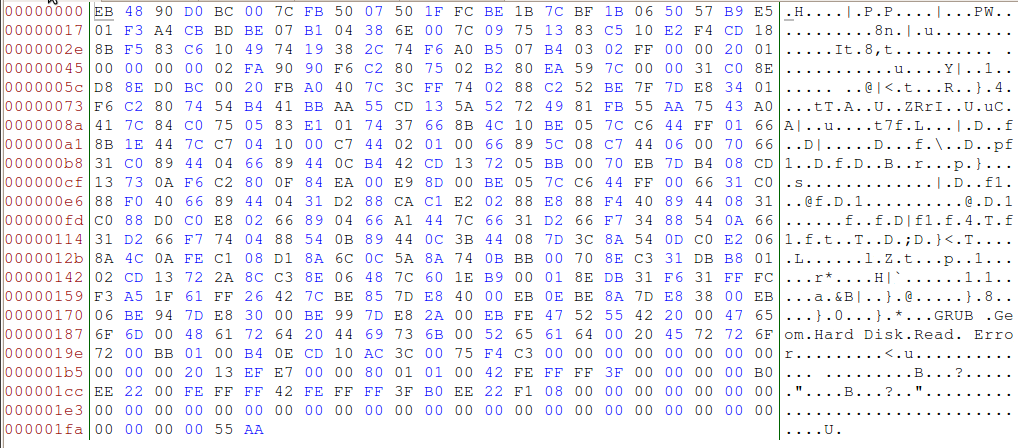
Figure 20.2 — A real 512-byte MBR (this one carries the GRUB loader of Linux, but the layout is the same for Windows). Find the partition table near offset 0x1BE and the 55 AA signature in the last two bytes. Screenshot: UbuntuPeter, CC BY-SA 3.0, via Wikimedia Commons.

(How the BIOS finds and runs this code is explained in Chapter 6.)
The famous limits of MBR:
| Limit | Why | Result |
|---|---|---|
| 4 primary partitions | The table has only 4 slots | To get more, one slot becomes an extended partition, a box that holds logical partitions inside |
| About 2 TB per disk | Sector counts are stored in 32 bits. 2³² sectors × 512 bytes = 2 TiB | A 4 TB disk shows only about 2 TB usable under MBR (with 512-byte sectors) |
| One copy only | There is no backup table | If sector 0 is damaged, the map is gone |
| No safety check | Only the 2-byte signature | Damage can go unnoticed |
Where you still meet MBR: old PCs that boot in Legacy BIOS mode, small USB sticks, and some old camera cards.
Windows tip:
Get-Diskshows a column calledPartitionStyle. It readsMBR,GPTorRAW(a disk with no table yet).
3.2 GPT (GUID Partition Table)
What it is: GPT is the modern map format. A GUID is a 128-bit "globally unique ID", a long number written like {3F2504E0-4F89-11D3-9A0C-0305E82C3301} that is practically never the same twice. GPT gives every partition and every disk one of these.
GPT fixes every MBR weakness:
| Feature | MBR | GPT |
|---|---|---|
| Max partitions | 4 primary | 128 in the standard Windows layout |
| Sector addresses | 32-bit | 64-bit (huge: far more than any disk today) |
| Max disk size | About 2 TB (512-byte sectors) | Practically unlimited |
| Backup of the table | None | Yes, a copy at the end of the disk |
| Error checking | None | CRC32 checksums on headers and table |
| Boot with UEFI | No | Required for UEFI boot of Windows |
| Boot with Legacy BIOS | Yes | Not for Windows |
How a GPT disk is laid out:
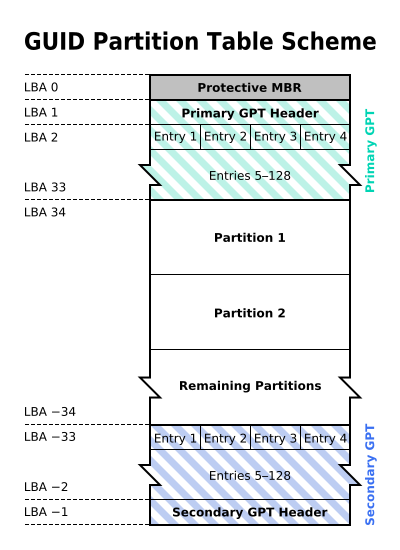
Figure 20.3 — The layout of a GPT disk. Look at LBA 0 (the protective MBR), LBA 1 (the primary header), the partition entries after it, and the secondary entries and header at the far end. Diagram: Kbolino, CC BY-SA 2.5, via Wikimedia Commons.

LBA 0       ┌────────────────────────────────────────┐
            │ Protective MBR                         │
LBA 1       ├────────────────────────────────────────┤
            │ Primary GPT header                     │
LBA 2-33    ├────────────────────────────────────────┤
            │ Partition entries (128 slots)          │
LBA 34      ├────────────────────────────────────────┤
            │                                        │
            │ Partitions (your data)                 │
            │                                        │
            ├────────────────────────────────────────┤
            │ Backup partition entries               │
LAST LBA    ├────────────────────────────────────────┤
            │ Backup (secondary) GPT header          │
            └────────────────────────────────────────┘
- Protective MBR (LBA 0). A fake MBR that says "this whole disk is one big partition of an unknown type." Old tools that only understand MBR then leave the disk alone instead of thinking it is empty and overwriting it. It is a "do not touch" sign.
- Primary GPT header (LBA 1). Says where the table is, how many entries there are, the disk's own GUID, and a checksum.
- Partition entries. In the usual Windows layout, 128 entries of 128 bytes each take 16 KB (sectors 2 to 33, with 512-byte sectors). Each entry holds the partition's type GUID, its own GUID, start and end LBA, and a name.
- First partition starts at LBA 34 in the classic layout (often later in practice, because of alignment).
- Backup entries and backup header (end of disk). If the start of the disk is damaged, tools can rebuild it from the copy at the end.
3.3 The Typical Windows 10/11 GPT Layout
Go back to Figure 20.1. A PC installed with UEFI usually ends up with these partitions on the system disk:
Disk 0 (GPT)
┌─────────┬─────────┬──────────────────────┬──────────────┐
│ EFI     │ MSR     │ C: (Windows, NTFS)   │ Recovery     │
│ System  │ 16 MB   │ the big one          │ (WinRE)      │
│ ~100MB  │ hidden  │                      │ ~500 MB-1 GB │
└─────────┴─────────┴──────────────────────┴──────────────┘
| Partition | Typical size | Purpose |
|---|---|---|
| EFI System Partition (ESP) | About 100–260 MB (varies by PC maker and Windows version) | Formatted FAT32. Holds the boot loader files that UEFI runs to start Windows |
| Microsoft Reserved (MSR) | 16 MB (Windows 10 and later) | A spare area Windows keeps for future disk tools. It does not show in Disk Management |
Windows partition (C:) | The rest of the disk | NTFS. Holds Windows, programs and your files |
| Recovery partition | Several hundred MB to about 1 GB or more | Holds the Windows Recovery Environment (WinRE), the repair tools you see after a failed boot |
These sizes change between Windows builds and PC makers, so your own PC may differ. In Figure 20.1 the ESP is 100 MB and there are two recovery partitions (666 MB and 839 MB): a sign that Windows later added a newer recovery partition after an upgrade.
Why is the recovery partition after
C:? Windows tools can create a new, bigger recovery partition at the end during an update. That is also why the recovery partition can sit in the way if you want to growC:.
3.4 Choosing MBR or GPT, and Converting
| Situation | Use |
|---|---|
| New PC, UEFI firmware, Windows 11 | GPT (Windows 11 requires UEFI, which boots from GPT) |
| Any disk larger than 2 TB | GPT |
| Old PC with Legacy BIOS that must boot from this disk | MBR |
| USB stick for an old device | MBR often works best |
Windows includes a tool, mbr2gpt, that can convert a system disk from MBR to GPT without deleting data. Always back up first, and only follow Microsoft's own steps. This course does not run it.
How to check yours (read-only): Run
Get-Disk | Select-Object Number, FriendlyName, PartitionStyle, Size. In Disk Management, right-click the disk label on the left, choose Properties, then the Volumes tab, and look at "Partition style".
Summary
| Term | Plain meaning |
|---|---|
| LBA | Sector number on the disk (starts at 0) |
| MBR | Old map in sector 0: 4 primary partitions, about 2 TB, boot code + 55 AA |
| Extended / logical partition | MBR's trick to go past 4 partitions |
| GPT | Modern map: 128 partitions, 64-bit addresses, CRC checks, backup copy |
| GUID | A long unique ID used for disks and partitions |
| Protective MBR | Fake MBR in GPT that stops old tools overwriting the disk |
| ESP | Small FAT32 partition with UEFI boot files |
| MSR | 16 MB hidden reserved partition |
| Recovery partition | Holds the Windows Recovery Environment |