The Big Picture: A Few Files Hold Everything Up
Section 1 showed the folders. Now we look at the files that matter most. Windows has tens of thousands of files, but only a few dozen are truly critical: if one of them is missing or damaged, the PC may not start, or the desktop may not appear.
A good way to remember them is to follow the start-up chain. Each file starts the next one, like runners passing a baton. (Chapter 6 told the full boot story; here we focus on the files.)
The first "file" is not a file at all. When you press the power button, the very first program is firmware (UEFI or BIOS). It lives on a small flash chip soldered to the motherboard, not on your disk.
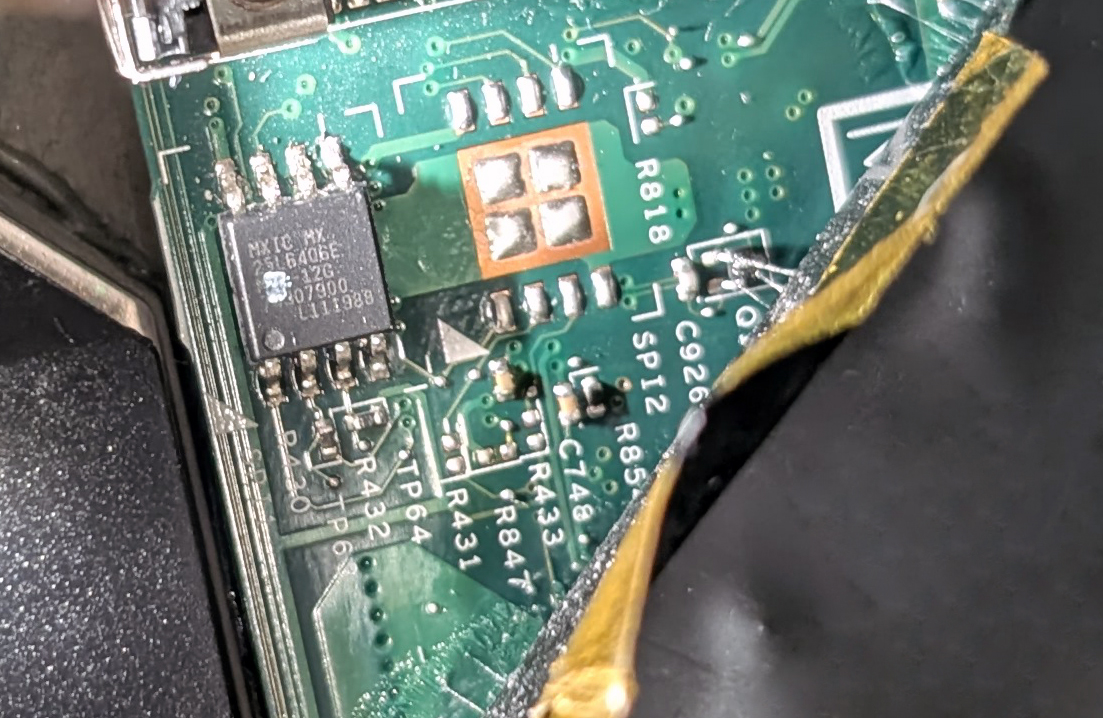
Figure 21.1 — The chip that holds the firmware, the starting point of the chain. It is a small 8-pin chip on the board. Photo: Siarhei Besarab, CC BY-SA 4.0, via Wikimedia Commons.

From that chip the chain moves onto your disk:
┌────────────────────────────────────────────────────┐
│ 1. FIRMWARE (UEFI) in the flash chip               │
│    finds the boot disk, reads the ESP              │
└──────────────────────────┬─────────────────────────┘
                           ▼
┌────────────────────────────────────────────────────┐
│ 2. bootmgfw.efi + BCD (on the EFI System Partition)│
│    the Windows Boot Manager, reads the boot menu   │
└──────────────────────────┬─────────────────────────┘
                           ▼
┌────────────────────────────────────────────────────┐
│ 3. winload.efi (in C:\Windows\System32)            │
│    loads the kernel, SYSTEM hive and boot drivers  │
└──────────────────────────┬─────────────────────────┘
                           ▼
┌────────────────────────────────────────────────────┐
│ 4. ntoskrnl.exe (the kernel) + boot drivers        │
│    Windows is now alive in memory                  │
└──────────────────────────┬─────────────────────────┘
                           ▼
┌────────────────────────────────────────────────────┐
│ 5. smss.exe, then csrss.exe and wininit.exe        │
│    the first user-mode programs                    │
└──────────────────────────┬─────────────────────────┘
                           ▼
┌────────────────────────────────────────────────────┐
│ 6. services.exe, lsass.exe, winlogon.exe           │
│    services start, security starts, sign-in screen │
└──────────────────────────┬─────────────────────────┘
                           ▼
┌────────────────────────────────────────────────────┐
│ 7. explorer.exe (the shell) and dwm.exe            │
│    your desktop, taskbar and windows appear        │
└────────────────────────────────────────────────────┘
Two words to know:
- Kernel mode — the protected inside of Windows, where the kernel and drivers run with full power over the hardware.
- User mode — where normal programs run, with limited power, and ask the kernel for help. (Chapter 8 covers this split.)
Now let's meet the files one by one.
2.1 ntoskrnl.exe (kernel executive)
What it is: ntoskrnl.exe is the Windows kernel. The name means "NT operating system kernel". It lives in C:\Windows\System32.
What it does: It is the boss of the computer. It runs the scheduler (decides which program gets the CPU), manages memory, handles files and security, and starts drivers. The "executive" part is the group of managers around the core: the Memory Manager, the I/O Manager, the Process Manager, the Security Reference Monitor and so on (see Chapter 8).
Why it is critical: No kernel means no Windows. It is loaded by winload.efi very early in boot. If it is missing or damaged, the boot stops with an error message that names \Windows\system32\ntoskrnl.exe.
Tip: The kernel cannot be restarted while the PC is on. If it hits a fatal problem, the whole PC stops with a "blue screen".
2.2 hal.dll (Hardware Abstraction Layer)
What it is: The HAL is a thin layer of code between the kernel and the actual chips on the motherboard. Think of it as a translator: the kernel says "send an interrupt acknowledgement", and the HAL does it the right way for this particular chipset.
Why it exists: Different motherboards handle timers, interrupt controllers and so on in different ways. With a HAL, the kernel does not need to know the differences, so one Windows works on many PCs.
Is it still its own file? hal.dll has long been in System32. In some newer Windows builds, parts of the HAL have been merged into the kernel file and hal.dll is kept mainly as a small compatibility piece. Details vary by Windows build, so do not rely on one picture. The idea stays the same: a layer that hides motherboard differences.
2.3 ntdll.dll (Native API bridge)
What it is: ntdll.dll is the lowest DLL in user mode. It is the bridge between normal programs and the kernel. When a program needs the kernel (for example, to open a file), the call goes through a small function in ntdll.dll that switches into kernel mode.
The word "Native API": The Native API is Windows' own deep set of functions, with names beginning Nt and Zw (such as NtCreateFile). Ordinary programmers rarely call them directly. They call friendlier functions that call these.
Your program  →  kernel32.dll / kernelbase.dll  →  ntdll.dll  →  (switch)  →  ntoskrnl.exe
  (friendly)            (Win32 helpers)           (native bridge)               (kernel)
Why it is critical: It is loaded into every user-mode program. Nothing runs without it. It is also one of the very first user-mode files mapped into the first process.
2.4 kernel32.dll (Win32 core APIs)
What it is: kernel32.dll holds the core functions of the Win32 API (the standard "toolbox" Windows programs use): creating files, starting processes and threads, using memory, loading other DLLs.
Important detail: In Windows 7 and later, much of the real code moved into a lower file named kernelbase.dll. kernel32.dll still exists as the front door: it keeps the same function names that old programs expect, and many functions simply pass the call on to kernelbase.dll. Both files are loaded into almost every program.
Example of what it does: When you double-click notepad.exe, Windows ends up calling CreateProcess, a function from kernel32.dll and kernelbase.dll.
Windows tip: There are two copies on a 64-bit PC: the 64-bit one in System32, and the 32-bit one in SysWOW64 (Section 1.3). Every program loads the matching one.
2.5 user32.dll (UI/windowing APIs)
What it is: user32.dll provides the functions for windows, menus, buttons, messages, the keyboard and the mouse: creating a window, showing a message box, reading a click.
How it works: Windows programs are message driven. When you click, Windows puts a "mouse clicked here" message in the program's queue, and user32.dll helps deliver it. The deeper parts of window management live in the kernel file win32k (see 2.14).
Its friend gdi32.dll: The GDI (Graphics Device Interface) functions draw lines, text and shapes inside windows. gdi32.dll is the partner of user32.dll: user32 makes the window, gdi32 helps draw inside it.
2.6 advapi32.dll (registry/security APIs)
What it is: advapi32.dll ("Advanced API") provides functions for the registry, security and services: opening registry keys, checking permissions, managing user accounts and starting or stopping services.
Example: When an app saves a setting to the registry (Chapter 17), it calls a function such as RegSetValueEx in advapi32.dll. (In newer builds, some of this code also sits in lower-level libraries, but programs still link to this name.)
Why it is critical: Almost every service and many apps use it, since almost everything touches security or settings.
2.7 services.exe (Service Control Manager)
What it is: A service is a program that runs in the background without a window, such as the print service or Windows Update. services.exe is the Service Control Manager (SCM): the program that starts, stops and keeps track of all services.
How it works: At boot, services.exe reads the list of services from the registry (HKEY_LOCAL_MACHINE\SYSTEM\CurrentControlSet\Services, Chapter 17) and starts the ones set to "Automatic". When you open Services (services.msc) you are talking to it.
Who starts it: wininit.exe starts services.exe (see 2.14).
Parent of many: In Task Manager, many svchost.exe entries are its children.
2.8 svchost.exe (generic service host)
What it is: svchost.exe is the Service Host: a shell program that hosts services which are written as DLLs. Many Windows services are not standalone .exe files. They are DLLs, and svchost.exe is the program that loads them.
Why many copies? Open Task Manager and you will see many svchost.exe entries. Each hosts a group of related services. This saves memory by sharing one process between several services. On modern Windows with plenty of RAM, many services get their own svchost.exe, so one crash hurts less.
The warning: The name svchost.exe is a favourite disguise for malware. Real ones are in C:\Windows\System32 and are started by services.exe. A svchost.exe in another folder is a red flag.
Tip: In Task Manager, right-click an svchost.exe row and choose Go to service(s) to see what it is hosting.
2.9 lsass.exe (Local Security Authority)
What it is: lsass.exe is the Local Security Authority Subsystem Service. It is the security guard of Windows: it checks passwords and PINs, creates the access token (a digital ID card listing who you are and what you may do) after sign-in, and enforces security policy.
What it does:
- Checks your credentials when you sign in.
- Creates a token that is attached to every program you run.
- Writes security events to the log.
Why it is critical: If lsass.exe stops unexpectedly, Windows treats it as a fatal security failure and forces a restart (you may see a "your PC will restart" warning). This is a protective rule, not a bug.
Why attackers want it: Because it holds secrets in memory, attackers target it. This is why Windows has extra protections for it, such as running it as a protected process.
2.10 winlogon.exe (logon UI coordination)
What it is: winlogon.exe runs the sign-in process. It shows the secure sign-in screen, handles Ctrl + Alt + Del, locks and unlocks the PC, and loads your profile (including NTUSER.DAT) when you sign in.
Teamwork: It works with lsass.exe to check who you are. After a good sign-in it starts the shell, which is explorer.exe by default. When you sign out, it puts the profile away.
Why separate? The sign-in screen must be safe from tricks. A separate trusted program shows it, on a separate protected desktop, so a harmful program cannot fake it.
2.11 explorer.exe (shell)
What it is: explorer.exe is the Windows shell: the desktop, taskbar, Start menu and File Explorer. It is the part of Windows you actually see and click. It lives in C:\Windows, not in System32.
Not the same as the kernel: If explorer.exe crashes, Windows keeps running. The taskbar vanishes and then comes back, because winlogon.exe can start it again. If you end it by hand in Task Manager, you are left with a black screen but a working PC.
Windows tip: In Task Manager choose File → Run new task, type explorer.exe and press Enter. That starts your desktop again.
One program, two jobs: The File Explorer window and the desktop are run by the same program, which is why restarting "Windows Explorer" resets both.
2.12 csrss.exe (Client/Server Runtime Subsystem)
What it is: csrss.exe is the Client/Server Runtime Subsystem Service. It is a core Windows process that, among other things, helps create and manage processes and threads in the Win32 world and handles parts of the console (text window) system.
Special in two ways:
- It is started very early by
smss.exe. In fact there are normally twocsrss.exeprocesses: one for the system session (session 0) and one for your sign-in session. - If it dies, Windows cannot continue and the PC blue-screens. It is a critical process: the kernel marks it so that ending it brings the whole system down.
Safety: Never try to end csrss.exe in Task Manager.
2.13 dwm.exe (Desktop Window Manager)
What it is: dwm.exe is the Desktop Window Manager. It composes the screen. Each window draws itself into a hidden picture in memory, and dwm.exe combines them all into one final image, using the GPU. This allows transparent glass effects, smooth animations, snapping and the Alt+Tab preview.
Why it matters: Since Windows Vista (and always on now), every app is drawn off-screen first. This avoids flicker and tearing.
If it crashes: The screen may flash and your windows reappear; Windows restarts it by itself. It is a good example of a non-fatal system program.
2.14 The Early Starters: smss.exe, wininit.exe, win32k
smss.exe (Session Manager Subsystem): The very first user-mode process. The kernel starts it. It sets up the page file, loads more of the registry, and creates sessions. It then starts csrss.exe and wininit.exe for the system session and csrss.exe and winlogon.exe for each user session. Then it mostly waits.
wininit.exe: The Windows Start-Up Application. It starts services.exe, lsass.exe and a few other key programs in the system session.
win32k.sys, win32kbase.sys, win32kfull.sys (the window driver): Windows' window system has a kernel-mode part. It was one file, win32k.sys. In newer builds it is split into several files (win32kbase.sys, win32kfull.sys and others), but the idea is the same: this is the kernel side of user32.dll and gdi32.dll, where windows and drawing are handled. (The exact set of files depends on the version.)
smss.exe (first user-mode program)
  ├── csrss.exe  (system session)
  ├── wininit.exe
  │     ├── services.exe  ──► many svchost.exe
  │     └── lsass.exe
  └── (each user session)
        ├── csrss.exe
        └── winlogon.exe ──► explorer.exe
2.15 The Boot Files: bootmgr, bootmgfw.efi, winload
bootmgfw.efi / bootmgr (Windows Boot Manager): On a UEFI PC, the file is bootmgfw.efi on the EFI System Partition (\EFI\Microsoft\Boot\). On an old BIOS PC it is bootmgr. Its job: read the BCD (boot menu data), show a menu if needed, and start the loader.
winload.efi / winload.exe (Windows OS Loader): The program that loads Windows. winload.efi (UEFI) or winload.exe (BIOS) sits in C:\Windows\System32. It loads ntoskrnl.exe, the SYSTEM registry hive, and the boot-start drivers into memory, then hands control to the kernel.
Why this matters: If the BCD or these files are broken, you see "Your PC needs to be repaired" before Windows even starts (Section 3).
2.16 The Registry Hive Files, the Page File and Key Drivers
The four main hive files in C:\Windows\System32\config are:
| File | Holds |
|---|---|
SYSTEM | Hardware, drivers and services list. Needed at boot (Chapter 17) |
SOFTWARE | Settings for installed software and for Windows |
SAM | Security Accounts Manager: local user accounts and password hashes (scrambled passwords) |
SECURITY | Security policy data |
(There are also DEFAULT for the system account and NTUSER.DAT for each user, in their profile.)
pagefile.sys: The page file in the root of C:\. Hidden. It is where Windows moves memory pages to when RAM is tight. It is also where crash data may be held for a dump.
Key drivers (in System32\drivers):
| Driver | Job |
|---|---|
ntfs.sys | Reads and writes the NTFS file system. Without it Windows cannot read its own disk (Chapter 19) |
disk.sys | The disk class driver: handles generic disk requests |
storport.sys / stornvme.sys | Talks to storage controllers and NVMe drives (see Chapter 13) |
acpi.sys | Understands the motherboard power and device tables |
volmgr.sys | Volume manager: turns disks into volumes |
2.17 Quick Identification Table
| File | Where it lives | Mode | Role in one line |
|---|---|---|---|
ntoskrnl.exe | System32 | Kernel | The kernel |
hal.dll | System32 | Kernel | Hides motherboard differences |
ntdll.dll | System32 | User | Bridge from programs to kernel |
kernel32.dll / kernelbase.dll | System32 | User | Core Win32 functions |
user32.dll / gdi32.dll | System32 | User | Windows, input, drawing |
advapi32.dll | System32 | User | Registry and security functions |
smss.exe | System32 | User | First process; makes sessions |
csrss.exe | System32 | User | Critical runtime; two copies |
wininit.exe | System32 | User | Starts services and lsass |
services.exe | System32 | User | Service Control Manager |
svchost.exe | System32 | User | Hosts service DLLs |
lsass.exe | System32 | User | Sign-in checks and tokens |
winlogon.exe | System32 | User | Sign-in screen; starts shell |
explorer.exe | Windows | User | Desktop and File Explorer |
dwm.exe | System32 | User | Composes the screen |
winload.efi | System32 | Boot | Loads the kernel |
bootmgfw.efi | EFI partition | Boot | Boot manager |
Summary
| Term | Plain meaning |
|---|---|
Kernel (ntoskrnl.exe) | The boss: schedules, manages memory, security |
| HAL | Translator between the kernel and the motherboard |
ntdll.dll | Lowest user-mode bridge into the kernel |
kernel32 / kernelbase | Core Win32 toolbox |
user32 / gdi32 | Windows, input and drawing |
smss.exe | First user-mode program; makes sessions |
csrss.exe | Critical; if it dies, the PC blue-screens |
services.exe / svchost.exe | Starts services / hosts service DLLs |
lsass.exe | Checks sign-in, makes tokens |
winlogon.exe | Sign-in screen, starts the shell |
explorer.exe | The desktop you see; can be restarted |
dwm.exe | Blends windows into the final picture |
bootmgfw.efi / winload.efi | Boot manager / OS loader |