The Big Picture: How Does a Computer "Talk" to Another One?
When you open a web page, your PC sends a short message to a computer far away, and that computer sends a message back. To make this work, someone has to solve a few small problems:
- A doorway — a part inside your PC that turns data into electrical (or radio) signals. This is the NIC.
- A name tag — a label so a message reaches the right machine on your local network. This is the MAC address.
- An envelope — a fixed format for the message. This is the Ethernet frame.
- A post office — a box that sends each envelope on towards the right place. This is the switch (and, between networks, the router).
Think of the mail. Your letter needs a mailbox (the NIC), a name on the door (the MAC address), an envelope (the frame) and a sorting office (the switch). This section covers all four.
Terms you will see a lot. A network is two or more computers that can send data to each other. A protocol is an agreed set of rules for how to talk (like a language). A packet is one small chunk of data sent over a network. A bit is a single 1 or 0. Speeds are written in Mbit/s (megabits per second) or Gbit/s (gigabits per second). One byte is 8 bits, so 1 Gbit/s is at most about 125 MB/s of real file data.
1.1 The NIC (Network Interface Card)
What it is: The NIC (Network Interface Card, also called a network adapter or LAN card) is the hardware that connects a computer to a network. It turns the computer's data into signals on a cable (or radio waves) and turns incoming signals back into data. Today it is often just a chip on the motherboard, but it started as a separate card, and you can still buy one.
Here is a real NIC card. It is an Intel Gigabit card that plugs into a PCI Express slot.
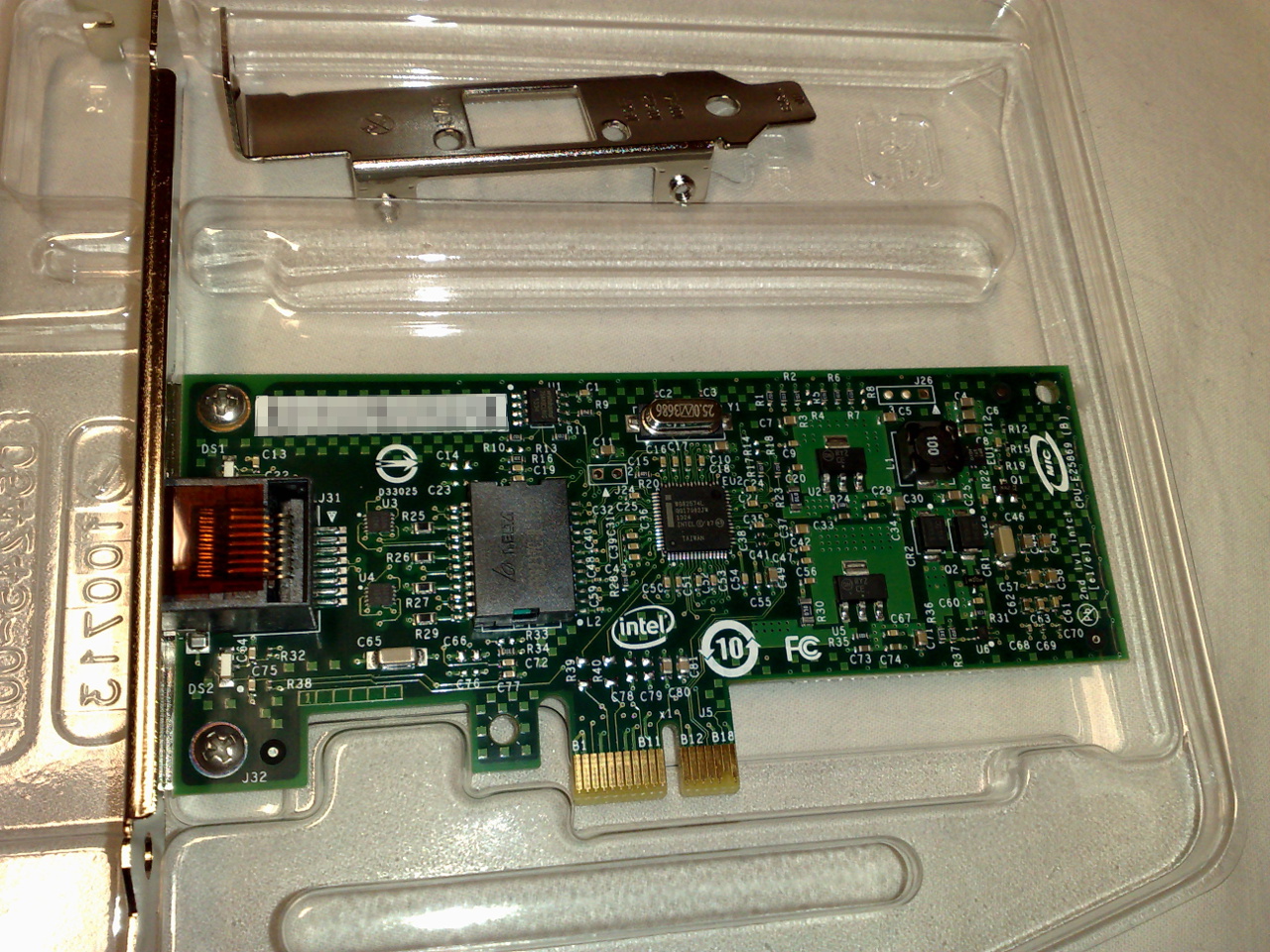
Figure 27.1 — A network card (Intel 82574L Gigabit). The card lies in a clear plastic tray, with a spare low-profile metal bracket above it. At the left end is the metal bracket and the RJ45 Ethernet socket where the cable plugs in. Just right of the socket is a square dark block: the magnetics (transformers) that protect the card and clean up the signal. In the middle is the small controller chip. A silver crystal (the part that sets the timing) sits at the top, and small voltage regulator parts sit to the right. At the bottom is the short gold edge connector that pushes into a PCIe x1 slot. Photo: Dsimic, CC BY-SA 3.0, via Wikimedia Commons.

What is on the card (left to right):
| Part | Job |
|---|---|
| RJ45 socket | The plug-in point for the network cable |
| Magnetics (transformers) | Isolate the card electrically from the cable and clean up the signal |
| Controller chip | The "brain": builds frames, checks them and talks to the PC |
| Crystal | Gives the chip a steady clock so every card on the wire agrees about timing |
| Voltage regulators | Turn the board's power into the voltages the chip needs |
| Gold edge connector | Connects the card to the PCIe slot on the motherboard |
Two halves inside the chip: MAC and PHY. The controller does two jobs. Network people give each job a name:
- The MAC (Media Access Control) part works with frames. It adds the addresses, checks for damage and decides when it is polite to send.
- The PHY (physical layer) part handles the actual signals: voltages on the copper wires (or light or radio).
PC memory ◄── DMA ──► [ MAC: frames, addresses ] ◄──► [ PHY: signals ] ◄──► cable
How the NIC plugs into the PC. This ties straight back to Chapter 4. An add-in NIC uses a PCIe slot, usually the shortest kind, x1 (one lane is plenty: one PCIe lane is already fast enough for a Gigabit cable). Here is where such a card goes:
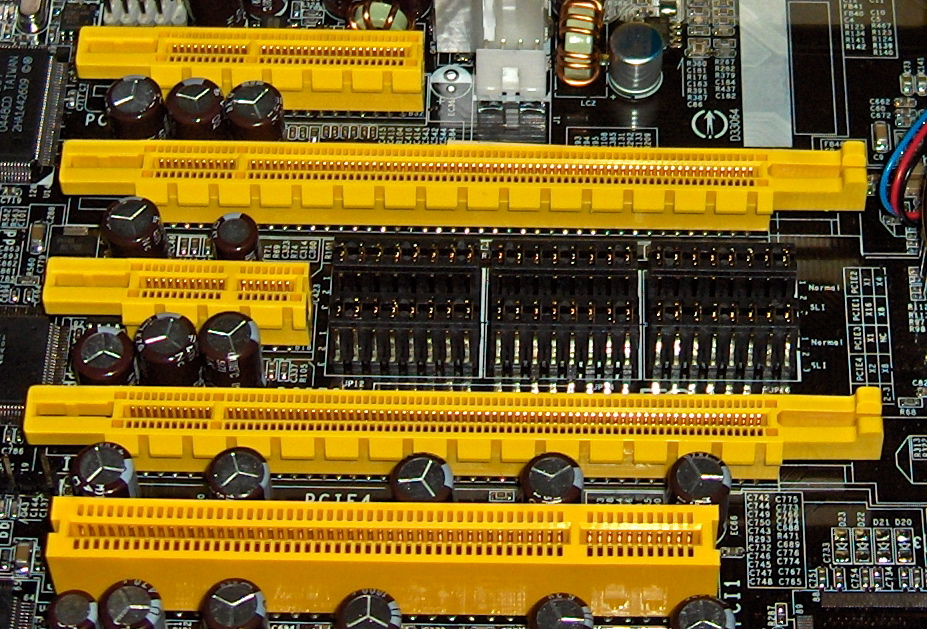
Figure 27.2 — Slots on a real motherboard. The very short slot (x1) between the longer ones is exactly the size the NIC in Figure 27.1 needs. The longer x4 and x16 slots are for faster cards such as graphics cards. The white slot at the bottom is the old PCI type. Photo: snickerdo, CC BY-SA 3.0, via Wikimedia Commons.
.jpg)
Most PCs do not need a card at all, because the NIC chip is built into the motherboard (it hangs off the chipset or the CPU, see Chapter 4). All you see is the socket on the back:
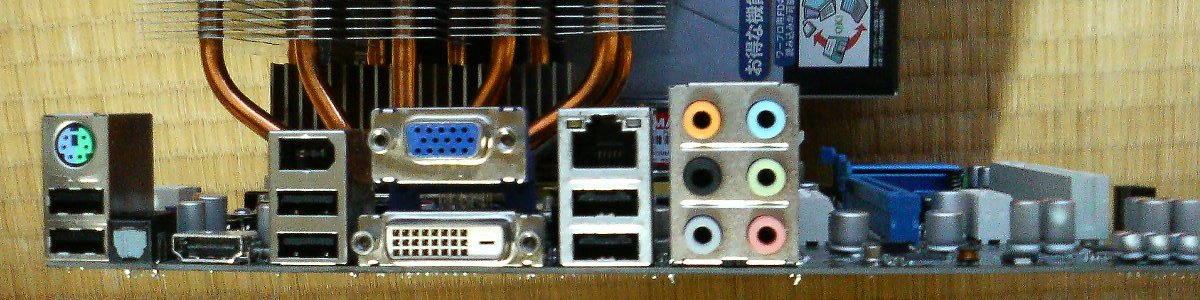
Figure 27.3 — The back panel of a motherboard. Find the Ethernet (network) socket, the wide RJ45 hole usually placed next to the USB ports. Behind it sits the same kind of chip you saw in Figure 27.1, only soldered onto the board. Photo: Hitachi-Train, public domain, via Wikimedia Commons.

How the NIC gets data in and out of memory. The NIC uses two tricks from Chapter 4:
- DMA (Direct Memory Access). When a frame arrives, the NIC writes it straight into RAM without the CPU copying every byte. It uses a ring of "slots" in memory that the driver set up in advance.
- Interrupts. After the NIC has put a frame (or several) in RAM, it sends an interrupt, a tap on the CPU's shoulder, to say "data is waiting". Fast NICs use MSI-X to spread these taps across several CPU cores.
 Cable ──► NIC ──(1) DMA: frame written into RAM ring──► RAM
             └───(2) interrupt: "frame ready!" ─────────► CPU ──► driver ──► Windows
Wi-Fi NICs. A wireless NIC does the same job with radio instead of a cable. In a laptop it is usually a small card in an M.2 slot, or a USB stick. Instead of an RJ45 socket it has one or more antennas. It still has a MAC address and still sends frames, but the frames travel through the air and are protected with encryption.
See your own NICs in Windows:
| Where | What you see |
|---|---|
PowerShell: Get-NetAdapter | Each adapter, its status (Up/Disconnected), MAC address and link speed |
| Device Manager → Network adapters | The NIC chip's name and driver |
| Task Manager → Performance → Ethernet or Wi-Fi | Live send/receive speed, link speed, and the adapter name |
Tip: Windows also shows virtual adapters (for VPNs, Hyper-V, WSL and so on). They look like NICs but are only software.
1.2 The MAC Address (Hardware Address)
What it is: The MAC address (Media Access Control address) is the name tag of one NIC on the local network. It is 48 bits long (6 bytes) and is shown as six pairs of hex digits:
   A4-5E-60-12-9B-C7        (Windows shows dashes)
   a4:5e:60:12:9b:c7        (Linux and many routers show colons)
Quick refresher on hex. Hexadecimal ("hex") counts in 16s using the digits 0-9 and the letters A-F. Two hex digits make exactly one byte (0 to 255). That is why a MAC address is six pairs: 6 bytes × 8 bits = 48 bits.
What the numbers mean. The address has two halves:
   A4-5E-60  -  12-9B-C7
   └──┬───┘     └──┬───┘
   OUI: who      Serial: which
   made the      one of that
   chip          maker's chips
- The first half (3 bytes) is the OUI (Organizationally Unique Identifier). The IEEE (the standards body) gives each maker one or more. So the first half tells you the brand of the chip (Intel, Realtek, and so on).
- The second half (3 bytes) is a number that the maker gives to each unit it builds.
That is why people say the MAC address is "burned into the NIC": the maker sets it at the factory, and it is stored on the chip. Two NICs should never share a MAC address on the same network.
Special addresses:
| Address | Meaning |
|---|---|
FF-FF-FF-FF-FF-FF | Broadcast: "everyone on this local network, listen" |
An address whose first byte is odd (for example 01-...) | Multicast: a message for a group |
| Any other address | Unicast: a message for exactly one NIC |
The "burned in" address can be changed. The NIC's driver can override the address in software. This is used for privacy: Windows can use random hardware addresses for Wi-Fi (Settings → Network & Internet → Wi-Fi), so shops and cafés cannot track your device by one fixed address. A MAC address that was made up by software is called "locally administered" (one special bit in the first byte is set).
Important limits:
- A MAC address only works on the local network (the same cable, switch or Wi-Fi). It does not travel across the Internet. When a frame passes through a router, the old MAC addresses are thrown away and new ones are written. (Section 8 shows this.)
- It is not a secret and not a security feature. Anyone on the network can see it.
Find your MAC address (read-only):
getmac
getmac /v
ipconfig /all
Get-NetAdapter
In ipconfig /all look for the line Physical Address. That is the MAC address. (Windows calls it "physical" because it belongs to the hardware.)
1.3 Ethernet Frames
What it is: Ethernet is the standard way to send data over a wired local network. The unit it sends is called a frame. A frame is an envelope: the data to deliver, wrapped in a few extra bytes that say where it goes and let the receiver check for damage.
 6 bytes         6 bytes        2 bytes    46 to 1500 bytes      4 bytes
┌─────────────┬─────────────┬──────────┬────────────────────┬──────────┐
│ Destination │   Source    │   Type   │      Payload       │   FCS    │
│ MAC address │ MAC address │          │  (the IP packet)   │ (check)  │
└─────────────┴─────────────┴──────────┴────────────────────┴──────────┘
| Field | Size | What it does |
|---|---|---|
| Destination MAC | 6 bytes | Who should receive this frame |
| Source MAC | 6 bytes | Who sent it (so the reply knows where to go) |
| Type (EtherType) | 2 bytes | What is inside the payload (for example IPv4, IPv6 or ARP) |
| Payload | 46 to 1500 bytes | The real data: usually an IP packet (Section 2) |
| FCS | 4 bytes | Frame Check Sequence: a checksum. If a bit was damaged on the wire, the check fails and the frame is dropped |
The 1500-byte limit. The largest payload in a normal frame is 1500 bytes. This number is called the MTU (Maximum Transmission Unit). A bigger message must be cut into pieces. (Very short payloads are padded up to 46 bytes.)
What the NIC does with a frame it receives:
- Check the FCS. If bad, throw the frame away silently.
- Look at the destination MAC. Is it mine, or broadcast, or a multicast group I joined? If not, ignore it. (A NIC in "promiscuous mode" accepts everything, which is how tools like Wireshark see all traffic on the wire.)
- If it is for me, read the Type and hand the payload up to the right part of Windows.
Fire and forget at this level. Ethernet itself does not promise delivery. If a frame is damaged it is just dropped. Making sure data arrives is the job of a higher layer (TCP, Section 6).
1.4 Cables, Connectors and Speeds
What it is: Most wired networks use twisted-pair copper cable with an RJ45 plug on each end. This is the everyday "network cable" or patch cable.
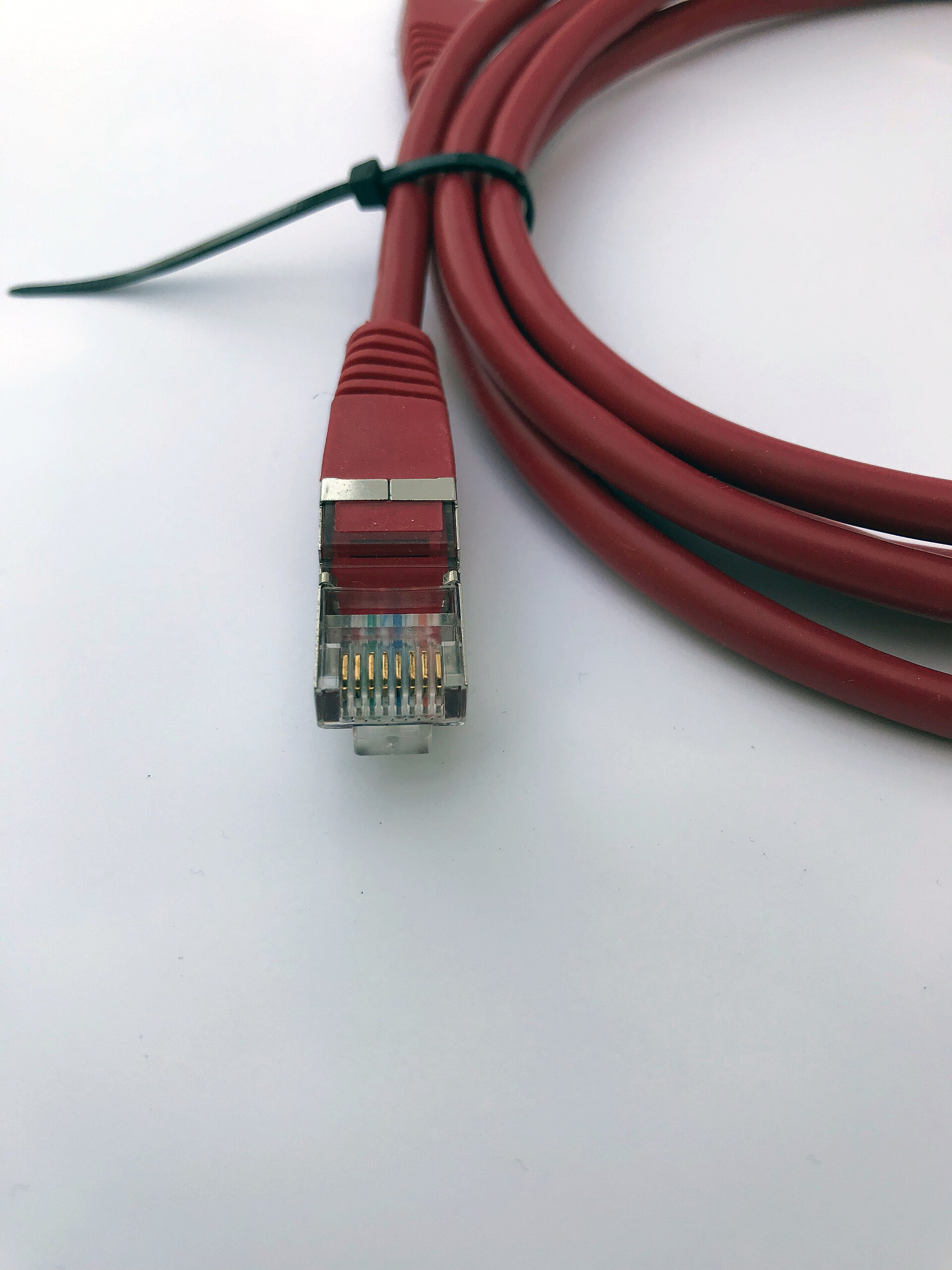
Figure 27.4 — A red patch cable with a cable tie around the coil, ending in an RJ45 plug that has a metal shield. Through the clear plastic housing you can see the eight gold contacts (the little flat teeth that touch the socket) and the coloured wires that lead to them. Underneath is the locking tab that clicks into the socket; you press it to pull the plug out. Photo: www.heimnetzwerke.net, CC BY 4.0, via Wikimedia Commons.

Inside the cable: the RJ45 plug has 8 pins. They connect 8 thin copper wires, twisted into 4 pairs. Each pair is twisted around itself because the twisting cancels out most of the electrical noise from outside and from neighbouring pairs.
Cable categories and speeds:
| Cable | Common speed it supports | Notes |
|---|---|---|
| Cat5 (old) | 100 Mbit/s | Old; rarely sold now |
| Cat5e | 1 Gbit/s | Good for most homes |
| Cat6 | 1 Gbit/s, and 10 Gbit/s over short runs | A common modern choice |
| Cat6a and above | 10 Gbit/s over the full length | Used for faster setups |
(Ethernet speeds you will see on NICs: 100 Mbit/s, 1 Gbit/s, 2.5 Gbit/s and 10 Gbit/s. The newer 2.5 Gbit/s speed was designed so that existing Cat5e cabling can often carry it.) A normal copper cable run should be no longer than 100 metres.
Auto-negotiation. When you plug in a cable, the NIC and the device on the other end talk first and agree on the best speed both can do. If you see 100 Mbit/s where you expect 1 Gbit/s, a bad cable or a damaged plug is a common reason. Windows shows the agreed speed as Link speed in Get-NetAdapter.
Wireless (Wi-Fi) in one paragraph. With Wi-Fi the "cable" is a radio channel shared by every device in range, so devices take turns. The Wi-Fi network has a name called the SSID, and your router (or access point) is the hub of the wireless network. Speed drops with distance, walls and other busy networks. Wired Ethernet is usually faster, steadier and lower in delay than Wi-Fi, which is why servers and desktop PCs often use a cable.
1.5 The Layered Model and Encapsulation
What it is: Networking is too big to build as one lump, so it is split into layers. Each layer does one job and only talks to the layer above and below it. This is like a mail system: the writer, the postal worker and the truck driver each do one job and do not need to know how the others work.
Two famous models describe the layers. Learn both names, because books and job interviews use both:
| OSI model (7 layers) | TCP/IP model (4 layers) | Examples | What it does |
|---|---|---|---|
| 7 Application | Application | HTTP, DNS, DHCP | The programs' own language |
| 6 Presentation | (part of Application) | TLS encryption | Format and encryption |
| 5 Session | (part of Application) | Keeping a conversation open | |
| 4 Transport | Transport | TCP, UDP | Delivery between programs (ports) |
| 3 Network | Internet | IP, ICMP | Addresses and routing between networks |
| 2 Data Link | Link | Ethernet, Wi-Fi, ARP | Delivery on the local network (MAC addresses) |
| 1 Physical | Link | Cables, radio, the PHY | Raw signals |
Real networks use the TCP/IP model (4 layers). The OSI model (7 layers) is mostly used as a teaching tool and a shared vocabulary. When someone says "a layer 2 switch" they mean OSI layer 2, the Data Link layer.
Encapsulation: envelopes inside envelopes. When your browser sends data, each layer wraps the data in its own header (a small block of control information placed in front). This wrapping is called encapsulation. The receiving PC does the reverse and peels off one header at each layer (decapsulation).
 Your data:                                    [ DATA ]
 Transport layer adds a TCP header:         [ TCP ][ DATA ]
 Internet layer adds an IP header:      [ IP ][ TCP ][ DATA ]
 Link layer adds Ethernet header+check: [ Eth ][ IP ][ TCP ][ DATA ][ FCS ]
Here is the final result as it travels on the wire, with the name of each wrapped piece:
┌──────────┬──────────┬──────────┬────────────────────┬──────────┐
│ Ethernet │    IP    │   TCP    │        DATA        │ Ethernet │
│  header  │  header  │  header  │ (e.g. web request) │  check   │
└──────────┴──────────┴──────────┴────────────────────┴──────────┘
└──────────────────────── Ethernet frame ────────────────────────┘
           └─────────────── IP packet ────────────────┘
                      └───────── TCP segment ─────────┘
| Name | Layer | Contains |
|---|---|---|
| Data | Application | Your message (a web request, a DNS question...) |
| Segment (TCP) or datagram (UDP) | Transport | A TCP or UDP header + data |
| Packet | Internet | An IP header + the segment |
| Frame | Link | An Ethernet header + the packet + a check |
Why this matters: Each layer uses a different address. The frame uses MAC addresses (this local hop), the packet uses IP addresses (the whole journey) and the segment uses port numbers (which program). You will meet each of those in the next sections.
1.6 Switches, Routers and Hubs
What they are: These are the boxes that connect many NICs together. They look similar but work very differently.
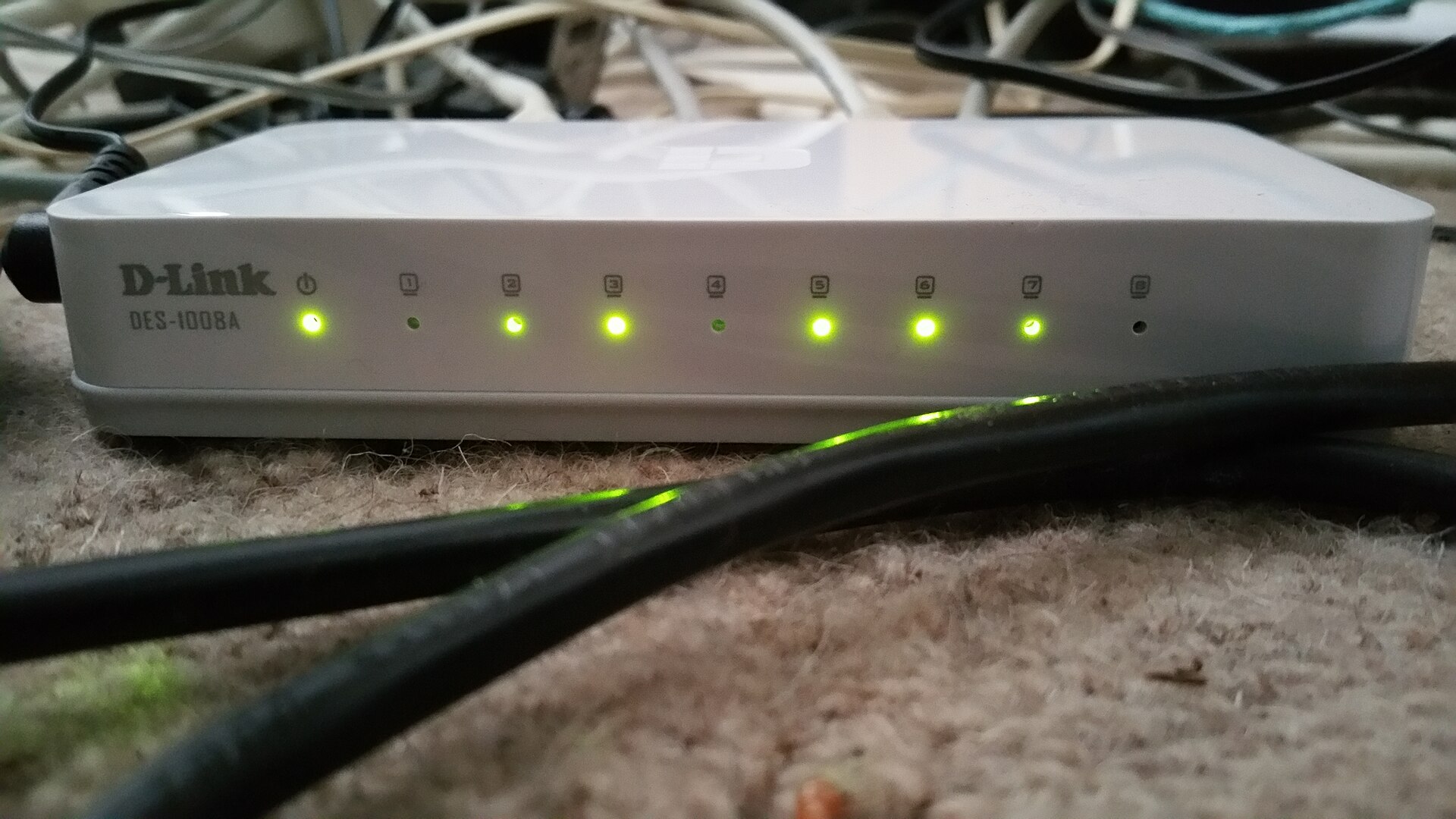
Figure 27.5 — The front of a small white 8-port Ethernet switch (a D-Link DES-1008A) resting on a carpet among cables. Look at the row of small lights (LEDs) labelled with port numbers 1 to 8, plus a power light. The power light and ports 2, 3, 5, 6 and 7 are lit green: a cable and a working device are connected there. Ports 1, 4 and 8 are dark: nothing is plugged in. Photo: Deavmi, CC BY-SA 3.0, via Wikimedia Commons.

| Device | Works with | What it does | Smart? |
|---|---|---|---|
| Hub (obsolete) | Electrical signals | Copies every incoming signal out of all other ports | No. Everyone hears everything, and devices collide |
| Switch | MAC addresses (frames) | Sends each frame only to the port where the destination lives | Yes, learns by itself |
| Router | IP addresses (packets) | Connects different networks and forwards packets between them | Yes, uses a routing table (Section 8) |
How a switch learns. A switch is not told anything by you. It builds a MAC address table by watching traffic:
 1. A frame arrives on port 2 from source MAC AA:AA.
    The switch writes down:  "AA:AA is on port 2".
 2. The frame is for MAC BB:BB. Is BB:BB in the table?
      yes ──► send out only that one port
      no  ──► send out ALL other ports (flood), BB:BB's reply teaches the switch
 3. Broadcast frames (FF-FF-FF-FF-FF-FF) are always sent to all ports.
| MAC address | Port |
|---|---|
| AA:AA | 2 |
| BB:BB | 5 |
| CC:CC | 3 |
Because a switch sends frames only where needed, many pairs of devices can talk at the same time without disturbing each other. A hub could not do that.
Switch versus router in one line:
- A switch connects devices inside one network (using MAC addresses).
- A router connects one network to another (using IP addresses), for example your home network to the Internet.
Your home "router" is really several devices in one box: a router, a small switch (the LAN ports), a Wi-Fi access point and more. Section 8 opens one up and shows it.
Summary
| Topic | Remember this |
|---|---|
| NIC | The hardware that connects a PC to a network: a card on PCIe x1, or a chip on the board; Wi-Fi NICs use radio. It uses DMA and interrupts |
| MAC and PHY | MAC builds frames and addresses; PHY handles the signals on the wire |
| MAC address | 48 bits, six hex pairs; first half = maker (OUI); works only on the local network |
| Ethernet frame | Destination MAC, source MAC, type, payload (up to 1500 bytes), check value |
| Cable | RJ45 plug, 8 pins, 4 twisted pairs; Cat5e/Cat6 for 1 Gbit/s; speeds 100 Mbit/s up to 10 Gbit/s |
| Layers | OSI has 7 layers, TCP/IP has 4; encapsulation wraps data in Frame ⊃ Packet ⊃ Segment |
| Switch | Learns MAC addresses, sends frames to the right port; unlit LED = nothing connected |
| Router and hub | Router connects networks by IP; hub is old and repeats everything |