The Big Picture: From a Cable to a Program
The previous chapter taught the rules of networking: MAC addresses, IP addresses, ARP, DNS, DHCP, TCP/UDP, ports, routing and NAT. Rules are only ideas until something follows them. In your PC, that "something" is a stack of software layers. At the very bottom sits a piece of hardware: the network adapter.
A network adapter (also called a NIC, Network Interface Card) turns bits inside your computer into signals on a cable or in the air, and back again. It may be a card in a slot, a chip soldered onto the motherboard, or a small Wi-Fi module inside a laptop.
Here is a real wired network card. It is a good one to study because everything is easy to spot.
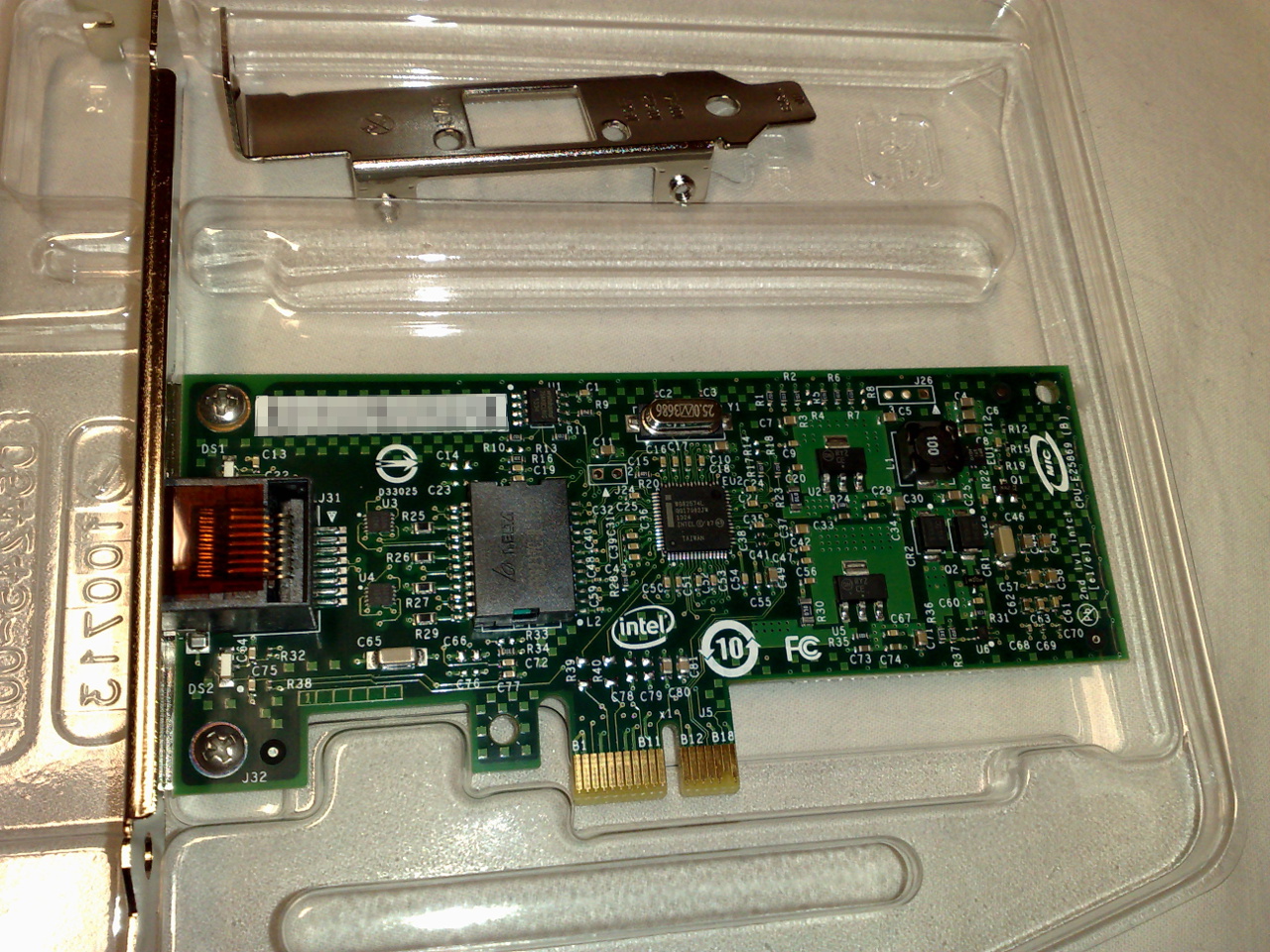
Figure 28.1 — A real Gigabit network card. Find the RJ45 socket at the left (where the cable plugs in), the controller chip in the middle, and the gold edge connector at the bottom that plugs into a PCIe x1 slot. The driver in this section is the software that talks to that controller chip. Photo: Dsimic, CC BY-SA 3.0, via Wikimedia Commons.

A program such as a web browser can never touch this chip directly. Windows puts a driver in between. A driver is a small program, loaded into the operating system, that knows the exact details of one kind of hardware. You met drivers in Chapter 13. Here we look at the network kind.
1.1 NDIS (Network Driver Interface Specification)
What it is: NDIS stands for Network Driver Interface Specification. It is a set of rules, plus a piece of Windows (the file ndis.sys), that sits between the network drivers and the rest of the networking software.
Why it exists: Hundreds of network chips exist, from Intel, Realtek, Broadcom, Qualcomm, MediaTek and more. Each one is controlled in a different way. If the Windows TCP/IP code had to learn every chip, it would be huge and fragile. So Windows says: "Every network driver must speak NDIS. The upper layers only ever talk NDIS."
Analogy: NDIS is like a standard wall socket. Every lamp (upper layer) has the same plug. The wiring behind the wall (the driver) can differ from house to house (chip to chip), but the lamp never needs to know.
        TCP/IP and other protocols
                  │
        ┌─────────┴─────────┐
        │   NDIS (ndis.sys) │   one standard set of rules
        └─────────┬─────────┘
        ┌─────────┼─────────────┐
   Intel driver  Realtek driver  Wi-Fi driver   different hardware,
        │            │              │           same NDIS "plug"
    Intel NIC    Realtek NIC     Wi-Fi chip
What NDIS does for the drivers:
| NDIS job | In plain words |
|---|---|
| Passes packets up and down | Carries packets between the protocols and the driver |
| Manages settings | Handles things like link speed, MAC address and offload options |
| Reports state | Tells Windows "cable plugged in" or "cable unplugged" |
| Runs filter drivers | Lets extra drivers (VPN, packet capture, security tools) sit in the path |
NDIS versions: NDIS has version numbers. Windows 10 and 11 use NDIS 6.x (the exact minor number depends on the build). You do not need to memorise them. A newer version simply supports newer features, such as better use of many CPU cores.
1.2 Miniport Drivers
What it is: A miniport driver is the network driver for one specific kind of NIC. "Mini" means it is small on purpose. It only knows the hardware. NDIS does the heavy common work, such as queues, locking and talking to the protocol layers.
Its job, step by step:
- Sending: NDIS hands the miniport a packet. The miniport puts it in a buffer in RAM (listed in a descriptor ring) and tells the NIC "go".
- The NIC reads the packet from RAM by itself using DMA (see Chapter 4) and sends it out.
- Receiving: A packet arrives. The NIC writes it into RAM by DMA, then raises an interrupt (a tap on the CPU's shoulder).
- The miniport's quick ISR runs, then a DPC (a short follow-up job) hands the packet up to NDIS. Chapter 4 explained this two-step.
SEND                                     RECEIVE
Packet from NDIS                         Wire / radio signal
   │                                         │
   ▼                                         ▼
Miniport fills a buffer in RAM,          NIC copies the packet into RAM (DMA)
rings the NIC's "doorbell"                   │
   │                                         ▼
   ▼                                     Interrupt -> miniport (ISR + DPC)
NIC reads RAM (DMA) and                      │
sends the bits out                           ▼
                                         Packet goes up through NDIS
Many interrupts and many cores. A fast NIC can use MSI-X (many separate interrupts, from Chapter 4). Many NICs also support RSS (Receive Side Scaling): the NIC sorts incoming packets into several queues, and each queue can be served by a different CPU core, so one core is not stuck with all the work. (Whether an adapter has RSS, and how many queues, depends on the hardware and its driver.)
Kinds of adapters you will see in Windows:
| Kind | Example name | What it really is |
|---|---|---|
| Wired Ethernet | "Realtek PCIe GbE Family Controller" | A physical NIC with an RJ45 socket |
| Wi-Fi | "Intel Wi-Fi 6 AX201" | A radio module, also controlled by an NDIS miniport |
| Virtual (Hyper-V) | "Hyper-V Virtual Ethernet Adapter" | Software only. Connects virtual machines to the network |
| VPN | "WAN Miniport", vendor "TAP" adapters | Software adapters that send traffic into an encrypted tunnel |
| Loopback | "Loopback Pseudo-Interface 1" | A pretend adapter. Packets sent to 127.0.0.1 come straight back to your own PC |
| Bluetooth | "Bluetooth Device (Personal Area Network)" | Networking over Bluetooth |
A virtual adapter has no metal and no radio. It is only a driver that pretends to be a NIC so the rest of Windows can treat it like any other. That is the power of NDIS: the upper layers cannot tell the difference.
How to look at your adapters:
Device Manager: press Win + X, choose Device Manager, and open Network adapters. Double-click an adapter and open the Driver tab to see the driver version and date. The Advanced tab lists options the driver offers (for example offloads, explained in Section 4).
PowerShell:
Get-NetAdapter
Get-NetAdapter | Format-List *
The first command gives a short table:
| Column | Meaning |
|---|---|
| Name | Friendly name, such as "Ethernet" or "Wi-Fi" |
| InterfaceDescription | The adapter's real model name |
| Status | Up (working), Disconnected (no link), Disabled |
| MacAddress | The adapter's MAC address |
| LinkSpeed | The speed it agreed on, such as 1 Gbps or 866.7 Mbps |
The second command shows everything Windows knows. Look for lines such as DriverVersion, DriverDate, DriverFileName and NdisVersion. Property names can differ a little between Windows builds.
Windows tip: Link speed is what your adapter and the other end of the cable agreed on, not the speed of your internet. A "1 Gbps" link on a 100 Mbps internet plan is normal.
Tip: If networking breaks right after an update, the miniport driver is a prime suspect. On the Driver tab in Device Manager, Roll Back Driver (if available) returns to the older version.
Ties to earlier chapters: The driver loads at boot like any driver (Chapter 13). The NIC reaches RAM by DMA and the CPU by interrupt (Chapter 4). The NIC itself sits on a PCIe or USB bus, or is built into the board. A fault at any of these levels looks like "the network is broken".
Summary
| Term | Plain meaning |
|---|---|
| NIC / network adapter | The hardware that turns bits into signals and back |
| Driver | A small program that controls one kind of hardware |
| NDIS | The standard rules (and ndis.sys) between protocols and network drivers |
| Miniport driver | The small, hardware-specific network driver |
| Descriptor ring | A list of RAM buffers shared by the driver and the NIC |
| RSS | NIC spreads incoming packets over several CPU cores |
| Virtual adapter | A driver-only "NIC" (Hyper-V, VPN, loopback) |
Get-NetAdapter | PowerShell command listing adapters, status and link speed |