The Big Picture: Everything Working Together
You type google.com into a browser and press Enter. A page appears in about a second. Behind that second, nearly everything from the previous chapter and this one happens, in order. This section walks the full chain using the real Windows parts, from the top (the browser) to the bottom (the NIC).
The chain as a numbered list:
- The browser checks its own cache.
- The Windows DNS cache is checked.
- The hosts file is checked.
- A DNS question goes to the DNS server (the routing table and ARP get it out of the PC).
- A TCP three-way handshake connects to the IP address found.
- A TLS handshake sets up encryption (HTTPS).
- The HTTP request is sent.
- The server responds.
- The browser draws the page and the pixels reach the monitor.
A note on steps 2 and 3: the course lists the cache first, then the hosts file. In practice the Windows DNS Client treats the hosts file as the first source (Section 5), and its cache also holds hosts entries. What matters is that both are checked locally before any network traffic is sent.
  BROWSER (user mode)
  ┌────────────────────────────────────────────────────┐
  │ 1. own cache: "do I already know google.com?"      │
  └──────────────────────┬─────────────────────────────┘
                         │ no: ask Windows (Winsock / DNS Client)
  ┌──────────────────────┴─────────────────────────────┐
  │ 2-3. DNS Client cache (Dnscache) + hosts file      │
  └──────────────────────┬─────────────────────────────┘
                         │ no: ask the DNS server
  ┌──────────────────────┴─────────────────────────────┐
  │ 4. DNS query, UDP port 53  ───────►  DNS server    │
  │    reply: google.com = an IP address  ◄──────      │
  └──────────────────────┬─────────────────────────────┘
                         │ now we have an IP
  ┌──────────────────────┴─────────────────────────────┐
  │ routing table -> default gateway; ARP -> its MAC   │
  └──────────────────────┬─────────────────────────────┘
  ┌──────────────────────┴─────────────────────────────┐
  │ 5. TCP handshake (SYN, SYN-ACK, ACK) to port 443   │
  │ 6. TLS handshake (encryption set up)               │
  │ 7. HTTP request ──►            8. response ◄──     │
  └──────────────────────┬─────────────────────────────┘
  ┌──────────────────────┴─────────────────────────────┐
  │ Winsock > AFD > tcpip.sys > NDIS > miniport driver │
  │ NIC: DMA + interrupts; signals on cable or radio   │
  └────────────────────────────────────────────────────┘
10.1 Browser Checks Its Own Cache
What happens: The browser first looks in its own memory. Did it look up google.com a moment ago? Does it already hold saved copies of page parts (images, scripts) that are still valid? If yes, it can skip some or all of the steps below. Browsers also keep a small DNS cache of their own, and some use DNS over HTTPS (Section 5).
Why: The fastest network trip is the one that never happens.
10.2 OS DNS Cache Checked
What happens: If the browser needs an address, it asks Windows through Winsock. The request reaches the DNS Client service (Dnscache). If the name was resolved recently and its TTL has not run out, the answer is already in the cache and comes back instantly.
You can look at the cache with Get-DnsClientCache or ipconfig /displaydns.
10.3 hosts File Checked
What happens: Windows also checks C:\Windows\System32\drivers\etc\hosts (Section 9). If a line there names google.com, that address is used and DNS is never asked. On a normal PC there is no such line, so the lookup goes on.
10.4 DNS Query Sent to the Configured DNS Server
What happens: The name was not found locally. The DNS Client sends a small question to the DNS server that DHCP gave you (Section 6). It is normally a UDP message to port 53. To get that packet out of your PC, the stack does the same work it does for every packet in this chain:
Step A: the routing table. Is the DNS server on my own network? Usually not. So the default route wins, and the next hop is the default gateway, your router (Section 9).
Step B: ARP for the gateway's MAC. The frame must be addressed to the gateway by MAC address. The neighbor cache (Get-NetNeighbor, arp -a) probably has it already. If not, Windows broadcasts an ARP request ("who has 192.168.1.1?") and the router answers.
Step C: send. tcpip.sys builds the frame, passes it through NDIS to the miniport, and the NIC sends it.
For a faraway server, the IP addresses point to the far server, while the MAC addresses only point to the next hop:
  Layer       Source               Destination
  ─────────   ──────────────────   ──────────────────────────
  Ethernet    my NIC's MAC         gateway's MAC (next hop only)
  IP          my IP address        the server's IP (final target)
  UDP / TCP   my random port       53 (DNS) or 443 (HTTPS)
The reply carries the IP address. The DNS Client stores it in its cache until the TTL ends and hands it to the browser. The very first box your packet meets after leaving the PC is the router, which does NAT (previous chapter) and passes it on:
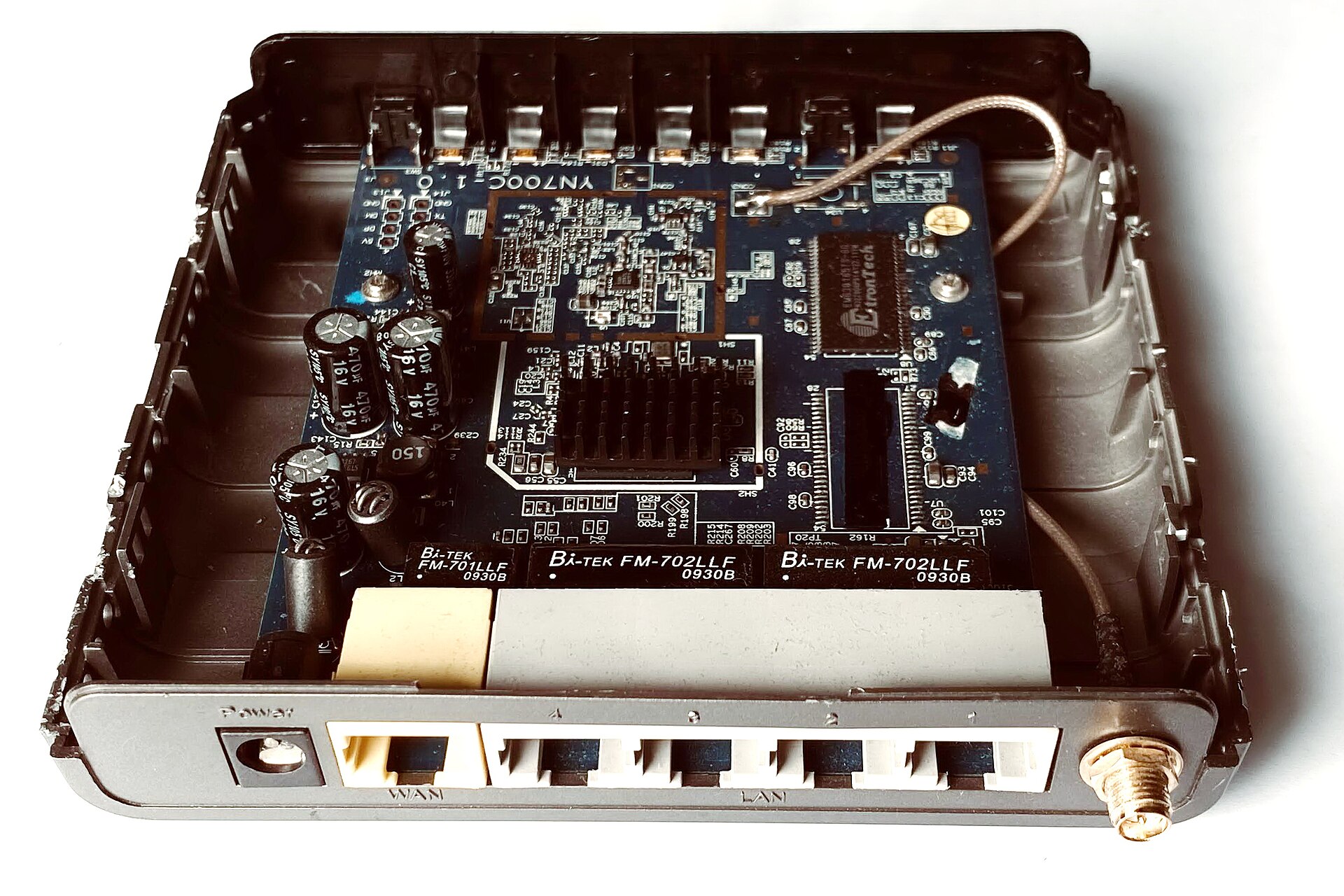
Figure 28.3 — The box your packet reaches next. Inside a small Wi-Fi router you can see the WAN port (towards the internet), four LAN ports (your devices), the power input, an antenna connector and the main chip under a heat sink. That chip does routing and NAT. Photo: Mk2010, CC BY-SA 4.0, via Wikimedia Commons.

10.5 TCP Connection Established (3-Way Handshake) to the Resolved IP
What happens: Now the browser has an IP address. For HTTPS it connects to port 443. In Winsock terms (Section 3), the browser calls socket and then connect.
ws2_32.dllpasses the request to AFD (afd.sys).- tcpip.sys sends a SYN ("can we talk?").
- The server replies SYN-ACK ("yes, ready").
- tcpip.sys sends ACK ("good, starting"). The connection is ESTABLISHED.
Each of the three packets goes through the routing table, the neighbor cache, WFP (the firewall checks that outbound connection is allowed) and the NIC, just like the DNS question. You can see the result in netstat -ano.
10.6 TLS Handshake (If HTTPS)
What happens (mention only): For https:// the browser and the server next do a TLS handshake: they agree on how to encrypt, the server proves its identity with a certificate, and both sides create secret keys. After that, everything is scrambled so that people on the path (a cafe's Wi-Fi, for example) cannot read it. The browser, not the Windows network stack, runs this step. The stack just carries the bytes. (Details are beyond this chapter.)
10.7 HTTP Request Sent
What happens: The browser writes its question, for example "GET the page at /" with some extra header lines, and calls send. The text is encrypted by TLS first, then goes down the same road: Winsock, AFD, tcpip.sys (cut into TCP segments), NDIS, the miniport and the NIC.
10.8 Server Responds
What happens: The server sends back the page, often as many TCP segments, which the browser's recv calls receive. On your PC, each incoming frame goes through this path:
- The NIC writes the frame into RAM by DMA.
- It raises an interrupt. The miniport's ISR runs, then the DPC passes the frame up (Chapter 4, Section 3).
- NDIS passes it to tcpip.sys, which checks the headers, orders the data, and acknowledges it. WFP filtering applies.
- AFD puts the data in the socket's buffer and wakes the browser.
TCP auto-tuning (Section 4) lets the receive window grow so a big page or video arrives quickly.
10.9 Browser Renders Response, Pixels Sent to GPU/Monitor
What happens: The browser decrypts the bytes, reads the HTML, CSS and scripts, and often makes more requests (for pictures, fonts, ads) on the same or other connections. It lays out the page and draws it using the GPU (the graphics chip, see Chapter 4). The finished picture is written into video memory and sent to the monitor over HDMI or DisplayPort. The page appears.
The Full Picture in One Table
| Step | Windows part involved | Tool to peek |
|---|---|---|
| Browser cache | Browser only | Browser settings |
| DNS cache | Dnscache service | Get-DnsClientCache |
| hosts file | drivers\etc\hosts | Notepad (read only) |
| DNS query | Winsock, tcpip.sys, UDP 53 | nslookup, Resolve-DnsName |
| Route choice | Routing table | route print, Get-NetRoute |
| Gateway MAC | Neighbor cache, ARP | arp -a, Get-NetNeighbor |
| TCP handshake | AFD, tcpip.sys | netstat -ano |
| Firewall check | WFP, mpssvc, BFE | Get-NetFirewallProfile |
| Frames in and out | NDIS, miniport, NIC, DMA, interrupts | Get-NetAdapter |
Windows tip: To watch this live, open Resource Monitor → Network tab and load a web page. You will see your browser's connections appear, with remote addresses and the amount of data.
Summary
| Term | Plain meaning |
|---|---|
| Browser cache | First stop; skips the network if possible |
| DNS Client cache and hosts file | Local name sources, checked before the network |
| DNS query | A small UDP question to port 53 |
| Routing table and gateway | Chooses the exit; ARP finds the gateway's MAC |
| TCP handshake | SYN, SYN-ACK, ACK on port 443 |
| TLS | Encryption set up by the browser and server |
| HTTP request / response | The actual question and answer for the page |
| NIC, DMA, interrupt | The hardware path at the very bottom of every step |