The Big Picture: What Is a Motherboard?
The motherboard is the big circuit board that everything else plugs into. The CPU, the RAM, the graphics card, the SSD — none of them can talk to each other alone. The motherboard gives them three things:
- A place to sit (sockets and slots)
- Wires between them (thousands of thin copper lines hidden inside the board)
- Power and timing (the right voltages, and a clock that keeps everyone in step)
Here is a real motherboard. It is old (around the year 2000), which makes it perfect for learning: you can see every part clearly. Modern boards have the same parts, only smaller and faster.
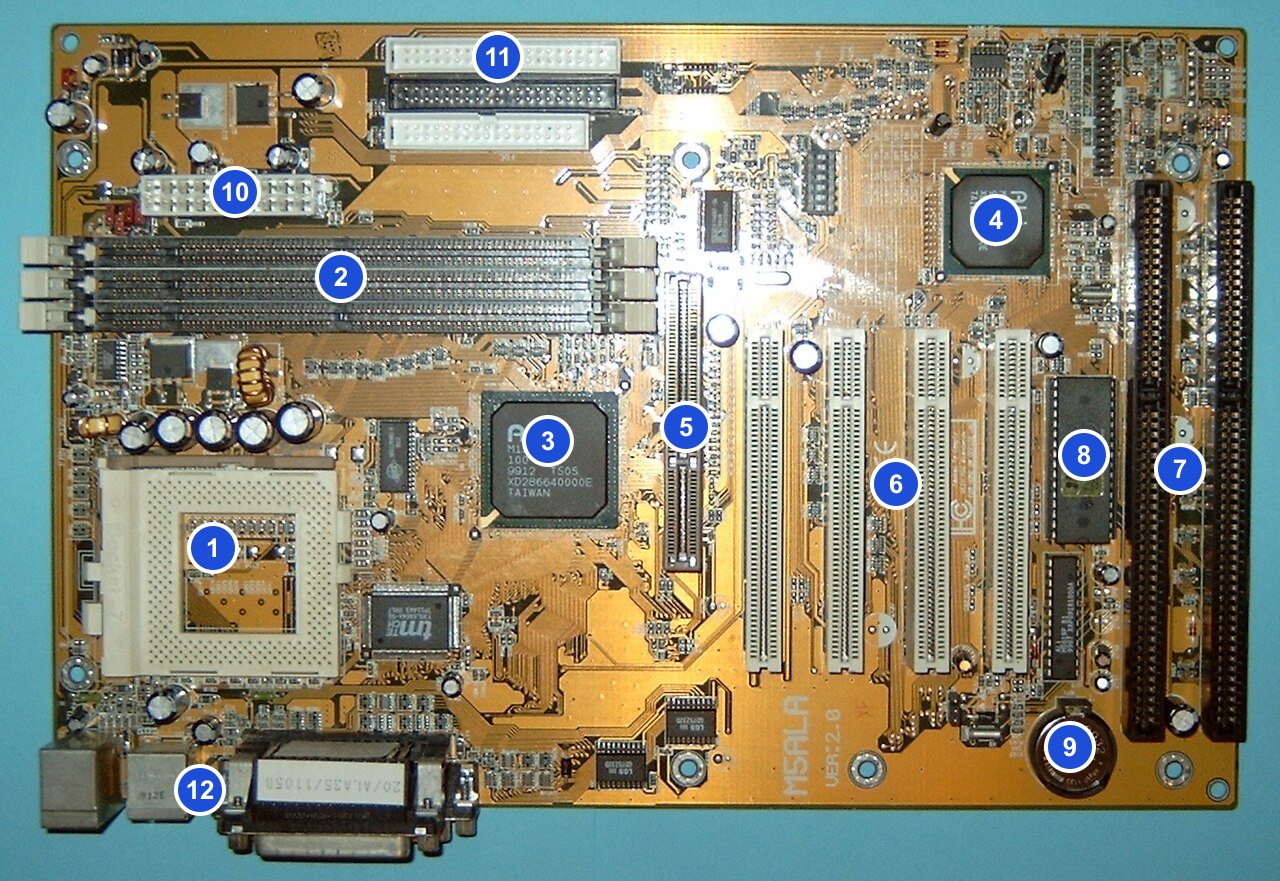
Figure 4.1 — A real motherboard with 12 parts numbered. Photo: Arnulf zu Linden, CC BY-SA 3.0, numbers added, via Wikimedia Commons.

| # | Part | What it does |
|---|---|---|
| 1 | CPU socket | Holds the processor |
| 2 | Memory slots | Hold the RAM sticks |
| 3 | Northbridge chip | Connects the CPU to RAM and to the graphics slot |
| 4 | Southbridge chip | Connects the "slower" things: disks, USB, sound, old ports |
| 5 | Graphics slot (the brown one) | Where a graphics card goes (an old type called AGP) |
| 6 | PCI slots (white) | Where add-in cards go: network card, sound card |
| 7 | ISA slots (black) | An even older slot type, long gone today |
| 8 | BIOS chip (the one with a sticker) | Holds the first program that runs at power-on |
| 9 | Battery | Keeps the clock running when the PC is off |
| 10 | Power connector | Where the power supply plugs in |
| 11 | Disk connectors | Where hard-drive and floppy cables plug in |
| 12 | Ports | Keyboard, mouse and printer sockets |
You will meet every one of these parts again in this chapter. Now let's zoom into how they are connected.
1.1 The Chipset and the PCH (Platform Controller Hub)
What it is: The chipset is the "traffic manager" of the motherboard. The CPU cannot talk to every device directly — it would need thousands of wires. So the chipset sits in the middle and handles the traffic.
The old design: two chips. Look at the classic layout. The CPU talks to the northbridge over a fast link. The northbridge talks to RAM and the graphics card. Then a second link goes down to the southbridge, which handles everything slower.
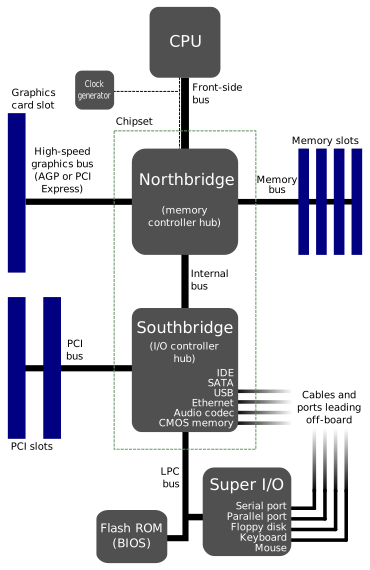
Figure 4.2 — The classic layout. The CPU sits on top, the fast parts hang off the northbridge, the slow parts hang off the southbridge. Diagram: Gribeco and Moxfyre, CC BY-SA 3.0, via Wikimedia Commons.

Why two chips? Speed. RAM and graphics need the fastest links. Disks, USB and sound are much slower, so they can share a cheaper, simpler chip.
The modern design: one chip, called the PCH. Over time, the CPU swallowed the northbridge's jobs. Today the memory controller (the part that talks to RAM) and the main graphics/PCIe lanes live inside the CPU itself. What is left of the old design is one chip: the PCH (Platform Controller Hub). AMD calls its version simply "the chipset".
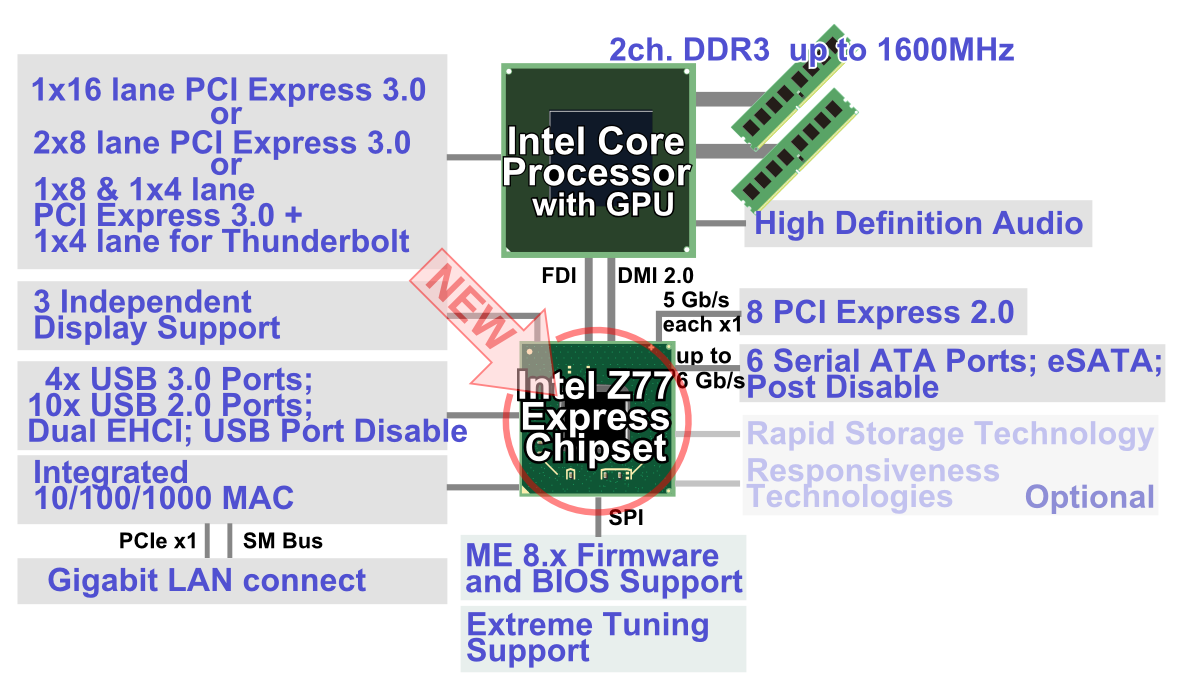
Figure 4.3 — A modern layout (Intel Z77, from about 2012). The CPU talks straight to RAM and to the graphics slot. Everything else goes through one chip, the PCH, over a link called DMI. Diagram: Shigeru23, CC BY-SA 3.0, via Wikimedia Commons.

Read Figure 4.3 from the top:
- Top left: the graphics slots connect straight to the CPU. Nothing in the way, so graphics cards get the shortest, fastest path.
- Top right: RAM also connects straight to the CPU ("2ch. DDR3" means two memory channels).
- Bottom: the PCH serves USB ports, SATA disk ports, network, extra PCIe lanes, and the BIOS chip (the "SPI" line at the bottom).
OLD (until about 2008)                  NEW (today)

   ┌───────┐                              ┌────────────────────┐
   │  CPU  │                              │ CPU                │
   └───┬───┘                              │  ├─ memory ctrl ── RAM
       │ front-side bus                   │  └─ graphics lanes ── GPU slot
   ┌───┴───────┐── RAM, GPU               └─────────┬──────────┘
   │ Northbridge│                                    │ DMI link
   └───┬───────┘                              ┌──────┴──────┐
       │                                      │   PCH       │── USB, SATA, LAN, BIOS
   ┌───┴───────┐── USB, SATA, LAN, BIOS      └─────────────┘
   │ Southbridge│
   └───────────┘
1.2 DMI (Direct Media Interface): The Link to the PCH
What it is: DMI is the cable-on-the-board between the CPU and the PCH. Every USB port, every SATA disk and the network chip behind the PCH send their data through this one link to reach the CPU and RAM.
How fast is it? DMI is built from the same kind of wires as PCIe (you will learn about PCIe in Section 2). It uses 4 lanes:
| DMI version | Speed per lane | Total, each direction | Used in |
|---|---|---|---|
| DMI 2.0 | 5 GT/s | about 2 GB/s | Intel boards from about 2011 |
| DMI 3.0 | 8 GT/s | about 3.9 GB/s | Intel boards from about 2015 |
(GT/s means "giga-transfers per second". It counts how many times per second the wire can carry one bit.)
Why this matters — the shared road. Think of DMI as one road into the city. USB, SATA and network all drive on it. Usually that is fine. But if you copy huge files from two fast SATA SSDs while also using a fast network, they can share the same road and slow each other down. This is one reason that high-end boards give the fastest SSD a direct lane to the CPU instead of going through the PCH.
1.3 The Power Delivery System
What it is: The power supply gives the motherboard 12 volts, 5 volts and 3.3 volts. But a modern CPU wants something very different: only about 1 volt, and a lot of current (it can be over 100 amps — more than a kettle uses). Something on the board has to convert one into the other, cleanly, thousands of times per second.
That something is the VRM (Voltage Regulator Module).
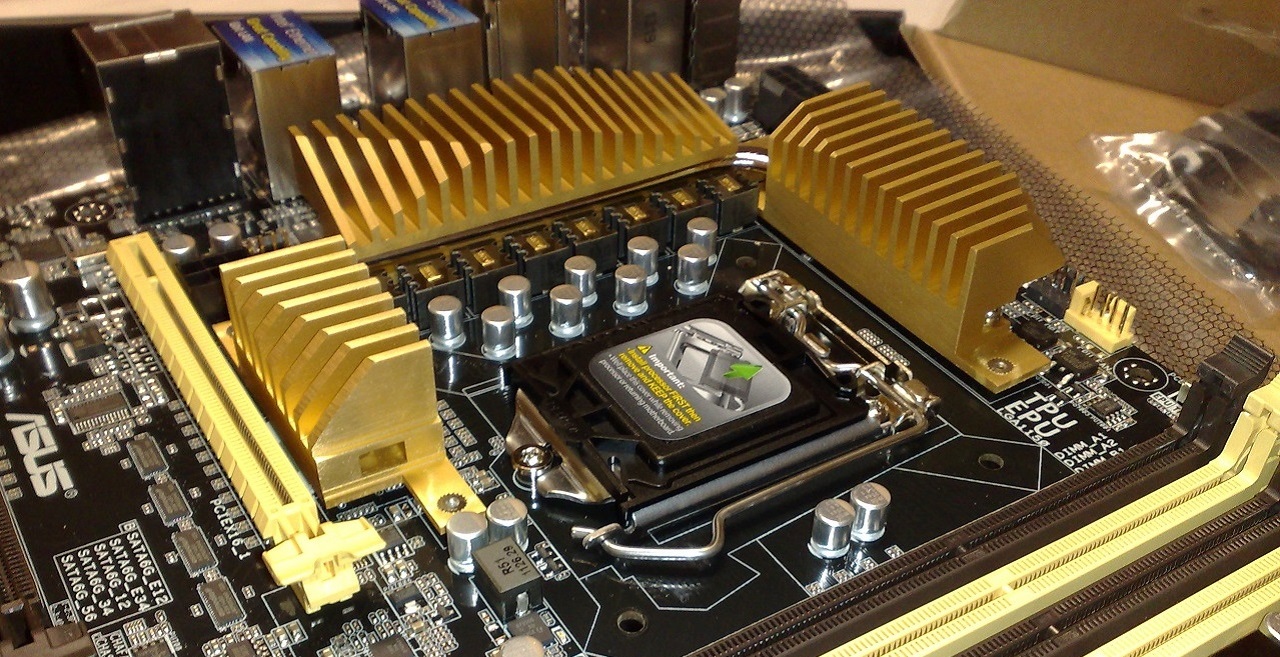
Figure 4.4 — The VRM on a real board. The gold metal fins are heat sinks. They sit right next to the CPU socket and cool the parts underneath. Photo: Dsimic, CC BY-SA 4.0, via Wikimedia Commons.

How a VRM works (the simple version): It is a fast on-off switch. It turns the 12 V input on and off hundreds of thousands of times per second, and a coil (called a choke) and capacitors smooth the result into a steady, lower voltage.
12 V in ──[ fast switch (MOSFET) ]──[ choke ]──┬── ~1 V to the CPU
              ▲                                │
              │ on/off signal                [ capacitors ]  ← smooth out the bumps
        [ controller chip ]                    │
              ▲                               GND
              └── "CPU, I need 1.05 V" (the CPU asks for the voltage it wants)
What you can see on a board:
- MOSFETs — the tiny switches (often under the heat sinks)
- Chokes — small square or round coils
- Capacitors — the little metal cans
- Phases — one switch + choke + capacitor group is one phase. More phases share the work, run cooler and give steadier power. Boards advertise this as "12+2 phase" and similar.
Why you should care: A weak VRM gets hot under heavy load. When it overheats, the CPU is told to slow down (called throttling). Same CPU, cheap board vs. good board — different performance.
1.4 Reset and Boot Circuits
What it is: When you press the power button, the motherboard does not just start the CPU. It follows a careful sequence, because starting a CPU with unstable power can damage it or give random errors.
The sequence in plain steps:
1. Power button pressed
        │
2. Motherboard tells the power supply: "turn on"    (a signal called PS_ON#)
        │
3. Power supply starts all its voltages
        │
4. Power supply waits until everything is stable,
   then says: "all good!"                            (a signal called Power Good / PWR_OK)
        │
5. Chipset releases the CPU's RESET line
        │
6. CPU wakes up and starts running its very first instruction
   from a fixed address that points into the BIOS chip
Two details worth knowing:
- Standby power. Even when the PC is "off", the power supply still sends a small 5 V standby current to the board (as long as the supply is plugged in). That is how the power button, the network card (Wake-on-LAN) and the clock keep working.
- The fixed address. At reset, an x86 CPU always begins at the same memory address, near the very top of the first 4 GB. The chipset makes that address point to the BIOS chip. This is the "first step" of booting. Chapter 5 follows the story from there.
Summary
| Topic | Remember this |
|---|---|
| Motherboard | The board that connects, powers and times every part |
| Chipset / PCH | The traffic manager; modern CPUs took over the old northbridge's jobs |
| DMI | The shared road between the CPU and the PCH (about 2–4 GB/s) |
| VRM | Turns 12 V into about 1 V for the CPU, using fast switching |
| Power-on sequence | Power button → supply on → "Power Good" → reset released → CPU starts |