The Big Picture: The Pre-Flight Check
Before a pilot takes off, they run a checklist: engines, fuel, controls. If something is wrong, they stop. A PC does the same. POST (Power-On Self-Test) is the firmware's checklist. It tests the most important parts, sets them up, and only then looks for an operating system. If something vital is broken, POST stops and tells you, often with beeps or lights, because the screen may not work yet.
3.1 First Steps After Power
What it is: A lot happens in the first fraction of a second, before any code from the BIOS runs.
Press power button
     │
     ▼
1. PSU turns on and checks its voltages
     │  sends the "Power Good" signal (Chapter 4)
     ▼
2. Chipset holds the CPU in RESET until power is stable
     │
     ▼
3. Reset released ─► CPU starts in real mode
     │  jumps to 0xFFFFFFF0 (reset vector)
     ▼
4. Firmware code begins (first code runs straight from the ROM chip)
Why wait for "Power Good"? If the CPU started while voltages were still rising, it could run wrong and crash or be damaged. The reset line keeps it frozen until everything is steady.
The very first code is special. There is no RAM yet, so the code cannot use normal memory. It runs from the ROM chip directly and uses the CPU's own registers (or CPU cache, set up as a tiny RAM) to work. Once the real RAM is ready, the firmware moves on.
3.2 Hardware Initialization Sequence
What it is: POST follows a fixed order. Each step prepares the next. The exact order varies by maker, but the shape is always like this:
| Step | What happens |
|---|---|
| 1 | Disable interrupts, set up the CPU basics |
| 2 | Quick CPU self-check |
| 3 | Find and test the boot ROM (checksum) |
| 4 | Set up the chipset and the clocks |
| 5 | Set up and test the RAM (the memory controller must be trained) |
| 6 | Copy the firmware into RAM (shadowing) and continue from there |
| 7 | Start the graphics card (run its option ROM). The screen now works. |
| 8 | Check the keyboard and other basic devices |
| 9 | Detect disks, USB and PCI/PCIe devices |
| 10 | Show the logo or summary, read the settings (Section 7) |
| 11 | Pick the boot device and hand control to the bootloader |
Power ► CPU ► ROM ► Chipset ► RAM ► Video ► Keyboard ► Drives/PCIe ► Boot
        (earlier steps need less; each step may need the one before it)
Why this order? You cannot show an error on screen before the graphics card works, and you cannot start the graphics card before RAM works. So the earliest errors cannot be shown as text. They are shown by beeps or LEDs (see 3.6).
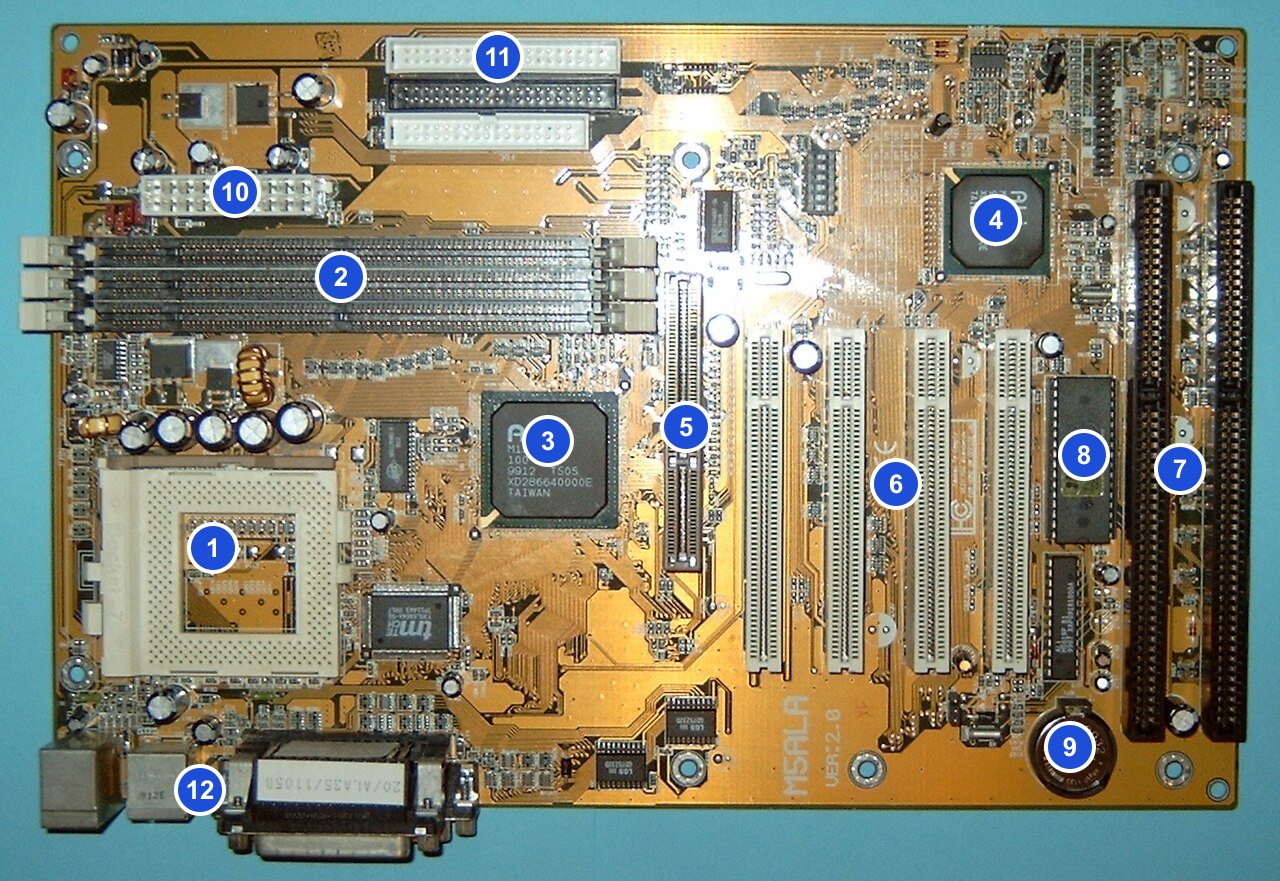
Figure 5.4 — The parts POST has to bring up, on an old board: CPU socket (1), memory slots (2), chipset chips (3, 4), the graphics slot (5), PCI slots (6), the BIOS chip (8) and the battery (9). Photo: Arnulf zu Linden, CC BY-SA 3.0, numbers added, via Wikimedia Commons.

3.3 CPU Register Initialization
What it is: Registers are the CPU's tiny, super-fast storage boxes (you met them in Chapter 2). At reset, the CPU sets them to known starting values, so the firmware always begins from the same clean state.
Key facts on x86 at reset:
| Item | State at reset |
|---|---|
| Mode | Real mode |
| Instruction pointer | Points to the reset vector (0xFFFFFFF0 is where the first instruction is fetched) |
| Interrupts | Off (the firmware has no handlers yet) |
| General registers | Cleared or set to fixed values |
| Cache | Disabled or not yet set up |
| Other CPU cores | Asleep. Only one core, the BSP (Bootstrap Processor), runs |
The other cores (called APs, Application Processors) wait. Later, the firmware (and then the OS) wakes them with special signals. That is why, in early boot, even a 16-core CPU runs just one core.
What the firmware sets up early:
- A tiny stack (a scratch area in memory for function calls). Before RAM works, it uses the cache as RAM.
- Caching rules (called MTRRs/PAT) for different memory areas.
- The descriptor tables that allow a switch to 32/64-bit mode (in UEFI).
- Microcode: CPU makers sometimes ship fixes for the CPU. The firmware can load the newest microcode update (a patch for the CPU's own internal program) at this stage.
3.4 Memory Testing
What it is: Before using RAM, the firmware must check that it works. Bad RAM causes crashes and corrupted files, so it is better to catch it here.
Two parts:
- Memory training. Modern DDR RAM runs at billions of transfers a second. Signals are so fast that the memory controller must calibrate itself: it sends test patterns and adjusts delays until reads and writes are clean. Each stick tells the controller its speed and timings through a small chip called the SPD (Serial Presence Detect). This training is why a PC with a lot of RAM, or after a RAM change, can take a long time on first boot.
- Memory test. The firmware writes patterns to RAM and reads them back. Old BIOSes counted up the RAM on screen ("640K... 1024K... 32768K OK"). Today a quick test is common (a thorough test of a whole 32 GB would take many minutes).
| Mode | What it does |
|---|---|
| Quick / Fast Boot | Skips most of the test. Fast start. |
| Full test | Tests every location. Slow, but safer after changes. |
| Memory context restore | Reuses the last training results to start faster |
Windows tip: Windows has its own tool. Press Win, type Windows Memory Diagnostic, run it and restart. A more thorough free tool is MemTest86 (a third party, from its official site).
Symptoms of a RAM problem during POST: long or repeating beeps, a memory LED on the board, a black screen, or the PC restarting a few times before it starts ("training again").
3.5 Device Discovery
What it is: After RAM and video work, POST looks for everything else and gives each device resources.
What it looks for:
| Device type | How it is found |
|---|---|
| PCI / PCIe devices | The firmware scans the buses and asks each slot "who are you?" (Chapter 4 enumeration) |
| Disks | SATA and NVMe controllers are probed for drives |
| USB | The USB controller starts, and keyboards and mice are found |
| Keyboard / mouse | Checked (a keyboard error can show "Keyboard error — press F1") |
| Memory and CPU info | Counted and written to SMBIOS tables |
| Power and devices | ACPI tables are built for the OS |
For each device, the firmware gives it memory addresses, I/O ports and an interrupt line, so the OS can find them later. This is called resource assignment. Old PCs used Plug and Play (PnP) for this. On the Award screen in Figure 5.2 you can see a menu called PnP/PCI Configurations.
What you may see on a classic screen: A summary table at the end of POST listing the CPU, RAM size, disks and PCI devices. Many modern PCs hide this behind the maker's logo (press Esc or Tab to peek).
Windows tip: To see what the firmware told Windows, run:
Get-CimInstance Win32_ComputerSystem | Select-Object Manufacturer, Model, TotalPhysicalMemory
Get-CimInstance Win32_BIOS | Select-Object SMBIOSBIOSVersion, ReleaseDate
3.6 Error Detection and Beep Codes
What it is: If POST finds a serious fault before the screen works, it cannot print text. So it uses sound (a beep from a little speaker) or lights.
Why a speaker? A buzzer needs almost nothing to work, no RAM, no graphics. It is the simplest way to say "help".
Classic beep codes. The patterns depend on the maker. Always check your motherboard manual. These are examples to show the idea:
| Pattern | Common meaning (varies by maker) |
|---|---|
| 1 short beep | Often "POST passed, all OK" (most PCs with a speaker) |
| No beep, no screen | No power, no speaker, bad CPU or board |
| Continuous or repeating beeps | Often memory or power problem |
| 1 long + 2 short (Award) | Often a video card problem |
| Several short beeps (AMI) | Often memory, CPU or keyboard-controller trouble, depending on the count |
Modern error signals:
| Signal | Meaning |
|---|---|
| Debug LEDs (labelled CPU, DRAM, VGA, BOOT) | The LED that stays lit shows where POST stopped |
| Two-digit debug display | A hex code that you look up in the manual |
| On-screen messages | "CMOS checksum error", "No boot device", "CPU fan error" |
| Auto-recovery | The board restarts and retries, or resets to safe settings |
Common POST messages in plain words:
| Message | What it likely means |
|---|---|
| CMOS checksum error | Settings memory is damaged. The battery is probably dead (Section 7). |
| CPU fan error | The CPU fan is not spinning or the header is empty. |
| No bootable device / Operating system not found | The firmware cannot find a disk with a working bootloader. |
| Keyboard error | No keyboard or a stuck key. |
| Overclocking failed | A speed setting was too high. The board went back to safe values. |
A quick troubleshooting order for "no display" at power-on:
- Check the power switch on the PSU and the 24-pin and CPU power cables.
- Re-seat the RAM (push until both clips click).
- Unplug extra cards and drives, try with the minimum parts.
- Look at the debug LEDs and listen for beeps.
- Clear the CMOS (Section 7).
Summary
| Term | Plain meaning |
|---|---|
| POST | Power-On Self-Test: the firmware's startup checklist |
| Power Good | A signal from the PSU saying voltages are steady |
| Reset vector | Where the CPU begins after reset |
| BSP / AP | The one starting core / the other cores that wait |
| Microcode | A patch for the CPU's internal program, loaded early |
| Memory training | Calibrating RAM signals so they are read correctly |
| SPD | A chip on the RAM stick that tells the board its speed and timings |
| Enumeration | Scanning buses to find all devices |
| SMBIOS / ACPI | Tables the firmware prepares for the OS |
| Beep codes | Sound patterns used when POST fails before the screen works |
| Debug LEDs | Small lights that show where POST stopped |