The Big Picture: Before Any Software Runs
In this phase, there is no operating system, no disk reading and no screen. Only electricity and a few fixed chips. The goal is simple: get clean power to the CPU, wake the CPU up, give it some working RAM, and let the firmware start. If this phase fails, you see the worst symptom: a completely dead PC.
Press power button
      │
      ▼
 PSU makes power ──► Motherboard powers up ──► CPU is reset ──► RAM is set up ──► Firmware code runs
   (2.1)                  (2.2)                   (2.3)             (2.4)              (2.5)
2.1 Power Supply Starts
What it is: The power supply unit (PSU) is the box that turns the wall socket's AC power into the low-voltage DC power (+12 V, +5 V, +3.3 V) that the PC needs. You met the rails (the separate voltage lines) in Chapter 4, Section 5.
Here are the plugs that carry that power to the motherboard and other parts:
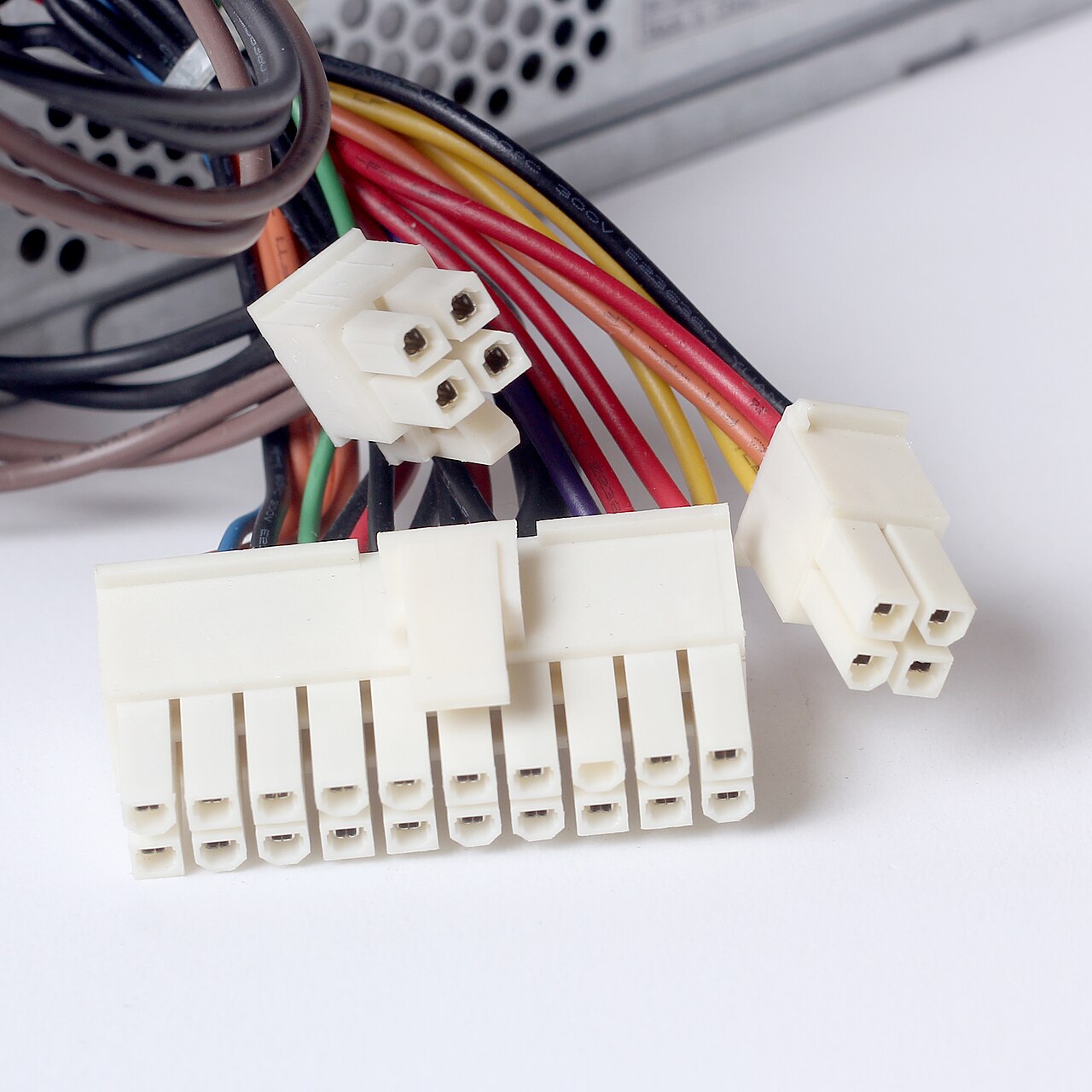
Figure 6.1 — The plugs coming from a PC power supply. The large one powers the motherboard; the others feed the CPU, graphics card and drives. Photo: Dmitry Makeev, CC BY-SA 4.0, via Wikimedia Commons.

The PSU does not simply turn on when you press the button. It follows a careful routine using three special wires in the big motherboard plug:
| Signal | Wire colour | What it means |
|---|---|---|
| +5 VSB (standby) | Purple | Always on while the PSU is plugged in and its switch is on. It powers the motherboard's tiny "always awake" circuit. |
| PS_ON# ("power supply on") | Green | The motherboard pulls this wire low (connects it to ground) to say "please turn on". |
| PWR_OK ("Power Good") | Grey | The PSU raises this after all its voltages are steady, to say "my power is clean, you may start". |
The steps:
- You press the case button. The board's standby circuit sees it.
- The board pulls PS_ON# low.
- The PSU switches on its main rails (+12 V, +5 V, +3.3 V). Fans start to spin.
- The voltages rise and settle. This takes a fraction of a second.
- When they are stable, the PSU raises PWR_OK.
Why the wait? Chips behave badly if you start them while the voltage is still rising. The "Power Good" signal is a safety delay. The CPU is held in reset until this signal arrives.
Symptom: Fans twitch and then stop, again and again? Often the PSU never gives a steady "Power Good", or a short circuit makes it shut itself down. Chapter 4's scenario questions touched on this.
2.2 Motherboard Power-Up
What it is: Once the PSU's rails are stable, the motherboard takes the power and shares it out.
The board does these things, mostly in hardware:
- VRMs wake up. The VRM (voltage regulator module) turns +12 V into the very low, very exact voltage the CPU needs (around 1 V). It also powers RAM and the chipset.
- Clocks start. The crystals and clock generators begin ticking (Chapter 4, Section 7). Without a clock, a chip cannot do anything.
- The chipset (PCH) powers up and runs its own start-up. On many Intel PCs this includes a small helper processor called the Management Engine, which prepares things before the main CPU starts. AMD has a similar helper (the Platform Security Processor).
- The reset line is released. All through the start, the chipset holds a wire called RESET active, which keeps the CPU frozen. Only when every voltage and clock is good does the chipset let go of RESET.
Releasing RESET is like a starter's pistol. The CPU wakes up, and the next phase begins.
| Part | What it does at this moment |
|---|---|
| VRM | Makes the exact CPU voltage |
| Clock generator | Provides the heartbeat |
| Chipset / PCH | Controls reset and links to the BIOS chip |
| CMOS / RTC | Already running on its coin battery; keeps the time and settings |
2.3 CPU Initialization
What it is: The CPU wakes up in a known, simple state. Whatever it did before is gone. Its registers (its tiny, fastest storage slots) are set to fixed starting values.
Two key facts about this "reset state":
1. It starts in real mode. Real mode is the oldest, simplest way an x86 CPU can run. It behaves like the very first PC chips from the 1980s: it works in 16-bit pieces and can only reach 1 MB of memory. Every x86 CPU starts this way, even a brand-new 64-bit one. This keeps old software and old firmware working. Later steps move the CPU into more powerful modes.
2. It jumps to a fixed address. The CPU does not know where any program is, so it always runs its first instruction from the reset vector. The reset vector is a fixed address, 0xFFFFFFF0, just 16 bytes below the 4 GB mark. (The CPU treats it as if the memory just below 4 GB holds the firmware.)
You saw this in Chapter 4, Section 8.1. The chipset connects this address range to the firmware chip, so the CPU actually reads from there, even though RAM is not working yet.
Here is that chip:
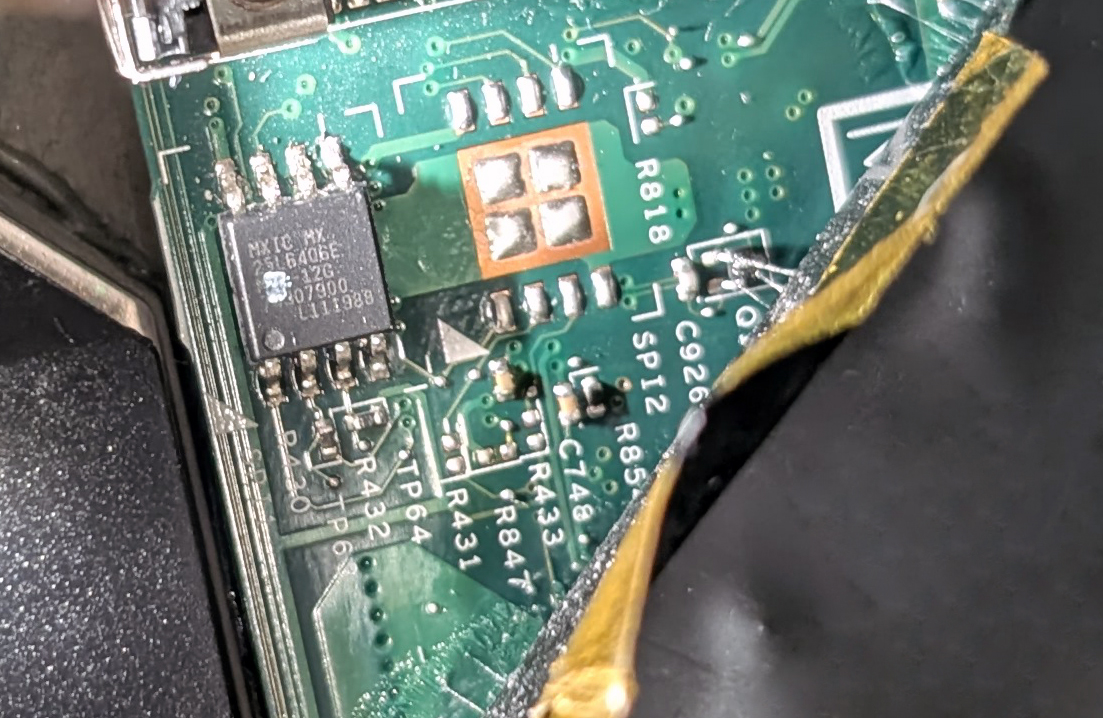
Figure 6.2 — The small 8-pin flash chip that holds the firmware on a ThinkPad X220 laptop. The first instruction the CPU runs comes from a chip like this. Photo: Siarhei Besarab, CC BY-SA 4.0, via Wikimedia Commons.

There are only 16 bytes of room at the reset vector. That is enough for one instruction: a jump that sends the CPU to the real start of the firmware code, which sits a bit lower in the same chip.
 CPU released from reset
        │
        ▼
 Run instruction at 0xFFFFFFF0   (this is a JUMP)
        │
        ▼
 Firmware start-up code in the flash chip
        │
        ▼
 Set up the CPU properly, then start work
What the early firmware does to the CPU:
- Load a small amount of microcode (small fixes to the CPU's internal behaviour) if needed.
- Start the other CPU cores. One core, the BSP (boot processor), does all the work. The others wait until the operating system wakes them.
- Set up simple memory-use rules so that fast CPU caches can work.
2.4 Memory Initialization
What it is: At this moment, RAM does not work yet. This is a puzzle: the firmware is a program, and programs usually need RAM to store things. The answer is a clever trick.
Step A: Use the CPU cache as temporary RAM. The firmware tells the CPU to use its own cache (the small, super-fast memory inside the CPU) as if it were plain RAM. This is called cache-as-RAM. It is only a few hundred kilobytes, but it is enough to run the first firmware code. (Some newer designs use other small on-chip memory instead.)
Step B: Train the real RAM. Now the firmware can set up the main memory. Today's RAM is very fast and touchy, so it cannot just be switched on. The firmware has to:
- Read the SPD chip on each memory stick. SPD (Serial Presence Detect) is a tiny chip on the RAM stick that lists its speed, size and timings.
- Choose settings both the CPU and the sticks can handle (or the XMP / EXPO profile you chose in setup).
- Memory training: send test signals, measure how they arrive, and fine-tune the timing of every wire until reading and writing is reliable. On modern PCs this can take a few seconds. It is the reason a PC with a lot of RAM may show a black screen for a moment after you change memory settings.
- Map the memory: decide which address ranges are RAM and which belong to devices.
When training is done, the firmware has real RAM and copies itself into it. From now on it can run in the roomy, quick RAM instead of the slow flash chip.
| Step | Why it is needed |
|---|---|
| Cache-as-RAM | The firmware needs some working space before real RAM works |
| Read SPD | Learn what the RAM sticks are |
| Train the memory | Make fast RAM reliable |
| Copy firmware into RAM | Run faster and free the flash chip |
If this step fails: Nothing appears on screen, and the board shows a memory error (a beep pattern or a "DRAM" light). Re-seat the sticks, try one stick at a time, or clear CMOS (Chapter 4, Section 8.2) to undo bad memory settings.
2.5 Firmware Starts (Real Mode)
What it is: With a working CPU and working RAM, the firmware now runs its main code. This is the BIOS / UEFI from Chapter 5.
How old BIOS worked: It kept the CPU in real mode for the whole job. Everything lived in the first 1 MB of memory. This is why old boot programs are 16-bit and so small.
How UEFI works: Modern UEFI firmware also starts in real mode (the CPU forces it), but it switches the CPU to a bigger mode very early: 32-bit and then 64-bit on a 64-bit PC. After that, it runs as a normal, roomy 64-bit program.
UEFI firmware is built from phases. You do not need to learn them by heart, but they explain the order:
| Phase | Plain meaning |
|---|---|
| SEC (Security) | The first few instructions. Sets up cache-as-RAM. |
| PEI (Pre-EFI Initialization) | Starts the memory and basic chipset. |
| DXE (Driver Execution Environment) | Loads the drivers for devices (this is the long phase). |
| BDS (Boot Device Selection) | Reads the boot settings and picks what to start. |
| After this | The operating system's boot manager runs. |
Each phase is a small, simple program that does its job and then calls the next. The names are unimportant. The idea is: start tiny, build up step by step.
What comes next: The firmware now tests and discovers all the hardware. That is the POST phase, covered in Section 3.
Section 2 gave us:   [ clean power ] + [ CPU running ] + [ working RAM ] + [ firmware code running ]
Section 3 will do:   test everything and find the devices
Summary
| Term | Plain meaning |
|---|---|
| PSU | Turns wall AC power into the PC's low-voltage DC rails |
| +5 VSB | Always-on standby power |
| PS_ON# | Green wire the board pulls low to switch the PSU on |
| PWR_OK (Power Good) | Grey wire: "my voltages are steady" |
| VRM | Makes the exact CPU voltage |
| RESET | Wire that freezes the CPU until power and clocks are good |
| Real mode | The old, simple 16-bit CPU mode every x86 CPU starts in |
Reset vector (0xFFFFFFF0) | The fixed address of the CPU's first instruction |
| Cache-as-RAM | Using the CPU cache as RAM before real RAM works |
| SPD | Tiny chip on a RAM stick describing its speed and size |
| Memory training | Tuning RAM signal timing until it is reliable |
| SEC / PEI / DXE / BDS | The main phases inside UEFI firmware |