The Big Picture: The Morning Safety Check
POST stands for Power-On Self-Test. Before the computer tries to start Windows, the firmware checks that the basic parts actually work. It is like a pilot walking around the plane before take-off: engines, wings, wheels. If something important is broken, it is far better to stop now and say so than to crash later.
POST also discovers what is plugged in, because the firmware has to know what devices exist before it can start anything. The whole thing usually takes just a few seconds on a modern PC.
On older PCs you could see the result: a count of memory, a line of text, and one short beep. Today the maker's logo often covers all this, but the same work goes on underneath.
3.1 CPU and Memory Test
What it is: The first and most important checks. If the CPU or memory is bad, nothing else can be trusted.
CPU checks:
- Does the CPU respond? Do its basic instructions give the right answers?
- Are the cores and caches working?
- Are voltage and temperature sensible? (Many boards refuse to start if the CPU cooler is missing.)
Memory checks:
- Write a pattern into RAM, read it back, and compare.
- Count how much RAM there is.
- On old BIOS, this was the famous counting number at the top of the screen. Testing a lot of RAM thoroughly takes a long time, so many modern boards do a quick test, or skip the deep test (a "fast boot" option) and only train the memory (Section 2.4).
| Check | What it looks for | If it fails |
|---|---|---|
| CPU | A processor that does not respond or is unstable | Often no display, a beep pattern or a "CPU" light |
| RAM | Missing or bad sticks, wrong pattern read back | Often no display, repeated beeps or a "DRAM" light |
| Cache | Faulty CPU cache | Rare; usually stops the boot |
Deeper RAM testing: POST is only a quick check. To truly test memory, use Windows Memory Diagnostic (type
mdsched.exein the Start menu). It restarts the PC and runs a longer test.
3.2 Device Discovery
What it is: The firmware now looks for everything plugged into the board and sets it up. This is called enumeration, which simply means "finding and listing".
The firmware walks through these:
- PCI Express devices. The firmware "knocks" on every possible slot and every device behind the chipset. Each device answers with its ID (who made it and what it is). The firmware then gives each device its memory and I/O address space and its interrupt settings. You learned this in Chapter 4, Section 6.4.
- Storage. NVMe SSDs on PCIe, SATA drives on the SATA ports. The firmware makes a list of disks it can boot from.
- USB. It starts the USB controllers and finds the keyboard, the mouse and USB drives. This is why a USB keyboard can control the setup screen.
- Graphics. It finds the graphics card (or the CPU's built-in graphics) so that it has a screen to write to.
- Others. Network card, sound, the TPM security chip, fans and temperature sensors.
The firmware also builds a description of the hardware (a set of tables named SMBIOS and ACPI). Windows reads these tables later to learn what the machine is. This is the very information that msinfo32 and the lab in Chapter 4 showed you.
Windows tip: In Device Manager, choose View → Devices by connection. The tree you see is a picture of what firmware discovered and Windows then confirmed.
When all this is done, the firmware can say: "I know my CPU, my RAM, my disks, my screen and my keyboard."
3.3 BIOS/UEFI Loads
What it is: This is the point where the firmware's full program and its settings become active. We use the word "loads" for several things happening together:
- The settings are read from the small memory kept alive by the coin battery (CMOS) or from the firmware chip itself. These include the boot order, memory speed profile, Secure Boot and whether virtualization is on.
- The firmware's own drivers (for USB, disks, the network and the screen) are loaded. In UEFI, the DXE phase (Section 2.5) does most of this.
- The setup screen becomes available. If you press the setup key (often
Del,F2orF10) during start-up, the firmware shows its settings screen.
Here is a classic setup screen. Modern UEFI screens look prettier and use a mouse, but the idea is the same:
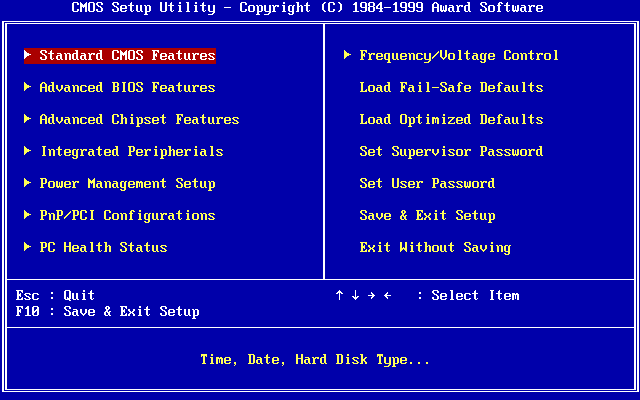
Figure 6.3 — The main menu of an Award BIOS setup utility. This is a recreation of the original screen. Screenshot: Award Software International Inc., recreated by User:Kephir, public domain, via Wikimedia Commons.

In Windows, you can reach your modern firmware's setup without racing the keyboard: open Settings → System → Recovery → Advanced startup → Restart now, then choose Troubleshoot → Advanced options → UEFI Firmware Settings.
| Setting | What it controls |
|---|---|
| Boot order | Which disk the firmware tries first (Section 4) |
| Secure Boot | Whether only trusted, signed boot programs may run |
| XMP / EXPO | A faster RAM speed profile |
| Virtualization | Whether virtual machines can use the CPU features |
| Fast Boot | Skips some checks to start sooner |
3.4 Option ROMs Executed
What it is: Some devices carry their own little firmware with them. This extra code is called an Option ROM. It teaches the main firmware how to use that device.
Think of it as an instruction card that comes in the box with a new gadget.
| Device | What its option ROM does |
|---|---|
| Graphics card (the "video BIOS") | Lets the firmware show text and pictures before Windows loads |
| RAID or storage controller | Lets the firmware see disks attached to that card |
| Network card | Allows network boot (PXE), starting a PC from a server |
Legacy BIOS ran option ROMs as old 16-bit code. The graphics one was always run first, so that you could see messages. If a card showed text at start-up like "Press Ctrl+I to enter setup", that text came from its option ROM.
UEFI uses option ROMs too, but they contain UEFI drivers (written in the UEFI style, not 16-bit code). A graphics card supplies a GOP driver (Graphics Output Protocol) so UEFI can draw a high-resolution picture, such as the maker's logo.
Security: Option ROMs run before the operating system, with full power. A bad one could be dangerous. That is one reason Secure Boot checks the digital signatures of UEFI drivers and boot programs before running them.
3.5 Error Handling and Beeps
What it is: When POST finds a serious problem, the screen may still be dead (the graphics may be the broken part). So the firmware uses other ways to tell you.
1. Beep codes. A tiny speaker or buzzer on the board makes short and long beeps in a pattern. The pattern is a code. Every firmware maker uses its own codes, so you must check your board's manual. Some common examples:
| Pattern (typical) | Usual meaning |
|---|---|
| One short beep | POST finished, everything fine (on many boards) |
| No beep and no picture | Power, CPU or speaker problem (many modern boards have no speaker) |
| Repeating beeps | Often a memory or power problem |
| One long and a few short | Often a graphics problem |
| Continuous beep | Often power or memory trouble |
(These are only typical. For example, AMI and Award firmware use different patterns. Always look up your own board.)
2. Debug LEDs. Modern boards usually have four small lights labelled CPU, DRAM, VGA and BOOT. POST lights each one in turn as it tests that part. If the PC stops, the light that is still on points to the problem area.
3. POST code display. Many boards show a two-character code on a small display. Each code means one stage of POST. The code where it stops tells you how far it got. A POST diagnostic card does the same job for boards without a display. It plugs into a slot and shows the codes:
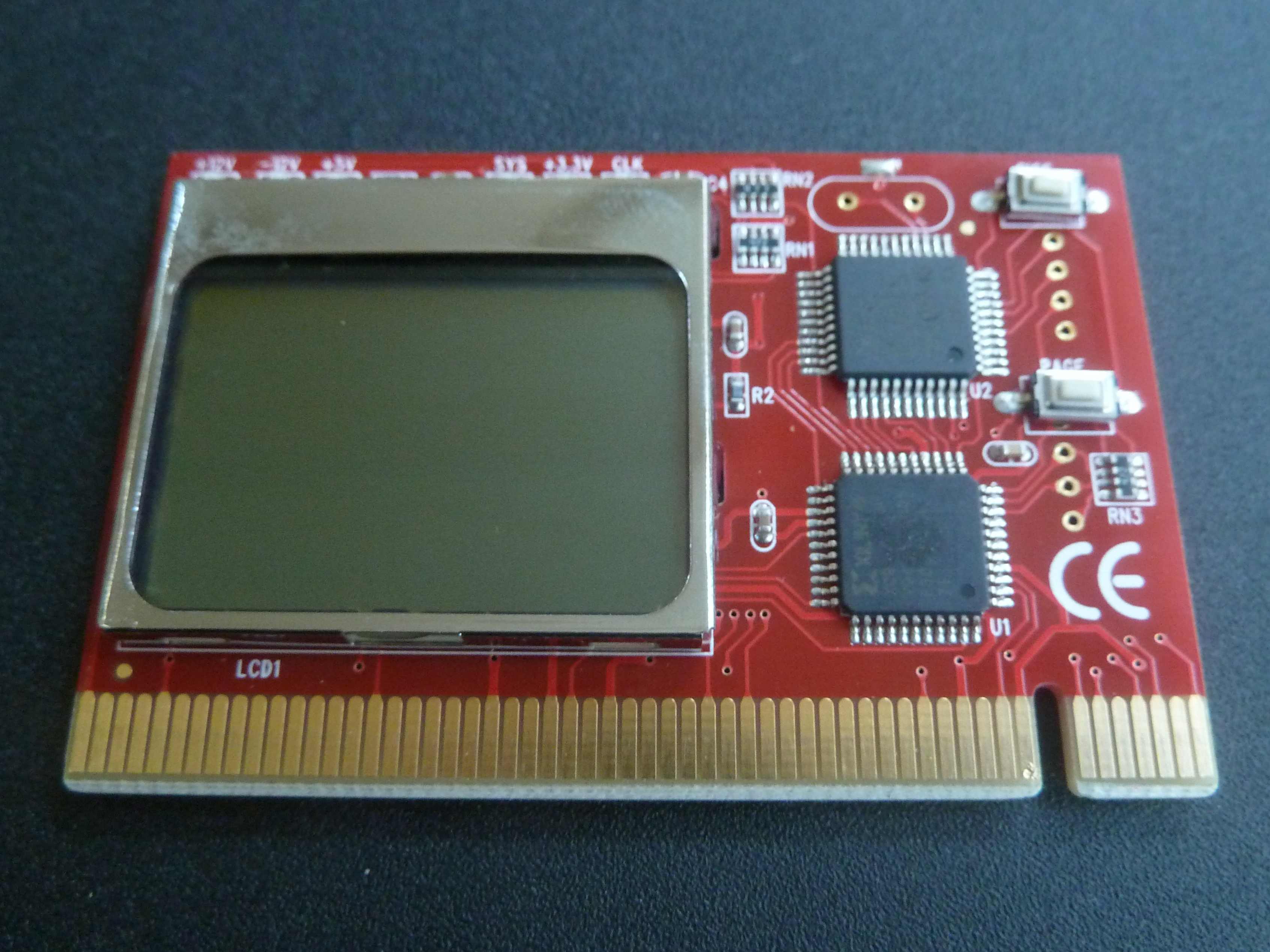
Figure 6.4 — A POST diagnostic card. It is a red add-in card with a small LCD, two black chips and two buttons, and gold contacts that plug into a motherboard slot. The screen is blank in this photo. When plugged in, it shows the two-digit code of the POST step the board has reached. Photo: Igor2, CC BY-SA 4.0, via Wikimedia Commons.

4. On-screen messages. When the screen works, you may see text such as "CMOS checksum error", "No bootable device" or "Keyboard error". These tell you what failed.
What to do when POST fails (a simple routine):
- Unplug extra devices (USB, extra cards, extra drives).
- Check that every power cable is fully seated, including the CPU power plug.
- Re-seat the RAM. Try one stick, in the slot your manual recommends.
- Make sure the monitor cable is in the graphics card, not the motherboard (if you have a graphics card).
- Clear CMOS to restore defaults.
- Note the beep, LED or code, and look it up in the board's manual.
POST finds a problem
      │
      ├── screen works ──► shows a message
      ├── speaker works ─► beep pattern
      ├── LEDs present ──► CPU / DRAM / VGA / BOOT light stays on
      └── code display ──► two-character code stays on screen
Summary
| Term | Plain meaning |
|---|---|
| POST | The power-on self-test of the hardware |
| Enumeration | Finding and listing everything plugged in |
| SMBIOS / ACPI tables | Descriptions of the hardware that firmware hands to Windows |
| Setup key | Often Del, F2 or F10; opens the firmware settings |
| Option ROM | Extra firmware that a device brings with it |
| GOP | The UEFI driver that lets a graphics card draw the start-up picture |
| PXE | Network boot, starting a PC from a server |
| Beep code | A pattern of beeps that reports a failure (differs by maker) |
| Debug LEDs | CPU, DRAM, VGA, BOOT lights that show where POST stopped |
| POST code | A two-character code showing the current or stopping POST step |