The Big Picture: Finding the Operating System
POST is done. The firmware knows its hardware. But it does not contain Windows. Windows lives on a disk. So the next question is: which disk, and where on that disk is the first program?
The firmware answers this in two steps:
- Which device? It looks at its boot order, a ranked list such as: 1) Windows Boot Manager, 2) USB drive, 3) network.
- What do I run on it? It finds the first piece of boot code on that device. How it does that depends on how the disk is laid out: MBR (old) or GPT (new).
Think of the firmware as a delivery driver: first it picks the address from a list (boot order), then it looks for the front door of that building (the boot sector or the EFI System Partition).
4.1 Boot Device Order
What it is: The boot order (or boot priority) is a list stored in the firmware's settings. The firmware tries each item, top to bottom, until one works.
A typical list:
| Priority | Device | Notes |
|---|---|---|
| 1 | Windows Boot Manager (UEFI entry) or your SSD | The normal case |
| 2 | USB drive | Used to install Windows or run a repair stick |
| 3 | DVD drive | Rare today |
| 4 | Network (PXE) | Used in companies to install PCs from a server |
If the first item has no valid boot program, the firmware moves to the next one. If none work, you see a message such as "No bootable device found" or "Reboot and select proper boot device".
Where the list lives:
- Legacy BIOS: the list holds disk types (hard disk, USB, CD). It stays in the settings chip (CMOS).
- UEFI: the list holds named boot entries, stored in the board's NVRAM (small memory that keeps its data without power). Each entry points to a file on a disk partition. The variables are called
BootOrder(the ranked list) andBoot0000,Boot0001, ... (the entries themselves).
How to choose a different device once: Press the one-time boot menu key at start-up. It differs by maker: commonly F12, F11, F8, Esc or F9. A small menu lists all bootable devices. Pick one, and the order in the settings stays unchanged.
Windows tip: Under UEFI, Windows creates an entry called Windows Boot Manager during setup. If you cloned your disk or replaced a motherboard, that entry might be missing. Section 11 shows how to rebuild it.
4.2 MBR (Master Boot Record)
What it is: The MBR is the old way of laying out a disk, used since the 1980s. The disk's very first sector (a sector is the smallest piece a disk reads, 512 bytes on old disks) is special. It is the Master Boot Record.
Here is a real 512-byte boot sector shown as a hex dump (each pair of characters is one byte, shown in base-16):
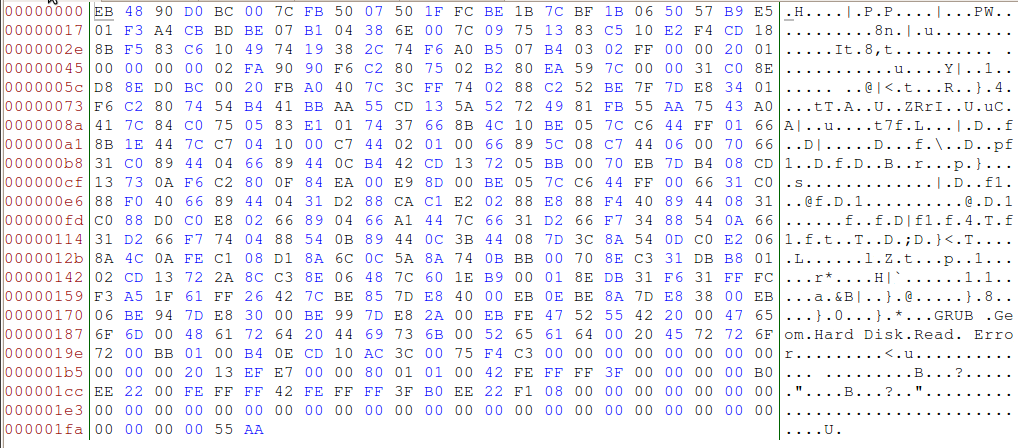
Figure 6.5 — A hex dump of a 512-byte boot sector. This one belongs to the GRUB boot loader (Linux), not to Windows, which is why the words "GRUB", "Geom", "Hard Disk", "Read" and "Error" are visible in the text column. A Windows MBR has the same layout with different code. Notice the code at the top, partition-table bytes near offset 0x1BE, and the signature bytes 55 AA at the very end (offset 0x1FE). Screenshot: UbuntuPeter, CC BY-SA 3.0, via Wikimedia Commons.

The 512 bytes are divided like this:
Offset    Size         Contents
┌───────────────────────────────────────────────────────┐
│ 0x000    446 bytes   BOOT CODE (a tiny program)       │
├───────────────────────────────────────────────────────┤
│ 0x1BE     64 bytes   PARTITION TABLE (4 entries of 16)│
├───────────────────────────────────────────────────────┤
│ 0x1FE      2 bytes   SIGNATURE:  55 AA                │
└───────────────────────────────────────────────────────┘
          = 512 bytes in total
What each part does:
- Boot code (446 bytes): A tiny program. It is far too small to load Windows, so its only job is to find the active partition (the one marked "boot from me") and run the first sector of that partition, the VBR (Volume Boot Record).
- Partition table (64 bytes): Four 16-byte entries. Each says where one partition starts and how big it is. A partition is a slice of a disk that acts like a separate drive. This is why MBR allows only four primary partitions.
- Signature (55 AA): A marker. If these last two bytes are not
55 AA, the firmware treats the sector as not bootable.
How the BIOS uses it (legacy boot):
- The BIOS reads sector 0 of the chosen disk into RAM at address
0x7C00. - It checks the
55 AAsignature. - It jumps to
0x7C00. The MBR code is now running (still in real mode). - The MBR code loads the VBR of the active partition, which in turn loads
bootmgr(Section 5).
BIOS ─► reads sector 0 ─► MBR code at 0x7C00 ─► active partition's VBR ─► bootmgr
Limits of MBR:
| Limit | Value |
|---|---|
| Biggest disk | About 2 TB (with 512-byte sectors) |
| Partitions | 4 primary (or 3 plus one "extended" holding more) |
| Safety | One copy only; if sector 0 is damaged, the layout is lost |
| Boot code | Only 446 bytes, so it needs a chain of helpers |
Danger: Malware called a bootkit used to hide in the MBR because it runs before the operating system. Secure Boot on UEFI was designed to stop that kind of attack.
4.3 GPT (GUID Partition Table)
What it is: The GPT is the modern replacement. It comes with UEFI. GUID means "Globally Unique Identifier", a long random-looking ID, used to name each disk and partition so no two clash.
GPT fixes the limits of MBR:
| MBR | GPT | |
|---|---|---|
| Biggest disk | About 2 TB | Billions of terabytes (far beyond any real disk) |
| Partitions | 4 primary | 128 by default on Windows |
| Backup of the table | None | Yes: a second copy at the end of the disk |
| Error checking | None | CRC checksums detect damage |
| Pairs with | Legacy BIOS | UEFI |
Here is the layout of a GPT disk:
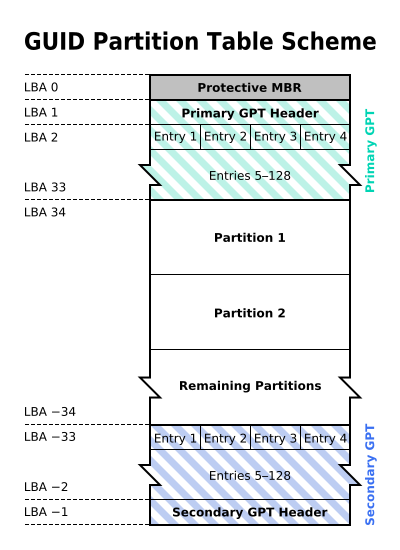
Figure 6.6 — The layout of a GPT disk. A "protective MBR" sits at the very start, followed by the primary GPT header and partition entries, then the partitions, and a backup copy of the table at the very end. Diagram: Kbolino, CC BY-SA 2.5, via Wikimedia Commons.

Read it from left to right:
- Protective MBR (sector 0): A fake MBR that says "this whole disk is in use". Old tools that do not know GPT see this and leave the disk alone instead of wiping it.
- GPT header (sector 1): Describes the table: where it is, how many entries, and a checksum.
- Partition entries: The list of partitions, each with a GUID, start, end and type.
- Partitions: The real data.
- Backup header and table: A copy at the end of the disk. If the front copy is damaged, the firmware can use this one.
A typical Windows GPT disk holds these partitions:
| Partition | Size (about) | Job |
|---|---|---|
| EFI System Partition (ESP) | 100 MB to a few hundred MB | Holds the boot files. Formatted FAT32, which every UEFI firmware can read. |
| MSR (Microsoft Reserved) | 16 MB | Hidden space Windows keeps for itself |
| Windows (C:) | The rest | Windows and your files |
| Recovery | 500 MB or more | The Windows Recovery Environment (Section 11) |
How UEFI uses it: UEFI does not run code from sector 0. Instead, it understands partitions and FAT32. It looks for the ESP, opens a boot file inside it, and runs that file directly. No 446-byte trick is needed.
Check yours: Press
Win + Xand choose Disk Management. Right-click your disk (in the left box) and choose Properties → Volumes. It says Partition style: GUID Partition Table (GPT) or Master Boot Record (MBR). You can also see the ESP as a small "EFI System Partition" in the disk's map.
4.4 Boot Manager Selection
What it is: The firmware has found the right disk. Now it must pick the exact boot program and run it.
UEFI path. The firmware looks at the boot entries (Section 4.1). The entry called Windows Boot Manager points to a file on the ESP:
\EFI\Microsoft\Boot\bootmgfw.efi
The firmware reads this file from the FAT32 partition, loads it into RAM and runs it. That is the Windows boot manager (Section 5).
If there is no entry, or it fails, UEFI tries a fallback: a standard file name that every UEFI disk can use. On a 64-bit PC it is:
\EFI\BOOT\BOOTX64.EFI
This is why a USB installer works on any UEFI PC: it carries a file at this standard path.
Legacy BIOS path. As in Section 4.2: MBR code → active partition's VBR → bootmgr file in the root of the "System Reserved" or the Windows partition.
| UEFI | Legacy BIOS | |
|---|---|---|
| Firmware runs | A named .efi file on the ESP | The 512-byte MBR code |
| Boot program | bootmgfw.efi | bootmgr |
| Language | 64-bit programs | 16-bit code at first |
| Secure Boot check | Yes, signature is verified | No |
Several operating systems: On a PC with Windows and Linux, there may be two entries (or one entry that points to GRUB, which then offers a menu). The firmware picks one using the boot order, and that program may show its own menu.
4.5 Boot Timeout
What it is: A timeout is a waiting time. There are two different ones, and people often mix them up.
1. The firmware's wait (before it picks). Most PCs do not wait long. Many boards give you only a moment (sometimes under a second with Fast Boot) to press the setup key. If you need setup on such a PC, use the Windows route in Section 3.3 (Advanced startup → UEFI Firmware Settings).
2. The boot manager's wait (before it starts Windows). If you have more than one operating system, the boot menu shows a countdown. When the countdown reaches zero, the default entry starts. Windows' default is 30 seconds (the value stored in the BCD, see Section 5.3). If you have only one operating system, there is no menu and no wait.
You can see or change this from an administrator Command Prompt:
bcdedit /enum {bootmgr}
bcdedit /timeout 10
The second line sets the menu countdown to 10 seconds. (Only change it if you understand it. The lab in this chapter only looks at the BCD.)
| If this goes wrong | What you see |
|---|---|
| Timeout too short | You cannot choose another OS in time |
| Timeout too long | Slow start on a multi-OS PC |
| No valid entry at all | "No bootable device" message, back to POST or setup |
Summary
| Term | Plain meaning |
|---|---|
| Boot order | A ranked list of devices the firmware tries |
| One-time boot menu | A key (F12, Esc, ...) to pick a device just once |
| NVRAM | Small memory that keeps UEFI boot entries without power |
| MBR | Old disk layout; sector 0 holds code, a partition table and 55 AA |
| Partition | A slice of a disk that acts like a separate drive |
| VBR | The first sector of a partition; continues the legacy boot |
| GPT | New disk layout with a backup, checksums and 128 partitions |
| GUID | A long unique ID |
| Protective MBR | A fake MBR so old tools do not damage a GPT disk |
| ESP | The small FAT32 partition holding UEFI boot files |
bootmgfw.efi | The Windows boot manager file for UEFI |
BOOTX64.EFI | The standard fallback boot file name |
| Timeout | How long a menu waits before choosing the default |