The Big Picture: The Manager Who Picks the Shop
The firmware has run a boot file from the disk. On a Windows PC, that file is the Windows Boot Manager. Its job is small but important:
- Read the list of installed operating systems (the BCD, Section 5.3).
- Show a menu if there is more than one, or if you asked for one.
- Unlock an encrypted disk if needed (BitLocker).
- Start the loader (
winload) for the chosen system (Section 6).
The boot manager does not load Windows itself. It is a manager, not a worker. It points at the right worker and says "go".
5.1 UEFI Boot Manager
What it is: There are two similar names, so be careful:
| Name | What it is |
|---|---|
| UEFI boot manager | Part of the firmware. It holds the list of boot entries and BootOrder (Section 4.1). It is what runs just before the Windows program. |
| Windows Boot Manager | A Windows program (bootmgfw.efi on UEFI, bootmgr on BIOS). The firmware starts it. |
So the order is: firmware → (UEFI boot manager picks an entry) → Windows Boot Manager → Windows loader.
The UEFI firmware provides the new boot manager with a set of ready-made services: reading files, using the screen and keyboard, and memory handling. These are called UEFI Boot Services. The Windows Boot Manager uses them until Windows has taken over (the loader ends these services just before starting the kernel).
Under UEFI with Secure Boot on, the firmware first checks the digital signature on bootmgfw.efi (it is signed by Microsoft). If the signature is wrong, the program does not run. This protects against tampered boot files.
5.2 EFI File (bootmgfw.efi)
What it is: bootmgfw.efi is the file that is the Windows Boot Manager on UEFI PCs. The name breaks down as: boot manager for Windows, with an .efi ending that marks a UEFI program.
Where to find it:
| Boot mode | File | Where |
|---|---|---|
| UEFI | bootmgfw.efi | On the ESP: \EFI\Microsoft\Boot\bootmgfw.efi |
| Legacy BIOS | bootmgr (no extension) | In the root of the active partition (often "System Reserved") |
The same folder on the ESP also holds the BCD file, fonts and language files for the boot screens:
EFI System Partition (ESP, FAT32)
└─ EFI
    ├─ Microsoft
    │   └─ Boot
    │       ├─ bootmgfw.efi     ← Windows Boot Manager
    │       ├─ BCD              ← the boot configuration database
    │       └─ ...fonts, languages
    └─ BOOT
        └─ BOOTX64.EFI          ← fallback boot file
The ESP is hidden from File Explorer by default. A normal user cannot browse it, which is a good thing: damage here stops the PC from starting.
What bootmgfw.efi does when it runs:
- Starts up its own small environment and screen.
- Opens the BCD (next topic) from the same folder.
- If the disk is BitLocker-encrypted, it asks the TPM (a security chip) for the key, or asks you for your PIN or recovery key. Only then can it read the Windows partition.
- Shows the menu or picks the default.
- Loads the Windows loader (
winload.efi) from the Windows folder and runs it.
5.3 BCD (Boot Configuration Database)
What it is: The BCD is the boot manager's settings file. It is a small database that lists the operating systems and options. Before Windows Vista, Windows used a plain text file called boot.ini. The BCD replaced it, because it works the same way on BIOS and UEFI and can hold more settings.
What it contains:
- A Boot Manager entry: the menu's own settings, such as the timeout and which entry is the default.
- One Boot Loader entry per operating system: where Windows is, which loader file to run, and options such as Safe Mode.
- Extra entries for tools such as the Windows Memory Diagnostic or the Recovery Environment.
Where it is stored: In a file named BCD, in the \EFI\Microsoft\Boot\ folder on UEFI, or \Boot\ on the BIOS system partition. The file is really a registry hive (the same file format Windows uses for its registry, see Section 6.3).
How to look at it (open Command Prompt as Administrator):
bcdedit /enum
A short, simplified result looks like this:
Windows Boot Manager
--------------------
identifier              {bootmgr}
device                  partition=\Device\HarddiskVolume1
path                    \EFI\Microsoft\Boot\bootmgfw.efi
description             Windows Boot Manager
default                 {current}
displayorder            {current}
timeout                 30

Windows Boot Loader
-------------------
identifier              {current}
device                  partition=C:
path                    \WINDOWS\system32\winload.efi
description             Windows 11
osdevice                partition=C:
systemroot              \WINDOWS
(Your numbers and names will differ.)
| Field | Plain meaning |
|---|---|
identifier | The entry's ID. {bootmgr} is the manager, {current} is the Windows that is running now. |
device / osdevice | Which partition holds the boot files / Windows |
path | The program to run (winload.efi is the loader) |
default | The entry that starts if you do nothing |
displayorder | Order of the entries in the menu |
timeout | Seconds the menu waits |
systemroot | The Windows folder |
Be careful:
bcdeditcan break your boot if you change the wrong thing. Looking withbcdedit /enumis safe. Before you change anything, back it up:bcdedit /export C:\BCD_backup. You can restore it withbcdedit /import C:\BCD_backup.
5.4 Boot Menu Options
What it is: The boot menu is the screen where you pick an operating system or a start-up option. It appears when:
- You have two or more operating systems in the BCD, or
- You have asked for it (hold Shift while choosing Restart, or the PC failed to start more than once), or
- A recovery tool is needed.
Here is the classic text-style menu from Windows 7. It shows two entries and a countdown:
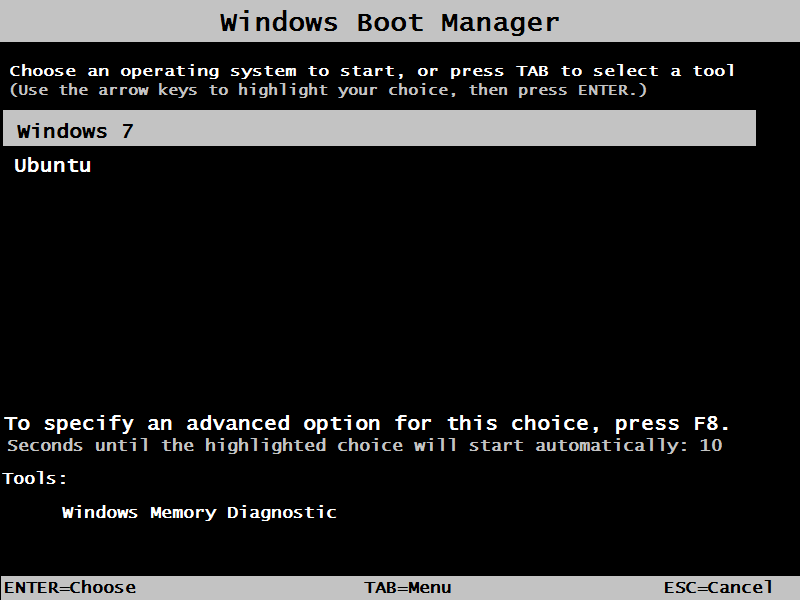
Figure 6.7 — The Windows Boot Manager menu (Windows 7 era). It says "Choose an operating system to start" with the entries Windows 7 and Ubuntu, a 10-second countdown, and the tool Windows Memory Diagnostic. The keys at the bottom: ENTER to choose, TAB for the tools menu, ESC to cancel. Screenshot: Champion, CC BY 3.0, via Wikimedia Commons.

Windows 8, 10 and 11 use a graphical version. It has big tiles and mouse or touch support, with options such as:
| Option | What it does |
|---|---|
| Continue / choose an OS | Starts the operating system you pick |
| Change defaults or choose other options | Change the timeout or the default OS |
| Troubleshoot | Opens the Windows Recovery Environment (Section 11) |
| Startup Settings | Safe Mode, debug mode, and more (reached through Troubleshoot → Advanced options) |
| Windows Memory Diagnostic | Tests RAM |
Safe Mode keys. On Windows 7 you pressed F8 to get Advanced Boot Options. Modern Windows starts too fast for that, so F8 is off by default. Use Shift + Restart, or tell Windows to show the old menu with this command (in administrator Command Prompt):
bcdedit /set {default} bootmenupolicy legacy
And to go back to the new style:
bcdedit /set {default} bootmenupolicy standard
Advanced boot options you may meet:
| Option | Meaning |
|---|---|
| Safe Mode | Loads only the basic drivers and services |
| Safe Mode with Networking | Same, plus network |
| Enable boot logging | Writes the list of loaded drivers to C:\Windows\ntbtlog.txt |
| Enable low-resolution video | Uses a basic video driver |
| Disable driver signature enforcement | Allows unsigned drivers (not recommended) |
| Disable automatic restart on system failure | Stops the PC from rebooting at a blue screen so you can read it |
5.5 UEFI to Protected Mode Transition
What it is: The CPU can run in different modes. A mode is a set of rules about how big the numbers are and how memory is reached. Windows needs a modern mode. This topic describes how the boot manager gets there.
The modes, from oldest to newest:
| Mode | Size of numbers | Memory reach | Used by |
|---|---|---|---|
| Real mode | 16-bit | 1 MB | CPU at reset, old BIOS boot code |
| Protected mode | 32-bit | 4 GB | Older 32-bit operating systems |
| Long mode | 64-bit | Huge (many terabytes in practice) | 64-bit Windows |
Protected mode brings the key feature that makes a modern OS possible: memory protection. Each program gets its own safe space in memory, and a crashing program cannot overwrite another. It also adds virtual memory (the system can swap pieces of memory to disk) and privilege levels (the kernel is trusted, normal programs are not).
On a UEFI PC (64-bit): The firmware has already moved the CPU into 64-bit mode early, during its own start-up (Section 2.5). So bootmgfw.efi and winload.efi simply start in 64-bit mode. There is no long climb for the boot manager. The firmware also provides the memory map and set-up tables.
On a legacy BIOS PC: The MBR code and bootmgr begin in 16-bit real mode. The boot manager first uses a small 16-bit part, then switches the CPU into protected mode to be able to use all the memory and read bigger disks. Later steps in the loader and kernel bring the CPU to 64-bit long mode with paging turned on. (Paging is the memory feature that maps the addresses programs see onto real RAM. See Chapter 3.)
LEGACY BIOS:   real mode (16-bit) ──► protected mode (32-bit) ──► long mode (64-bit) with paging
UEFI (64-bit): [ firmware already in 64-bit mode ] ───────────────► bootmgfw.efi and winload.efi run here
The handover. The boot manager passes control to the loader (winload). The loader gets the memory ready, then calls a UEFI function named ExitBootServices. That is a one-way door: it tells the firmware, "I am taking over the machine, you can stop helping." After this, the firmware's boot services are gone, and Windows manages the hardware itself.
Summary
| Term | Plain meaning |
|---|---|
| Windows Boot Manager | The program that reads the BCD, shows the menu and starts the loader |
| UEFI boot manager | The firmware part that keeps the list of boot entries |
bootmgfw.efi | The Windows Boot Manager on UEFI PCs |
bootmgr | The Windows Boot Manager on legacy BIOS PCs |
| BCD | The boot settings database (replaced boot.ini) |
bcdedit | The Windows tool to read or change the BCD |
| BitLocker | Windows disk encryption, unlocked at this stage |
| Safe Mode | Boots with only essential drivers and services |
| Real / protected / long mode | 16-bit, 32-bit and 64-bit CPU modes |
| Paging | Mapping program addresses onto real RAM |
| ExitBootServices | The one-way handover from firmware to Windows |