The Big Picture: The Whole Journey on One Page
You have now met every step. This section puts them together on one map, adds rough timings, and shows which steps are critical (the boot dies if they fail) and which are non-critical (the boot goes on without them). Keep this page nearby when you troubleshoot: finding where the chain stopped usually tells you what to fix.
10.1 Visual Representation of the Entire Sequence
What it is: A single top-to-bottom chain. Each box starts the one below it. The tag in square brackets shows which section of this chapter explains that step.
┌──────────────────────────────────────────────────────────────────────┐
│ POWER BUTTON  ->  PSU: PS_ON# low, rails rise, Power Good (PWR_OK)   │
│ [Sec 2]  Hardware only. No software is running yet.                  │
└──────────────────────────────────────────────────────────────────────┘
                                    │
                                    ▼
┌──────────────────────────────────────────────────────────────────────┐
│ CPU RESET  ->  first instruction at 0xFFFFFFF0 (SPI flash)           │
│ [Sec 2]  CPU starts in a very simple mode                            │
└──────────────────────────────────────────────────────────────────────┘
                                    │
                                    ▼
┌──────────────────────────────────────────────────────────────────────┐
│ FIRMWARE: set up RAM, chipset, PCIe  ->  POST  ->  option ROMs       │
│ [Sec 2-3]  Beeps or error LEDs if a part fails                       │
└──────────────────────────────────────────────────────────────────────┘
                                    │
                                    ▼
┌──────────────────────────────────────────────────────────────────────┐
│ BOOT DEVICE SELECTION: BootOrder (UEFI) or first sector (BIOS)       │
│ [Sec 4]  UEFI: ESP file.  BIOS: MBR code at 0x7C00                   │
└──────────────────────────────────────────────────────────────────────┘
                                    │
                                    ▼
┌──────────────────────────────────────────────────────────────────────┐
│ WINDOWS BOOT MANAGER: bootmgfw.efi (or bootmgr) + BCD                │
│ [Sec 5]  Menu (if more than one OS), BitLocker unlock                │
└──────────────────────────────────────────────────────────────────────┘
                                    │
                                    ▼
┌──────────────────────────────────────────────────────────────────────┐
│ WINLOAD.EFI / WINLOAD.EXE                                            │
│ [Sec 6]  Loads ntoskrnl, hal, SYSTEM hive, boot drivers              │
└──────────────────────────────────────────────────────────────────────┘
                                    │
                                    ▼
┌──────────────────────────────────────────────────────────────────────┐
│ NTOSKRNL.EXE: memory, objects, processes, PnP, I/O, registry         │
│ [Sec 7]  Starts the System process and then smss.exe                 │
└──────────────────────────────────────────────────────────────────────┘
                                    │
                                    ▼
┌──────────────────────────────────────────────────────────────────────┐
│ SMSS.EXE  ->  session 0 (WININIT) and session 1 (WINLOGON)           │
│ [Sec 8]  Paging files, sessions, services.exe, lsass.exe             │
└──────────────────────────────────────────────────────────────────────┘
                                    │
                                    ▼
┌──────────────────────────────────────────────────────────────────────┐
│ SERVICES.EXE (SCM): automatic services, network stack, svchost.exe   │
│ [Sec 8]  Drivers and services keep starting                          │
└──────────────────────────────────────────────────────────────────────┘
                                    │
                                    ▼
┌──────────────────────────────────────────────────────────────────────┐
│ WINLOGON -> LogonUI -> LSASS checks password -> profile loads        │
│ [Sec 9]  Your user token and HKCU registry hive                      │
└──────────────────────────────────────────────────────────────────────┘
                                    │
                                    ▼
┌──────────────────────────────────────────────────────────────────────┐
│ USERINIT.EXE -> EXPLORER.EXE -> desktop -> startup apps              │
│ [Sec 9]  You can work                                                │
└──────────────────────────────────────────────────────────────────────┘
Who runs the show at each moment?
| Owner | Steps | How much memory can it use? |
|---|---|---|
| Hardware only | Power and reset | None (no software) |
| Firmware | Set-up, POST, boot choice | Starts with cache, then RAM |
| Windows Boot Manager and loader | Menu, BitLocker, loading the kernel | All RAM, but no OS services |
| Kernel | Memory, processes, drivers | Full control |
| User-mode Windows | Services, sign-in, desktop | Memory given by the kernel |
One chain, two entrances (UEFI and legacy BIOS). The middle of the chain differs, the ends are the same:
UEFI:   Firmware ─► ESP: bootmgfw.efi ─► winload.efi ─┐
                                                      ├─► ntoskrnl.exe ─► smss.exe ─► ...
BIOS:   Firmware ─► MBR ─► VBR ─► bootmgr ─► winload.exe ─┘
This is the screen where the chain is easiest to see: the boot manager, on a PC with two operating systems. Look at how it simply lists what the BCD holds:
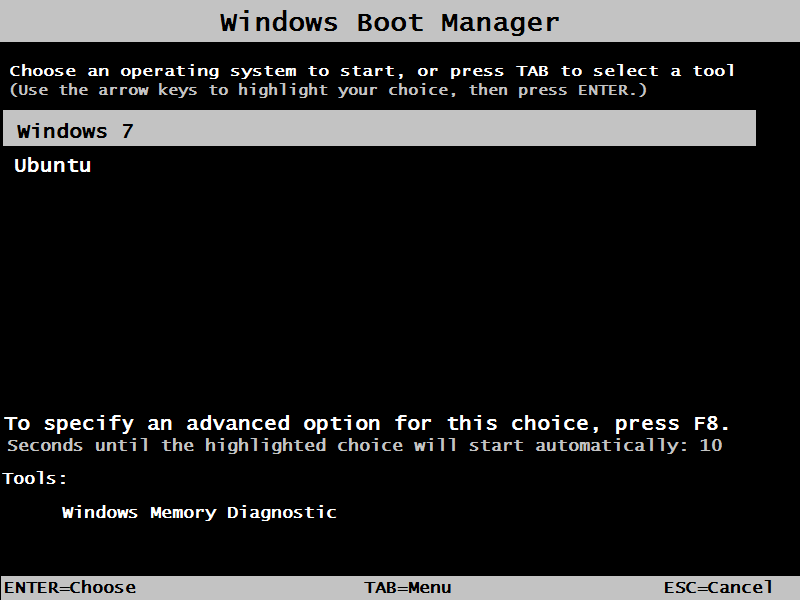
Figure 6.8 — The Windows Boot Manager again (Windows 7 era): the stop in the chain where the BCD is read. It lists Windows 7 and Ubuntu, counts down from 10 seconds and offers the tool Windows Memory Diagnostic. Screenshot: Champion, CC BY 3.0, via Wikimedia Commons.

10.2 Timing Information (Rough)
What it is: How long does each stage take? It depends heavily on the PC. The numbers below are only typical ranges on a modern PC with an SSD. Treat them as a feel for the proportions, not as promises.
| Stage | Roughly how long | What affects it |
|---|---|---|
| Power-on to firmware running | Under a second | PSU and board |
| Firmware set-up and POST | About 2 to 20 seconds | RAM size and training, number of devices, Fast Boot, USB devices |
| Boot manager | Under 1 second (plus menu wait if shown) | Number of entries, BitLocker PIN |
| Winload and kernel loading | About 1 to 3 seconds | Disk speed, number of boot drivers |
| Kernel initialization | About 3 to 10 seconds | Drivers, hardware |
| Services and sign-in screen | About 3 to 15 seconds | Number of services, network |
| Sign-in to usable desktop | About 5 to 30 seconds | Profile size, startup apps, disk speed |
Where the time goes is often a surprise:
Firmware (POST) ██████████              (often the longest on a new PC)
Boot mgr+loader █
Kernel          █████
Services        ██████
Sign-in/desktop ████████████████        (grows with every startup app)
(Bars are an illustration, not measurements.)
What speeds things up:
- An SSD, instead of a hard drive. (The biggest change you can make.)
- Fast Startup (the hybrid shutdown from Section 1.1), which skips most of the kernel's start-up.
- Fewer startup apps (Section 9.7).
- Fast Boot in firmware.
- Keeping drivers and firmware up to date.
How to measure your own boot (Windows):
- Task Manager → Startup apps → Last BIOS time shows the firmware time.
- Event Viewer → Applications and Services Logs → Microsoft → Windows → Diagnostics-Performance → Operational. Event ID 100 records a full boot's time. The lab (Practical Lab page) shows how to read it.
10.3 Critical vs Non-Critical Paths
What it is: A critical path is a step that must work, or the boot stops. A non-critical step can fail and the PC will still reach the desktop, perhaps with something missing. A related term: the critical path in time is the chain of steps that decides the total time. Speeding up other steps does not shorten the boot.
Critical (boot stops if it fails):
| Step | If it fails |
|---|---|
| Power supply and CPU reset | Dead PC, no signs of life |
| CPU, RAM, graphics in POST | Beeps or lights, no picture |
| Finding a boot device | "No bootable device" |
| Boot manager and BCD | "Boot configuration data is missing" or a boot menu error |
winload and the kernel files | "Windows failed to start" (for example, 0xc000000f, winload.efi problems) |
| Boot-start drivers (disk, file system) | Blue screen INACCESSIBLE_BOOT_DEVICE |
| The SYSTEM registry hive | "Windows could not start" or blue screen |
smss.exe, csrss.exe, wininit.exe, winlogon.exe | Blue screen (e.g. CRITICAL_PROCESS_DIED) |
Non-critical (boot goes on):
| Step | If it fails |
|---|---|
| Network not connected | No internet, but you can sign in |
| An Automatic service fails | Windows logs an error; a feature is missing |
| A non-boot driver fails (e.g., a printer) | A yellow triangle in Device Manager |
| A startup app crashes | An error pop-up; the desktop is fine |
| Sound or Bluetooth service fails | No sound or Bluetooth |
| Cloud sync does not start | Files do not sync |
Parallel work: The later steps happen in parallel. After the kernel starts, many services and drivers start at the same time on different cores, and the sign-in screen can appear while the delayed services are still starting. Only the early steps are one-by-one, because each needs the one before it.
Serial (must wait):       Firmware ─► Boot mgr ─► Loader ─► Kernel ─► smss.exe
Parallel (side by side):                                                ├─► services.exe ─► many services
                                                                        ├─► lsass.exe
                                                                        └─► winlogon.exe ─► sign-in screen
Troubleshooting tip: Use the critical list as a map. Note the last thing you saw (a logo, the spinning dots, a blue screen with a code). That tells you which box in the chain broke. Section 11 walks through each.
Summary
| Term | Plain meaning |
|---|---|
| Boot chain | The ordered steps from power button to desktop |
| UEFI path / BIOS path | The two ways the first half of the chain runs |
| Critical path (must-work) | A step whose failure stops the boot |
| Non-critical | A step whose failure only removes a feature |
| Serial vs parallel | One after another vs. side by side |
| Last BIOS time | The firmware's share of the boot, shown in Task Manager |
| Diagnostics-Performance log | The Event Viewer log with boot time records |
| Fast Startup | A hybrid shutdown that makes the next boot quicker |