The Big Picture: Where Did the Chain Break?
When a PC will not start, the most useful question is: how far did it get? The boot chain (Section 10) has a fixed order. Whatever you saw last tells you which link broke.
| The last thing you saw | The chain broke at... | Topic |
|---|---|---|
| Nothing at all, no fan | Power / pre-boot | 11.1 |
| Fans spin, no picture, maybe beeps | POST | 11.2 |
| "No bootable device" or a boot error text | Boot device, boot manager or loader | 11.3 |
| Windows logo, then a blue screen | Kernel | 11.4 |
| Logo with dots that never ends, or a reboot loop | Driver | 11.5 |
| Sign-in screen missing, or sign-in fails | Services or profile | 11.6 |
A simple, safe routine for any failure:
- Write down the exact message, code or last thing you saw.
- Change one thing at a time.
- Do not reinstall Windows until you have tried the repairs below. Your files may be safe and recoverable.
- Back up what you can before risky repairs (for example, copy files with a recovery USB stick).
11.1 Black Screen (Before POST)
What it is: The PC shows no sign of life, or shows life (fans) with a black screen and no POST. The problem is in Section 2: power, the CPU, RAM, or the display connection.
Case A: nothing happens, no lights, no fans.
| Check | Why |
|---|---|
| Wall socket, power strip and cable | The simplest cause. Try another socket. |
| The switch on the back of the PSU | It must be on (I). |
| 24-pin and CPU power plugs seated fully | A loose plug means no start |
| The front-panel power switch cable | A wrongly connected header means the button does nothing. Check the case manual and the board manual. |
| A short circuit (a stray screw, bent CPU pins) | The PSU protects itself and shuts down |
| A failed PSU | Swap with a known good one |
Case B: fans spin, but nothing on the screen.
| Check | Why |
|---|---|
| Monitor cable is in the graphics card, not the motherboard | A very common mistake when a graphics card is fitted |
| Monitor is on the right input (HDMI/DisplayPort) | Wrong input shows black |
| Reseat the RAM | A loose stick stops POST early (Section 3.1) |
| Remove the graphics card and use built-in graphics | Tests the graphics card |
| Clear CMOS (Chapter 4, Section 8.2) | A bad setting can stop POST |
| Unplug all extras (USB, extra cards, drives) | One bad device can block the start |
| Check the debug LEDs and POST code display | They show where POST stopped (Section 3.5) |
Laptops: Unplug the charger, hold the power button for 30 seconds to drain it, and try again. Also check that a charger with the right power rating is used.
11.2 POST Failures (Beep Codes)
What it is: The screen is black, but the board speaks: beeps, lights or a code. Section 3.5 listed the types. Here is how to act on them.
The method:
- Hear or see the pattern and write it down. (Count short and long beeps exactly.)
- Find your board model (
msinfo32if it still runs on another PC, or read the board itself) and open its manual. Beep codes differ by maker. - Fix the part it names.
Common causes and cures:
| Symptom | Likely part | Try |
|---|---|---|
| Repeating beeps or the DRAM light | RAM | Reseat; try one stick at a time; try a different slot; lower the RAM speed (clear CMOS) |
| VGA light or long-short beeps | Graphics | Reseat the card; check the power plugs; try other output |
| CPU light | CPU or its power | Check the CPU power plug (4/8-pin), reseat the CPU, make sure the BIOS supports this CPU |
| BOOT light | Boot drive or the OS | Check the disk cable, see 11.3 |
| No beep and no lights | Power, board or speaker missing | Check power; many boards have no speaker (a small buzzer can be plugged into the header) |
| Boots only after a few tries | Memory training problem | Update the firmware; reduce the RAM speed |
Messages on the screen (when you can see them):
| Message | Meaning |
|---|---|
| CMOS checksum error | The settings were lost, often from a dead CR2032 battery (Chapter 4, Section 8.2) |
| CPU fan error | The cooler fan is not detected; check its plug |
| Keyboard error | Often harmless; check the USB keyboard |
| Overclocking failed | A setting is unstable; the board reset it. Enter setup and review. |
Rule: If the PC worked before, ask: what changed? New RAM, a new card, a firmware update, or a changed setting is the usual culprit. Undo it first.
11.3 No Bootloader Found
What it is: POST finished fine, but the firmware (or the Windows boot manager) cannot find or run the next program in the chain. You see text on a plain screen such as "No bootable device", "Reboot and Select proper Boot device", "Operating System not found", "Boot Configuration Data file is missing" or "Windows failed to start".
Here is a real example of the last kind:
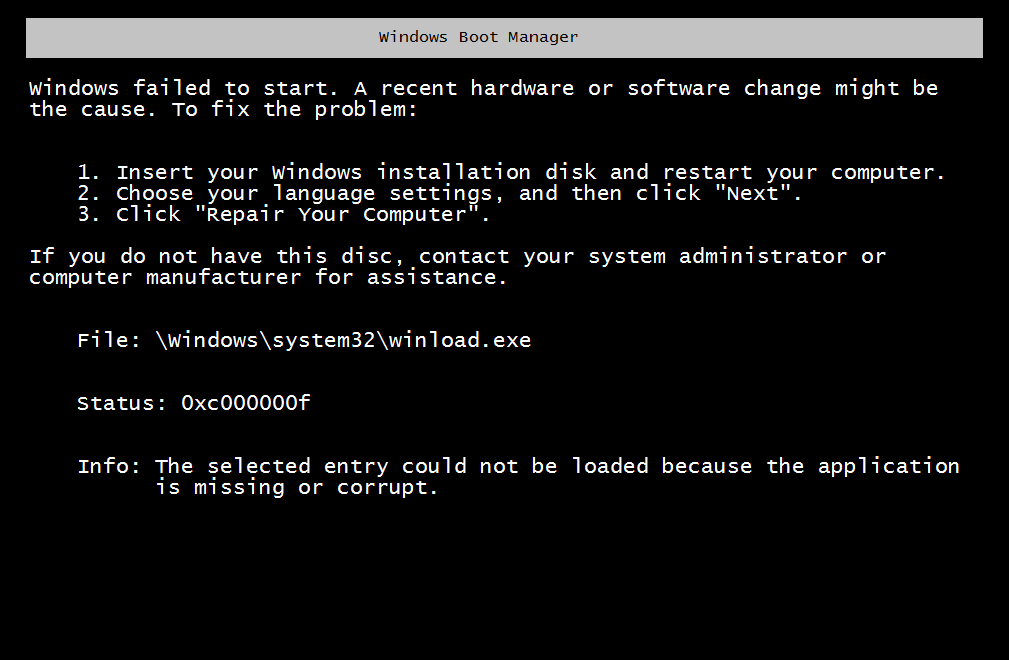
Figure 6.9 — A "Windows failed to start" screen. It names the file \Windows\system32\winload.exe, the status 0xc000000f, and the information line says the selected entry could not be loaded because the application is missing or corrupt. It also lists repair steps. This is the boot manager telling you it could not run the loader. Screenshot: EnigmaLord515, CC BY-SA 4.0, via Wikimedia Commons.
.png)
Common causes:
| Cause | Typical sign |
|---|---|
| Wrong boot order (a USB stick or a different disk is first) | "No bootable device"; fixes by removing the USB or setting the order |
| Boot entry missing (cloned disk, new motherboard, cleared firmware settings) | UEFI cannot find "Windows Boot Manager" |
| BCD damaged or missing | "Boot Configuration Data file is missing" or an error with status code (such as 0xc000000f, 0xc0000225) |
| Wrong boot mode (Legacy vs UEFI changed in setup) | Disk looks "empty" to the firmware |
| EFI System Partition damaged or deleted | Cannot find bootmgfw.efi |
| MBR/GPT damaged | "Operating System not found" |
| Disk failing or not detected | The disk does not show in firmware setup at all |
The first checks (all safe):
- Unplug USB drives and other disks, then restart.
- Enter firmware setup and check the disk is listed. If it is not, check the cable (SATA) or reseat the SSD (M.2). If it is still missing, the disk or its connection has failed.
- Check the boot order and the boot mode (UEFI vs Legacy). Windows installed in UEFI mode will not boot in Legacy mode.
The Windows Recovery Environment (WinRE). WinRE is a small repair version of Windows. You can reach it by:
- Letting Windows fail to boot two or three times. It then starts Automatic Repair itself.
- Booting from a Windows installation USB and choosing Repair your computer.
- Pressing Shift + Restart when you can still sign in.
In WinRE, choose Troubleshoot → Advanced options. The tools there:
| Tool | What it does |
|---|---|
| Startup Repair | Tries to fix boot problems by itself. Try this first. |
| Command Prompt | For manual repairs (below) |
| System Restore | Rolls Windows back to an earlier restore point |
| Uninstall Updates | Removes the latest update that may have caused trouble |
| Startup Settings | Safe Mode and more |
| UEFI Firmware Settings | Goes to firmware setup |
Manual repair from the WinRE Command Prompt.
Rebuild boot files with bootrec (it works mostly on BIOS/MBR layouts):
bootrec /scanos
bootrec /rebuildbcd
bootrec /fixmbr
bootrec /fixboot
| Command | What it does |
|---|---|
bootrec /scanos | Looks for Windows installations that are not in the BCD |
bootrec /rebuildbcd | Offers to add them to the BCD |
bootrec /fixmbr | Writes a fresh Windows MBR code |
bootrec /fixboot | Writes a new boot sector on the system partition (on some UEFI PCs this reports "Access is denied"; use bcdboot instead) |
On a UEFI/GPT PC, the usual cure is to recreate the boot files from your Windows folder with bcdboot. The steps (WinRE Command Prompt):
- Start
diskpart, thenlist disk,select disk 0,list vol. - Find the small FAT32 volume of about 100 MB or more (the ESP). Select it with
select vol N, then give it a letter:assign letter=S. Thenexit. - Run (assuming Windows is on
C:; in WinRE, the letter can differ, so check withdir):
bcdboot C:\Windows /s S: /f UEFI
This copies fresh boot files to the ESP and makes a new boot entry. Read each step carefully. Choosing the wrong disk in diskpart can erase data. If you are not sure, stop and ask for help.
If the file system is damaged, check it from the same Command Prompt:
chkdsk C: /f
11.4 Kernel Crash (BSOD During Boot)
What it is: The loader works, the Windows logo shows, then the screen turns blue with a sad face and a stop code. This is a BSOD (Blue Screen of Death), the kernel's way of stopping when it finds something it cannot safely continue past. The stop code names the problem.
Stop codes that happen during boot:
| Stop code | Plain meaning | Usual cause |
|---|---|---|
| INACCESSIBLE_BOOT_DEVICE (0x7B) | Windows cannot read its own boot disk | Wrong or missing storage driver, changed disk mode in firmware (AHCI/RAID), damaged file system, failing disk |
| UNMOUNTABLE_BOOT_VOLUME (0xED) | The file system cannot be mounted | File-system damage; run chkdsk |
| CRITICAL_PROCESS_DIED (0xEF) | A vital process (like smss.exe) ended | Corrupt system files, a bad driver, failing disk |
| KERNEL_DATA_INPAGE_ERROR (0x7A) | The kernel could not read a page from disk | Failing disk, bad cable, bad RAM |
| SYSTEM_THREAD_EXCEPTION_NOT_HANDLED (0x7E) | A kernel thread, often a driver, crashed | A faulty driver; the message often names the file |
| BAD_SYSTEM_CONFIG_INFO (0x74) | The registry is damaged | Damaged hive |
| MEMORY_MANAGEMENT (0x1A) | A memory problem | Bad RAM, unstable overclock, a bad driver |
The screen may also show a QR code and a file name (like somedriver.sys). Write down the code and the file.
What to do:
- Stop an automatic restart loop so you can read the code. In WinRE → Startup Settings, choose Disable automatic restart after failure.
- Think about what changed: a new driver, update, hardware or firmware setting. Undo it. (In WinRE: Uninstall Updates or System Restore.)
- Test memory with
mdsched.exe(Windows Memory Diagnostic) or by removing a RAM stick. - Check the disk:
chkdsk C: /f, and the disk's health (see the maker's tool, orGet-PhysicalDiskin PowerShell once you are in Windows). - Repair system files from the WinRE Command Prompt:
sfc /scannow /offbootdir=C:\ /offwindir=C:\Windows
DISM /Image:C:\ /Cleanup-Image /RestoreHealth
(sfc is System File Checker. DISM is the Deployment Image Servicing and Management tool. In WinRE the drive letters can differ, so confirm the Windows drive first. DISM with /RestoreHealth may need a source or an internet connection.)
- If it works in Safe Mode, the fault is a driver or a startup program (Section 11.5).
Reading the dump after you are back in Windows. The kernel saves a dump file when it crashes: small ones in C:\Windows\Minidump and a bigger one named C:\Windows\MEMORY.DMP. Event Viewer's System log also records the crash: Event ID 41 (Kernel-Power) means the PC restarted without a clean shutdown, and Event ID 1001 (BugCheck) shows the stop code. Free tools such as WinDbg or BlueScreenView can read the dumps. (They are not part of Windows; download only from the official sites.)
11.5 Driver Failure
What it is: A driver (Section 6.2 and 7.4) fails to load or crashes. Because drivers run with the kernel's full power, a bad driver can crash the whole system. The signs differ depending on which driver.
| Type of driver | Typical sign |
|---|---|
| Boot-start driver (disk, file system) | Blue screen (INACCESSIBLE_BOOT_DEVICE) or boot failure before Windows really starts |
| System-start or kernel driver | Blue screen during the logo, often naming a .sys file |
| Graphics driver | Black screen after the logo, flicker, or a reboot loop |
| Non-critical driver (printer, Bluetooth) | Windows boots, yellow triangle in Device Manager |
How to find the guilty driver:
- Boot into Safe Mode: from WinRE, Troubleshoot → Advanced options → Startup Settings → Restart → 4 (Safe Mode). Only core drivers load, so a PC that fails normally may work.
- Boot logging. Choose Enable boot logging in Startup Settings. Windows writes every driver it loads to
C:\Windows\ntbtlog.txt. The last driver in the list (or one marked "Did not load") is a clue. - Open Event Viewer → Windows Logs → System and look for errors (red) near the time of the failure. Event ID 7026 says a boot-start or system-start driver failed to load, and Event ID 7000/7001 relate to services.
- In Device Manager, look for yellow triangles. Right-click → Properties shows an error code (for example Code 31 or Code 43) and a message.
How to fix:
| Fix | How |
|---|---|
| Roll back the driver | Device Manager → device → Properties → Driver → Roll Back Driver |
| Uninstall and let Windows reinstall | Device Manager → Uninstall device, then restart |
| Update the driver | From the maker's website, or Windows Update |
| Remove the latest Windows or driver update | WinRE → Uninstall Updates, or Settings → Windows Update → Update history → Uninstall updates |
| System Restore | Go back to a restore point from before the problem |
| Disable the driver from Safe Mode | Device Manager, or sc config DriverName start= disabled (only if you are sure) |
Common culprits: Newly installed graphics, antivirus, VPN, storage (RAID) and virtual machine drivers. Think about what you installed just before the trouble began.
11.6 Services Failure Preventing Login
What it is: The kernel and drivers are fine, the system has reached user mode, but a service or a sign-in component fails, so you get stuck: a blank or blue screen after the logo, no sign-in box, an endless "Please wait...", or a message such as "The User Profile Service failed the sign-in".
| Symptom | Likely failing part |
|---|---|
| Spinning dots forever, no sign-in screen | winlogon, a core service, or a slow driver |
| Sign-in screen but no keyboard or mouse | A USB or input driver or service |
| Sign-in fails with "User Profile Service failed" | Damaged profile (NTUSER.DAT) or the ProfSvc service |
| Sign-in works, black screen with only a pointer | explorer.exe or a shell setting (Userinit/Shell value) is damaged |
| "Group Policy Client service failed the sign-in" | A domain or Group Policy service problem |
| "The Windows Logon process has unexpectedly terminated" | A damaged winlogon.exe or a faulty add-on |
| No network at sign-in on a company PC | Network services, so domain sign-in cannot work |
How to approach it:
- Try Safe Mode (11.5). Services that are not core do not start, so you can sign in and look around.
- Read the logs. In Event Viewer → System, look for Service Control Manager errors: 7000, 7001 (a service or its dependency failed), 7009 (a service timed out) and 7034 (a service stopped unexpectedly). Under Application, look for crashes of
explorer.exe. - Use another administrator account to sign in, if there is one. If a new account works, your profile is the problem, not Windows.
- Repair system files with
sfc /scannowandDISM /Online /Cleanup-Image /RestoreHealth(from Safe Mode, in an administrator Command Prompt). - Use System Restore to return to a time when sign-in worked.
- If you sign in but see only a black screen, press Ctrl + Alt + Del, choose Task Manager, then File → Run new task. For example, run
explorer.exeto see whether the desktop starts, orservices.mscto look at services. - Back up your files before more drastic steps: boot a recovery USB and copy your
C:\Users\YourNamefolder to an external disk.
Last resort: Reset this PC (Settings → System → Recovery). It can keep your files and reinstall Windows. A fresh installation is the final step, after backing up.
Where it stopped  ─►  Where to look
Before logo       ─►  Power, RAM, CPU, firmware settings, boot order
Logo, then BSOD   ─►  Stop code, drivers, disk, memory
Logo, endless dots─►  Safe Mode, ntbtlog.txt, recent updates
No sign-in screen ─►  Safe Mode, Event Viewer (System log), sfc/DISM
Black screen      ─►  Task Manager → Run new task → explorer.exe, profile
Summary
| Term | Plain meaning |
|---|---|
| WinRE | Windows Recovery Environment, a small repair version of Windows |
| Startup Repair | WinRE's automatic boot fixer |
bootrec | Tool for rebuilding the MBR, boot sector and BCD |
bcdboot | Tool that recreates boot files (and the UEFI entry) from a Windows folder |
diskpart | Disk tool used to give the ESP a drive letter |
chkdsk | Checks and repairs the file system |
sfc / DISM | Repair damaged Windows system files |
| BSOD / stop code | The blue screen and the code that names the problem |
| INACCESSIBLE_BOOT_DEVICE | Windows cannot read its boot disk (storage driver, disk) |
| CRITICAL_PROCESS_DIED | A vital process stopped |
| Dump file | A saved copy of memory at the time of a crash |
| Safe Mode | Boots with only core drivers and services |
ntbtlog.txt | The boot log that lists loaded drivers |
| Event ID 41 / 7026 / 7000 | Unexpected restart / driver failed to load / service failed to start |