The Big Picture: A Window, Not a Warehouse
Most people think of Device Manager as "the list of my hardware." That is close, but not quite right. Device Manager does not keep the list. It does not find hardware. It does not load drivers. It is only a window that shows you something Windows keeps inside the kernel: the device tree.
An everyday comparison: a hotel has a reception computer that knows every room, who is in it, and which rooms are broken. The little screen on the wall in the lobby that shows "Room 12: occupied, Room 13: needs cleaning" is not the computer. It just displays what the computer knows. Device Manager is that wall screen. The reception computer is the Plug and Play manager.
In Chapter 13 you met drivers and Plug and Play (PnP). This chapter shows the tool you use to look at them every day.
You also met the way a PC finds its hardware in Chapter 4 (the buses and "enumeration"). Device Manager is where the results of that search become visible.
1.1 A View into the PnP Device Tree, Not Just a List
What it is: The PnP manager (Plug and Play manager) is the part of the Windows kernel that finds devices, matches each one to a driver, starts the driver, and tracks the device's state. It keeps every device in a tree. Each device is a node (one box in the tree). Device Manager reads that tree and draws it for you.
Why a tree? Because hardware really is connected like a tree. A USB mouse hangs off a USB hub. The hub hangs off the USB controller. The controller sits on the PCI bus. The PCI bus hangs off the root of the computer.
Root of the computer
 └─ ACPI (motherboard firmware says what is built in)
     └─ PCI bus (slots and chips on the board)
         ├─ USB controller
         │   └─ USB root hub
         │       └─ USB mouse
         ├─ Graphics card
         └─ SSD controller
The key idea: Device Manager's default screen is a flat list grouped by type (Display adapters, Network adapters, and so on). That is only one way of looking at the tree. The tree itself is always there, and one menu click shows it to you (see 1.3).
What Device Manager can do:
| Job | Done by |
|---|---|
| Find new hardware | PnP manager and bus drivers (not Device Manager) |
| Choose a driver | PnP manager (Section 4) |
| Show the tree and each device's state | Device Manager |
| Ask Windows to update, roll back, disable or uninstall a device | Device Manager sends the request |
So Device Manager is a viewer and editor of the tree. You use it to look, and to ask for changes. The real work happens in the kernel.
Where it lives on disk: Device Manager is a snap-in (a small tool that plugs into the Microsoft Management Console). Its file is devmgmt.msc. Windows also remembers each device in the registry (the settings database, covered in a later chapter) under a branch called Enum. You normally do not need to open that.
1.2 What Shows Up Here (and What Does Not)
Things you plug in or build in appear as devices:
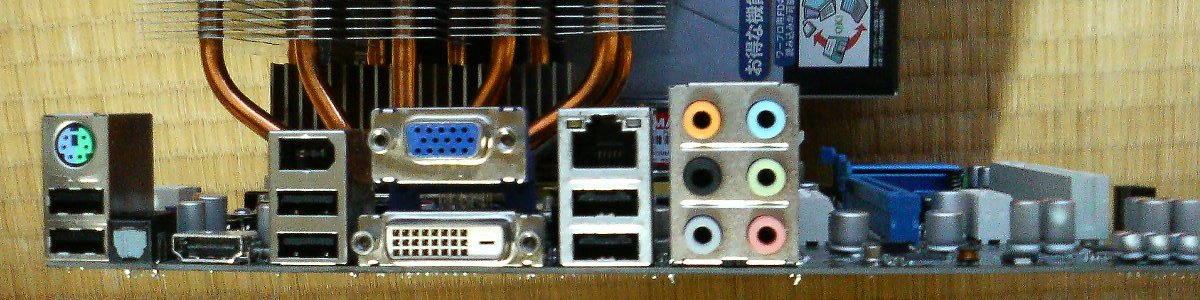
Figure 14.1 — The back of a PC. Everything you plug in here (USB, network, audio, video) shows up as a device in Device Manager. Photo: Hitachi-Train, public domain, via Wikimedia Commons.

Plug a USB stick into one of those sockets and a new node appears in the tree within a second or two. Pull it out and the node disappears (or fades, see Section 6).
But the tree also holds many things you can not touch with your hands:
| Kind of device | Example |
|---|---|
| Real hardware | Graphics card, SSD, Wi-Fi chip, keyboard |
| Chips inside the motherboard | "PCI Express Root Port", "High Definition Audio Controller" |
| Virtual devices (pretend hardware made by software) | "Microsoft Wi-Fi Direct Virtual Adapter", virtual network cards from VPN or virtual-machine programs |
| Logical devices (a part of a bigger device) | A USB webcam may show as a "camera" and also as a separate "microphone" |
| Software-only "devices" | "Microsoft ACPI-Compliant System", "Composite Bus Enumerator" |
Why does software appear as "hardware"? Because the PnP manager uses one tidy model for everything: if a driver needs to be started and managed, it gets a node in the tree. That is why a VPN program can add a "network adapter" you never bought.
What does not appear: Plain programs (like a web browser) and most Windows services are not devices. Printers installed as printer queues are managed in Settings, not here (although a USB printer's port may show up).
1.3 The Views: Different Ways to Look at One Tree
What it is: The View menu changes how the same tree is drawn.
| View | What you see | Best for |
|---|---|---|
| Devices by type (the default) | Groups like "Disk drives", "Display adapters" | Finding a device by what it is |
| Devices by connection | The real tree: root, buses, devices below them | Seeing what is plugged into what |
| Resources by type | Lists of IRQs, I/O ports, memory ranges, DMA, grouped by kind | Seeing which device uses which resource |
| Resources by connection | The same resource lists, but arranged as the tree | Seeing resources and the connection together |
| Show hidden devices | Adds devices that are normally hidden | Finding old drivers and ghost devices |
Two of these views need extra words:
- A resource is something a device needs from the PC to work: an interrupt line, a range of I/O ports, a range of memory addresses, or a DMA channel. You met all four in Chapter 4. Section 8 comes back to them.
- Hidden devices are nodes that exist but are not drawn by default, such as old non-Plug-and-Play drivers.
On older versions of Windows the "Resources" views had extra choices. On Windows 10 and 11 they work as described above, and they may look a little different on your version.
1.4 Ways to Open It
| Method | Steps |
|---|---|
| Quick menu | Press Win + X, then choose Device Manager |
| Run box | Press Win + R, type devmgmt.msc, press Enter |
| Search | Press Win, type "Device Manager" |
| Computer Management | Right-click Start, choose Computer Management, then Device Manager |
You can look as a normal user. To change things (install a driver, disable a device), Windows asks for administrator permission. That is the UAC (User Account Control) box that dims the screen.
The same information is also available from the command line, which is handy for scripts and for copying text:
| Tool | What it shows |
|---|---|
pnputil /enum-devices | Every device in the tree, with its ID and status |
Get-PnpDevice (PowerShell) | The same devices as a table you can filter |
msinfo32 | System Information, with a "Components" section for the same hardware |
You will use these in the Practical Lab.
1.5 What a Node Knows About Itself
Each node in the tree stores a bundle of facts. Device Manager shows them in the Properties window (Section 9):
| Fact | Plain meaning |
|---|---|
| Name | The friendly name shown in the tree |
| Hardware IDs | Names the device uses to introduce itself (Section 3) |
| Class | The family it belongs to (disk, network, mouse...) |
| Driver | Which driver file(s) run it, from whom, which version |
| Status | Working, disabled, or broken with an error code (Section 7) |
| Resources | Interrupts, ports and memory it uses (Section 8) |
| Parent | The device above it in the tree |
Summary
| Term | Plain meaning |
|---|---|
| Device Manager | A window that shows and edits the PnP device tree |
devmgmt.msc | The file name you type in Win + R to open it |
| PnP manager | Kernel part that finds devices and matches drivers |
| Device tree | All devices, drawn as parents and children |
| Node | One device (real, virtual or logical) in the tree |
| Devices by type / by connection | Flat grouped list / the real tree |
| Resources views | Lists of interrupts, ports, memory and DMA in use |
| Show hidden devices | Adds devices that are normally not drawn |