The Big Picture: The Cable Between the PC and the Screen
The GPU has made a finished picture. Now the picture must travel out of the PC and into the monitor. This is the job of the video connection: a port on the PC, a cable, and a port on the monitor.
Over the years, several kinds of connection have been used. First, look at the real thing. This is the end bracket of a graphics card, the metal plate you see at the back of a PC where the monitor cables plug in.
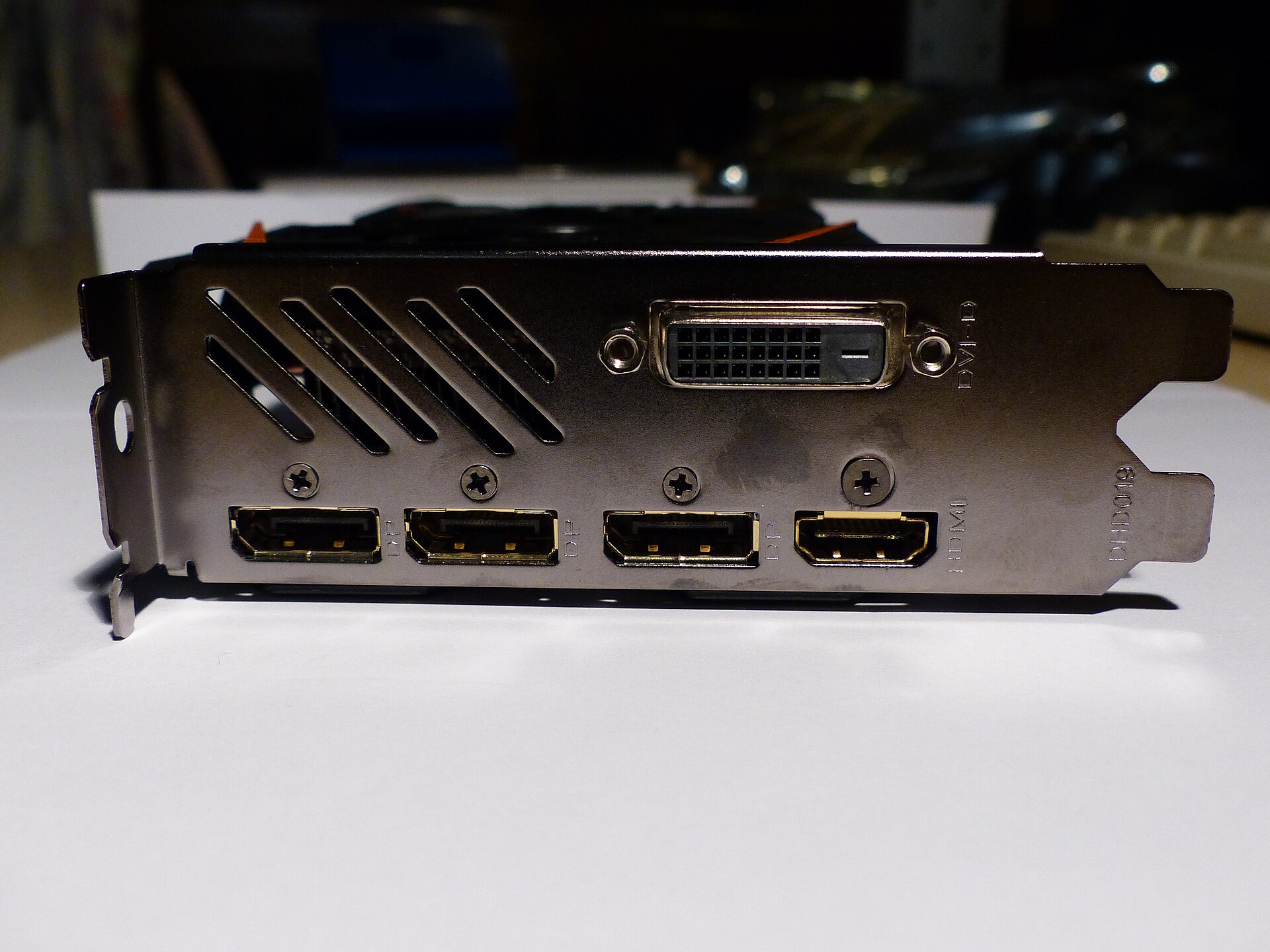
Figure 32.3 — The back plate of a Gigabyte Radeon RX 570 graphics card. At the top left are diagonal slots, air vents that let hot air out. At the top right is one DVI-D socket (a rectangle of small pin holes with a flat slot beside it). Along the bottom are three DisplayPort sockets (each marked "DP", with a clipped corner so the plug only fits one way) and one HDMI socket (marked "HDMI", with a similar shape). Photo: Marc Mongenet, CC BY-SA 4.0, via Wikimedia Commons.

Four different kinds of sockets on one card. Why? Different monitors and TVs use different connections, and the card offers several so that one card fits many screens. Now the second photo, from Chapter 4: the back panel of a whole motherboard.
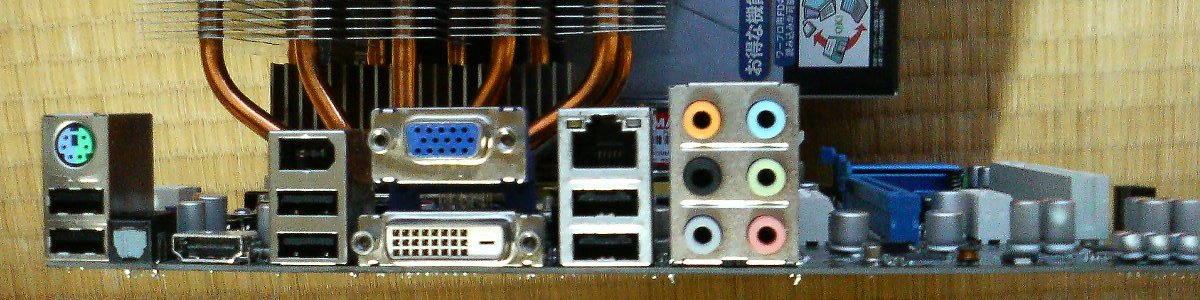
Figure 32.4 — The back panel of an older motherboard. Three video sockets can be seen: the blue, D-shaped VGA socket (15 tiny holes in three rows, with two screws beside it), the DVI socket below it (a white block with a grid of pin holes and a flat slot), and a small HDMI socket at the lower left. These belong to the integrated GPU. Photo: Hitachi-Train, public domain, via Wikimedia Commons.

5.1 HDMI (High-Definition Multimedia Interface)
What it is: HDMI is the connection used by TVs and many PC monitors. It carries digital video and digital audio together in one cable, so a TV needs only one wire from the PC.
HDMI has had many versions. Each new version allows more data per second, and so more pixels and faster refresh rates (Section 6):
| Version | Rough data speed | What it allows (examples, simplified) |
|---|---|---|
| HDMI 1.4 | about 10 Gbit/s | 1080p, and 4K at only 30 Hz |
| HDMI 2.0 | about 18 Gbit/s | 4K at 60 Hz |
| HDMI 2.1 | up to about 48 Gbit/s | 4K at 120 Hz, and higher; variable refresh |
(Gbit/s means billions of bits per second. These are "about" figures, and what you really get depends on the cable, the devices and the settings.)
The HDMI plug also has a small chip in each device so they can recognise each other (Section 5.6).
5.2 DisplayPort
What it is: DisplayPort (often written DP) is the connection designed mainly for computer monitors. Like HDMI, it is digital and can carry sound too.
Key facts:
- Packet-based. DisplayPort sends the picture as small packets of data (like network traffic), not as one fixed stream of colour values. This makes it flexible and easy to improve.
- Daisy-chaining. On monitors that support it, you can connect a monitor to a monitor, so one cable from the PC can feed several screens (this is called MST, multi-stream transport).
- Adaptive sync. DisplayPort has good support for variable refresh rate (Section 6.6).
- Locking plug. The plug has a latch, and one corner is clipped, as you can see in Figure 32.3.
- Versions. Newer versions (DisplayPort 1.2, 1.4, 2.x) raise the bandwidth. Exact numbers differ by version, so check your device's specification.
| HDMI | DisplayPort | |
|---|---|---|
| Typical home | TVs, consoles, many monitors | PC monitors |
| Carries audio? | Yes | Yes |
| Daisy-chaining | No | Yes (on supporting monitors) |
| Plug locks? | No | Yes |
5.3 Signal Transmission: What Travels Down the Wire
What it is: In a digital connection, the picture is sent as bits, one pixel after another, row by row, from the top-left of the picture to the bottom-right (the display scans the frame, Section 7). Fast switching voltages on twisted pairs of wires carry the bits. Each pair carries a signal together with its opposite, which cancels out noise.
 GPU display engine                                   Monitor
 ┌────────────────┐   pixel data, row by row  ───▶   ┌─────────────┐
 │ reads frame    │   (digital bits)                 │ receives    │
 │ from VRAM      │   audio (HDMI / DP)         ───▶ │ the signal  │
 │                │   timing / clock            ───▶ │             │
 │                │ ◀─── EDID read over DDC (I²C)    │ EDID chip   │
 └────────────────┘                                  └─────────────┘
The signal also includes timing information so the monitor knows where each row and each picture begins.
5.4 The Older Connections: VGA and DVI
VGA (Video Graphics Array): The old analogue connection, the blue D-shaped plug in Figure 32.4. The PC sends the picture as continuously varying voltages (analogue), one wire each for red, green and blue. Analogue signals pick up noise and blur, especially on long cables. VGA is still found on old monitors and projectors, but it is slowly disappearing.
DVI (Digital Visual Interface): An early digital connection. Instead of voltages, it sends numbers (bits), so the picture stays sharp. Some DVI types also carry the old analogue signal. The socket in Figure 32.3 is marked DVI-D ("D" means digital only). DVI carries video only, with no sound.
| VGA | DVI | |
|---|---|---|
| Signal | Analogue | Digital (DVI-D) |
| Carries sound? | No | No |
| Picture quality | Can blur or ghost | Sharp |
| Seen today | Old monitors, projectors | Older monitors |
5.5 USB-C with DisplayPort Alt Mode
What it is: Modern laptops often have no HDMI or DP socket. Instead, a USB-C port can carry a video signal. This works through DisplayPort Alt Mode: "alternate mode" means the same USB-C wires are used to carry a DisplayPort signal instead of USB data.
Not every USB-C port can do this. Look for a small DP symbol or a screen symbol next to the port, or check the laptop's manual. A USB-C port with no video support will simply not show a picture.
5.6 EDID: How the Monitor Introduces Itself
What it is: How does your PC know your monitor's resolution? The monitor tells it. Inside the monitor is a tiny memory chip holding a small data table called the EDID (Extended Display Identification Data). It lists:
| EDID item | Example |
|---|---|
| Maker and model | A name, and a serial number |
| Resolutions and refresh rates it supports | 1920×1080 at 60 Hz, and so on |
| Physical size | Used to work out pixel density |
| Colour abilities | Colour formats supported |
The PC reads the EDID over a pair of thin wires in the cable called DDC (Display Data Channel). DDC uses the I²C bus, the same simple two-wire bus you met in Chapter 4 — Motherboard and Hardware Communication. This is why Windows lists the right resolutions for a brand-new monitor without being told anything.
If EDID is missing or broken (a bad cable, a cheap switch box), Windows may fall back to a safe low resolution and not offer the real ones. Replacing the cable often fixes this.
5.7 Cables, Bandwidth and Adapters
The rule: the picture needs a certain number of bits per second. That number depends on three things multiplied together: resolution, refresh rate and colour depth (Section 6). The cable and ports must be able to carry it.
| What you want | Needs |
|---|---|
| 1080p at 60 Hz | Almost any HDMI or DP cable |
| 4K at 60 Hz | HDMI 2.0 or newer, or DP 1.2 or newer, and a good cable |
| 4K at 120 Hz or higher | HDMI 2.1 or a newer DP, and a certified high-speed cable |
Cable problems. An old or cheap cable may be built for an older version. The symptom is a picture that flickers, shows sparkles, drops out, or a refresh rate option that simply doesn't appear. Try a certified cable for the version you need.
Adapters. Converting between connection types is possible, but check carefully:
| Adapter | Notes |
|---|---|
| HDMI to DVI, or DVI to HDMI | Simple: both are digital. No sound over DVI |
| DisplayPort to HDMI | Active versions contain a converter chip; some simple ones work only if the GPU supports it |
| Anything to VGA | Must convert digital to analogue, which needs an active adapter with a chip inside |
An active adapter has electronics inside to change the signal type. A passive one just rewires the pins.
Summary
| Topic | Remember this |
|---|---|
| VGA | Old analogue connection; blue D-shaped plug |
| DVI | Early digital connection; video only |
| HDMI | Digital video and audio; TVs and monitors; 2.0 about 18 Gbit/s, 2.1 up to about 48 Gbit/s |
| DisplayPort | Packet-based, daisy-chaining, adaptive sync; made for monitors |
| USB-C | Can carry video through DisplayPort Alt Mode (if the port supports it) |
| EDID | The monitor's identity data, read over DDC (I²C wires) |
| Bandwidth | Resolution × refresh rate × colour depth must fit the cable |
| Active adapters | Needed for signal conversion, such as digital to VGA |